Introduction
This user manual provides comprehensive instructions for the Fujitsu STYLISTIC Q739 Tablet. It covers essential information regarding setup, operation, maintenance, and troubleshooting to ensure optimal performance and longevity of your device. The Fujitsu STYLISTIC Q739 is a versatile 13.3-inch tablet designed for productivity, featuring an Intel Core i5-8365U processor, 8 GB of RAM, and 256 GB of storage, running on Windows 11 Pro.
Package Contents
Upon unboxing your Fujitsu STYLISTIC Q739 Tablet, please verify that all the following items are included:
- Fujitsu STYLISTIC Q739 Tablet (professionally refurbished)
- Power Adapter
- Power Cable
Note: Packaging may be generic, and included accessories may not be original but are compatible.
Product Overview
Front View

Figure 1: Front view of the Fujitsu STYLISTIC Q739 Tablet, showcasing the 13.3-inch display and the Fujitsu logo in the top left corner. The screen displays a dynamic, circular graphic.
Rear View

Figure 2: Rear view of the Fujitsu STYLISTIC Q739 Tablet. The back panel features a textured surface, a rear camera, and various regulatory and product information labels, including the Intel Core i5 and Windows logos.
Side Views and Ports

Figure 3: Left side view of the Fujitsu STYLISTIC Q739 Tablet, displaying the array of ports including USB, audio jack, and possibly a MicroSD card slot.

Figure 4: Angled view of the Fujitsu STYLISTIC Q739 Tablet, illustrating additional ports on the right side and the bottom edge, which may include a power input and docking connector.
Optional Accessories: Docking Station
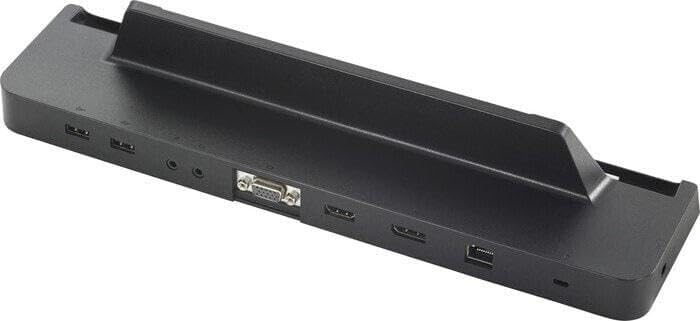
Figure 5: An optional docking station for the Fujitsu STYLISTIC Q739 Tablet. This accessory provides expanded connectivity options, including additional USB ports, HDMI, and VGA, enhancing the tablet's functionality as a desktop replacement.
Setup
Initial Setup
- Charging the Tablet: Connect the provided power adapter to the tablet's charging port and plug it into a power outlet. Allow the tablet to charge fully before first use. The charging indicator light will typically show the charging status.
- Powering On/Off: To power on the tablet, press and hold the power button (usually located on the side) until the Fujitsu logo appears. To power off, go to the Start Menu in Windows 11, select "Power," and then "Shut down."
- Initial Windows 11 Configuration: Upon the first power-on, you will be guided through the Windows 11 Pro setup process. This includes selecting your region, language, connecting to a Wi-Fi network, accepting the license agreement, and setting up your user account.
Connecting Peripherals
The Fujitsu STYLISTIC Q739 Tablet offers various connectivity options for external devices:
- USB Ports: Use the available USB ports (USB, USB 2.0) to connect external keyboards, mice, USB drives, or other compatible accessories.
- Bluetooth: Enable Bluetooth in Windows settings to pair with wireless headphones, speakers, or other Bluetooth-enabled devices.
- Wi-Fi: Connect to wireless networks via the built-in WLAN module. Access Wi-Fi settings through the Windows taskbar network icon.
Operating the Tablet
Touchscreen Navigation
The 13.3-inch touch display allows for intuitive interaction with Windows 11 Pro. Basic gestures include tapping to select, swiping to scroll, pinching to zoom, and using multi-finger gestures for various functions.
Windows 11 Pro Features
Your tablet comes with Windows 11 Pro pre-installed, offering advanced features for productivity and security. Explore the redesigned Start Menu, Snap Layouts for multitasking, Microsoft Edge for browsing, and the Microsoft Store for applications. For detailed information on Windows 11 features, refer to Microsoft's official documentation.
Using the Cameras and Audio
The tablet is equipped with a webcam and microphone for video conferencing and recording. Audio Premium ensures clear sound output through the integrated speakers or connected headphones. Adjust camera and microphone settings through Windows privacy settings or within specific applications.
Maintenance
Cleaning the Tablet
To maintain the tablet's appearance and functionality, regularly clean the screen and body. Use a soft, lint-free cloth slightly dampened with water or a screen-cleaning solution. Avoid harsh chemicals or abrasive materials. Ensure the tablet is powered off and unplugged before cleaning.
Software Updates
Keep your Windows 11 Pro operating system and drivers updated to ensure optimal performance, security, and compatibility. Windows Update automatically downloads and installs updates, but you can manually check for updates via Settings > Windows Update.
Battery Care
To maximize battery life and longevity, avoid extreme temperatures, do not fully discharge the battery frequently, and store the tablet with a partial charge if not used for extended periods.
Troubleshooting
This section addresses common issues you might encounter with your Fujitsu STYLISTIC Q739 Tablet.
- Tablet Not Powering On: Ensure the tablet is charged. Connect the power adapter and wait a few minutes before attempting to power on again. If the issue persists, try a different power outlet or adapter.
- Wi-Fi Connectivity Issues: Check if Wi-Fi is enabled in Windows settings. Restart your router and the tablet. Ensure you are entering the correct Wi-Fi password.
- Performance Slowdowns: Close unnecessary applications. Check Task Manager for resource-intensive processes. Ensure Windows and drivers are up to date. Consider running a disk cleanup.
- System Recovery: If you experience significant software issues, a "Recovery" shortcut is available on your desktop to restore the system to its initial state. Follow the on-screen instructions carefully.
Specifications
| Feature | Description |
|---|---|
| Brand | Fujitsu |
| Model Name | Q739 |
| Model Number | STYLISTIC Q739 Tablet |
| Operating System | Windows 11 Pro |
| Screen Size | 13.3 inches |
| Resolution | 1920 x 1080 (Full HD) |
| Processor | Intel Core i5-8365U |
| RAM | 8 GB DDR3 |
| Storage Capacity | 256 GB SSD |
| CPU Clock Speed | 1.6 GHz |
| Wireless Connectivity | Bluetooth, WLAN |
| Hardware Interface | USB, USB 2.0 |
| Weight | 0.89 kg |
| First Available Date | November 4, 2023 |
Warranty and Support
Warranty Information
The Fujitsu STYLISTIC Q739 Tablet comes with a 1-year warranty. This warranty covers defects in materials and workmanship under normal use. Please retain your proof of purchase for warranty claims. For specific terms and conditions, refer to the warranty documentation provided with your purchase or contact the seller.
Customer Support
For further assistance, technical support, or warranty inquiries, please contact the seller or the authorized service center. Ensure you have your product model number (STYLISTIC Q739 Tablet) and purchase details ready when seeking support.


