
1. Product Overview
The MaxiViz Wireless Solar Security Camera (Model CQ1) provides comprehensive outdoor surveillance with advanced features. Designed for ease of installation and continuous operation, it utilizes solar power to maintain battery charge, eliminating the need for frequent recharging or complex wiring. Key features include 2K resolution, 360° pan and tilt capabilities, AI-powered motion detection, color night vision, and two-way audio communication.
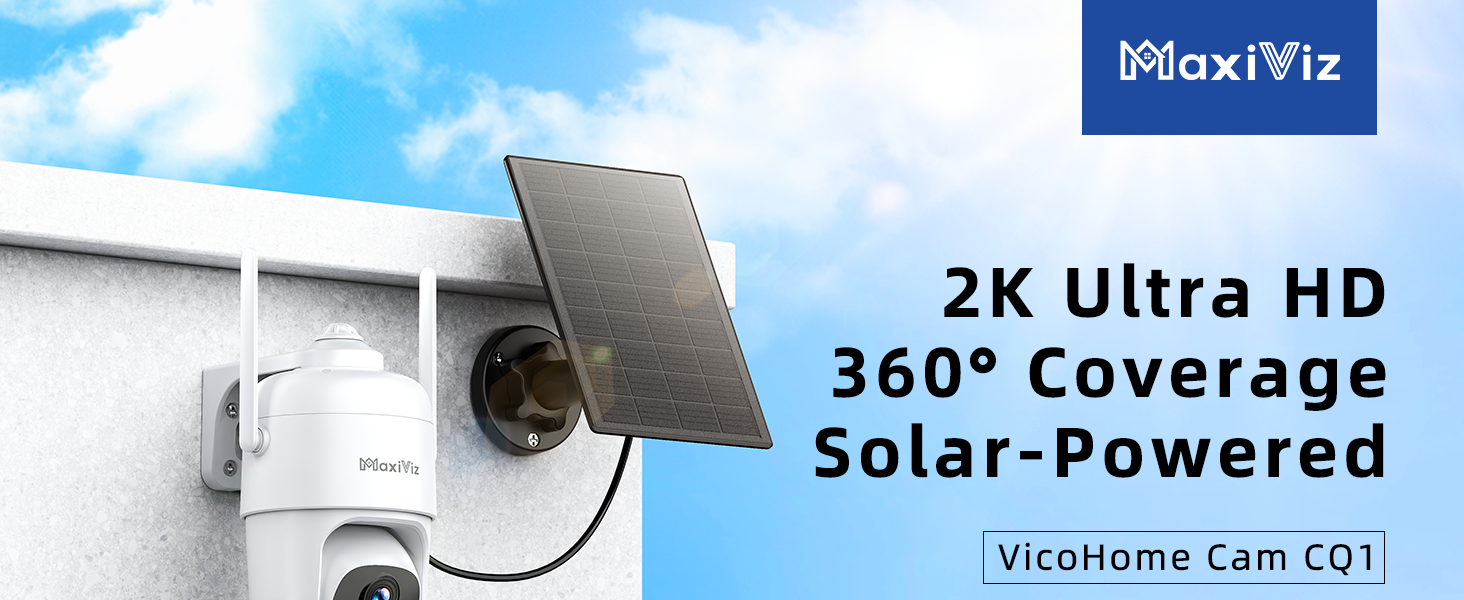
Figure 1: MaxiViz Solar Security Camera with 2K High Resolution, 355° Pan, and 90° Tilt capabilities.
2. What's in the Box
- Solar Security Camera with Solar Panel x 2
- Power Cable x 2
- Bracket for camera & Bracket for solar panel x 2
- Mounting Kit x 1
- User Manual x 1
3. Setup
3.1 Initial Charging
Before initial use, it is recommended to fully charge the camera's internal battery using the provided USB-C power cable. This ensures optimal performance, especially during periods of low sunlight.
3.2 SD Card Installation
The camera supports a Micro SD card (up to 128GB, not included) for local storage. Locate the SD card slot, typically protected by a rubber cover, insert the card, and ensure the cover is securely closed to maintain weatherproofing.
3.3 App Download and Camera Pairing
- Download the VicoHome app from the App Store (iOS) or Google Play Store (Android) by scanning the QR code in the Quick Start guide or searching directly.
- Register an account and log in.
- Follow the in-app instructions to add a new camera. This typically involves powering on the camera and connecting it to your 2.4 GHz Wi-Fi network.
3.4 Mounting the Camera and Solar Panel
The camera and solar panel come with separate mounting brackets. Choose a location that provides optimal sunlight exposure for the solar panel and a clear view for the camera. Use the provided mounting kit to securely attach the brackets to a wall or other suitable surface. Ensure the solar panel is connected to the camera via its cable.

Figure 2: MaxiViz Solar Security Camera mounted with its solar panel for continuous power.
4. Operating Instructions
4.1 Live View and Pan/Tilt/Zoom
Access the live video feed through the VicoHome app. Use the on-screen controls to pan the camera 355° horizontally and tilt 90° vertically. The camera also supports 4X digital zoom for closer inspection of details.
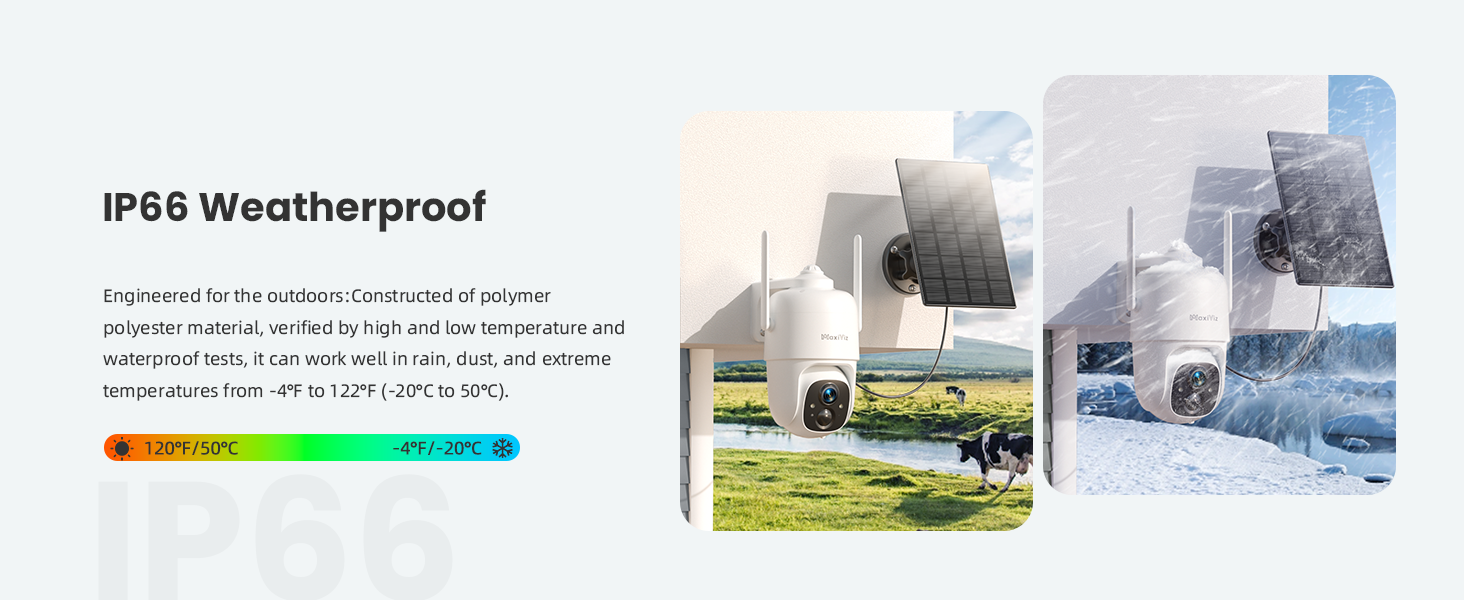
Figure 3: The camera offers a 360° panoramic view, eliminating blind spots.
4.2 Two-Way Audio
The integrated microphone and speaker allow for two-way communication. Use the
