
ASHATA ASHATAbkfrg4783x
ASHATA H61 LGA 1155 Gaming ATX Motherboard User Manual
Model: ASHATAbkfrg4783x
Introduction
This manual provides detailed instructions for the installation, operation, and maintenance of your ASHATA H61 LGA 1155 Gaming ATX Motherboard. Please read this document thoroughly before proceeding with any installation or configuration to ensure proper usage and optimal performance.

Image: Top-down view of the ASHATA H61 LGA 1155 Motherboard, showcasing the CPU socket, RAM slots, and various connectors.

Image: Angled view of the ASHATA H61 LGA 1155 Motherboard, highlighting its compact ATX form factor and component layout.
Important Safety Information

Image: A warning graphic indicating the importance of reading product instructions carefully before use to ensure correct usage.
Always handle the motherboard with care. Static electricity can damage electronic components. Use an anti-static wrist strap or discharge static electricity by touching a grounded metal object before handling the motherboard. Ensure the power supply is disconnected before installing or removing any components.
Specifications

Image: Visual representation of the motherboard highlighting key features such as CPU slot, memory, and storage interfaces.
- CPU Socket: LGA 1155, supporting Intel 2nd Generation Core i3/i5/i7, Pentium, and Celeron series processors.
- Memory: 2 x DDR3 Non-ECC DIMM slots, supporting 1066/1333/1600MHz. Maximum capacity of 16GB (2x8GB).
- Storage: 3 x SATA2.0 ports, 1 x M.2 NVMe NGFF slot (supports high-speed PCIe hard disk switch and SATA2.0 channel via jumper wire).
- Expansion Slots: 1 x PCIe 3.0 x16 slot, 1 x PCIe x1 slot.
- Video Output: VGA, HD Multimedia Interface (HDMI).
- USB Ports: 6 x USB 2.0 ports (rear I/O and internal headers).
- LAN: 100Mbps Ethernet.
- Audio: 6-channel HD audio output.
- Power Supply: 24+4pin power socket, 3-phase power supply, all solid-state capacitor design.
- Form Factor: Micro ATX (Product Dimensions: 6.69 x 6.69 x 6.7 inches).
Detailed Specifications Table
| Feature | Detail |
|---|---|
| CPU Socket | LGA 1155 |
| Compatible Processors | Intel Celeron, Intel Pentium, Intel Core i3/i5/i7 (2nd Gen) |
| RAM Memory Technology | DDR3 Non-ECC |
| Memory Clock Speed | 1066/1333/1600 MHz |
| Max Memory Capacity | 16GB |
| Chipset Type | Intel H61 Express |
| Storage Interfaces | 3 x SATA2.0, 1 x M.2 NVMe NGFF |
| Graphics Card Slot | 1 x PCIe 3.0 x16 |
| Expansion Slots | 1 x PCIe x1 |
| Video Output Ports | VGA, HDMI |
| USB Ports | 6 x USB 2.0 |
| LAN Speed | 100Mbps |
| Audio Output | 6-channel HD |
| Power Connector | 24+4pin |
| Form Factor | Micro ATX |
| Product Dimensions | 6.69 x 6.69 x 6.7 inches |
| Item Weight | 1.08 pounds |
Setup Guide
This section outlines the steps for installing components onto your motherboard. Ensure all power is disconnected from your system before beginning installation.

Image: Diagram illustrating the layout of the ASHATA H61 motherboard with key components and ports labeled for easy identification.
1. CPU Installation
- Locate the LGA 1155 CPU socket on the motherboard.
- Gently push down the load lever and pull it to the side to open the CPU socket cover.
- Carefully align the notches on your LGA 1155 CPU with the corresponding keys on the socket. Ensure the CPU is oriented correctly.
- Place the CPU into the socket without forcing it. It should sit flush.
- Close the socket cover and push the load lever back into its locked position.
- Install the CPU cooler according to its manufacturer's instructions.
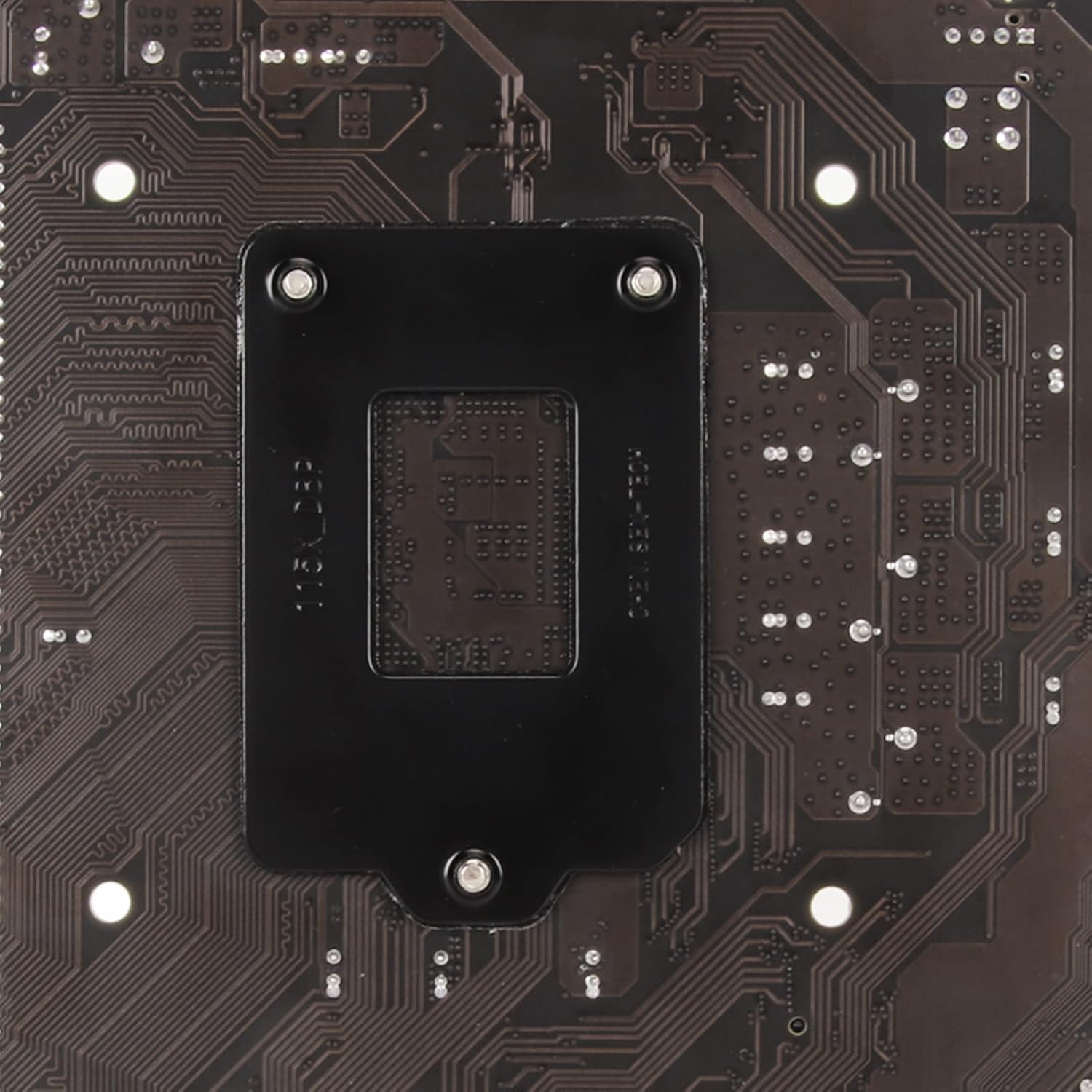
Image: The underside of the motherboard showing the CPU socket backplate, which provides support for CPU cooler mounting.
2. RAM Installation
- Locate the two DDR3 DIMM slots.
- Open the clips at both ends of the memory slot.
- Align the notch on the DDR3 memory module with the key in the DIMM slot.
- Insert the memory module firmly into the slot until the clips snap into place, securing the module.
- Repeat for the second memory module if installing two.

Image: Close-up view of the DDR3 RAM slots and various front panel headers on the motherboard.
3. Storage Device Installation
SATA Drives
- Connect one end of a SATA data cable to a SATA2.0 port on the motherboard.
- Connect the other end of the SATA data cable to your hard drive or SSD.
- Connect a SATA power cable from your power supply to the hard drive or SSD.
M.2 NVMe/NGFF SSD
- Locate the M.2 slot on the motherboard.
- Insert the M.2 SSD into the slot at a 30-degree angle.
- Gently push down the SSD and secure it with the provided screw.
- If necessary, adjust the jumper wire near the M.2 slot to select between NVMe (PCIe) or NGFF (SATA) mode, depending on your M.2 SSD type. Refer to the motherboard diagram for jumper location.
4. Power Connections
- Connect the 24-pin ATX power connector from your power supply to the main 24-pin power socket on the motherboard.
- Connect the 4-pin ATX 12V power connector from your power supply to the 4-pin power socket near the CPU.
5. Graphics Card Installation
- Locate the PCIe 3.0 x16 slot.
- Remove the corresponding expansion slot cover from your PC case.
- Align your graphics card with the PCIe x16 slot and press it firmly until it is seated correctly and the retention clip locks into place.
- Secure the graphics card to the case with a screw.
- Connect any necessary PCIe power cables from your power supply to the graphics card.
6. Peripheral Connections (Rear I/O and Front Panel)
Connect your peripherals to the appropriate ports on the rear I/O panel and connect your case's front panel cables to the motherboard headers.
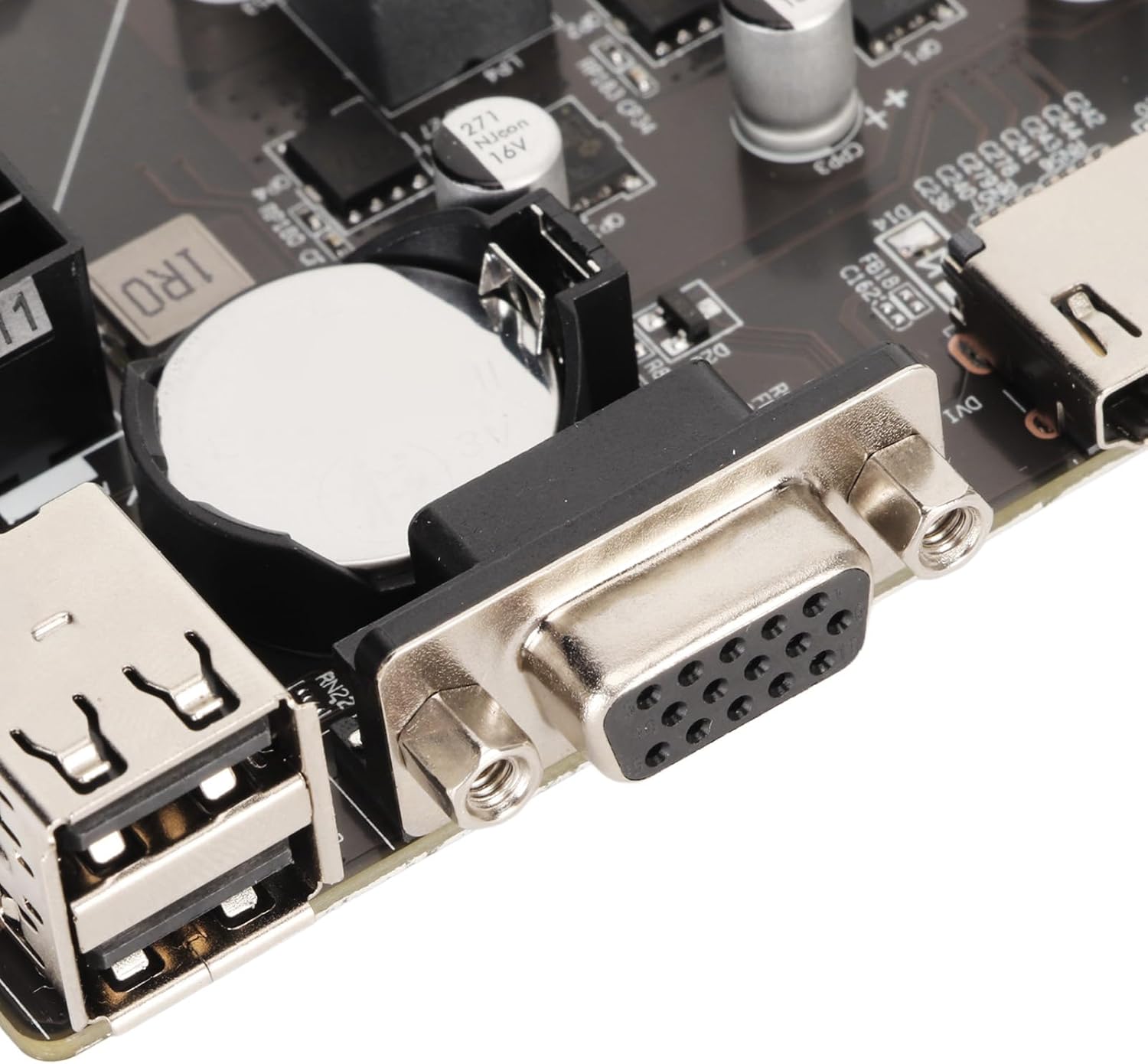
Image: Close-up view of the motherboard's rear input/output panel, showing the VGA and USB 2.0 ports.
- USB Ports: Connect USB devices (keyboard, mouse, etc.) to the USB 2.0 ports.
- Video Output: Connect your monitor to either the VGA or HDMI port.
- LAN Port: Connect an Ethernet cable for network access.
- Audio Jacks: Connect speakers, headphones, or microphones to the audio jacks.
- Front Panel Headers: Connect your case's power button, reset button, HDD LED, power LED, and front USB/audio ports to the corresponding headers on the motherboard. Refer to the motherboard layout diagram for header locations.
Operating Instructions
1. Initial Boot-up
- After all components are installed and connected, connect the power cable to your power supply and turn on the power switch.
- Press the power button on your PC case.
- The system should power on, and you should see a display on your monitor. If not, refer to the Troubleshooting section.
2. BIOS/UEFI Configuration
To enter the BIOS/UEFI setup, press the designated key (usually DEL or F2) repeatedly during the initial boot sequence. Within the BIOS/UEFI, you can configure various system settings.
- Boot Order: Set the boot priority for your operating system drive.
- Date and Time: Adjust the system date and time.
- System Information: View details about your installed CPU, RAM, and other hardware.
- Fan Control: This motherboard may have limited or no fan speed control options within the BIOS. Users have reported that fans may operate at 100% speed without adjustable control.
- M.2 Mode: Ensure the M.2 slot is configured correctly for NVMe or NGFF mode if you are using an M.2 SSD.
- UEFI/Legacy Boot: Configure boot mode as required by your operating system. This motherboard supports UEFI, TPM, and Secure Boot.
3. Driver Installation
After installing your operating system, install the necessary drivers for the motherboard's components (chipset, LAN, audio, etc.). These drivers are typically available on the manufacturer's website or included on a driver CD (if provided). Ensure you install the correct drivers for your operating system version.
Maintenance
1. Cleaning
- Regularly clean dust from your computer case and motherboard components using compressed air.
- Ensure the system is powered off and unplugged before cleaning.
- Avoid using liquid cleaners directly on components.
2. BIOS Updates
Periodically check the manufacturer's website for BIOS updates. BIOS updates can improve system stability, compatibility, and performance. Follow the instructions provided by the manufacturer carefully when performing a BIOS update, as an incorrect update can render the motherboard inoperable.
Troubleshooting
If you encounter issues with your motherboard, refer to the following common troubleshooting steps:
- No Power/No Boot:
- Ensure all power cables (24-pin ATX, 4-pin CPU, PCIe power) are securely connected.
- Verify the power supply is functioning correctly.
- Check front panel connections (power button, reset button).
- Try booting with minimal components (CPU, one RAM stick, GPU if no integrated graphics) to isolate the issue.
- No Display/No Splash Screen:
- Ensure your monitor is connected to the correct video output port (VGA or HDMI) on the motherboard or graphics card.
- Reseat the graphics card and RAM modules.
- Test with a different monitor or cable if possible.
- If using a dedicated graphics card, ensure it is properly powered.
- System Instability/Crashes:
- Check RAM modules for proper seating.
- Ensure CPU cooler is properly installed and making good contact.
- Verify all drivers are installed and up to date.
- Check for overheating issues (monitor CPU/GPU temperatures).
- Fan Noise:
- Some users have reported that this motherboard may not offer fan speed control, leading to fans running at 100% speed. This is a characteristic of the motherboard's design and may not be resolvable through software or BIOS settings.
- M.2 SSD Not Detected:
- Ensure the M.2 SSD is fully seated in the slot.
- Verify the M.2 jumper setting is correct for NVMe or NGFF mode.
- Check BIOS settings to ensure the M.2 slot is enabled and configured correctly.
Warranty and Support
For warranty information, please refer to the documentation provided with your purchase or contact your retailer. ASHATA products typically come with a standard manufacturer's warranty. For technical support, please contact the seller or refer to the ASHATA official support channels if available.
It is recommended to keep your proof of purchase for warranty claims.
Ask a question about this manual
Ask about setup, troubleshooting, compatibility, parts, safety, or missing instructions. Manuals+ will review the question and use this page’s manual context to help answer it.