Introduction
Thank you for choosing the R-Go Split Keyboard. This ergonomic keyboard is designed to enhance your typing comfort and prevent discomfort associated with prolonged computer use. Its unique split design allows for natural wrist positioning, and the integrated break software promotes healthy work habits. This manual provides essential information for setting up, operating, maintaining, and troubleshooting your new keyboard.
Key Features
- Ergonomic Split Design: Two separate parts allow for optimal wrist and arm positioning.
- Break Software Integration: Patented software with LED indicators to remind you to take breaks.
- Ultra-Thin Profile: Designed to prevent pinching of blood vessels and tendons.
- Light Scissor Mechanism Keystroke: Provides comfortable and responsive typing.
- Bluetooth 5.0 Connectivity: Seamless wireless connection to up to 3 devices.
- Multi-Device Compatibility: Works with Windows, macOS, Android, and Linux systems.
- Rechargeable Battery: USB-C charging with long battery life.
- Eco-Friendly Materials: Made from recycled plastic and aluminum, with plastic-free packaging.
Setup Guide
Package Contents
Ensure all items are present:
- R-Go Split Keyboard (Left and Right halves)
- USB-C Charging Cable (with USB-A converter)
- User Manual (this document)
Charging the Keyboard
Before first use, fully charge your R-Go Split Keyboard.
- Connect the small end of the USB-C cable to the charging port on the keyboard.
- Connect the other end of the USB-C cable (or USB-A converter) to a powered USB port on your computer or a USB wall adapter.
- A full charge takes approximately 2.5 hours and provides up to 140 hours of battery use.

Image: The R-Go Split Keyboard connected to a USB-C charging cable, illustrating the charging process. A graphic indicates "No batteries required" and "Full charge for 140 hours of battery use" after 2.5 hours of charging.
Pairing Your Keyboard via Bluetooth
The R-Go Split Keyboard can connect to up to three devices via Bluetooth 5.0.
- Locate the power switch on the back of the keyboard. Turn the switch to the right (ON position) to power on the keyboard.
- Identify the desired Bluetooth channel (F1, F2, or F3) on the keyboard.
- Press and hold the Fn key simultaneously with the chosen channel key (F1, F2, or F3) for at least 3 seconds. The pair indicator light will begin to flash, indicating it is in pairing mode.
- On your device (computer, tablet, or smartphone), navigate to Bluetooth settings and select "R-Go Split Keyboard" from the list of available devices.
- Follow any on-screen prompts to complete the pairing process. The indicator light will become solid when successfully paired.
- Repeat these steps to pair with up to two additional devices using the other F-keys (F1, F2, F3).
Video: A demonstration of how to pair the R-Go Split Bluetooth Keyboard with a device. It shows the power switch, and the process of holding the Fn key with F1, F2, or F3 to initiate pairing.

Image: A visual guide demonstrating the pairing process for the R-Go Split Keyboard, highlighting the Fn key and channel keys (Ch. 1, 2, or 3).
Operating Instructions
Ergonomic Positioning
The R-Go Split Keyboard is designed for optimal ergonomic comfort. Position the two halves of the keyboard to allow your wrists to remain straight and your arms to be at a natural, relaxed angle. Avoid bending your wrists inwards or outwards.
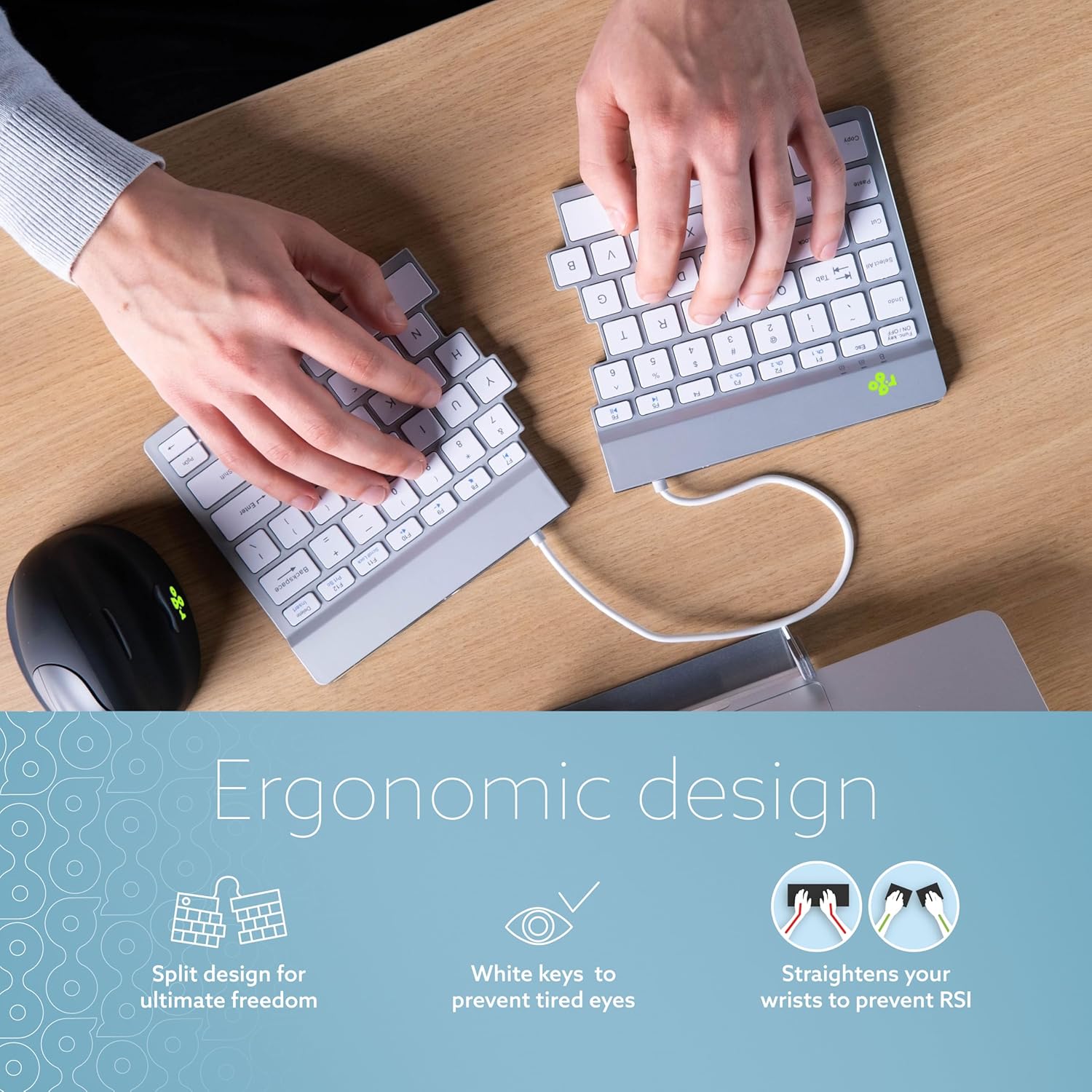
Image: An overhead view of a user's hands typing on the R-Go Split Keyboard, demonstrating the ergonomic split design that allows for straight wrists and relaxed arm positioning.
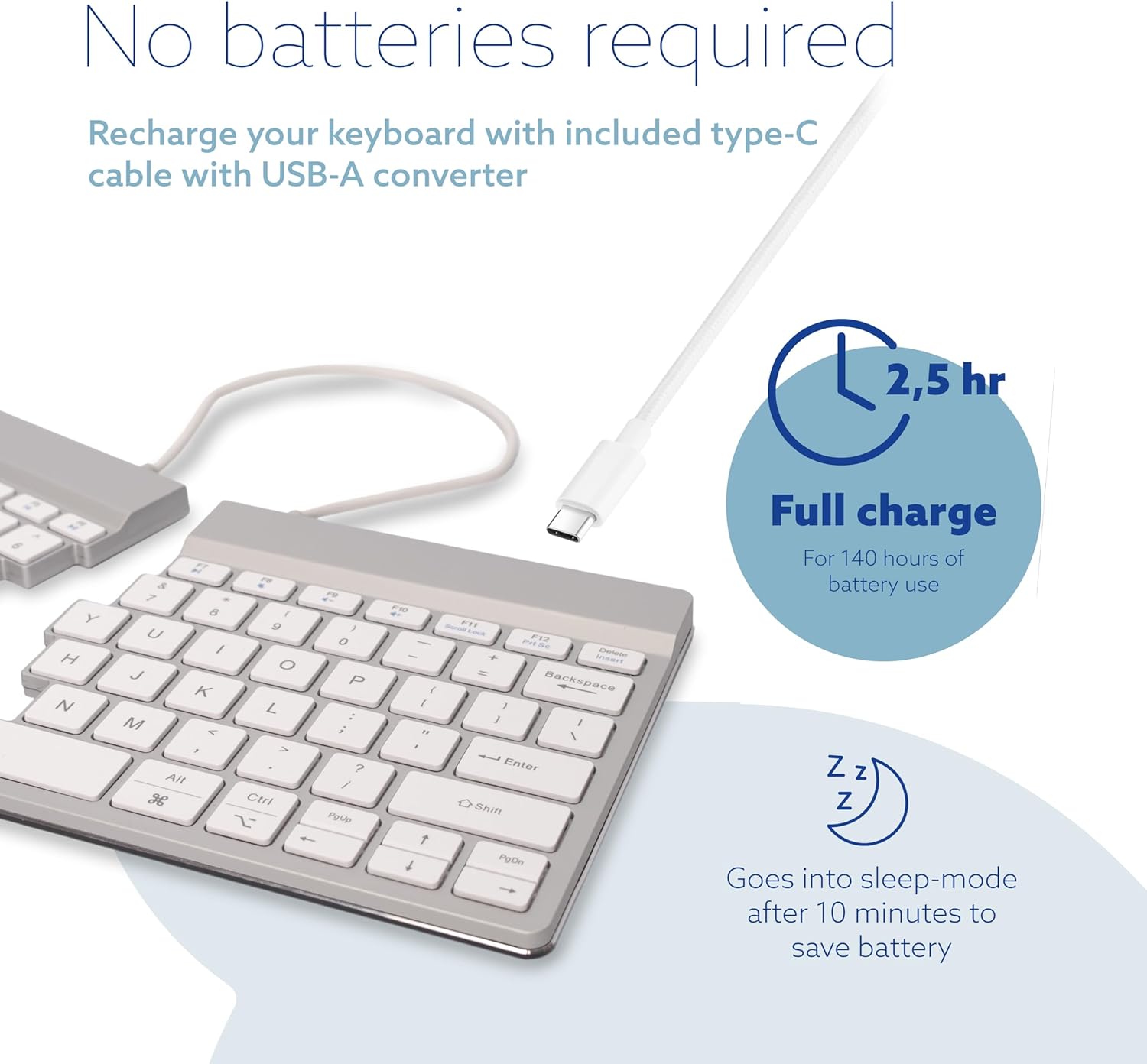
Image: A close-up of a user's hands on the R-Go Split Keyboard, emphasizing the ultrathin design and the importance of typing with relaxed wrists in a flat position to prevent RSI.
Break Software (LED Indicator)
The keyboard features a patented Break software that uses an LED color indicator to remind you to take breaks, promoting healthy work habits.
- The LED indicator will change color to signal when it's time for a break.
- To get personal break advice and customize settings, download the Break LED-controller software from the official R-Go Tools website.

Image: The R-Go Split Keyboard with an illustration of the LED break indicator. It shows a green light for "You are working healthily!" and a red light for "Skipped a break".
Image: A close-up of the R-Go Split Keyboard showing the LED indicator. It illustrates a yellow light for "You need to take a break" and a red light for "You skipped a break".
Hotkeys and Multimedia Keys
The keyboard includes dedicated hotkeys and multimedia keys for increased efficiency.
| Key Combination | Function |
|---|---|
| Fn + F1 | Bluetooth Channel 1 |
| Fn + F2 | Bluetooth Channel 2 |
| Fn + F3 | Bluetooth Channel 3 |
| Fn + F4 | Previous Track |
| Fn + F5 | Play/Pause |
| Fn + F6 | Next Track |
| Fn + F7 | Mute Volume |
| Fn + F8 | Volume Down |
| Fn + F9 | Volume Up |
| Fn + F10 | Print Screen |
| Fn + F11 | Scroll Lock |
| Fn + F12 | Pause Break |
| Fn + Esc | Function Key Lock/Unlock |

Image: An illustration of the R-Go Split Keyboard highlighting the hotkeys and multimedia keys, indicating faster and more efficient work.
Maintenance and Care
To ensure the longevity and optimal performance of your R-Go Split Keyboard, follow these maintenance guidelines:
- Cleaning: Use a soft, lint-free cloth slightly dampened with water or a mild cleaning solution to wipe down the keyboard surface. Avoid harsh chemicals, abrasive materials, or excessive moisture.
- Dust Removal: Use compressed air to remove dust and debris from between the keys.
- Storage: When not in use, store the keyboard in a clean, dry environment away from extreme temperatures and direct sunlight.
- Handling: Avoid dropping the keyboard or subjecting it to strong impacts. Do not attempt to disassemble the keyboard, as this may void the warranty.
Troubleshooting
| Problem | Possible Cause | Solution |
|---|---|---|
| Keyboard does not turn on. | Battery is depleted. | Charge the keyboard using the provided USB-C cable. |
| Keyboard does not connect via Bluetooth. | Keyboard is not in pairing mode; device Bluetooth is off; interference. | Ensure keyboard is in pairing mode (flashing LED). Turn device Bluetooth off and on. Move closer to the device. Try re-pairing. |
| Keys are unresponsive or typing is delayed. | Low battery; Bluetooth interference; software issue. | Charge the keyboard. Reduce distance to device. Restart your computer/device. Check for driver updates. |
| Break indicator LED is not working. | Break software not installed or running. | Download and install the Break LED-controller software from the R-Go Tools website. Ensure the software is running in the background. |
If you encounter issues not listed here, please refer to the Support section for further assistance.
Product Specifications
| Feature | Detail |
|---|---|
| Model Number | RGOSBUSWLWH |
| Connectivity | Bluetooth 5.0 |
| Compatibility | Windows, macOS, Android, Linux |
| Keyboard Type | Split, Ergonomic, Scissors Mechanism |
| Number of Keys | 87 |
| Dimensions (L x W x H) | 11.9" x 5.5" x 0.35" (303mm x 140mm x 8-10mm) |
| Item Weight | 12.3 ounces (approx. 348 grams) |
| Battery Life | Up to 140 hours of use per charge |
| Charging Time | Approx. 2.5 hours |
| Charging Port | USB-C |
| Materials | Recycled plastic, Aluminum |

Image: A detailed diagram of the R-Go Split Keyboard showing its dimensions (length, width, thinness) and key features like easy portability, ultrathin aluminum frame, and Bluetooth 5.0.
Warranty Information
The R-Go Split Keyboard comes with a 1-year limited warranty from the date of purchase. This warranty covers manufacturing defects in materials and workmanship under normal use. It does not cover damage caused by accident, abuse, misuse, unauthorized modification, or external causes such as drops or liquid damage.
Please retain your proof of purchase for warranty claims. For detailed warranty terms and conditions, please visit the official R-Go Tools website or contact customer support.
Support and Contact
For further assistance, technical support, or to download the Break LED-controller software, please visit the official R-Go Tools website:
You can also reach out to R-Go Tools customer service through their website for specific inquiries.


