Introduction
This manual provides detailed instructions for the installation, operation, and maintenance of your Amaseaudio Android 14 Car Stereo. Please read this manual thoroughly before using the product to ensure proper function and safety.
Product Overview and Compatibility
The Amaseaudio Android 14 Car Stereo is designed to enhance your in-car entertainment and navigation experience. It features a 9-inch display, Quad-Core processor, DSP+, Wireless Apple Carplay, and Android Auto support.
Compatible Models:
- BMW E53 X5 (1999-2006)
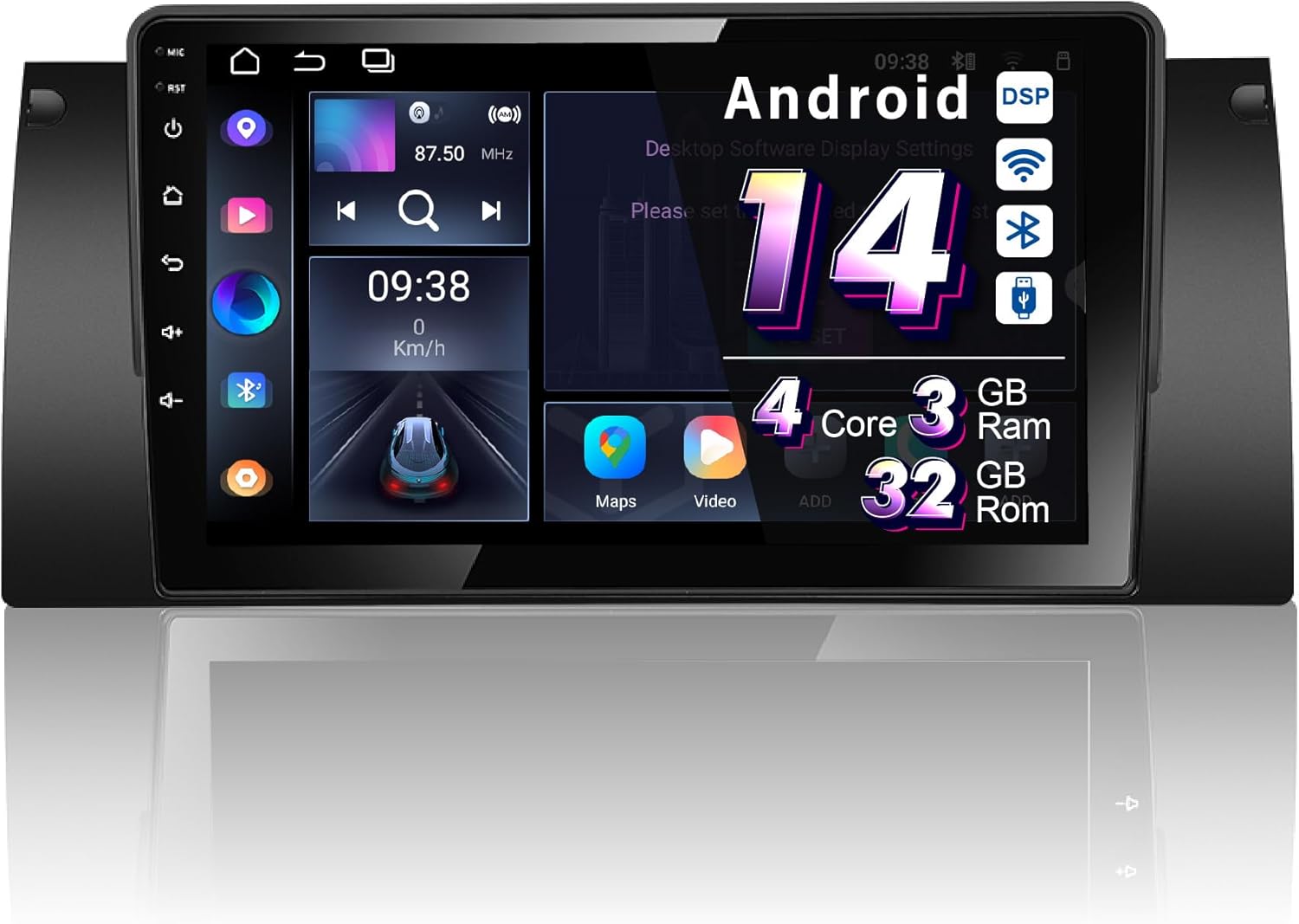
Figure 1: Amaseaudio Android 14 Car Stereo main unit, showcasing its sleek design and large display.
Key Features
- Operating System: Android 14.0 with Quad-Core processor, 3GB RAM, and 32GB ROM.
- Wireless Connectivity: Built-in Wireless Apple Carplay and Android Auto, Bluetooth 5.0, 2.4GHz WiFi, and 4G support.
- Audio Enhancements: Integrated DSP (Digital Sound Processor) for superior audio quality.
- Navigation: Built-in Google Maps for GPS navigation.
- Multimedia: Supports 1080p video playback, split-screen functionality.
- Expandability: Supports OBDII and rear camera (devices not included).

Figure 2: Overview of key features including Android 14, Wireless Carplay, DSP+, WiFi, 4G, and Bluetooth 5, highlighting the system's core capabilities.
Setup and Installation
Proper installation is crucial for the optimal performance of your car stereo. It is recommended to have the installation performed by a qualified professional.
Pre-Installation Check:
- Ensure your vehicle is a BMW E53 X5 (1999-2006).
- Verify all included accessories are present (refer to the "Accessories" section).
- Disconnect the vehicle's battery before starting installation.
Installation Steps:
- Remove the original car stereo unit from your BMW E53 X5 dashboard.
- Connect the provided wiring harness to the car stereo and the vehicle's existing wiring. Ensure all connections are secure.
- Connect the GPS antenna, WiFi antenna, and any other external accessories (e.g., rear camera, external microphone).
- Carefully slide the new Amaseaudio car stereo into the dashboard opening until it clicks into place.
- Reconnect the vehicle's battery and test the unit's functionality.
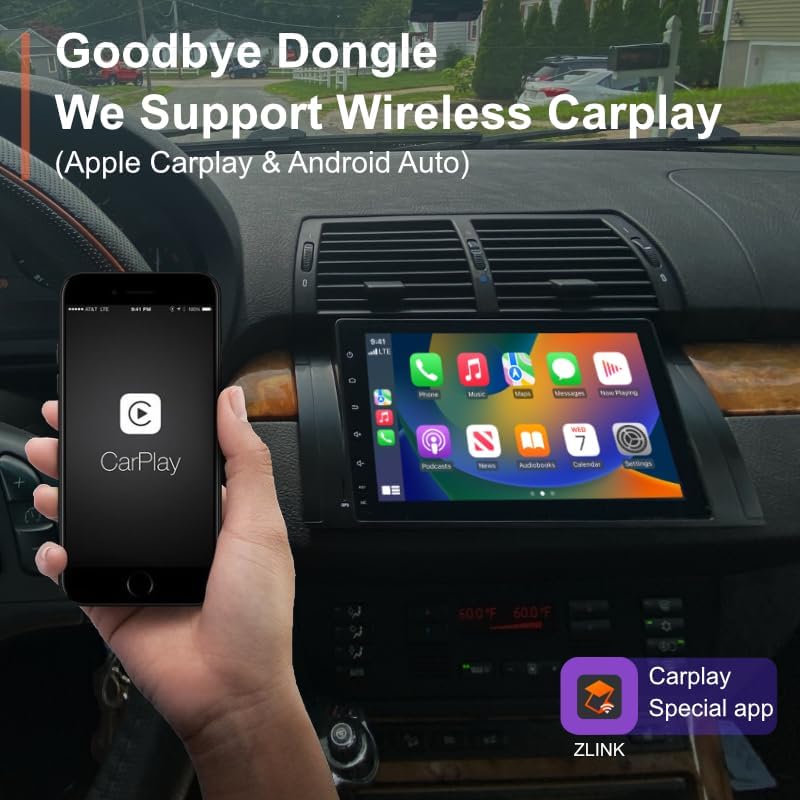
Figure 3: Visual comparison of the BMW E53 X5 dashboard before and after the Amaseaudio car stereo installation, showing the integrated fit.
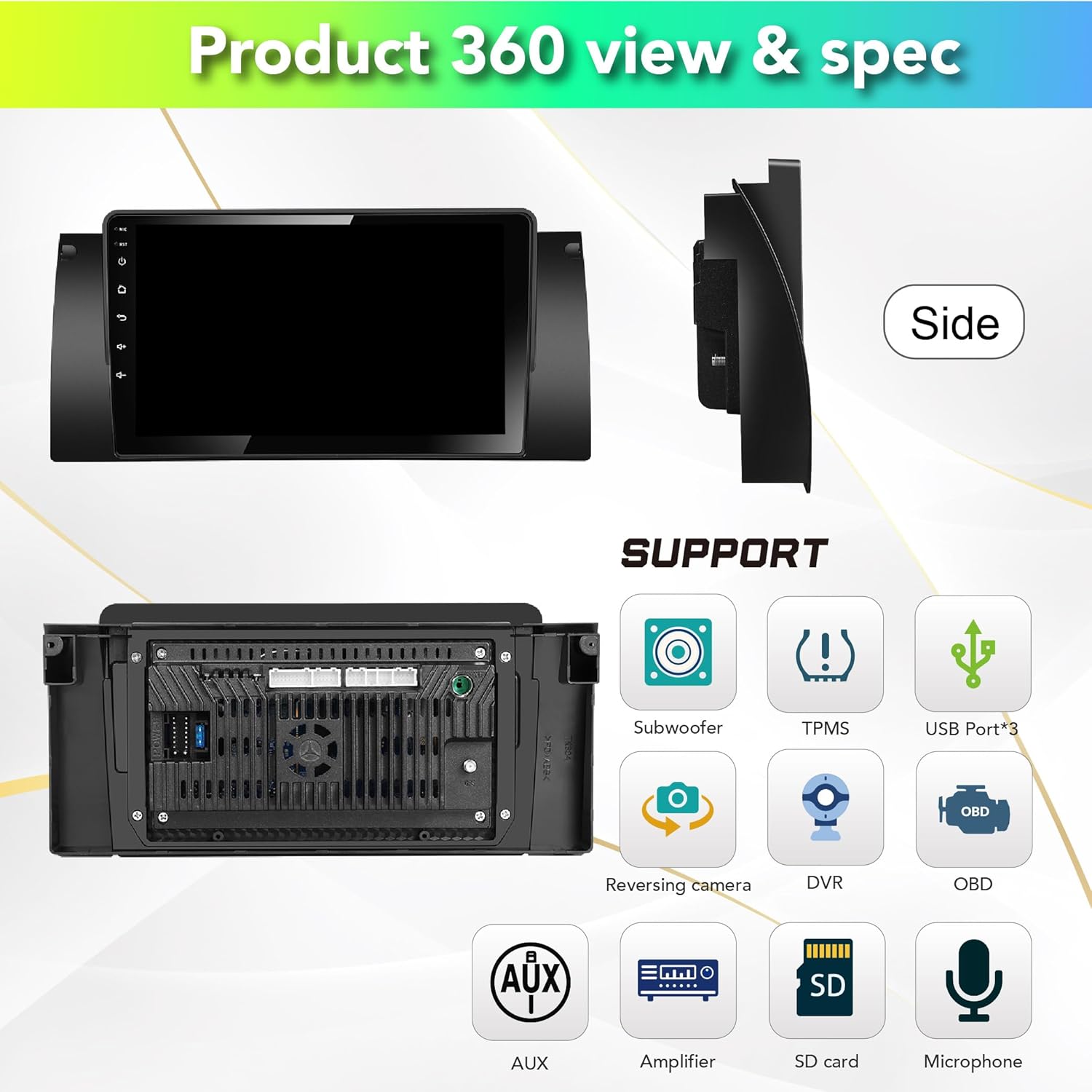
Figure 4: Rear view of the car stereo showing various connection ports for subwoofer, TPMS, USB, reversing camera, DVR, OBD, AUX, amplifier, SD card, and microphone.
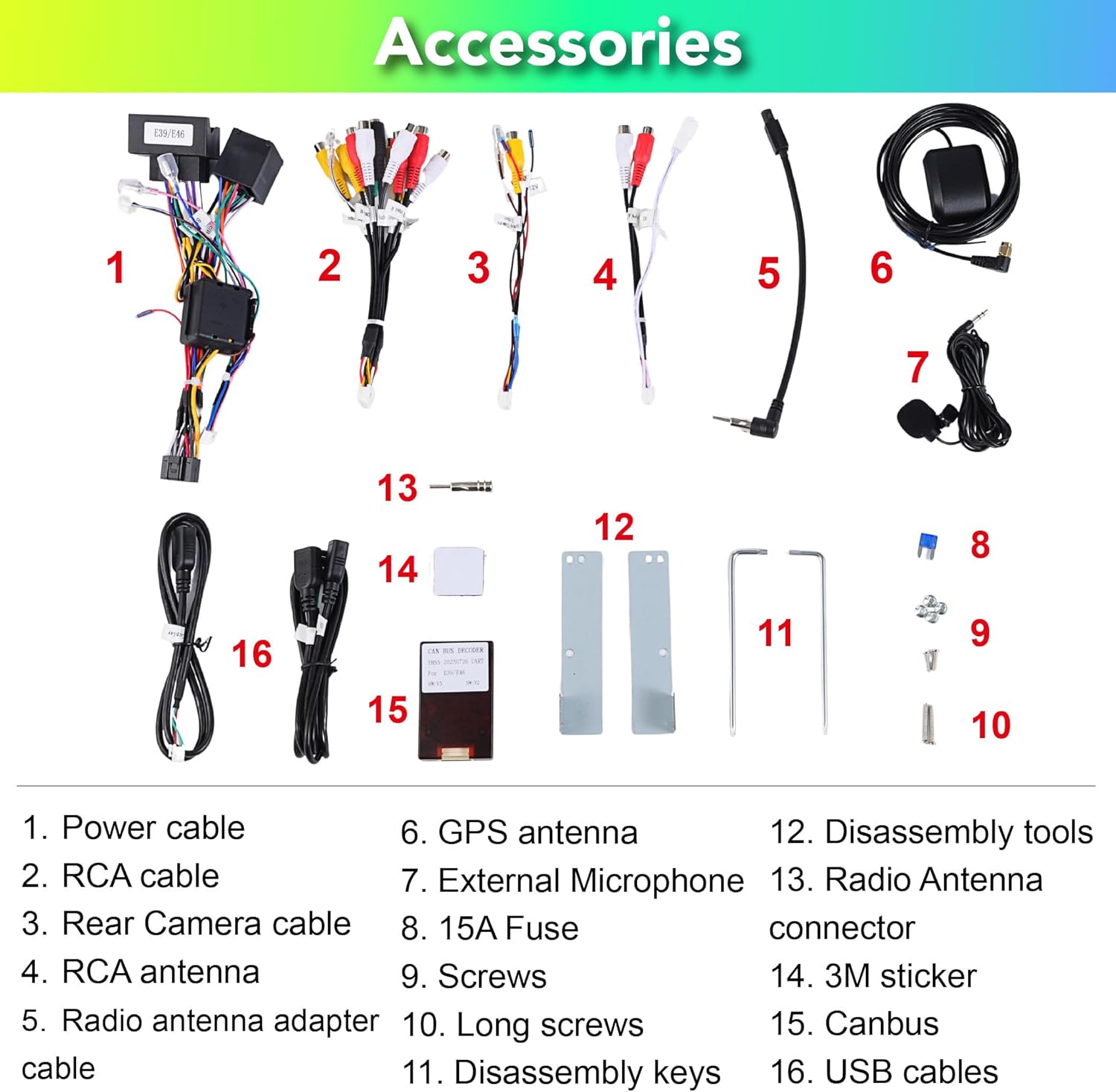
Figure 5: List of included accessories: Power cable, RCA cable, Rear Camera cable, RCA antenna, Radio antenna adapter cable, GPS antenna, External Microphone, 15A Fuse, Screws, Long screws, Disassembly keys, Disassembly tools, Radio Antenna connector, 3M sticker, Canbus, USB cables.

Figure 6: Detailed pin definitions for the 18PIN power supply socket and the 60PIN multi-functional socket, including definitions for AUX video input, audio outputs, USB, and other connections.
Operating Instructions
System Interface and Navigation:
Upon startup, the unit will display the main Android interface. You can customize themes and button colors. Navigate through applications using the touchscreen.

Figure 7: Examples of different user interface themes and a selection of pre-installed and downloadable applications like Google Maps, Netflix, and Play Store.
Wireless Apple Carplay & Android Auto:
The unit comes with a built-in Carplay app. Connect your iPhone or Android phone wirelessly via Bluetooth to access navigation, music, messages, and more directly on the stereo screen.

Figure 8: Demonstration of wireless Apple Carplay and Android Auto, showing a smartphone connected to the car stereo display for seamless integration.
Digital Sound Processor (DSP+):
Utilize the built-in DSP for advanced audio adjustments. This includes a 15-band graphic equalizer, preset EQ modes, special sound effects (Equiloudness, Surround system enhancement), and time correction.

Figure 9: Screenshots of the DSP interface, illustrating the 15-band equalizer, special effect adjustments, and time correction settings for optimizing audio output.
Connectivity (4G, WiFi, Bluetooth):
- WiFi: Connect to available Wi-Fi networks (2.4GHz supported) to access online content and download apps.
- Bluetooth 5.0: Pair your smartphone for hands-free calling, music streaming, and contact synchronization.
- 4G: Insert a 4G SIM card (not included) for mobile data connectivity.
GPS Navigation:
The unit comes with built-in Google Maps. Ensure a stable internet connection for real-time traffic updates and accurate navigation.
Other Functions:
- Split Screen: Run two applications simultaneously on the screen.
- Rear Camera Support: Connect an aftermarket rear camera for parking assistance (camera not included).
- OBDII Support: Connect an OBDII scanner (not included) to monitor vehicle diagnostics.
- FM/AM Radio: Tune into your favorite radio stations.
Maintenance
To ensure the longevity and optimal performance of your Amaseaudio car stereo, follow these maintenance guidelines:
- Cleaning: Use a soft, dry cloth to clean the screen and unit. Avoid abrasive cleaners or solvents.
- Software Updates: Regularly check for and install system updates to improve performance and security. The unit supports OTA (Over-The-Air) updates.
- Environmental Conditions: Avoid exposing the unit to extreme temperatures, direct sunlight for prolonged periods, or excessive moisture.

Figure 10: Screenshot of the system update interface, indicating the current software version and the option to check for new updates to keep the system optimized.
Troubleshooting
If you encounter issues with your car stereo, refer to the following common problems and solutions:
| Problem | Possible Cause | Solution |
|---|---|---|
| Unit does not power on. | Loose power connection, blown fuse, vehicle battery issue. | Check power cables and connections. Inspect the 15A fuse. Ensure vehicle battery is charged. |
| No sound output. | Incorrect wiring, volume too low, mute enabled, speaker issues. | Verify speaker wiring. Increase volume. Check if mute is active. Test with different audio sources. |
| GPS signal weak or inaccurate. | GPS antenna not properly installed or obstructed. | Ensure GPS antenna is placed in an unobstructed location (e.g., dashboard). Check antenna connection. |
| Wireless Carplay/Android Auto not connecting. | Bluetooth not enabled, phone not paired, app issues. | Ensure Bluetooth is on for both devices. Re-pair the phone. Restart the Carplay/Android Auto app on the unit and phone. |
If the problem persists after attempting these solutions, please contact customer support.
Specifications
| Feature | Detail |
|---|---|
| Model Number | Android 14, 4Cores, (3+32GB) |
| Operating System | Android 14.0 |
| Processor | Quad-Core |
| RAM | 3GB |
| ROM | 32GB |
| Display Size | 9 Inches |
| Connectivity | Bluetooth 5.0, Wi-Fi (2.4GHz), 4G |
| Special Features | DSP+, Wireless Carplay, Android Auto |
| Map Type | Online map (Google Maps built-in) |
| Item Weight | 1.87 pounds |
| Package Dimensions | 13.39 x 11.81 x 4.21 inches |
| Country of Origin | Hong Kong |
Warranty and Support
Warranty Information:
The Amaseaudio Android 14 Car Stereo comes with a One Year Warranty. This warranty covers defected parts, excluding the screen. Human-caused damage is not included under this warranty.
Customer Support:
For technical assistance, troubleshooting, or warranty claims, please contact Amaseaudio customer support through the retailer's platform or the official brand website. Please have your product model number and purchase details ready when contacting support.


