
1. Introduction
This manual provides essential information for setting up, operating, and maintaining your Bmax B8 Pro Mini PC. Please read this guide thoroughly before using the device to ensure optimal performance and longevity.

Image: The Bmax B8 Pro Mini PC, showcasing its compact design and front/rear ports.
2. What's in the Box
Verify that all items are present in the package:
- 1 x B8 Pro MINI PC
- 1 x Power Adapter
- 1 x User Guide
- 1 x HDMI cable
- 1 x Metal Bracket
3. Product Overview
The Bmax B8 Pro Mini PC is equipped with an Intel 12th Generation i7-1255U processor, 24GB LPDDR5 RAM, and a 1TB NVMe SSD, designed for efficient performance in various applications.

Image: Key features of the Bmax B8 Pro Mini PC, including processor, memory, storage, and connectivity.
3.1. Ports and Connectors
The Bmax B8 Pro Mini PC offers a variety of ports for connectivity:

Image: Detailed view of the front and rear ports of the Bmax B8 Pro Mini PC.
- Front Ports: 3.5mm Headset Jack, Type-C port, 2x USB 3.0 ports, Power Button.
- Rear Ports: 2x HDMI 2.0 ports, 2x USB 2.0 ports, Gigabit Ethernet (LAN) port, Power Input.
3.2. Processor and Graphics
Equipped with an Intel Core i7-1255U processor (10 Cores, 12 Threads) and Intel Iris Xe Graphics, the B8 Pro delivers robust performance for daily tasks and multimedia.

Image: Specifications of the Intel Core i7-1255U processor.
3.3. Memory and Storage
The Mini PC features 24GB LPDDR5 RAM and a 1TB NVMe SSD for fast boot times and application loading.

Image: Details on the 24GB LPDDR5 memory and 1TB NVMe SSD storage.
3.4. Connectivity
The B8 Pro supports Wi-Fi 6 for faster wireless speeds and Bluetooth 5.2 for peripheral connections.

Image: Wi-Fi 6 speed comparison against Wi-Fi 5.
3.5. Video Output
The Mini PC supports triple display output at 4K/60Hz via its HDMI and Type-C ports.

Image: Triple screen display setup with the Bmax B8 Pro Mini PC.
3.6. Product Introduction Video
Video: An introductory overview of the Bmax B8 Pro Mini PC, highlighting its features and capabilities.
4. Setup Instructions
- Connect to Power: Plug the power adapter into the DC-in port on the Mini PC and then into a power outlet.
- Connect to Display: Connect your monitor(s) to the Mini PC using the provided HDMI cable or a compatible Type-C to display cable. The device supports up to three displays.
- Connect Peripherals: Connect your keyboard, mouse, and other USB devices to the available USB ports.
- Network Connection: For a wired connection, plug an Ethernet cable into the LAN port. For wireless, ensure your Wi-Fi network is available during initial setup.
- Power On: Press the power button on the front of the Mini PC.
5. Operating Instructions
5.1. Initial Boot and Operating System
Upon first boot, the Mini PC will guide you through the initial setup of the pre-installed operating system (Windows 11 Pro or Ubuntu Linux, depending on your configuration). Follow the on-screen prompts to complete the setup, including language, region, network, and user account creation.
5.2. Everyday Use
The Bmax B8 Pro is suitable for various applications:
- Office Work: Utilize for document processing, presentations, and general office tasks.
- Multimedia: Enjoy 4K video playback and streaming content.
- Web Browsing: Efficiently browse the internet and engage in online activities.
- Light Gaming: Capable of running less demanding games.

Image: Bmax B8 Pro Mini PC in a business meeting application.

Image: Bmax B8 Pro Mini PC used for distance learning.
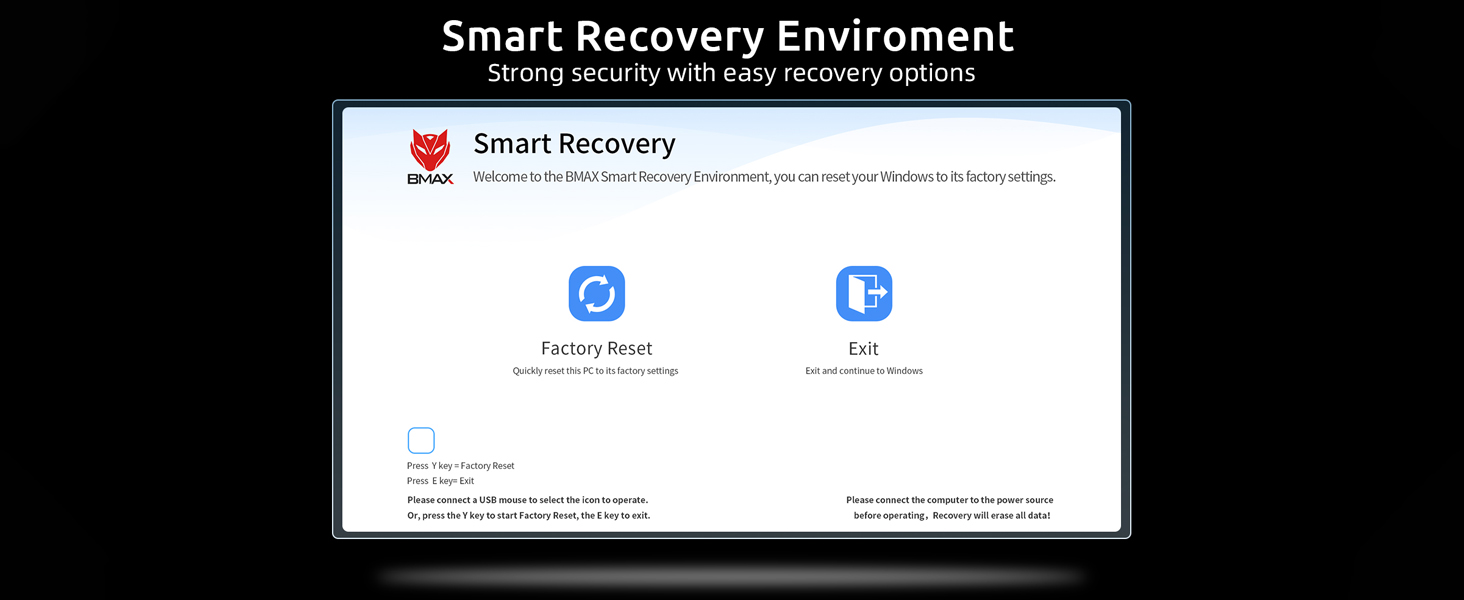
Image: Bmax B8 Pro Mini PC providing 4K viewing for home entertainment.

Image: Bmax B8 Pro Mini PC used for efficient office and creative tasks.
6. Maintenance
- Cleaning: Use a soft, dry cloth to clean the exterior of the Mini PC. Avoid liquid cleaners directly on the device.
- Ventilation: Ensure the ventilation openings are clear of obstructions to prevent overheating.
- Software Updates: Regularly update your operating system and drivers to maintain security and performance.
- Storage: Store the Mini PC in a cool, dry environment away from direct sunlight and extreme temperatures.
6.1. Smart Recovery Environment
The device includes a Smart Recovery Environment for system restoration.

Image: Bmax Smart Recovery Environment interface.
7. Troubleshooting
If you encounter issues with your Bmax B8 Pro Mini PC, consider the following:
- No Power: Ensure the power adapter is securely connected to both the Mini PC and a working power outlet. Try a different outlet if necessary.
- No Display: Check that the HDMI or Type-C cable is firmly connected to both the Mini PC and the monitor. Verify the monitor is powered on and set to the correct input source.
- Peripheral Not Detected: Reconnect the peripheral to a different USB port. Ensure drivers are installed if required by the peripheral.
- Slow Performance: Close unnecessary applications. Check for background processes consuming resources. Ensure sufficient free storage space.
- Network Connectivity Issues: For Wi-Fi, check your router and network settings. For wired, ensure the Ethernet cable is properly connected and your network is active.
For persistent issues, refer to the operating system's help resources or contact customer support.
8. Specifications
| Feature | Specification |
|---|---|
| Processor | Intel 12th Gen Core i7-1255U (up to 4.7 GHz) |
| RAM | 24 GB LPDDR5 |
| Storage | 1 TB NVMe SSD |
| Graphics | Intel Iris Xe Graphics (Integrated) |
| Operating System | Windows 11 Pro / Ubuntu Linux |
| Wireless Connectivity | Wi-Fi 6 (802.11ax), Bluetooth 5.2 |
| Ethernet | Gigabit Ethernet |
| Video Output | 2x HDMI 2.0, 1x Type-C (Supports 4K@60Hz Triple Display) |
| USB Ports | 2x USB 3.0, 2x USB 2.0 |
| Audio | 3.5mm Headset Jack |
| Dimensions | 10.51 x 6.14 x 2.91 inches (Package) |
| Weight | 1.87 pounds (Item) |
9. Warranty and Support
For warranty information and technical support, please refer to the documentation included with your purchase or visit the official Bmax website. Keep your purchase receipt as proof of purchase for warranty claims.


