
1. Introduction
Thank you for choosing the Ankilo 7.8-inch 180° Projection Digital Alarm Clock. This device combines a large mirror LED display with a 180° rotatable projection feature, multiple alarm settings, and intelligent dimming capabilities to enhance your daily routine. Please read this manual carefully to ensure proper setup and operation.

Image 1: Overview of the Ankilo Projection Digital Alarm Clock, showcasing its 7.8-inch large display, 12/24H function, projection, time & alarm, snooze, night mode, and 4-level brightness features.
2. Product Overview and Controls
Familiarize yourself with the various components and control buttons of your alarm clock.
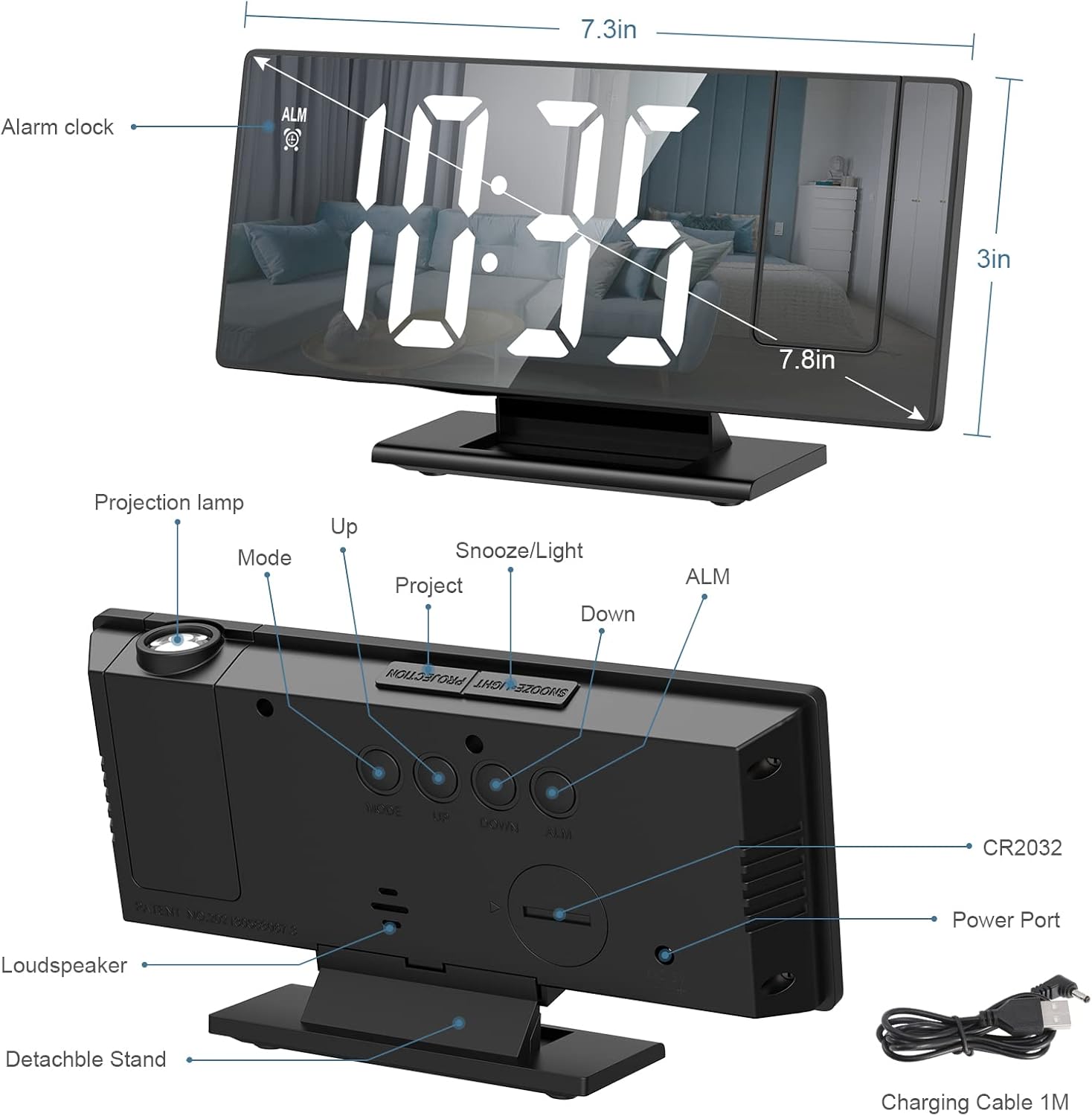
Image 2: Detailed diagram of the alarm clock's rear panel, indicating the projection lamp, Mode button, Up button, Snooze/Light button, Project button, Down button, ALM button, CR2032 battery compartment, Power Port, Loudspeaker, Detachable Stand, and Charging Cable.
- Projection Lamp: Projects time onto a surface.
- Mode Button: Used to switch between time, alarm, and other settings.
- Up Button: Adjusts values upwards or changes settings.
- Snooze/Light Button: Activates snooze during an alarm or adjusts display brightness.
- Project Button: Activates/deactivates projection and adjusts projection brightness.
- Down Button: Adjusts values downwards or changes settings.
- ALM Button: Used to set and activate alarms.
- CR2032 Battery Compartment: Houses the backup battery.
- Power Port: For USB power connection.
- Loudspeaker: Emits alarm sounds.
- Detachable Stand: Provides stable support for the clock.
3. Setup
3.1 Power Connection
Connect the provided USB cable to the Power Port on the back of the alarm clock and plug the other end into a standard USB power adapter (not included) or a powered USB port. The display will light up.
3.2 Backup Battery Installation
The alarm clock includes a CR2032 button battery for memory function, ensuring time settings are retained during power outages or when unplugged.
- Locate the CR2032 battery compartment on the back of the clock.
- Open the compartment cover.
- Insert a CR2032 button battery with the positive (+) side facing up.
- Close the compartment cover securely.

Image 3: Illustration showing the location of the CR2032 backup battery compartment on the alarm clock.
4. Operating Instructions
4.1 Setting the Time and 12/24 Hour Format
- Press and hold the Mode button until the hour digits start flashing.
- Use the Up or Down buttons to adjust the hour.
- Press the Mode button again to switch to minute setting. Use Up or Down to adjust the minutes.
- Press the Mode button a third time to confirm and exit time setting.
- To switch between 12-hour and 24-hour format, briefly press the Up button while the time is displayed.

Image 4: The alarm clock display illustrating the difference between 12-hour (e.g., 12:00 PM) and 24-hour (e.g., 00:00) time formats.
4.2 Setting Alarms (3 Modes)
This alarm clock offers three alarm modes: Monday-Friday, Monday-Saturday, and Monday-Sunday.
- Press the ALM button once to enter alarm setting mode. The alarm time will flash.
- Use the Up or Down buttons to set the desired alarm hour.
- Press ALM again to set the alarm minutes using Up or Down.
- Press ALM a third time to select the alarm mode (1-5 for Mon-Fri, 1-6 for Mon-Sat, 1-7 for Mon-Sun) using Up or Down.
- Press ALM to confirm and activate the alarm. An alarm icon will appear on the display.
- To deactivate an alarm, press the ALM button until the alarm icon disappears.

Image 5: The alarm clock displaying the three programmable alarm modes: 1-5 (Monday to Friday), 1-6 (Monday to Saturday), and 1-7 (Everyday).
4.3 Using the Snooze Function
When the alarm sounds, press the Snooze/Light button to activate the snooze function. The alarm will pause for 5 minutes and then sound again. To turn off the alarm completely, press any other button.

Image 6: A person sleeping peacefully, with the alarm clock on a bedside table. An inset shows a finger pressing the Snooze button on the back of the clock, illustrating the 'Easy Snooze' function.
4.4 Adjusting Display Brightness
The alarm clock has four levels of display brightness: High, Medium, Low, and OFF.
- Briefly press the Snooze/Light button to cycle through the brightness levels.
- Select the desired brightness for your environment.

Image 7: The alarm clock display demonstrating the four adjustable brightness settings: OFF, Low Light, Medium Light, and Bright Light, suitable for various lighting conditions.
4.5 Smart Night Mode
The smart night mode automatically dims the display brightness during a set period.
- Press and hold the Mode button until the hour digits flash.
- Press the Mode button repeatedly until 'ON' or 'OFF' for Night Mode appears.
- Use the Up or Down buttons to toggle Night Mode ON/OFF.
- If ON, press Mode to set the start hour (default 18:00) and end hour (default 05:59) for dimming. Use Up or Down to adjust.
- Press Mode to confirm.
4.6 Projection Function
The 180° rotatable projector allows you to display the time on your ceiling or wall.
- Press the Project button to turn the projection ON/OFF.
- While projection is ON, press the Project button repeatedly to cycle through 3 projection brightness levels: Bright, Medium, and OFF.
- Rotate the projection lamp 180° to adjust the projection angle as needed.
- The optimal projection distance is between 1.6ft and 16ft (0.5m to 5m).

Image 8: The alarm clock projecting the time onto a wall, illustrating the projection distance range of 1.6ft-16ft. It also shows the 180° flip projection capability and three projection brightness levels (Bright, Medium, OFF).
4.7 Mirror Surface Function
The large 7.8-inch LED screen also functions as a clear mirror when the display is off or dimmed, providing added utility.

Image 9: A woman using the 7.8-inch mirror surface of the alarm clock to apply makeup, demonstrating its dual functionality as both a clock and a mirror.
5. Maintenance
To ensure the longevity and optimal performance of your alarm clock, follow these maintenance guidelines:
- Cleaning: Use a soft, dry cloth to wipe the display and body of the clock. Avoid abrasive cleaners or solvents, as they may damage the mirror surface or plastic.
- Placement: Place the clock on a stable, flat surface away from direct sunlight, excessive heat, or moisture.
- Battery Replacement: If the backup battery (CR2032) runs low, replace it promptly to maintain time settings during power interruptions.
6. Troubleshooting
| Issue | Possible Cause | Solution |
|---|---|---|
| Display is blank or not lighting up. | No power connection or power outage. | Ensure the USB cable is securely connected to a working power source. Check the power outlet. |
| Time resets after power disconnection. | Backup battery is missing, dead, or incorrectly installed. | Install a fresh CR2032 battery or ensure it is correctly inserted with the positive (+) side up. |
| Alarm does not sound. | Alarm is not activated or set incorrectly. | Verify that the alarm time is set correctly and the alarm icon is visible on the display. Check the alarm mode (Mon-Fri, Mon-Sat, Mon-Sun). |
| Projection is blurry or upside down. | Incorrect projection distance or angle. | Adjust the distance of the clock from the projection surface (1.6ft-16ft). Rotate the projection lamp 180° to correct orientation. |
| Display brightness is too low or too high. | Brightness level needs adjustment or Night Mode is active. | Briefly press the Snooze/Light button to cycle through brightness levels. Check if Smart Night Mode is enabled and adjust its settings if necessary. |
7. Specifications
| Feature | Detail |
|---|---|
| Brand | Ankilo |
| Model | B0CM5NFWP7 |
| Color | Black |
| Display Type | Digital LED with Mirror Surface |
| Screen Size | 7.8 inches |
| Product Dimensions | 10.2 x 3.81 x 5.1 cm |
| Item Weight | 220 grams |
| Material | Acrylonitrile Butadiene Styrene (ABS) |
| Power Source | USB Powered (with CR2032 backup battery for memory) |
| Special Features | Alarm, Adjustable Brightness, 180° Time Projection, Snooze Function, Smart Night Mode, Mirror Display |
| Indoor/Outdoor Use | Indoor |
8. Warranty and Support
For warranty information or technical support, please refer to the documentation included with your purchase or contact the retailer directly. Keep your purchase receipt as proof of purchase.
