
Marvo G925
Marvo G925 Gaming Mouse User Manual
Model: G925
Introduction
Thank you for choosing the Marvo G925 Gaming Mouse. This manual provides detailed instructions on how to set up, operate, and maintain your new gaming mouse to ensure optimal performance and longevity. The G925 is designed for competitive gaming, featuring a high-precision optical sensor, customizable buttons, and dynamic RGB lighting.

Image: The Marvo G925 Gaming Mouse, showcasing its ergonomic design and vibrant RGB lighting through the honeycomb shell.
Key Features
- Ultra-Light Honeycomb Design: Weighing only 70g, the mouse features a unique honeycomb shell for reduced weight and enhanced airflow, providing comfort during extended gaming sessions.
- High-Precision 12000 DPI Optical Sensor: Equipped with a Pixart PMW 3327 optical sensor, offering adjustable DPI settings from 800 to 12000 for precise tracking and responsiveness.
- 7 Programmable Buttons: Customize your gaming experience with seven buttons that can be programmed for various functions, macros, and shortcuts.
- Dynamic RGB Backlighting: Features 16.8 million color options with 11 different lighting modes to personalize your setup.
- 1000Hz Polling Rate: Ensures smooth and high-speed movement with minimal input lag, providing a competitive edge.
- Durable Construction: Switches rated for 10 million clicks, ensuring long-term reliability.
- Wired USB Connection: Reliable and stable connection with a 1.7-meter braided cable and magnetic ring for interference reduction.

Image: A close-up view of the Marvo G925 Gaming Mouse highlighting its lightweight honeycomb structure.

Image: The Marvo G925 Gaming Mouse, emphasizing its high-precision optical sensor for accurate tracking.

Image: A diagram illustrating the seven programmable buttons on the Marvo G925 Gaming Mouse, including left, right, mid, DPI adjustment, forward, backward, and fire buttons.
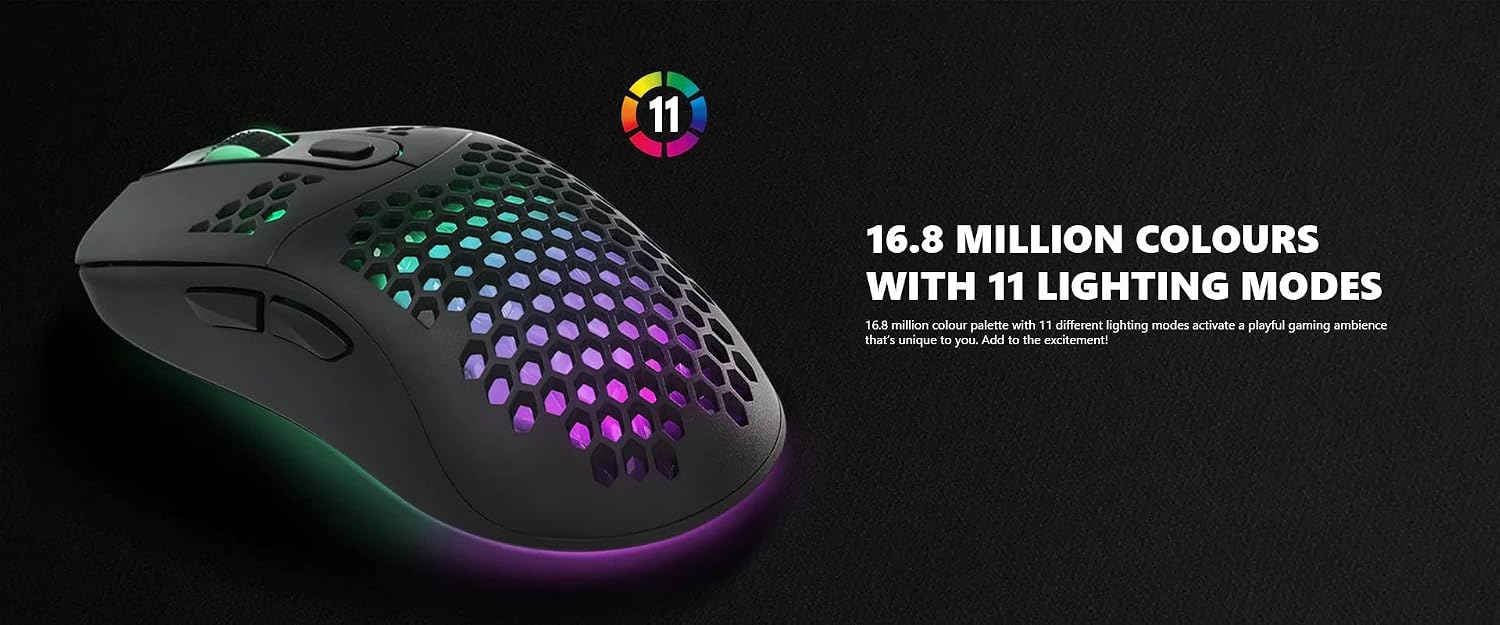
Image: The Marvo G925 Gaming Mouse showcasing its vibrant RGB lighting with 11 distinct lighting modes.

Image: The Marvo G925 Gaming Mouse in motion, illustrating its high 1000Hz polling rate for smooth and responsive tracking.
Setup Guide
Package Contents:
- 1 x Marvo G925 Gaming Mouse
- 1 x User Manual

Image: The retail packaging for the Marvo G925 Gaming Mouse, showing the mouse and branding.
System Requirements:
- Operating System: Windows XP/Vista/7/8/10/11 or macOS
- Available USB Port
Installation:
- Unpack the Marvo G925 Gaming Mouse and its contents from the packaging.
- Locate an available USB port on your computer.
- Plug the USB connector of the mouse into the USB port.
- Your operating system will automatically detect and install the necessary drivers. This process may take a few moments.
- Once the installation is complete, the mouse will be ready for use. For advanced customization, refer to the "Operating Instructions" section for driver software details.
Operating Instructions
Basic Operation:
- Left Click: Primary action, selection.
- Right Click: Context menu, secondary action.
- Scroll Wheel: Scroll up/down, middle click for various functions (e.g., opening links in new tabs).
- DPI Adjustment Button: Located behind the scroll wheel, cycles through preset DPI levels (800/1600/2400/3600/5000/12000).
- Side Buttons (Forward/Backward): Typically used for navigation in web browsers or file explorers.
- Fire Button: An additional button, often programmable for rapid actions in games.
Customization Software:
To unlock the full potential of your Marvo G925 Gaming Mouse, including button programming, macro creation, and advanced RGB lighting effects, it is recommended to install the dedicated driver software.
- Software Download: The driver software can typically be found on the official Marvo website under the support or downloads section for the G925 model. Refer to the product packaging or Marvo's official website for the exact download link.
- Installation: Follow the on-screen instructions to install the software after downloading.
- Key Functions:
- Button Assignment: Reassign functions to any of the 7 programmable buttons.
- DPI Settings: Fine-tune DPI levels and create custom profiles.
- Polling Rate: Adjust the polling rate up to 1000Hz.
- RGB Lighting: Select from 11 lighting modes, adjust brightness, speed, and color patterns.
- Macro Editor: Create and assign complex macros for in-game actions.
Maintenance
Cleaning Your Mouse:
- Exterior: Use a soft, lint-free cloth slightly dampened with water or a mild cleaning solution to wipe down the surface of the mouse. Avoid harsh chemicals or abrasive materials.
- Sensor: Gently clean the optical sensor lens on the underside of the mouse with a cotton swab or compressed air to remove dust and debris.
- Honeycomb Shell: Use compressed air to clear dust and debris from the honeycomb cutouts.
- Cable: Wipe the cable with a damp cloth. Avoid bending or twisting the cable excessively.
Caution: Do not immerse the mouse in water or any liquid. Ensure the mouse is unplugged from your computer before cleaning.
Storage:
When not in use for extended periods, store the mouse in a cool, dry place away from direct sunlight and extreme temperatures.
Troubleshooting
| Problem | Possible Cause | Solution |
|---|---|---|
| Mouse not responding | Loose USB connection, faulty USB port, driver issue. |
|
| Cursor movement is erratic or jumpy | Dirty optical sensor, unsuitable mouse pad surface. |
|
| Buttons not responding or programming not working | Software conflict, incorrect software settings. |
|
| RGB lighting not working or stuck | Software issue, power issue. |
|
Specifications
| Feature | Detail |
|---|---|
| Model | G925 |
| Sensor Type | Optical (Pixart PMW 3327) |
| DPI Levels | 800 / 1600 / 2400 / 3600 / 5000 / 12000 |
| Polling Rate | Up to 1000 Hz |
| Buttons | 7 (Programmable) |
| Switch Life | 10 Million Clicks |
| Backlight | RGB (16.8 Million Colors, 11 Modes) |
| Connection | Wired USB |
| Cable Length | 1.7 meters (with magnetic ring) |
| Weight | 70 grams |
| Dimensions (L x W x H) | 125.5 x 65 x 37 mm |
| Compatible Devices | Personal Computer |
Warranty and Support
For warranty information and technical support, please refer to the warranty card included with your product or visit the official Marvo website. You can typically find support resources, FAQs, and contact information for customer service there.
Official Marvo Website: www.marvo-tech.com
Related documentsG925


Ask a question about this manual
Ask about setup, troubleshooting, compatibility, parts, safety, or missing instructions. Manuals+ will review the question and use this page’s manual context to help answer it.