
pericat PJ133E
Pericat PJ133E 5G WIFI Bluetooth Projector Instruction Manual
Model: PJ133E
Brand: pericat
Introduction
This manual provides detailed instructions for the setup, operation, and maintenance of your Pericat PJ133E 5G WIFI Bluetooth Projector. Please read this manual thoroughly before using the projector to ensure proper function and longevity of the device. This projector is designed to deliver a high-quality visual and audio experience for both indoor and outdoor environments.

Front view of the Pericat PJ133E Projector, highlighting its compact design and lens.
What's in the Box
Upon opening the package, verify that all the following items are included:
- Projector Screen (100")
- Remote Control
- Power Adapter & Power Cord
- HDMI Cable
- AV Cable
- User Manual
- Projector Lens Cover
Video demonstrating the unboxing and contents of the Pericat PJ133E projector package.
Setup
1. Physical Placement & Screen Installation
Choose a stable surface for the projector. The PJ133E supports table, tripod, and ceiling installations. For optimal viewing, ensure the projection surface is smooth and flat. The included 100-inch fabric screen can be easily installed using the provided sticky hooks, allowing for flexible setup in various locations.

Illustration of flexible projector placement options and adjustable screen sizes.
2. Power Connection
Connect the power adapter to the projector's power input and then plug the power cord into a standard electrical outlet. The projector will power on automatically or can be turned on using the power button on the device or remote control.
3. Initial Power On & Focus/Keystone Adjustment
Once powered on, the projector will display its home screen. Adjust the focus and keystone correction using the dials on top of the projector until the image is clear and rectangular. The keystone correction helps to correct distorted images when the projector is not perfectly perpendicular to the screen.

Detailed view of the manual focus and keystone correction dials on the projector.
Operating Instructions
1. Navigation
Navigate through the projector's menu and options using the buttons on the top panel of the projector or the included remote control. The remote control offers full functionality for ease of use.
2. Input Sources
The projector supports multiple input sources. Select your desired input from the home screen or input menu:
- HDMI: Connect devices like TV sticks, gaming consoles (PS5, PS4), laptops, or PCs. (2 HDMI ports available)
- VGA: Connect older PCs or laptops.
- AV: Connect older video devices.
- USB: Play media directly from USB flash drives.
- TF Card: Play media directly from TF (MicroSD) cards.
- 3.5mm Earphone Port: Connect external audio devices.

Overview of the projector's diverse multimedia connection ports.
3. Wireless Connectivity
The PJ133E features advanced wireless capabilities:
- 5G WIFI: For smoother and lag-free online video streaming and gaming, connect to a 5G WIFI network.
- Bluetooth 5.2: Connect external Bluetooth speakers or earphones for enhanced audio.

Visual comparison of 5G vs. 2.4G WIFI for screen mirroring performance.
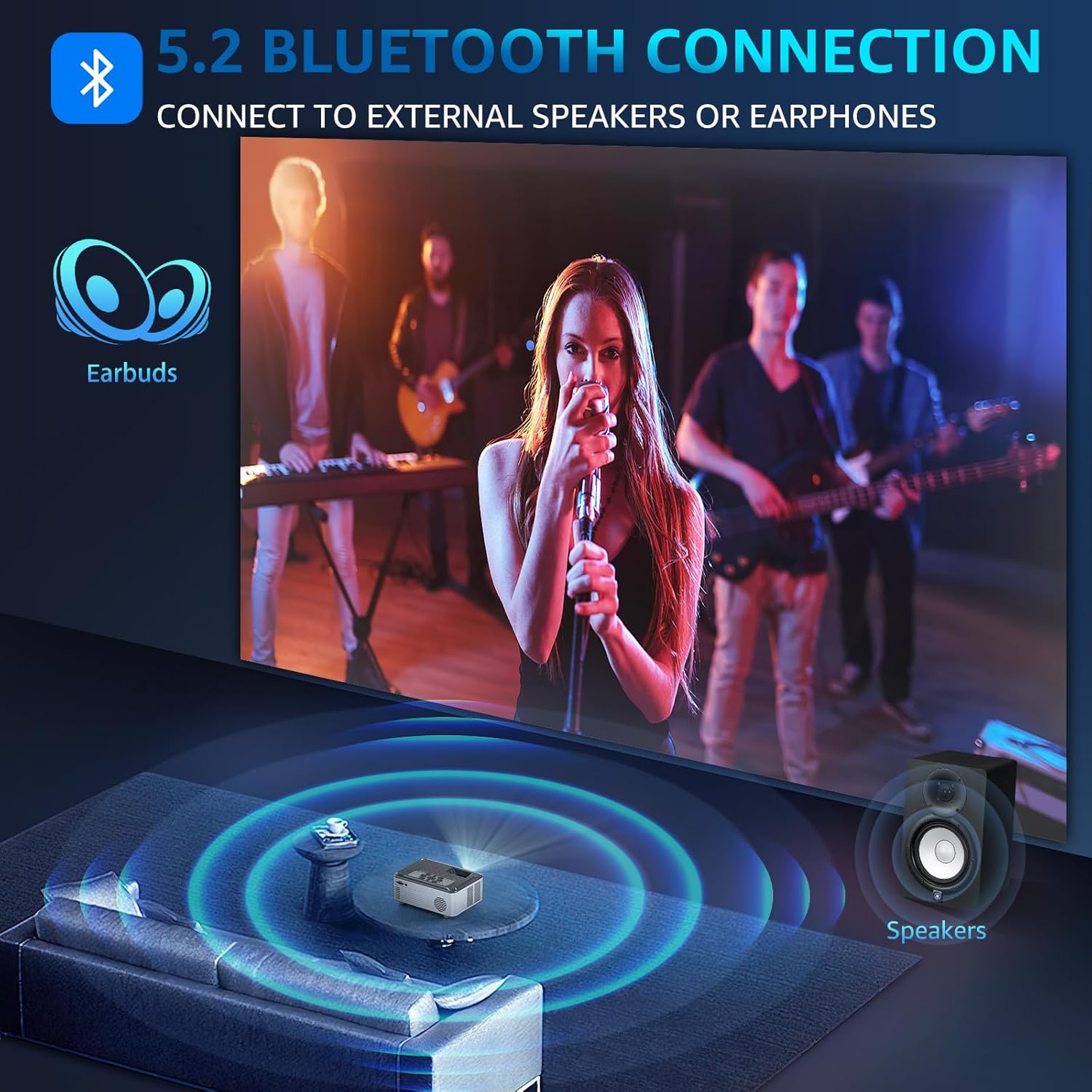
Illustration of Bluetooth 5.2 connectivity for external audio devices.
Video demonstrating how to connect external Bluetooth speakers to the projector.
4. Screen Mirroring
Mirror your smartphone, tablet, or PC screen wirelessly to the projector. The projector supports both wireless and wired projection for Windows, iOS, and Android systems. Note: Due to HDCP agreement, screen mirroring may not work for some streaming apps (Prime Video, Hulu, etc.). For these, connect a TV stick/Roku device.

Lag-free casting from mobile devices to the projector.
Video demonstrating how to connect the projector to a PC for screen mirroring.
5. Audio Output
The projector features dual 15W Hi-Fi Stereo Speakers for immersive sound. For external audio, connect speakers or headphones via the 3.5mm Aux port or wirelessly via Bluetooth 5.2.

The projector's 15W built-in speakers provide immersive sound for group viewing.
6. Display Settings
Adjust various display settings to optimize your viewing experience:
- Picture Mode: Select from standard, dynamic, mild, or user-defined modes.
- Color Temperature: Adjust for cool, medium, or warm tones.
- Zoom Function: Adjust display size from 50% to 100%.

The projector offers a giant display up to 330 inches with flexible zoom function.
7. Sleep Timer
Utilize the 8-step sleep timer function (10min to 240min) to automatically turn off the projector, allowing you to fall asleep while watching content without worrying about manually turning it off.
Features Overview
The Pericat PJ133E projector is equipped with advanced features for a superior viewing experience:
- 4K Supported & 15000L Brightness: Native 1080P resolution with 4K support, providing clear and bright images.
- 2.4G+5G WIFI & Bluetooth 5.2: Seamless wireless connectivity for streaming and audio.
- 13000:1 Contrast Rate & 17 Million Color Range: Delivers sharp, vivid, and true-to-life colors.
- 330" Giant Display & 50%-100% Zoom: Customizable screen size for various environments.
- 100" Fabric Screen Included: Ready for outdoor use without additional purchases.
- Low-noise Fan & Sleep Mode: Ensures a quiet viewing experience and convenient auto-off.
- Multiple Compatibility: Connects to TV Stick/Box, PC, Mobile phone, Earphone, iPad, Laptop, Speaker, DVD, PS5, PS4, TF card, and USB flash drives.

Key features of the Pericat PJ133E projector.
Maintenance
1. Cleaning the Lens
Use a soft, lint-free cloth specifically designed for optical lenses to gently wipe the projector lens. Avoid using abrasive materials or harsh chemicals that could scratch or damage the lens coating.
2. Fan and Ventilation
Ensure the projector's ventilation openings are clear and unobstructed to prevent overheating. The projector features a two-way cooling fan system designed for efficient heat dissipation and extended lifespan.

Internal view of the projector's two-way cooling fan system.
3. Storage
When not in use, store the projector in a cool, dry place, away from direct sunlight and extreme temperatures. Use the lens cover to protect the lens from dust and scratches.
Troubleshooting
| Problem | Possible Cause | Solution |
|---|---|---|
| No Signal | Incorrect input source selected; loose cable connection. | Verify the correct input source is selected. Check all cable connections (HDMI, AV, etc.) are secure. |
| Blurry Image | Improper focus or keystone adjustment. | Adjust the focus and keystone dials on the projector until the image is clear. |
| No Sound | Volume too low; external audio device not connected properly; incorrect audio output setting. | Increase projector volume. Ensure external speakers/headphones are correctly connected or paired via Bluetooth. Check audio output settings. |
| Overheating | Blocked ventilation. | Ensure all vents are clear of obstructions. Allow adequate space around the projector for airflow. |
| Screen Mirroring Issues | Network issues; HDCP restrictions for certain apps. | Ensure both devices are on the same 5G WIFI network. For restricted apps, use a TV stick/Roku connected via HDMI. |
Specifications
| Feature | Specification |
|---|---|
| Brand | pericat |
| Model Number | PJ133E |
| Display Resolution | 1920 x 1080 (Native 1080P, 4K Supported) |
| Brightness | 15000L |
| Contrast Ratio | 13000:1 |
| Connectivity Technology | Wireless (5G WIFI), Bluetooth 5.2, HDMI (x2), VGA, AV, USB, 3.5mm Jack, TF Card |
| Speaker | 2 x 15W Hi-Fi Stereo Speakers |
| Projection Size | 33" to 330" |
| Projection Distance | 4ft - 28ft |
| Keystone Correction | ±15° Manual |
| Zoom Function | 50% - 100% |
| Item Weight | 5.04 pounds |
| Product Dimensions | 11.43 x 10.25 x 6.3 inches |
Warranty and Support
Pericat is committed to providing high-quality products and excellent customer service. Your projector comes with:
- 1 Year Free Replacement: For any manufacturing defects or issues within the first year.
- Lifetime Support: Continuous support and satisfied solutions for the product's lifespan.
- 30 Days No Reason Return Policy: For hassle-free returns within 30 days of purchase.
- 24 Hours Quick Service: Via phone or email for prompt assistance.

Pericat's commitment to customer satisfaction and product support.
For further assistance, please visit the Pericat Store.
Related documentsPJ133E


Ask a question about this manual
Ask about setup, troubleshooting, compatibility, parts, safety, or missing instructions. Manuals+ will review the question and use this page’s manual context to help answer it.