
1. Introduction
The LAUNCH Creader Elite V2.0 is an advanced OBD2 diagnostic scanner specifically designed for BMW, Mini, and Rolls-Royce vehicles. This tool provides comprehensive system diagnostics, bi-directional control, ECU coding, and a wide range of special service functions. This manual will guide you through the setup, operation, and maintenance of your device to ensure optimal performance and accurate vehicle diagnostics.

Image 1.1: The LAUNCH Creader Elite V2.0 OBD2 Scanner displaying its main interface with options for Diagnose, OBD II, Upgrade, Mall, and Settings.
2. Product Overview
The Creader Elite V2.0 features a 4-inch touchscreen, runs on Android 8.1 OS, and includes a 3000mAh battery. It is equipped with 2GB RAM and 16GB internal memory for efficient operation and data storage. The device supports 11 languages, making it accessible to a broad user base.
Key Features:
- Full System Diagnostics: Access all available vehicle modules to read/clear fault codes, view live data, and retrieve ECU information.
- Bi-Directional Control (Active Test): Perform active tests on various components to verify their functionality.
- Advanced ECU Coding: Customize OE-settings, match components, and activate hidden features.
- All Service Functions: Includes Battery Registration, Oil Reset, EPB Service, SAS Calibration, ABS Bleeding, Injector Coding, and more.
- Lifetime Free WiFi Updates: Ensures the software is always up-to-date with the latest vehicle models and functions.
- 4-in-1 Live Data Graphing: Visualize multiple data streams simultaneously for in-depth analysis.
- Auto VIN & DTC Lookup: Quickly identify vehicle information and understand diagnostic trouble codes.

Image 2.1: High-level specifications of the LAUNCH Creader Elite V2.0, including its 4-inch touchscreen, Android 8.1 operating system, 3000mAh battery, HD display, WiFi connectivity, and 16GB internal memory.
3. Setup
3.1. What's in the Box
Upon unboxing, verify that all components are present:
- 1 x LAUNCH Creader Elite V2.0 OBD2 Scanner for BMW
- 1 x OBD2 Diagnostic Cable
- 1 x Quick Start Guide
- 1 x User Manual

Image 3.1: The standard contents included with the LAUNCH Creader Elite V2.0 package.
3.2. Initial Power-On and Connection
- Connect the OBD2 diagnostic cable to the scanner's port.
- Locate the vehicle's OBD2 port, typically under the dashboard on the driver's side.
- Plug the other end of the diagnostic cable into the vehicle's OBD2 port. The scanner will power on automatically.
- Follow the on-screen prompts to select your preferred language and set up Wi-Fi connectivity.
3.3. Software Update
It is recommended to update the software immediately after initial setup to ensure you have the latest features and vehicle coverage.
- Ensure the device is connected to a stable Wi-Fi network.
- From the main menu, tap on the "Upgrade" icon.
- The system will check for available updates. Select and download all necessary updates.
- Allow the device to install the updates. This process may take some time and the device may restart.

Image 3.2: The device's interface highlighting the 'Upgrade' function for lifetime free WiFi updates.
4. Operating Instructions
4.1. Basic OBD2 Functions
The device supports standard OBD2 functions for all OBD2 compliant vehicles.
- Read/Clear Codes: Access the "OBD II" menu to read Diagnostic Trouble Codes (DTCs) and clear them after repairs.
- Live Data Stream: View real-time sensor data in text or graph format.
- Freeze Frame: Capture a snapshot of vehicle conditions when a fault code is triggered.
- I/M Readiness: Check the status of emission-related monitors.
- DTC Lookup: Use the built-in DTC library to understand code definitions.

Image 4.1: The 'Code Search' feature allows users to look up definitions for Diagnostic Trouble Codes.
4.2. Full System Diagnostics (BMW, Mini, Rolls-Royce)
For BMW, Mini, and Rolls-Royce vehicles, the device offers in-depth diagnostics across all available modules.
- From the main menu, tap on "Diagnose".
- Select the vehicle brand (BMW/Mini/Rolls-Royce).
- Choose "Automatically Search" or manually select the vehicle model. The Auto VIN feature can quickly identify the vehicle.
- Perform a full system scan to identify issues across engine, transmission, ABS, SRS, and other control units.

Image 4.2: Overview of OE-level all system diagnostic functions, including Auto VIN, code reading, live data, freeze frame, and ECU information retrieval.
4.3. Bi-Directional Control (Active Test)
This function allows you to send commands to vehicle systems to test component functionality.
- After selecting the vehicle and system, navigate to the "Active Test" or "Bi-Directional Control" option.
- Select the specific component or system you wish to test (e.g., radiator fan, fuel pump, windows).
- Execute the test and observe the component's response to diagnose issues.
4.4. Advanced ECU Coding
ECU Coding allows for customization and adaptation of vehicle settings.
- Component Matching: Match new components after replacement (e.g., steering angle calibration, transmission adaptation).
- Personalization: Activate or deactivate specific vehicle features (e.g., auto mirror folding, changing dashboard brightness, disabling auto start-stop).
- Modification & Retrofit: Adapt settings for newly installed modules or upgrades (e.g., adaptive cruise control, retrofitting headlamps).
Note: Coding functions vary by vehicle model and chassis. Always verify compatibility before performing coding operations.

Image 4.3: Advanced ECU Coding features for customizing vehicle settings and adapting components.
4.5. Special Service Functions
The device provides numerous maintenance and reset functions:
- Battery Registration/Replacement: Register a new battery with the vehicle's power management system. Supports both same-type and different-type/capacity batteries.
- Oil Lamp Reset: Reset the oil service light and maintenance interval.
- Parking Brake Reset (EPB): Deactivate and activate the electronic parking brake system for pad replacement.
- SAS Calibration: Calibrate the steering angle sensor.
- ABS Bleeding: Perform bleeding procedures for the ABS system.
- Injector Coding: Code new injector numbers after replacement.
- Throttle Body Adaptation: Initialize throttle actuators to default settings.
- Other Services: Includes Suspension Reset, Seat Calibration, Idle Speed Relearn, Transmission Adaptation, Sunroof Initialization, and more.
To access these functions: Navigate to "Diagnose" > "Car Brand" > "System Selection" > "Special Function".

Image 4.4: A selection of the available service functions for BMW, Mini, and Rolls-Royce vehicles.
4.6. Data Management
The device offers robust data management features for analysis and reporting.
- 4-in-1 Live Data Graphing: Display up to four live data streams simultaneously for comparative analysis.
- Data Record & Playback: Record live data sessions for later review and analysis.
- Diagnostic Report: Generate and share detailed diagnostic reports in PDF format. These reports can be printed for client records or shared with technicians.
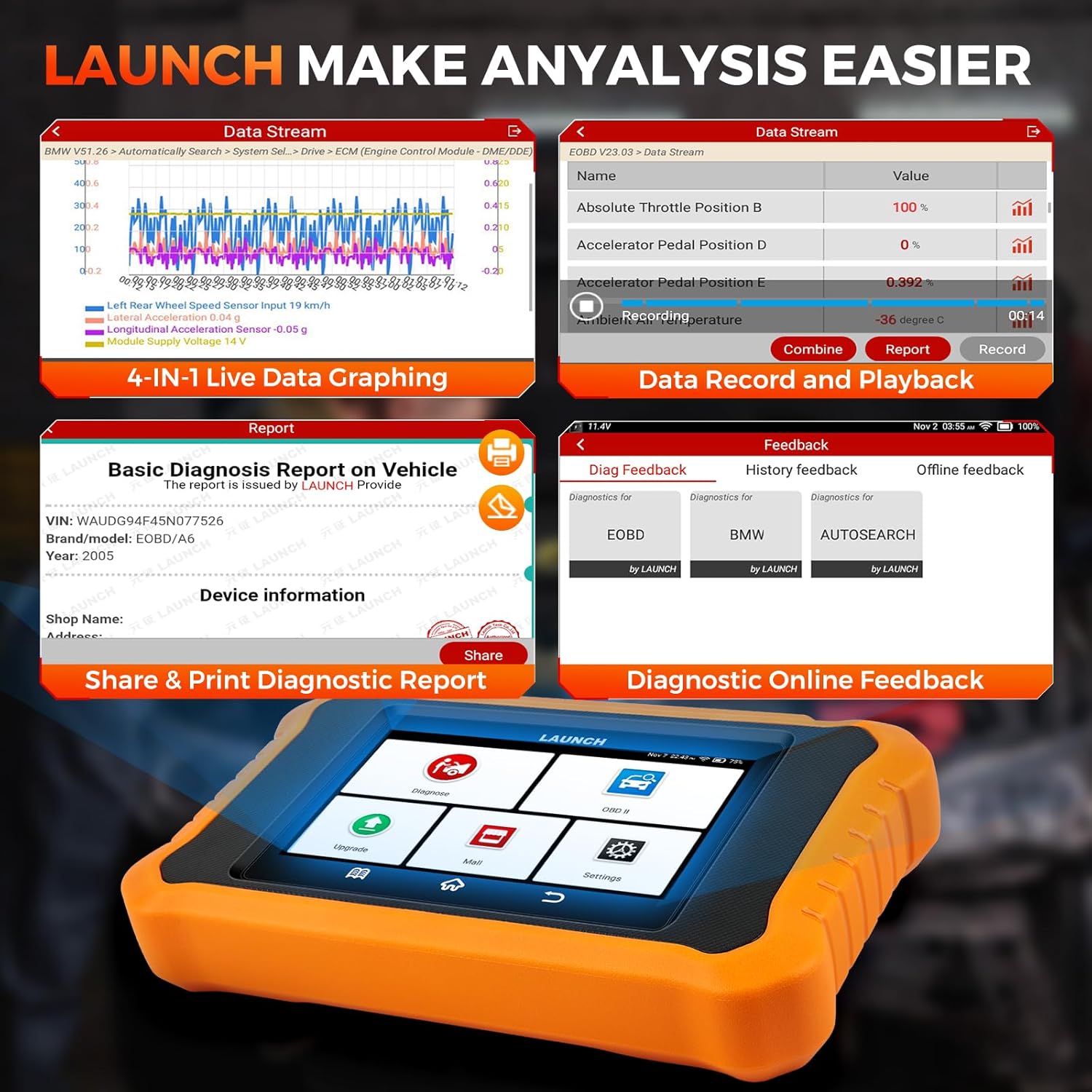
Image 4.5: Features for data analysis, including multi-graph display, recording, and report generation.
5. Maintenance
5.1. Software Updates
Regular software updates are crucial for maintaining compatibility with new vehicle models and ensuring access to the latest diagnostic functions. The LAUNCH Creader Elite V2.0 offers lifetime free WiFi updates. Connect the device to a stable internet connection and navigate to the "Upgrade" section to check for and install updates.
5.2. Device Cleaning
To ensure the longevity of your device, clean it regularly with a soft, damp cloth. Avoid using abrasive cleaners or solvents. Keep the screen free of dust and fingerprints for optimal touch response.
5.3. Storage
Store the device in a cool, dry place away from direct sunlight and extreme temperatures. Disconnect the OBD2 cable when not in use.
6. Troubleshooting
This section addresses common issues you might encounter with your LAUNCH Creader Elite V2.0.
6.1. Device Not Powering On
- Ensure the OBD2 cable is securely connected to both the scanner and the vehicle's OBD2 port.
- Verify that the vehicle's ignition is turned on (at least to the accessory position).
- Check the vehicle's battery voltage. The scanner draws power from the vehicle.
6.2. Communication Errors
- Confirm the OBD2 cable is not damaged.
- Ensure the vehicle's ignition is on.
- Try connecting to a different vehicle to rule out a vehicle-specific issue.
- Verify that the software is up-to-date.
6.3. Software Freezes or Slow Performance
- Restart the device.
- Ensure there is sufficient storage space.
- Perform a software update.
6.4. Issues with Specific Functions (e.g., Coding, Special Services)
- Functionality can vary by vehicle model, year, and specific configuration. Always check compatibility before attempting advanced functions.
- Ensure the vehicle's battery is adequately charged before performing critical operations like ECU coding.
- If a function fails, try restarting the process or contacting technical support with detailed information.

Image 6.1: The 'Diag Feedback' feature allows users to submit issues directly to technical support for troubleshooting.
7. Specifications
| Feature | Specification |
|---|---|
| Model | LAUNCH Creader Elite V2.0 for BMW |
| Operating System | Android 8.1 |
| Display | 4-inch Touchscreen |
| Processor | Quad-core 1.3GHz CPU |
| Memory | 2GB RAM + 16GB ROM |
| Battery | 3000mAh Lithium Metal (included) |
| Connectivity | Wi-Fi |
| Item Weight | 1.5 pounds |
| Package Dimensions | 8 x 7.5 x 1.63 inches |
| Supported Languages | 11 Languages (including English, German, Japanese, etc.) |
| Manufacturer Part Number | LAUNCH X431 Elite 2.0 PRO BMW Scanner |
| UPC | 884508000034 |
8. Warranty and Support
8.1. Warranty Information
The LAUNCH Creader Elite V2.0 comes with a 5-Year Quality Backup. For specific warranty terms and conditions, please refer to the documentation included with your product or contact customer support.
8.2. Technical Assistance
LAUNCH offers 24/7/365 technical assistance. If you encounter any issues or have questions regarding the operation of your device, please contact support directly via email at obdbox21@163.com. When contacting support, please provide your device's serial number and a detailed description of the issue for faster resolution.
Note: For Amazon customers, it is recommended to contact the provided email address for support rather than LAUNCH Tech USA, as they may not offer direct assistance for Amazon purchases.


