
Introduction
Thank you for choosing the Dinosoo RGB Wireless Controller. This manual provides detailed instructions for setting up, operating, and maintaining your controller to ensure optimal performance. This controller is designed for use with iOS, Android, and PC (Windows 10/11) devices. Please note that connecting to game consoles is not supported at this time.
Package Contents
- Dinosoo RGB Wireless Controller
- 2.4GHz Wireless Adapter (USB Dongle)
- USB Charging Cable
- User Manual
Controller Layout
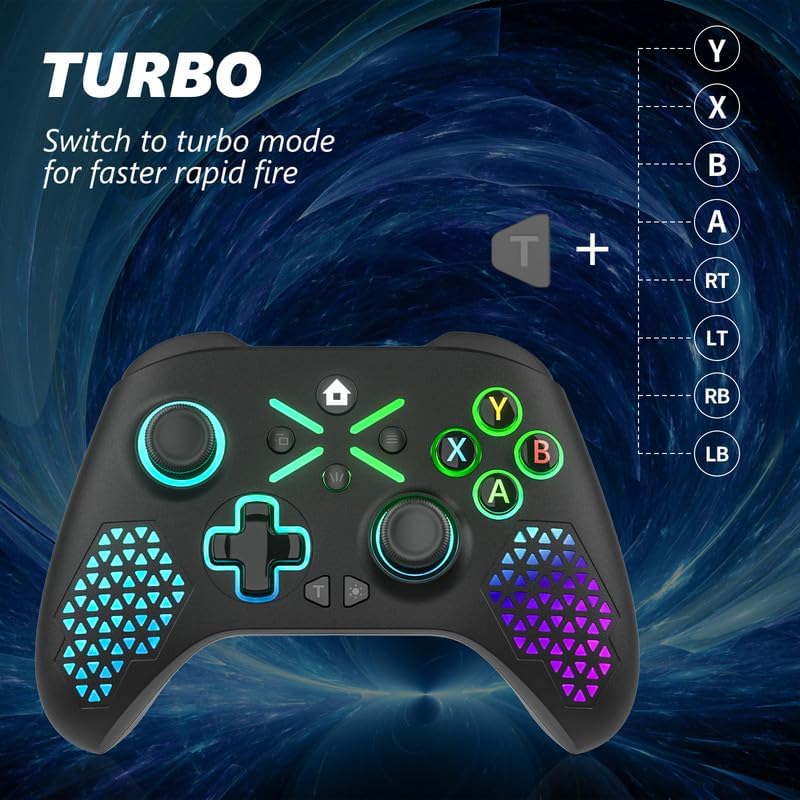
Image: Front and back view of the Dinosoo RGB Wireless Controller with labels for all buttons, sticks, and ports, including Left Stick, Share, Cross key, Turbo, Light keys, Home, View, Menu, A/B/X/Y buttons, Right Stick, LB, RB, RT, LT, PR, PL, SET button, and Type-C interface.
Familiarize yourself with the controller's buttons and features:
- Left Stick / Right Stick: Analog joysticks for movement and camera control.
- A/B/X/Y Buttons: Standard action buttons.
- D-Pad (Cross Key): Directional input.
- LB / RB: Left and Right Bumper buttons.
- LT / RT: Left and Right Trigger buttons.
- Home Button: Powers on/off the controller and accesses system menus.
- View Button: Accesses secondary functions or menus.
- Menu Button: Accesses game or system menus.
- Share Button: For sharing content (functionality may vary by device/game).
- Turbo Button (T): Activates Turbo function.
- Light Keys: Controls RGB lighting modes.
- SET Button: Used for Macro function programming.
- PR / PL Buttons: Programmable back paddles (Macro function).
- Type-C Interface: For charging and wired connection.
- 3.5mm Headphone Jack: For audio output and microphone input.
Setup
1. Charging the Controller
Before first use, fully charge the controller. Connect the supplied USB charging cable to the Type-C interface on the controller and the other end to a USB power source (e.g., PC, USB wall adapter). The indicator light will show charging status and turn off or change color when fully charged.
2. Connecting Wirelessly
2.1. Connecting to PC (Windows 10/11) via 2.4GHz Adapter
- Insert the 2.4GHz wireless adapter (USB dongle) into an available USB port on your PC.
- Long press the controller's Home button for 1 second to turn it on.
- Long press the pairing button (refer to Controller Layout for exact location, often a small button on the top or back) for 1 second after the controller turns on. The controller will enter pairing mode, indicated by a flashing light.
- Once successfully paired, the controller indicator light will remain steadily on. The PC should recognize the controller as an X-box One mode device.
2.2. Connecting to iOS/Android Devices via Bluetooth

Image: The Dinosoo RGB Wireless Controller shown with icons indicating compatibility with Windows 10/11 and iOS/Android operating systems, highlighting its versatile connectivity.
- Ensure Bluetooth is enabled on your iOS or Android device.
- Long press the controller's Home button for 1 second to turn it on.
- Long press the pairing button on the controller for 1 second to enter Bluetooth pairing mode (flashing light).
- On your device, go to Bluetooth settings and search for available devices.
- Select the controller (e.g., "Dinosoo Controller" or similar) from the list to pair.
- Once paired, the controller indicator light will remain steadily on.
Operating Instructions
1. RGB Lighting Modes

Image: The Dinosoo RGB Wireless Controller illuminated with vibrant RGB lights, showcasing its "7 Colors Lights with 8 Mode" feature for a customizable gaming experience.
The controller features 7 colors and 8 lighting modes. Use the Light Keys button (refer to Controller Layout) to cycle through different lighting effects and colors to personalize your gaming experience.
2. Turbo Function
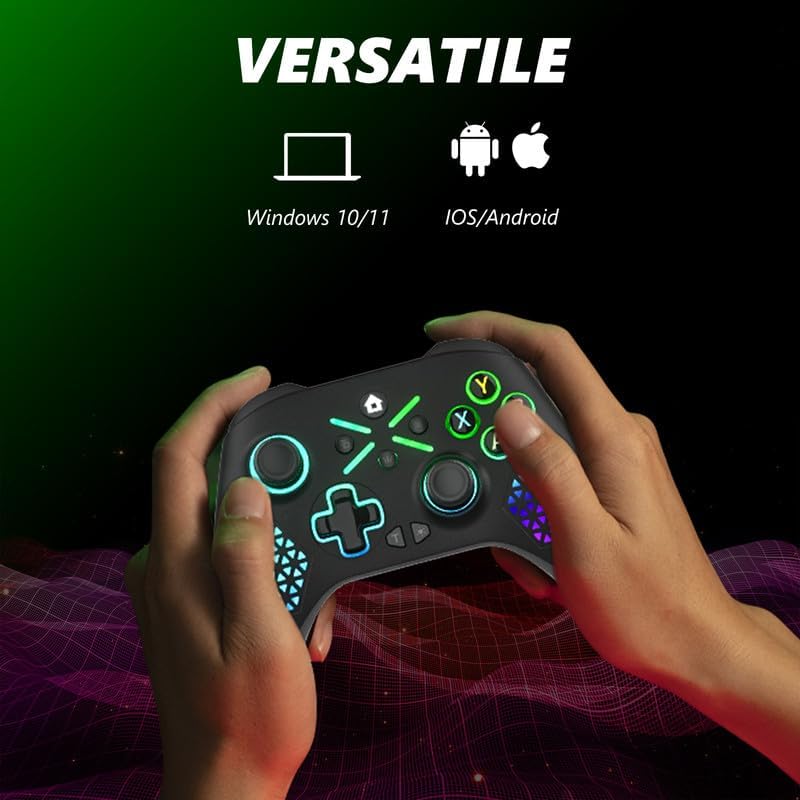
Image: The Dinosoo RGB Wireless Controller highlighting the Turbo button and a list of buttons (Y, X, B, A, RT, LT, RB, LB) that can be assigned the Turbo function for faster rapid fire.
The Turbo function allows for rapid, continuous input of a button press. To activate:
- Press and hold the Turbo (T) button.
- While holding T, press the button you wish to assign Turbo to (e.g., A, B, X, Y, LB, RB, LT, RT).
- Release both buttons. The assigned button will now have Turbo functionality.
To deactivate Turbo for a specific button, repeat the process: hold T and press the Turbo-assigned button again.
3. Macro Function (On-the-Fly Mapping)
Image: The back of the Dinosoo RGB Wireless Controller, illustrating the PR and PL programmable back paddles and the SET button, with an overlay showing various face buttons and triggers (X, Y, A, B, RB, LB, R3, L3, RT, LT) that can be mapped to these paddles without software.
The controller features programmable back paddles (PR and PL) for on-the-fly macro mapping without requiring software.
- Press and hold the SET button on the back of the controller.
- While holding SET, press either the PR or PL paddle you wish to program. The indicator light will flash.
- Press the button(s) you want to map to the paddle (e.g., A, B, X, Y, LB, RB, LT, RT, R3, L3). You can map a single button or a sequence.
- Press the SET button again to confirm and save the macro. The indicator light will stop flashing.
To clear a macro, press and hold SET, then press the programmed paddle (PR or PL), and then press SET again without pressing any other buttons.
4. Dual Vibration Motors

Image: An X-ray style view of the Dinosoo RGB Wireless Controller, highlighting the internal placement of two rumble motors to illustrate its "Hyper-Realistic" dual vibration feature.
The controller is equipped with dual vibration motors to provide immersive haptic feedback during gameplay. The intensity of the vibration may vary depending on the game and platform.
5. 3.5mm Headphone Jack
Connect a standard 3.5mm headset to the audio jack on the controller for in-game audio and voice chat (where supported by the connected device and application).
Maintenance
- Cleaning: Use a soft, dry cloth to clean the controller. Avoid using harsh chemicals or abrasive materials.
- Storage: Store the controller in a cool, dry place away from direct sunlight and extreme temperatures.
- Battery Care: To prolong battery life, avoid fully discharging the controller frequently. Charge it regularly, even if not in use for extended periods.
Troubleshooting
- Controller not turning on: Ensure the controller is fully charged.
- Connection issues (PC/iOS/Android):
- For 2.4GHz connection: Ensure the USB adapter is securely plugged in and try a different USB port. Re-initiate pairing mode on the controller and adapter.
- For Bluetooth connection: Ensure Bluetooth is enabled on your device. Forget the device in your Bluetooth settings and attempt to pair again. Ensure the controller is in Bluetooth pairing mode.
- Restart your PC or mobile device.
- Buttons unresponsive or sticky: Ensure the controller is clean and free of debris. If issues persist, contact customer support.
- Vibration not working: Check in-game settings to ensure vibration feedback is enabled. Ensure the controller is fully charged.
- Audio issues via 3.5mm jack: Ensure your headset is fully plugged in. Check audio settings on your connected device.
Specifications
| Brand | Dinosoo |
| Model Number | 134-1106 |
| Connectivity Technology | Bluetooth, 2.4GHz Wireless Adapter |
| Compatible Devices | PC (Windows 10/11), iOS, Android |
| Special Features | RGB Lighting, Dual Vibration, Turbo Function, Macro Function, 3.5mm Headphone Jack |
| Item Weight | 11.7 ounces (approximately 331 grams) |
| Package Dimensions | 6.73 x 4.8 x 2.83 inches |
Warranty and Support
For warranty information and technical support, please refer to the product packaging or contact Dinosoo customer service directly. Keep your purchase receipt for warranty claims.