
Product Overview
The Gamrombo Wireless Controller is designed for an immersive gaming experience across multiple platforms, including PC (Windows, Steam), Android, and iOS devices. It features advanced wireless technology, customizable functions, and ergonomic design for comfortable gameplay.

Image: Front view of the Gamrombo Wireless Controller, showcasing its design and buttons.
Package Contents
- Gamrombo Wireless Controller
- USB Charging Cable
- User Manual
Setup and Connection
This section details how to connect your Gamrombo Wireless Controller to various devices.
Charging the Controller
Before first use, fully charge the controller. Connect the supplied USB charging cable to the controller's USB-C port and the other end to a USB power source (e.g., computer, USB wall adapter).

Image: Close-up of the USB-C charging port on the controller.
Connecting to PC (Windows/Steam)
The controller supports both wired and wireless (Bluetooth) connections to PC.
- Wired Connection: Connect the controller to your PC using the USB charging cable. The PC should automatically detect and install the necessary drivers.
- Bluetooth Connection:
- Ensure your PC has Bluetooth enabled.
- Press and hold the Home button on the controller until the indicator light flashes rapidly, indicating pairing mode.
- On your PC, go to Bluetooth settings and select "Add device" or "Pair new device".
- Select "Gamrombo Controller" (or similar name) from the list of available devices to pair.
- Once paired, the indicator light on the controller will become solid.
Connecting to Android/iOS Devices
The controller connects to Android and iOS devices via Bluetooth.
- Ensure Bluetooth is enabled on your Android or iOS device.
- Press and hold the Home button on the controller until the indicator light flashes rapidly.
- On your device, go to Bluetooth settings and search for new devices.
- Select "Gamrombo Controller" (or similar name) from the list to pair.
- Once paired, the indicator light on the controller will become solid.

Image: Diagram illustrating multi-platform compatibility (PC, Steam, Android, iOS) and connection methods (WiFi, Wired, Bluetooth).
Note: Connecting to Xbox Consoles is not supported at this time.
Operating Instructions
Button Layout
Familiarize yourself with the controller's button layout for optimal use.

Image: Detailed diagram showing the location and labels of all buttons on the Gamrombo Wireless Controller, including Left Stick, D-pad, Turbo, View, Home, Menu, X, Y, A, B, RT, RB, LT, LB, Right Stick, PR, Set, PL.
TURBO Function
The TURBO function allows for rapid-fire input of a selected button, providing a competitive edge in certain games.
- Press and hold the button you wish to set to TURBO (e.g., A button).
- While holding the button, press the TURBO button once. The button will now continuously input when held down.
- To adjust TURBO speed (if applicable), press the TURBO button and the Right Analog Stick Up/Down.
- To clear the TURBO setting for a button, press and hold the button, then press the TURBO button twice.

Image: Visual representation of the TURBO function, showing rapid input rates (5, 12, 20 shots/s) in a gaming scenario.
Macro Function (Programmable Paddles)
The controller features customizable macro functions, allowing you to program a sequence of up to 16 button inputs to the programmable paddles (PR, PL) on the back of the controller.
- Press the SET button once. The indicator light will start flashing slowly.
- Press the programmable paddle (PR or PL) you wish to assign the macro to. The indicator light will flash rapidly.
- Input the desired sequence of up to 16 buttons.
- Press the SET button again to save the macro. The indicator light will return to solid.
- To clear a macro, press the SET button, then the assigned paddle (PR or PL), and then the SET button again without inputting any sequence.
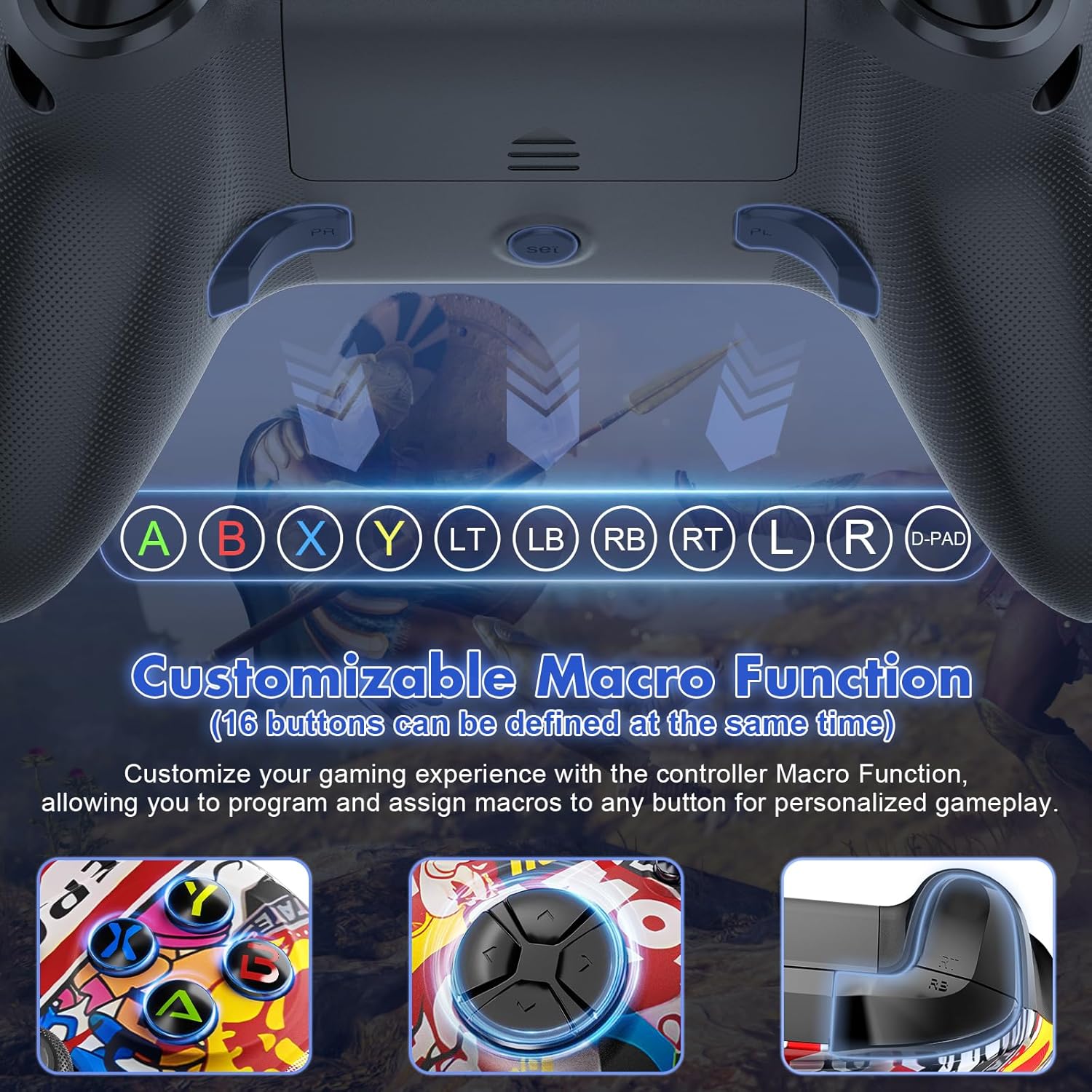
Image: Illustration of the customizable Macro Function, highlighting the 16 definable buttons and the programmable paddles (PR, PL) on the controller's rear.
6-Axis Gyro Sensor
The integrated 6-axis gyro sensor provides precise motion tracking and control, enhancing gameplay in titles that support motion input.
Adjustable Vibration Feedback
Experience immersive feedback with adjustable vibration motors. The intensity can typically be adjusted through game settings or system preferences, offering weak, medium, and strong vibration levels.

Image: Visuals demonstrating the 6-axis gyro sensor for precise control and adjustable vibration feedback with weak, medium, and strong settings.
3.5mm Audio Jack
Connect your 3.5mm headphones or headset directly to the controller for in-game audio and voice chat (if supported by the connected device and game).

Image: A user holding the controller with a headset connected to the 3.5mm audio jack, indicating compatibility with mic and headphones.
Maintenance
- Keep the controller clean by wiping it with a soft, dry cloth.
- Avoid exposing the controller to extreme temperatures, direct sunlight, or moisture.
- Do not attempt to disassemble the controller, as this may void the warranty.
- Store the controller in a safe place when not in use to prevent damage.
Troubleshooting
Controller Not Connecting/Pairing
- Check Battery: Ensure the controller is fully charged. Low battery can prevent connection.
- Restart Devices: Restart both the controller and the device you are trying to connect to (PC, phone, etc.).
- Re-pair Bluetooth: Remove the controller from your device's Bluetooth list and attempt to pair it again.
- Interference: Move closer to your device and ensure there are no other strong wireless signals interfering.
- Wired Connection: If wireless connection fails, try connecting via USB cable to verify basic functionality.
Buttons Not Responding or Lagging
- Recalibrate: Some operating systems or games allow for controller calibration. Check your device's settings.
- Firmware Update: Check the Gamrombo official website for any available firmware updates for the controller.
- Reset Controller: Look for a small reset button (often a pinhole) on the controller. Use a paperclip to press it.
- Test on Another Device: Try the controller on a different compatible device to determine if the issue is with the controller or the original device/game.
Controller Not Compatible with Xbox Consoles
Please note that this Gamrombo Wireless Controller is not designed for or compatible with Xbox consoles. Attempting to connect it to an Xbox console will not be successful.
Specifications
| Feature | Detail |
|---|---|
| Brand | Gamrombo |
| Model Number | B0CMC8NYCZ |
| Compatible Devices | PC, Mac, Android, iOS |
| Controller Type | Joystick |
| Hardware Platform | Desktop, Laptop, Smartphone, Television |
| Item Weight | 10.2 ounces |
| Package Dimensions | 6.77 x 4.76 x 2.8 inches |
| Connectivity | Wireless (Bluetooth), Wired (USB-C) |
| Special Features | TURBO Function, Macro Function (Programmable Paddles), 6-Axis Gyro Sensor, Adjustable Vibration, 3.5mm Audio Jack |
Warranty and Support
Gamrombo offers a 1-year free replacement warranty and lifetime service for this product. For any questions or support needs, please contact Gamrombo customer service.
Contact Support: Please refer to your order ID when contacting support for efficient service. You can typically find contact information through the retailer where you purchased the product or on the official Gamrombo website.
"If you have any question about the replacement Gamepad for ps4 controller, you could communicate with us in time by your Order ID, We will do our best to serve for you, 1 Year Free Replacement, and Lifetime Service & 24H Promptly Response."


