1. Introduction
This manual provides essential information for setting up, operating, maintaining, and troubleshooting your Asus ROG Strix G13CH Gaming Desktop PC. The ROG Strix G13CH is designed to deliver high-performance gaming experiences with its Intel Core i5-13400F processor and NVIDIA GeForce RTX 3060 graphics. Please read this manual thoroughly before using your new desktop PC.
2. Setup Guide
2.1 Unboxing and Placement
Carefully remove the PC from its packaging. Ensure all accessories, such as the power cable and documentation, are present. Place the desktop on a stable, flat surface with adequate ventilation. Avoid placing it near heat sources or in enclosed spaces that could restrict airflow.
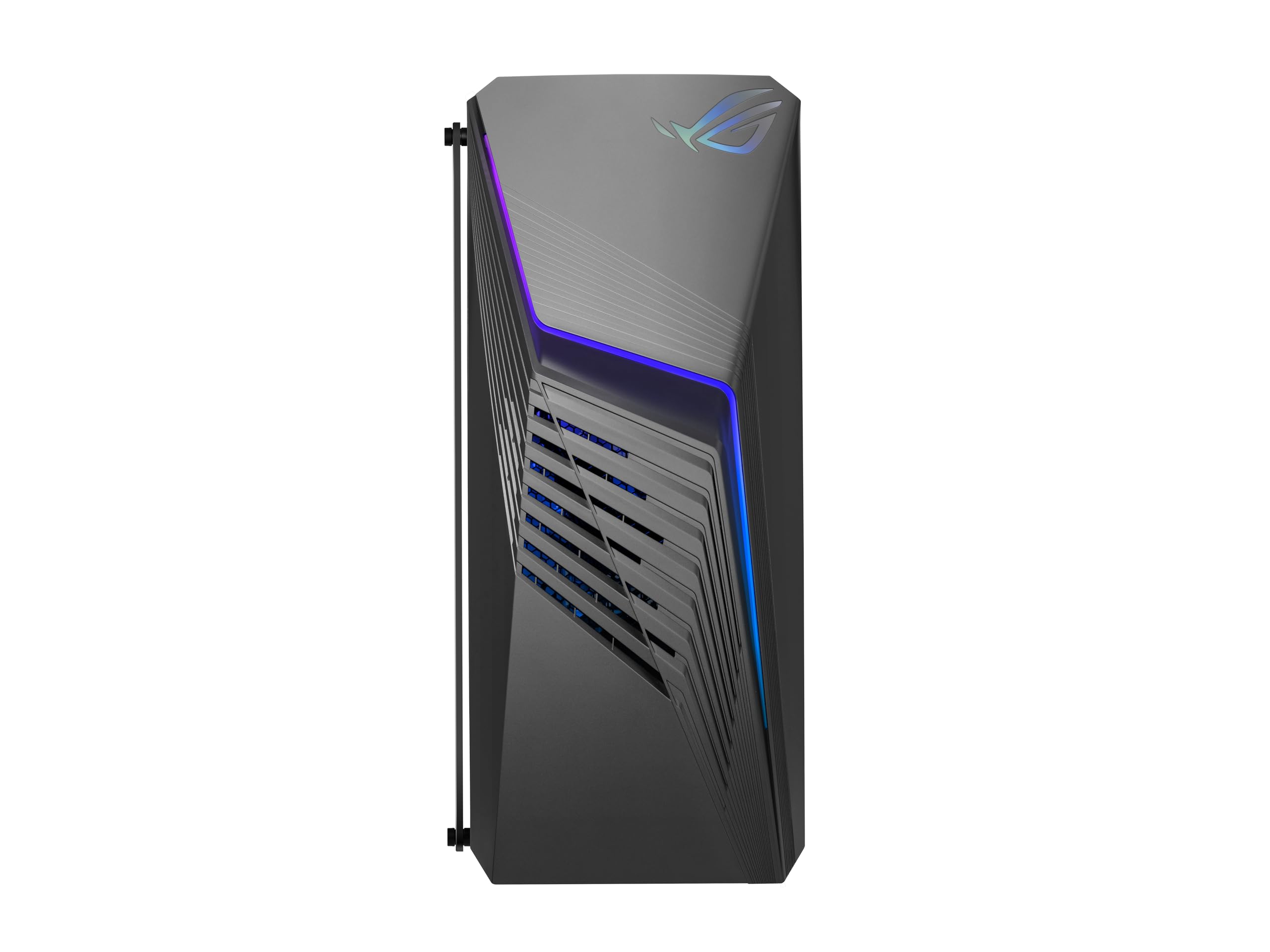
Figure 2.1: Front view of the Asus ROG Strix G13CH Gaming Desktop PC, showcasing its design and transparent side panel.
2.2 Connecting Peripherals
Connect your monitor, keyboard, and mouse to the appropriate ports on the rear of the PC. For optimal display quality, use the DisplayPort or HDMI outputs on the NVIDIA GeForce RTX 3060 graphics card.
- Monitor: Connect to the graphics card's DisplayPort or HDMI outputs.
- Keyboard/Mouse: Connect to any available USB ports (USB 2.0 or USB 3.2 Gen 2 Type-A).
- Network: Connect an Ethernet cable to the RJ45 Gigabit Ethernet port for a wired internet connection, or use the built-in 802.11ax Wi-Fi.
- Audio: Connect speakers or headphones to the audio jacks on the rear or the 3.5mm combo audio jack on the front.
2.3 Power Connection
Connect the power cable to the power input on the rear of the PC, then plug the other end into a grounded electrical outlet. Ensure the power supply switch (if present) is in the 'On' position.
3. Operating Instructions
3.1 Powering On/Off
- To Power On: Press the power button located on the top front of the chassis.
- To Power Off: In Windows 11 Home, click the Start button, then Power > Shut down. Avoid forced shutdowns by holding the power button unless the system is unresponsive.
3.2 Windows 11 Home Basics
Your PC comes pre-installed with Windows 11 Home. Follow the on-screen instructions for initial setup, including language, region, and user account creation. Familiarize yourself with the Start Menu, Taskbar, and File Explorer for navigation.
3.3 Key Features and Ports
The ROG Strix G13CH is equipped with various ports for connectivity and expansion.

Figure 3.1: Top-down view showing the front I/O ports and ventilation on the Asus ROG Strix G13CH.
- Front I/O: Includes 1x 3.5mm combo audio jack and 2x USB 3.2 Gen 1 Type-A ports for convenient access.
- Rear I/O: Features 1x RJ45 Gigabit Ethernet, 2x HDMI, 1x DisplayPort 1.4, 3x Audio jacks, 4x USB 2.0 Type-A, and 2x USB 3.2 Gen 2 Type-A ports.
- GPU Ports: The NVIDIA GeForce RTX 3060 graphics card provides 3x DisplayPort and 1x HDMI outputs for multiple monitor setups.

Figure 3.2: Side view of the Asus ROG Strix G13CH, highlighting the transparent panel and internal components.
4. Maintenance
4.1 Cleaning the Exterior
Use a soft, dry, lint-free cloth to clean the exterior surfaces of the PC. For stubborn marks, slightly dampen the cloth with water. Avoid using harsh chemicals or abrasive cleaners.
4.2 Ventilation and Airflow
The ROG Strix G13CH features Flow Tech Ventilation with isolated air chambers. To maintain optimal cooling performance, regularly check and clean the ventilation grilles to prevent dust buildup. Use compressed air to gently clear dust from vents, ensuring the PC is powered off and unplugged first.
4.3 Software Updates
Regularly update your Windows operating system, graphics drivers (NVIDIA), and other software to ensure system stability, security, and optimal performance. Check the Asus support website for specific driver updates for your model.
4.4 Data Backup
Periodically back up important data to an external drive or cloud storage to prevent data loss in case of system failure.
5. Troubleshooting
If you encounter issues with your ROG Strix G13CH, refer to the following common troubleshooting steps:
- No Power:
- Ensure the power cable is securely connected to both the PC and the electrical outlet.
- Verify the power outlet is functional.
- Check the power supply switch on the PC's rear, if applicable.
- No Display:
- Confirm the monitor is powered on and connected to the graphics card's output (DisplayPort or HDMI).
- Try a different display cable or monitor if available.
- Ensure the correct input source is selected on your monitor.
- System Unresponsive:
- If the system freezes, press and hold the power button for 5-10 seconds to force a shutdown, then restart.
- Check for any loose cables or components inside the chassis (only if comfortable and knowledgeable).
- Performance Issues:
- Ensure all drivers (especially graphics drivers) are up to date.
- Close unnecessary background applications.
- Check system temperatures to ensure proper cooling.
6. Specifications
Below are the technical specifications for the Asus ROG Strix G13CH Gaming Desktop PC (Model: G13CH-BBI53060-CB):
| Feature | Specification |
|---|---|
| Processor | Intel Core i5-13400F (10 Cores, up to 4.6 GHz) |
| Graphics Card | NVIDIA GeForce RTX 3060 (12GB GDDR6) |
| RAM | 16GB DDR4 |
| Storage | 1TB M.2 PCIe 4.0 SSD |
| Operating System | Windows 11 Home |
| Wireless Connectivity | 802.11ax, Bluetooth |
| Front I/O Ports | 1x 3.5mm combo audio jack, 2x USB 3.2 Gen 1 Type-A |
| Rear I/O Ports | 1x RJ45 Gigabit Ethernet, 2x HDMI, 1x DisplayPort 1.4, 3x Audio jacks, 4x USB 2.0 Type-A, 2x USB 3.2 Gen 2 Type-A |
| GPU Ports | 3x DisplayPort, 1x HDMI |
| Dimensions (L x W x H) | 42.8 x 18.01 x 43 cm |
| Weight | 11.5 kg |
| Color | Extreme Dark Gray |
7. Warranty and Support
Your Asus ROG Strix G13CH Gaming Desktop PC comes with a limited warranty. Please refer to the warranty card included in your product packaging for detailed terms and conditions. For technical support, driver downloads, and further assistance, visit the official Asus support website or contact their customer service.
Asus Support Website: www.asus.com/support/


