
1. Introduction
This manual provides comprehensive instructions for the installation, operation, and maintenance of your ASURE Android 14 Car Stereo. This head unit is specifically designed for a perfect fit in Subaru Forester MK4 (2013-2015), Subaru Impreza (2012-2014), and Subaru VX Crosstrek models, supporting original audio amplifiers and factory features without requiring dashboard modifications.

Figure 1: ASURE Car Stereo main unit with 9-inch display.
2. Package Contents
Verify that all items are present in your package:
- 1x ASURE Car Radio Head Unit
- 1x Mounting Bezel
- 1x Wiring Harness Kit
- 1x GPS Cable
- 2x USB Cables
- 1x Microphone
- 1x Audio Video Ports Cable
- 1x WiFi/Bluetooth Antenna
- 1x Reversing Camera Input Cable
- 1x Screwdriver and User Manual

Figure 2: Included accessories and components.
3. Installation Guide
3.1 Compatibility
This unit is compatible with Subaru Forester MK4 (2013-2015), Subaru Impreza (2012-2014), and Subaru VX Crosstrek. It supports the original audio amplifier and factory features of these vehicles.

Figure 3: Compatible Subaru models before and after installation.
3.2 Wiring Connections
Refer to the wiring diagram for proper connection of all components.

Figure 4: Ports illustration and wiring diagram.
- GPS Antenna: Connect to the designated GPS port.
- Camera In: Connect your reversing camera to this input.
- USB Ports: Two regular 6-Pin USB ports for media (MP3/MP4) and one OTG 4-Pin USB for smartphone connection.
- Audio/Video Outputs/Inputs: For external audio/video devices.
- Microphone: Connect the external microphone for improved call quality.
- WiFi Antenna: Ensure this is connected for WiFi functionality.
- Bluetooth Antenna: Ensure this is connected for Bluetooth functionality.
3.3 Important Connection Notes
- The white plug must be connected to the main device to enable Bluetooth and WiFi signals.
- Connect the 8-Pin plug (integrated into the power harness) to the radio's rear 8-Pin socket to ensure steering wheel controls function correctly.

Figure 5: Specific wiring connections for Bluetooth, WiFi, and Steering Wheel Controls.
4. Operating Instructions
4.1 Power On/Off and Basic Navigation
Press the power button (usually located on the left side of the unit) to turn the device on or off. The 9-inch HD touchscreen provides intuitive control for all functions.

Figure 6: Main interface of the ASURE Car Stereo.
4.2 Wireless CarPlay and Android Auto
Connect your smartphone wirelessly to access navigation, make calls, send messages, and play music through the head unit. Ensure Bluetooth is enabled on both your phone and the car stereo for initial pairing.

Figure 7: Wireless CarPlay and Android Auto interfaces.
Video 1: Demonstrates Bluetooth pairing and CarPlay connection. This video also shows how to adjust screen brightness and configure CAN-BUS settings for steering wheel controls.
4.3 GPS Navigation and Wi-Fi Connectivity
The unit features built-in GPS for real-time navigation using both online and offline maps. Connect to Wi-Fi to download apps, stream content, and keep your system updated.

Figure 8: Wi-Fi connection and GPS navigation features.
4.4 Audio Features (DSP & EQ)
Utilize the Digital Sound Processor (DSP) and Equalizer (EQ) to customize your audio experience. Access these settings through the main menu to fine-tune sound output.
4.5 Steering Wheel Control (SWC)
The unit supports your vehicle's original steering wheel controls. Ensure the 8-Pin plug is correctly connected during installation. Configuration may be required in the factory settings (see Troubleshooting section).
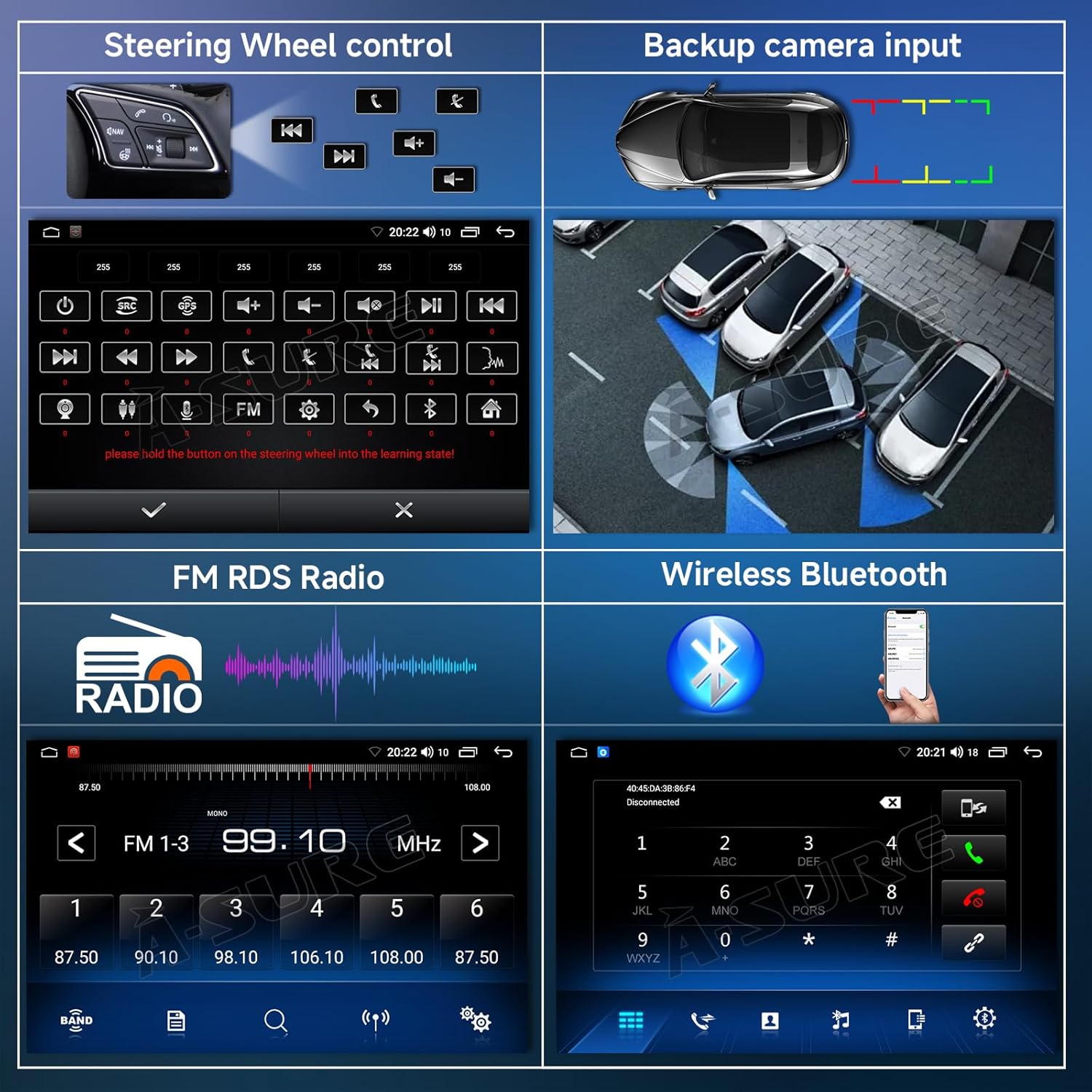
Figure 9: Steering Wheel Control, Backup Camera, FM Radio, and Bluetooth interfaces.
4.6 Backup Camera Input
The unit supports a backup camera. Connect your camera to the designated input port. The display will automatically switch to the camera view when the vehicle is in reverse.
4.7 FM RDS Radio and Bluetooth
Access FM radio stations with RDS (Radio Data System) functionality. Use Bluetooth for hands-free calling and audio streaming. Pair your device via the Bluetooth settings menu.
4.8 UI Customization
The Android system allows for customization of the user interface, including installing third-party launchers from the Play Store. This enables personalized themes, icon layouts, and quick access to preferred applications.
Video 2: Guide on how to install and customize a third-party launcher (user interface) on the Android radio, including changing themes, icons, and app shortcuts.
5. Maintenance
5.1 Screen Cleaning
To clean the touchscreen, power off the unit and gently wipe the screen with a soft, lint-free cloth. For stubborn smudges, use a screen cleaner specifically designed for electronic displays. Avoid harsh chemicals or abrasive materials.
5.2 Software Updates
Periodically check for software updates to ensure optimal performance and access to new features. Updates can typically be found in the system settings under 'About device' or 'System updates'. A stable Wi-Fi connection is recommended for downloading updates.
6. Troubleshooting
This section addresses common issues you might encounter with your ASURE Car Stereo.
6.1 Screen Brightness Adjustment
If the screen is too bright at night, you can adjust the backlight current. Navigate to Settings > Factory > Backlight current adjustment. Lower the "Minimum" value, then click "Save" and "Confirm" to apply the changes.
6.2 Steering Wheel Control (SWC) Issues
If your steering wheel controls are not functioning or are working in reverse (e.g., Previous/Next controls are swapped, or Volume +/- are reversed):
- Ensure the CAN-BUS Box is correctly installed and connected.
- Go to Settings > Factory > Car Model and set up the correct car model and CAN BUS type for your vehicle.
- In the same Factory settings, locate options like "Reversal Previous And Next" or "Reversal Volume" and adjust them as needed to correct reversed controls.
6.3 Touch Screen Calibration
If the touchscreen responsiveness is inaccurate, it may require recalibration. Navigate to Settings > Factory > Touch Screen Calibration and follow the on-screen instructions to recalibrate the touch points.
6.4 Bluetooth/Wi-Fi Connectivity Problems
If you experience issues with Bluetooth or Wi-Fi, ensure the white plug is securely connected to the main device, as this is crucial for signal reception.
7. Specifications
| Feature | Detail |
|---|---|
| Brand | ASURE |
| Model Compatibility | Subaru Forester MK4 (2013-2015), Impreza (2012-2014), VX Crosstrek |
| Operating System | Android 14 |
| Display Size | 9 Inches |
| Resolution | 1280x800 (HD) |
| Processor | 4-core CPU |
| RAM | 2GB |
| Internal Storage | 64GB |
| Connectivity | Bluetooth, USB, Wi-Fi (2.4G/5G) |
| Special Features | Wireless CarPlay, Wireless Android Auto, Built-in GPS, DSP, Touchscreen, Steering Wheel Control (SWC) |
| Audio Output Mode | Stereo |
| Mounting Type | Dashboard Mount |
| Item Weight | 4.29 pounds |
| Product Dimensions | 8.9 x 5.1 x 1.6 inches |
8. Warranty Information
The ASURE Car Stereo comes with a 1-year repair warranty. Additionally, a 30-day free return policy is available from the date of purchase. Please retain your proof of purchase for warranty claims.
9. Customer Support
For further assistance, technical support, or inquiries regarding your ASURE Car Stereo, please visit the official ASURE Store on Amazon:
You may also refer to the contact information provided with your product packaging.

