1. Introduction
This manual provides comprehensive instructions for the installation, operation, and maintenance of your Biorunn 10.1 Inch Android Car Stereo. This advanced head unit is designed to enhance your driving experience with features such as GPS navigation, wireless Car-Play, Android Auto, Bluetooth 5.0, FM/AM radio with RDS, and a powerful 8-core processor with 4GB RAM and 32GB ROM. Please read this manual thoroughly before use to ensure proper installation and optimal performance.
2. Compatibility
This Biorunn Android Car Stereo is specifically designed for the Toyota Hilux RHD (Right-Hand Drive) models from 2015 to 2020. Before purchasing or installing, it is crucial to verify your car's model year and the configuration of your center console. If you are uncertain about compatibility, please consult with a professional or the manufacturer, providing a picture of your vehicle's center console.
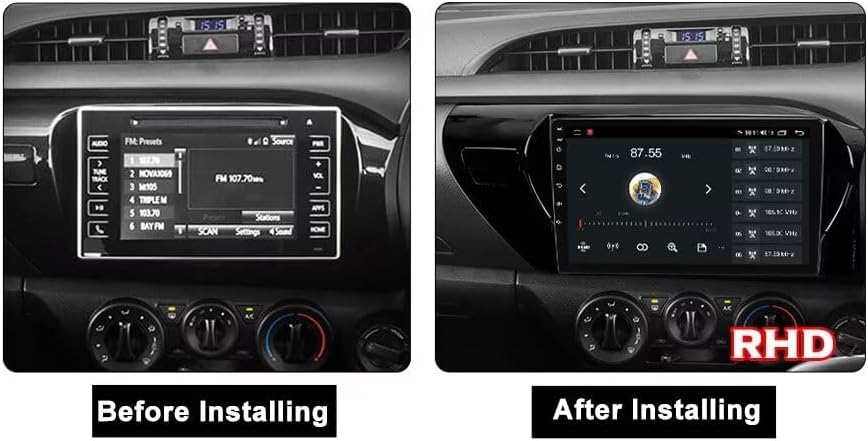
This image shows the original car stereo in a Toyota Hilux dashboard on the left. The image on the right displays the Biorunn 10.1 Inch Android Car Stereo installed, indicating a right-hand drive (RHD) vehicle.
3. Setup and Installation
Professional installation is recommended for this product. Ensure the vehicle's power is disconnected before beginning any installation work. Refer to the wiring diagram below for correct connections.
3.1 Wiring Diagram

This diagram illustrates the connections for the Biorunn Android Car Stereo. It includes inputs for GPS, 4G antenna, and two USB ports. Outputs are provided for speakers (Front Left, Front Right, Rear Left, Rear Right), and connections for ACC, Battery +12V, Battery GND, Reverse, Brake CTL, Auto ANT, and Steering Wheel Control (KEY1, KEY2). Note the cooling fan and the optional CANBUS connection if required by your car model.
3.2 General Installation Steps
- Disconnect Battery: Before starting, disconnect the negative terminal of your car battery to prevent electrical shorts.
- Remove Old Unit: Carefully remove the existing car stereo and trim panels.
- Connect Wiring: Refer to the wiring diagram to connect all necessary cables: power (ACC, B+, GND), speaker outputs, GPS antenna, 4G antenna, USB cables, and any auxiliary inputs/outputs. Ensure secure connections.
- Test Connections: Before fully reassembling, reconnect the battery and perform a basic test of the unit's functions (power on, audio, radio, touch screen).
- Secure Unit: Mount the new Biorunn head unit securely into the dashboard.
- Reassemble: Reinstall all trim panels and ensure no wires are pinched.
4. Operating Instructions
4.1 Android System Overview
Your Biorunn car stereo runs on an Android operating system, featuring an 8-core processor, 4GB RAM, and 32GB ROM. The 10.1-inch IPS multi-touch screen provides a clear display with 1280 x 720 resolution. You can download various applications, adjust screen brightness, and enjoy 1080P full-format multimedia playback.
4.2 Car-Play and Android Auto
The unit supports both wireless Car-Play and Android Auto, allowing seamless integration with your smartphone. Connect your phone to access navigation, make calls, send messages, and listen to music directly from the car stereo interface.

This image shows the main screen of the Biorunn car stereo with icons for Car-Play and Android Auto. It highlights the ability to integrate smartphone functions like calls, maps, music, and messages for a safer driving experience.
4.3 Bluetooth Functionality
With built-in Bluetooth 5.0, you can connect your mobile phone for hands-free calling, phonebook synchronization, and audio streaming (A2DP). This feature enhances safety by allowing you to manage calls without diverting attention from the road.

The Bluetooth interface allows for hands-free calling, phonebook download, and music streaming (A2DP). The screen displays a dial pad and options for managing calls.
4.4 FM/AM Radio with RDS
The car stereo includes an FM/AM radio tuner with RDS (Radio Data System). It supports both automatic and manual station searching, allowing you to easily find and save your favorite radio channels. You can organize your channel list by dragging and dropping station icons.

The radio interface supports automatic and manual station search. Users can drag and drop icons to organize their channel list. It displays the current frequency and preset stations.
4.5 GPS Navigation
Equipped with a built-in global positioning system, the unit provides accurate, omni-directional map display. It supports real-time traffic conditions and rapid positioning, helping you navigate efficiently to your destination.

The built-in global positioning system provides omni-directional map display, real-time traffic conditions, and accurate positioning. The screen shows a navigation route with distance and estimated arrival time.
4.6 Steering Wheel Control (SWC)
The Biorunn car stereo supports original steering wheel remote control. This allows you to manage music playback, adjust volume, and handle calls directly from your steering wheel, ensuring you can concentrate on the road ahead. The unit features a learning interface to configure your steering wheel buttons.

This screen allows configuration of steering wheel controls. Users can assign functions to buttons on their steering wheel for safe operation of music and hands-free calling while driving. The unit supports digital steering wheel control (SWC).
5. Maintenance
- Screen Cleaning: Use a soft, lint-free cloth to gently wipe the screen. For stubborn smudges, slightly dampen the cloth with water or a screen-safe cleaner. Avoid harsh chemicals.
- Software Updates: Periodically check for software updates to ensure optimal performance and access to new features. Follow the on-screen prompts or manufacturer's instructions for updating.
- Environmental Conditions: Avoid exposing the unit to extreme temperatures, direct sunlight for prolonged periods, or excessive moisture.
- Ventilation: Ensure the cooling fan (if present) and ventilation openings are not obstructed to prevent overheating.
6. Troubleshooting
| Problem | Possible Cause | Solution |
|---|---|---|
| Unit does not power on | Incorrect wiring; Blown fuse; Vehicle battery issue | Check power connections (ACC, B+, GND). Verify vehicle fuses. Ensure car battery is charged. |
| No sound | Speaker wires disconnected; Volume too low; Mute activated | Check speaker wiring. Increase volume. Deactivate mute function. |
| GPS signal loss or inaccuracy | GPS antenna obstructed or disconnected; Poor satellite reception | Ensure GPS antenna is properly connected and has a clear view of the sky. Move to an open area. |
| Bluetooth connection issues | Bluetooth off on phone/unit; Pairing mode not active; Interference | Ensure Bluetooth is enabled on both devices. Put unit in pairing mode. Try re-pairing. Reduce interference. |
| Touch screen unresponsive | Software glitch; Screen damage | Restart the unit. If issue persists, contact support. |
7. Specifications
- Operating System: Android
- Processor: 8-Core
- RAM: 4GB
- ROM: 32GB
- Display Size: 10.1 Inches
- Resolution: 1280 x 720 IPS Screen
- Bluetooth: Version 5.0
- DSP Processor: Built-in
- Car-Play/Android Auto: Built-in (Wireless/Wired)
- Split Screen: Supported
- Connectivity: 4G LTE, 5Ghz WIFI, Bluetooth, USB
- Navigation: Built-in Global Positioning System (GPS)
- Radio: FM/AM with RDS
- Touch Screen Type: Capacitive, Multi-touch
- Steering Wheel Control: Supported
- USB Ports: USB1, USB2
- Supported Audio Formats: MP3, WMA, AAC, RM, FALC, etc.
- Supported Video Formats: MPEG-1/2/4, H264, H263, VC1, RV, RMVB, DivX, Sorenson SparK, Spark, VP8, AVS Stream
- Supported Photo Formats: JPG/BMP/JEPG/GIF/PNG
- Supported Languages: English, German, French, Spanish, Italian, Portuguese, Russian, Dutch, Polish, Japanese, Simplified & Traditional Chinese, Arabic, etc.
- Optional Support (Accessories Not Included): ADAS DVR, OBD II, TPMS
8. Warranty and Support
Your Biorunn Android Car Stereo comes with a 1-year warranty from the date of purchase. This warranty covers manufacturing defects under normal use. Please retain your proof of purchase for warranty claims.
For technical support, troubleshooting assistance, or warranty inquiries, please contact Biorunn customer service through the retailer where you purchased the product or visit the official Biorunn website for contact information. When contacting support, please have your product model and purchase details ready.