Introduction
This manual provides detailed instructions for the setup, operation, and maintenance of your UGREEN 4K Video Capture Card. Please read this manual thoroughly before use to ensure optimal performance and longevity of the device.
What's in the Box
- Capture Card
- Installation Guide
Product Overview & Features
The UGREEN 4K Video Capture Card is designed for high-quality video and audio capture, offering a seamless experience for streaming, gaming, and conferencing.

Figure 1: UGREEN 4K Video Capture Card and accessories.
Key features include:
- Real 1080P 60FPS Capture: Captures and records content at 1080P 60Hz for high-quality HD video and audio.
- 4K Input and Passthrough: Supports 4K@30Hz (4:4:4) input and 4K@30Hz loop-out (4:4:4), also supports max 4K@60Hz (4:2:0) input and 4K@60Hz loop-out (4:2:0) with ultra-low latency.
- Mic-in for Commentary: Includes a microphone input for easy voice integration during gameplay or live broadcasts.
- Plug and Play: No additional software or drivers required for basic functionality.
- Wide Compatibility: Compatible with Windows, Mac OS, Linux, iOS17, and Android systems, supporting devices like Nintendo Switch, PS4/PS5, Xbox Series X, Meta Quest 3/2, PC, and Mac.

Figure 2: Overview of the capture card's ports including USB-C, HDMI Out, and HDMI In.
Setup Guide
General Connection Diagram
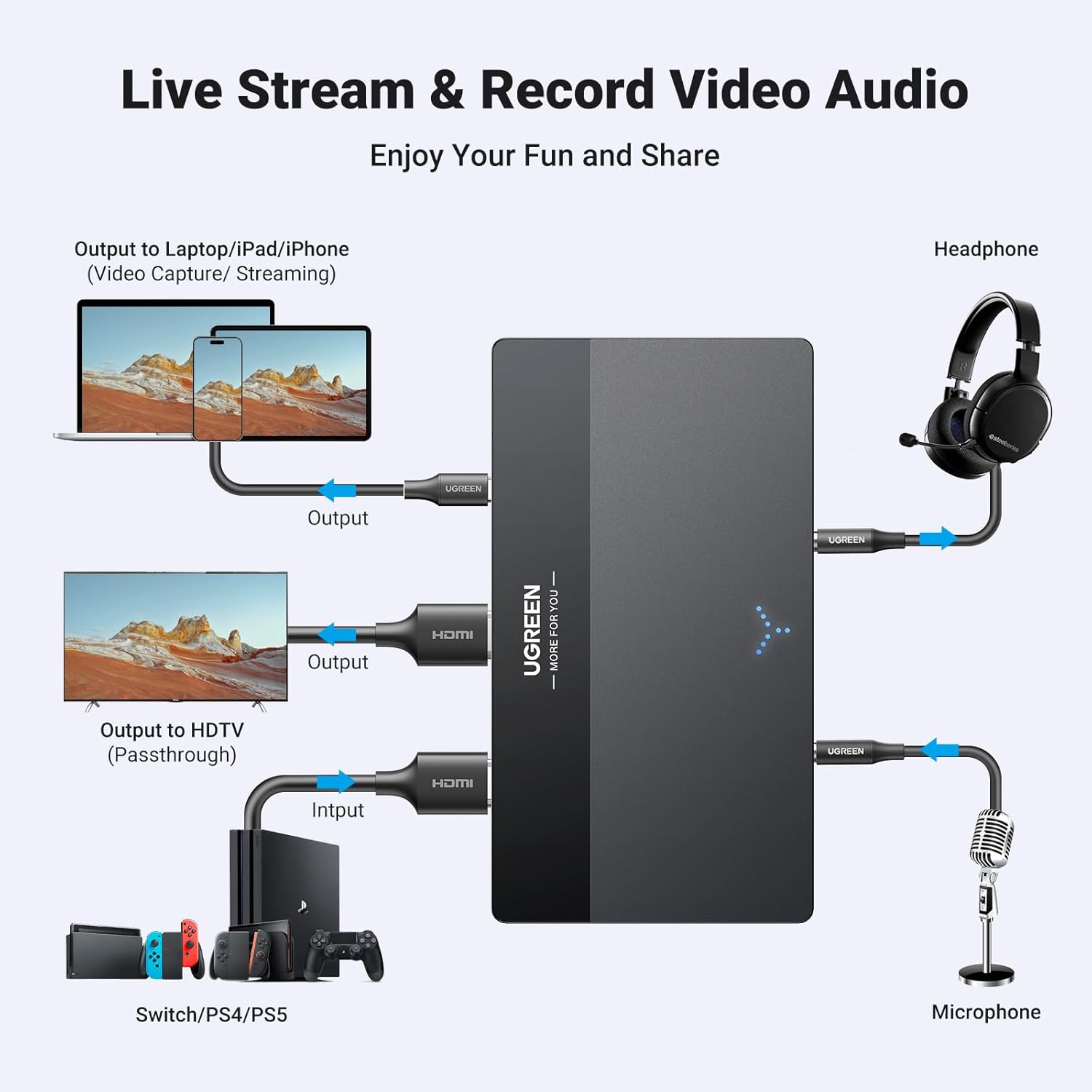
Figure 3: General setup for live streaming and recording, connecting input devices to the capture card and outputting to a laptop/iPad/iPhone and HDTV.
Connecting to a Camera
Follow these steps to connect your camera to the UGREEN Video Capture Card:
- Connect the capture card to your Laptop/PC using the provided 2-in-1 USB cable.
- Connect the other USB-C end of the 2-in-1 USB cable to the capture card.
- Connect the Micro HDMI/Mini HDMI (not included) to HDMI cable to the HDMI port of your camera, then connect the HDMI end to the HDMI IN port on the capture card.
Video 1: Instructions on how to connect the UGREEN Video Capture Card to a camera for streaming or recording.
Connecting to a PS5
To use the capture card with your PS5, ensure HDCP is disabled on your console:
- At the PlayStation 4/PlayStation 5 main menu, navigate to Settings -> System -> HDMI section of the PS4/PS5 interface, and turn off Enable HDCP.
Once HDCP is disabled, follow these connection steps:
- Connect the HDMI cable from your PS5's HDMI port to the HDMI IN port on the capture card.
- Connect the capture card to your Laptop/PC using the provided 2-in-1 USB cable.
- Connect an additional HDMI cable (not included) from the capture card's HDMI OUT port to your HDTV/Monitor for video loop-out.
Video 2: Detailed guide on connecting the UGREEN Video Capture Card to a PS5, including disabling HDCP.
HDCP (High-bandwidth Digital Content Protection)
The capture card does not support the use of devices with HDCP signals. Ensure HDCP is disabled on your source device for video capture.
- Switch/Xbox: HDCP is off by default on Switch/Xbox consoles. HDCP will activate when media apps such as Netflix or Hulu are started. HDCP automatically turns off when the media app is quit; if the signal does not come back, then restart the console.

Figure 4: Important information regarding HDCP and its compatibility with the capture card.
Operating Instructions
The UGREEN 4K Video Capture Card is designed for ease of use with various streaming and recording software.
Using with OBS Studio
The capture card is compatible with OBS Studio. After connecting your devices as described in the Setup Guide, open OBS Studio and add a