
1. Introduction
This manual provides comprehensive instructions for the installation, operation, and maintenance of your Irfora eWelink WiFi Smart Thermostat, model HC-020-EWL-GC. This thermostat is designed for uniform and comfortable temperature control in properties utilizing water heating or water/gas boiler systems. It integrates modern technology with a sleek design to offer a reliable and user-friendly temperature management solution.
The HC-020-EWL-GC model is specifically configured for water heating and water/gas boiler systems. Please ensure you have the correct model for your heating system before proceeding with installation.

Figure 1: Front view of the Irfora eWelink WiFi Smart Thermostat, displaying its large LCD screen and touch buttons.
2. Safety Information
- Always disconnect power to the heating system at the main circuit breaker before installing or performing any maintenance on the thermostat.
- Installation should be performed by a qualified electrician or trained service personnel.
- Ensure all wiring complies with local electrical codes and regulations.
- Do not expose the thermostat to water or excessive moisture.
- Read the entire user manual carefully before installation and operation.
3. Package Contents
The product package should contain the following items:
- 1 x Irfora eWelink WiFi Smart Thermostat (HC-020-EWL-GC)
- 2 x Mounting Screws
- 1 x User Manual (English)
- 1 x Temperature Sensor (External sensor, if included with your specific package)
4. Product Features
- Large LCD Display with Backlight: Provides clear readability even in low-light conditions.
- Touch Buttons: Sensitive touch controls for simple and intuitive operation.
- High Accuracy: Maintains temperature within ±0.5℃ or ±1℉ of the set point.
- Programmable Schedule: Supports 5+2 six-period programming for optimized comfort and energy efficiency.
- Voice Control Compatibility: Works with popular voice assistants including Google Assistant, Amazon Alexa, Xiaodu, Tencent Xiaowei, DingDong, and Tmall Genie.
- Mobile APP Control: Remote control and monitoring via the eWelink application.
- Easy Installation: Designed for compatibility with standard 86mm or European 60mm pattress boxes (box not included).

Figure 2: Overview of key features including voice control, mobile app control, programmable schedule, touch screen operation, and ease of installation.
5. Specifications
| Feature | Specification |
|---|---|
| Model | HC-020-EWL-GC |
| Type | Thermostat for Water Heating / Water/Gas Boiler |
| Power Supply | 95-240V AC, 50/60Hz |
| Current Load | 5A (Water Heating, Water/Gas Boiler) |
| Sensor | NTC |
| Display | LCD with Backlight |
| Buttons | Capacitive Touch Buttons |
| Accuracy | ±0.5℃ or ±1℉ |
| Set Temperature Range | 5~35℃ |
| Display Temperature Range | 5~99℃ |
| Ambient Temperature | 0~45℃ |
| Ambient Humidity | 5~95% RH (Non Condensing) |
| Storage Temperature | -5~45℃ |
| Power Consumption | <1.5W |
| Timing Error | <1% |
| Protection Class | IP20 |
| Shell Material | PC+ABS (Flame Retardant) |
| Item Size | 87 x 87 x 43mm (3.42 x 3.42 x 1.69 inches) |
| Item Weight | 132g (4.65oz) |

Figure 3: A summary of the thermostat's technical specifications.

Figure 4: Dimensional diagram of the thermostat.
6. Installation
Important: Ensure power is disconnected at the main circuit breaker before beginning installation.
- Step 1: Power Off and Remove Back Cover.
Turn off the main power supply to your heating system. Carefully remove the front cover of the thermostat by rotating it counter-clockwise from the back cover.

Figure 5: Removing the thermostat's back cover.
- Step 2: Wiring.
Refer to the wiring diagrams in Section 7 to connect the necessary wires to the terminals on the back cover. Ensure all connections are secure and correct for your water heating or water/gas boiler system (GC model).
- Step 3: Mount the Back Cover.
Secure the back cover to a standard 86mm or European 60mm pattress box using the provided screws. Ensure it is firmly attached to the wall.
Figure 6: Securing the back cover to the wall.
- Step 4: Attach Front Cover.
Align the front cover with the mounted back cover and gently push/rotate until it clicks into place, ensuring a secure fit. The installation is now complete.
Figure 7: Attaching the front cover to complete installation.
7. Wiring Diagrams
Refer to the following diagram for the correct wiring of the HC-020-EWL-GC model, which is designed for water heating and water/gas boiler systems.

Figure 8: Wiring diagram for HC-020-EWL-GC (Water/Gas Boiler).
Note: GA is for water heating, GB is for electric heating, GC is for water/gas boiler. Ensure you use the GC diagram for this model.
8. Initial Setup and App Pairing
- Power On: After installation, restore power to the thermostat at the main circuit breaker. The thermostat display should illuminate.
- Download eWelink App: Download the "eWelink" app from your smartphone's app store (iOS or Android).
- Register/Login: Open the eWelink app and register a new account or log in with an existing one.
- Add Device: Follow the in-app instructions to add a new device. Typically, this involves putting the thermostat into pairing mode (refer to the thermostat's on-screen prompts or a quick press of a specific button, usually the Wi-Fi icon or power button for a few seconds) and connecting to your home Wi-Fi network.
- Configure Settings: Once paired, you can configure initial settings such as temperature units (Celsius/Fahrenheit), time, and basic schedule through the app.
9. Operating Instructions
9.1 Basic Operation
- Power Button: Press to turn the thermostat ON/OFF.
- Temperature Adjustment: Use the UP/DOWN arrows on the display or within the app to adjust the desired temperature.
- Mode Selection: Cycle through modes (e.g., Auto, Manual) using the mode button (if available on display) or via the app.

Figure 9: Touch screen operation for temperature adjustment and settings.
9.2 Programmable Schedule (5+2 Periods)
The thermostat supports a 5+2 day programmable schedule, allowing you to set different temperature profiles for weekdays and weekends across six periods each day. This feature helps optimize energy consumption and comfort.
- Access the scheduling menu via the eWelink app.
- Set desired temperatures and times for each of the six periods for Monday-Friday.
- Set desired temperatures and times for each of the six periods for Saturday-Sunday.
- Save your schedule. The thermostat will automatically follow this program.

Figure 10: Programmable schedule allows for automated temperature control.
9.3 Voice Control
The Irfora eWelink Smart Thermostat is compatible with several voice assistants. To enable voice control:
- Ensure your thermostat is successfully paired with the eWelink app.
- Link your eWelink account to your preferred voice assistant (e.g., Google Home, Amazon Alexa) through their respective apps.
- Once linked, you can use voice commands such as:
- "Hey Google, set the thermostat to 22 degrees."
- "Alexa, what is the temperature in the living room?"
- "Turn on the heating."
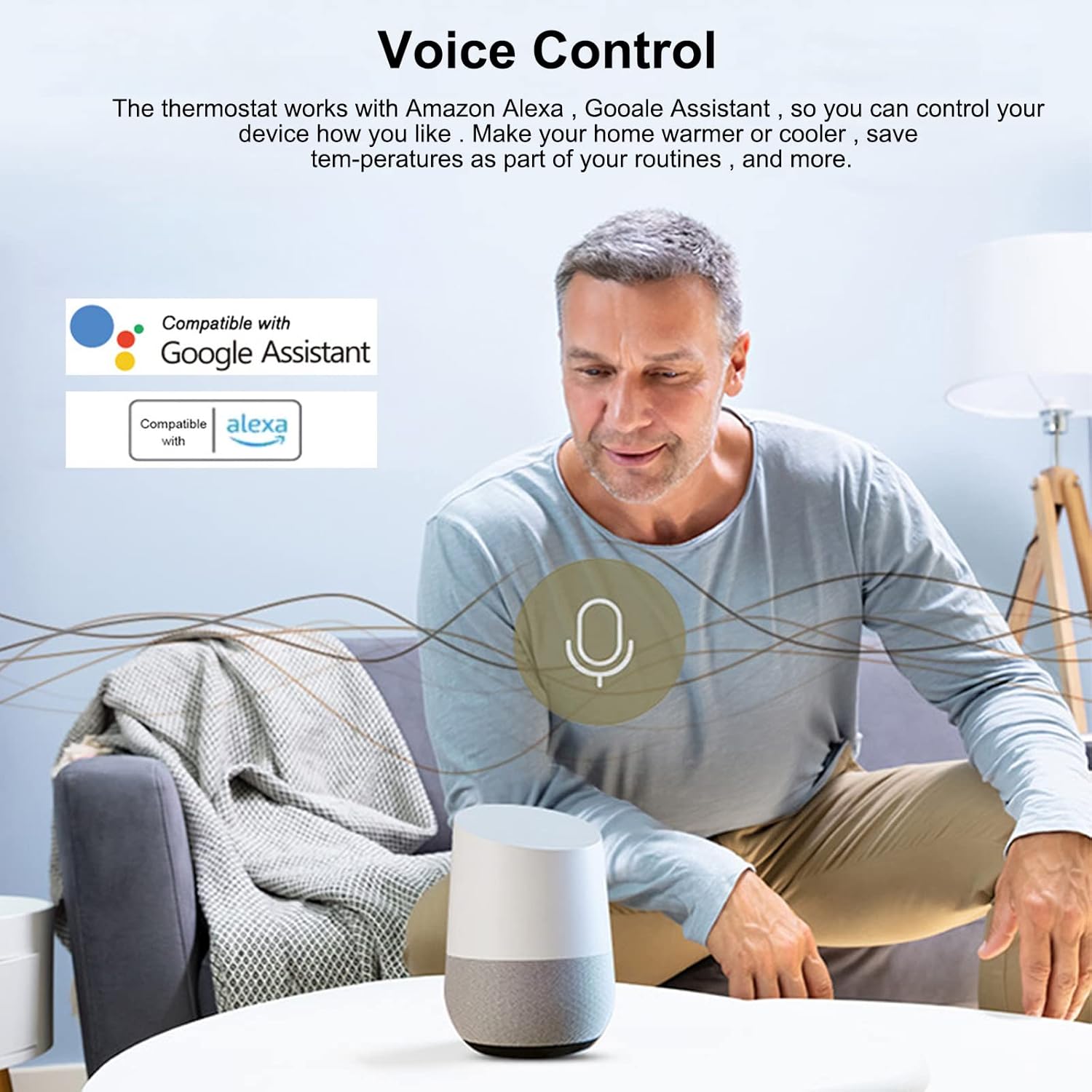
Figure 11: Voice control integration with smart home platforms.
10. Maintenance
- Cleaning: Wipe the thermostat's display and casing with a soft, dry cloth. Do not use abrasive cleaners, solvents, or spray directly onto the unit.
- Software Updates: Periodically check the eWelink app for firmware updates for your thermostat to ensure optimal performance and access to new features.
- Power Cycle: If the thermostat becomes unresponsive, try turning off the power at the circuit breaker for a few minutes, then restore power.
11. Troubleshooting
| Problem | Possible Cause | Solution |
|---|---|---|
| Thermostat not powering on. | No power from the main supply; incorrect wiring. | Check circuit breaker. Verify wiring connections according to Section 7. |
| Thermostat not connecting to Wi-Fi. | Incorrect Wi-Fi password; thermostat too far from router; router issues. | Ensure correct Wi-Fi password. Move thermostat closer to router or use a Wi-Fi extender. Restart router. Re-attempt pairing process. |
| APP displays "E2" error. | External sensor is not connected or faulty. | This error indicates that an external sensor is required but not detected. If an external sensor is not installed, the thermostat will still function normally using its internal sensor. For more accurate readings, install an external sensor if your system requires it. |
| Heating system not responding to thermostat. | Incorrect wiring; heating system fault; thermostat not in heating mode. | Verify wiring. Check your boiler/heating system for faults. Ensure the thermostat is set to heating mode and the set temperature is above the ambient temperature. |
12. Warranty and Support
Specific warranty information for your Irfora eWelink WiFi Smart Thermostat may vary by region and retailer. Please refer to the warranty card included with your purchase or contact your point of sale for details.
For technical support or further assistance, please contact Irfora customer service or visit the official eWelink support website.
13. Video Resources
No official product videos from the seller were provided in the product information for this manual.