1. Introduction
This manual provides instructions for setting up, operating, and maintaining your TEKXDD 10.1-inch WiFi Digital Photo Frame (Model XIANGK-0001). Please read this manual thoroughly before using the device to ensure proper functionality and longevity.
Package Contents
- 1 x TEKXDD 10.1-inch WiFi Digital Photo Frame
- 1 x User Manual
- 1 x Stand
- 1 x 5V/2A Power Adapter
2. Product Overview
The TEKXDD Digital Photo Frame features a 10.1-inch IPS touch screen, 16GB internal storage, and Wi-Fi connectivity for easy photo and video sharing via the Frameo app.
Key Features
- Display: 10.1-inch IPS LCD screen with 1280 x 800 resolution, 16:10 aspect ratio.
- Connectivity: 2.4 GHz Wi-Fi (WLAN).
- Storage: 16GB built-in memory, expandable via Micro SD card (up to 32GB) or Micro USB stick.
- Photo Formats: JPG, JPEG, BMP, PNG.
- Video Playback: Supports short video clips (up to 15 seconds).
- Control: Intuitive touch screen interface.
- App Integration: Compatible with the free Frameo app for seamless sharing.
- Automatic Rotation: Adjusts display orientation automatically.
Component Identification
Refer to the diagram below to identify the various components of your digital photo frame.
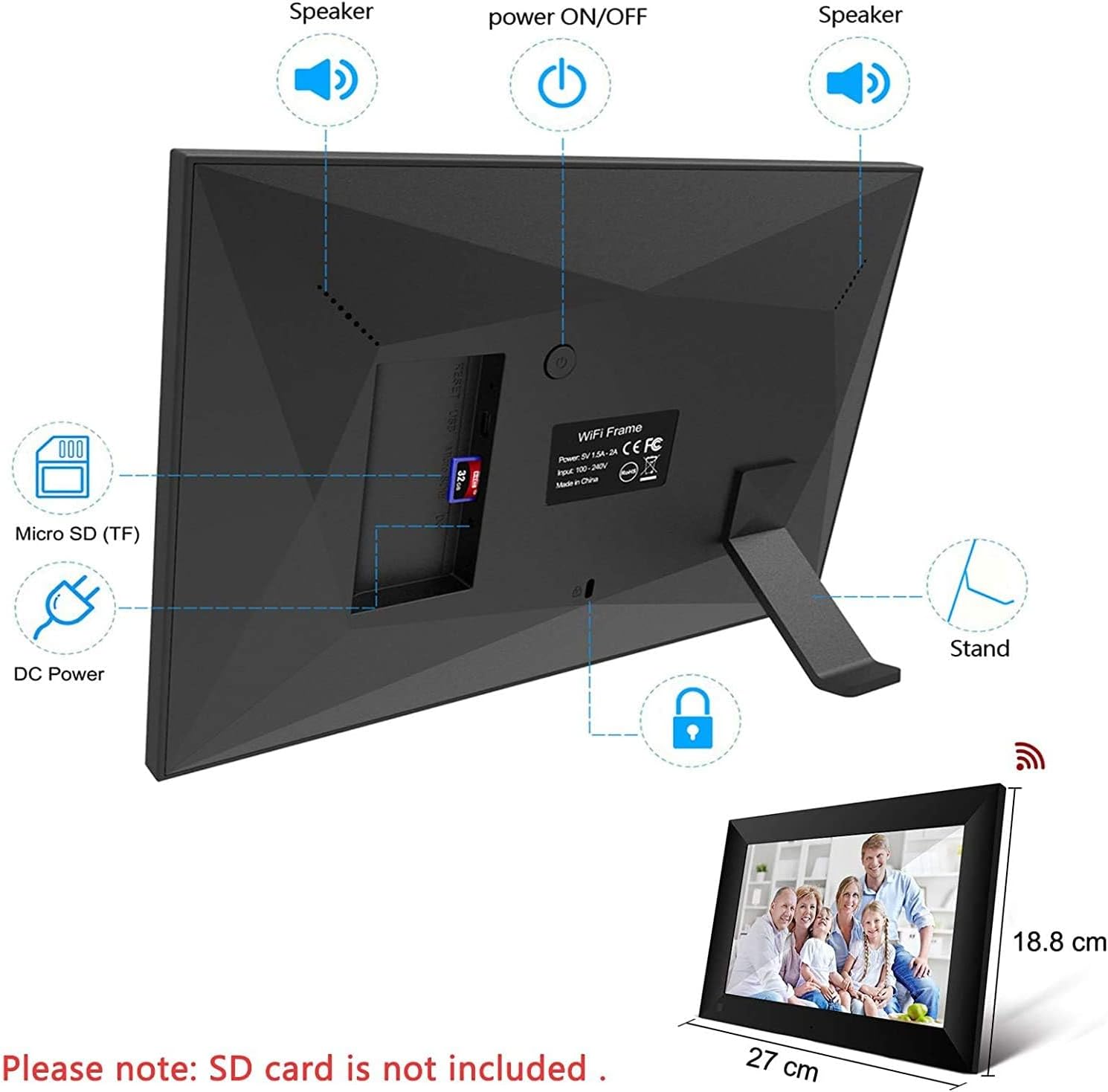
Figure 2.1: Rear view of the digital photo frame, highlighting the Micro SD (TF) card slot, DC Power input, Power ON/OFF button, and integrated speakers. The stand is also visible.

Figure 2.2: Front view of the digital photo frame, illustrating its 10.1-inch IPS screen, 1280x800 resolution, and icons representing WiFi, Frameo App, Touch Screen, 16GB Built-in Storage, HD 1080p, Slide Show, Show Caption, and HD Playback capabilities.
3. Setup
3.1 Initial Power-On
- Connect the provided 5V/2A power adapter to the DC Power port on the back of the frame.
- Plug the power adapter into a wall outlet.
- Press the Power ON/OFF button on the back of the frame to turn it on.
- The frame will boot up and display the initial setup wizard.
3.2 Connecting to Wi-Fi
Follow the on-screen instructions to connect your frame to a 2.4 GHz Wi-Fi network.
- Select your preferred language.
- Choose your Wi-Fi network from the list.
- Enter the Wi-Fi password using the on-screen keyboard.
- Tap "Connect" to establish the connection.
3.3 Installing and Pairing with Frameo App
The Frameo app allows you to easily send photos and videos to your digital photo frame from your smartphone.
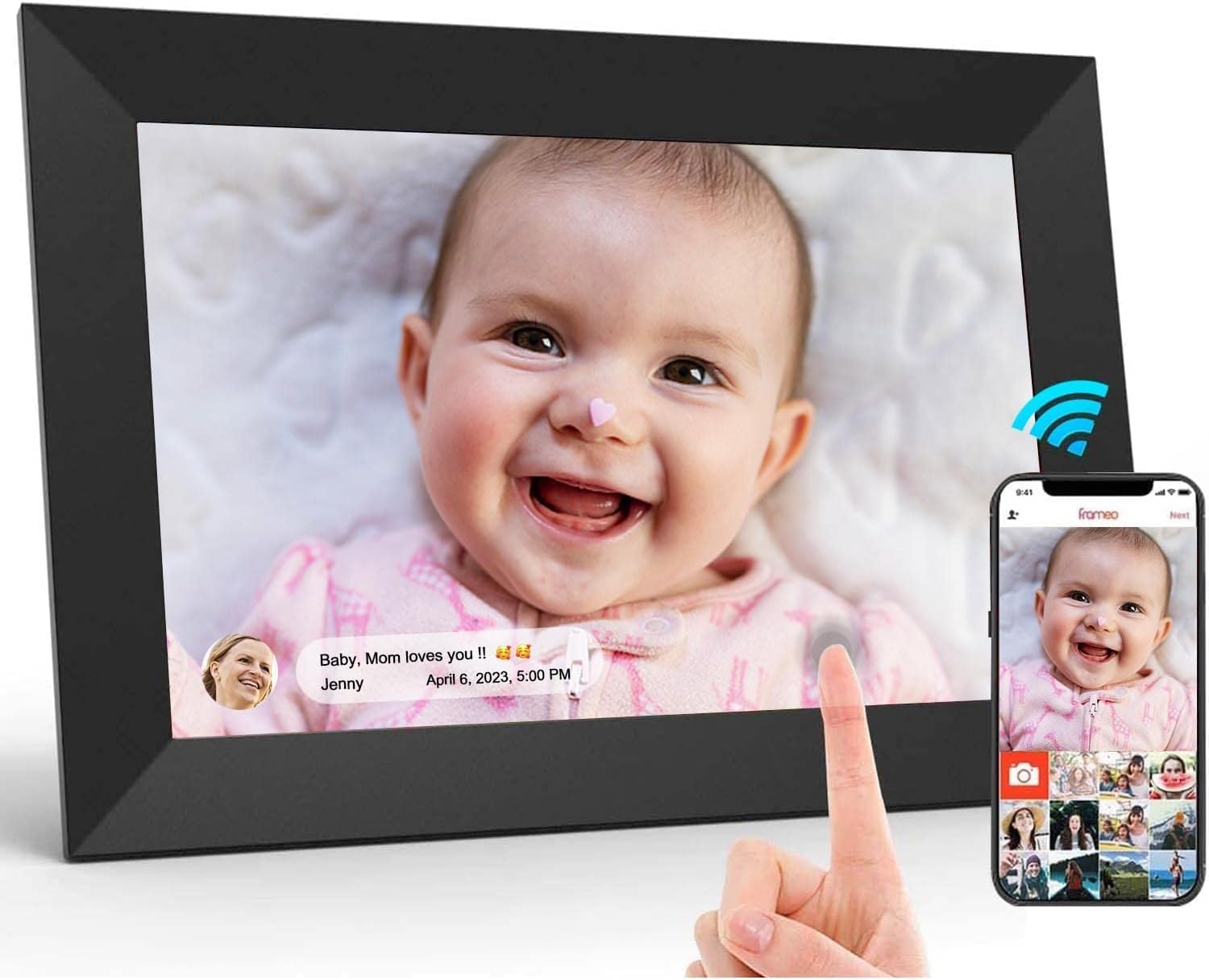
Figure 3.1: Illustration of how photos and videos are uploaded to the digital photo frame using the Frameo app on a smartphone, leveraging cloud connectivity.
- Download the free "Frameo" app from Google Play Store (for Android) or Apple App Store (for iOS) on your smartphone.
- Open the Frameo app and create an account or log in.
- On your digital photo frame, follow the setup wizard to get a unique code.
- In the Frameo app on your smartphone, enter this code to pair your device with the frame.
- Once paired, you can start sending photos and short videos directly to your frame.
4. Operating Instructions
4.1 Uploading Photos and Videos
- Via Frameo App: After pairing, select photos or videos from your smartphone gallery within the Frameo app and send them to your frame.
- Via Micro SD Card: Insert a Micro SD card (up to 32GB, not included) into the Micro SD (TF) slot on the back of the frame. The frame will detect the card, and you can import media files.
- Via Micro USB Stick: Connect a Micro USB stick to the frame to import or export media files.
Supported image formats: JPG, JPEG, BMP, PNG. Video playback is supported for clips up to 15 seconds.
4.2 Automatic Rotation
The frame features an automatic rotation function, allowing it to adjust the display orientation (landscape or portrait) based on how it is positioned.

Figure 4.1: The automatic rotation feature allows the frame to seamlessly switch between portrait and landscape modes depending on its physical orientation.
4.3 Touch Screen Navigation
Navigate through the frame's menus and settings using the intuitive touch screen. Tap to select, swipe to scroll, and pinch to zoom (if supported by the app/feature).
4.4 Managing Photos and Settings
Access the frame's settings menu to:
- Adjust display brightness and sleep mode.
- Configure slideshow settings (interval, transition effects).
- Manage stored photos and videos (delete, organize).
- Check Wi-Fi status and update firmware.
- Backup and restore files to/from external storage.
5. Maintenance
5.1 Cleaning the Screen
To clean the screen, gently wipe it with a soft, lint-free cloth. For stubborn smudges, slightly dampen the cloth with water or a screen-safe cleaning solution. Avoid using harsh chemicals or abrasive materials.
5.2 Software Updates
Periodically check for software updates in the frame's settings menu to ensure optimal performance and access to new features. Connect the frame to Wi-Fi to download and install updates.
6. Troubleshooting
- Frame not turning on: Ensure the power adapter is securely connected to both the frame and a working power outlet.
- Cannot connect to Wi-Fi:
- Verify that your Wi-Fi network is 2.4 GHz.
- Check if the Wi-Fi password is entered correctly.
- Restart your Wi-Fi router and the digital photo frame.
- Photos not appearing:
- Ensure the Frameo app is correctly paired and photos are sent successfully.
- Check if the image format is supported (JPG, JPEG, BMP, PNG).
- If using an SD card, ensure it is inserted correctly and the files are in a compatible format.
- Touch screen unresponsive: Restart the frame. If the issue persists, contact customer support.
7. Specifications
| Brand | TEKXDD |
| Model Number | XIANGK-0001 |
| Screen Size | 10.1 inches |
| Display Type | IPS LCD |
| Resolution | 1280 x 800 (1080p support for playback) |
| Internal Storage | 16 GB |
| Expandable Storage | Micro SD card (up to 32 GB), Micro USB stick |
| Connectivity | WLAN (2.4 GHz Wi-Fi) |
| Input Interface | Touch Screen |
| Supported Image Formats | JPG, JPEG, BMP, PNG |
| Power Source | 5V/2A Power Adapter (Cable Electric) |
| Dimensions (L x W x H) | 26.5 x 18.5 x 2.5 cm (approx. 10.4 x 7.3 x 1.0 inches) |
| Weight | 790 grams (approx. 1.74 lbs) |
| Frame Material | Plastic |
8. Warranty and Support
For warranty information and technical support, please refer to the contact details provided with your purchase documentation or visit the official TEKXDD website. Keep your proof of purchase for warranty claims.


