
1. Product Overview
The DOOGEE V30 PRO is a robust 5G rugged smartphone designed for durability and high performance. It features a powerful MediaTek Dimensity 7050 Octa Core processor, a large 10800mAh battery, and an advanced 200MP AI triple camera system. Built to withstand harsh environments, it meets IP68/IP69K and MIL-STD-810H standards for water, dust, and drop resistance.
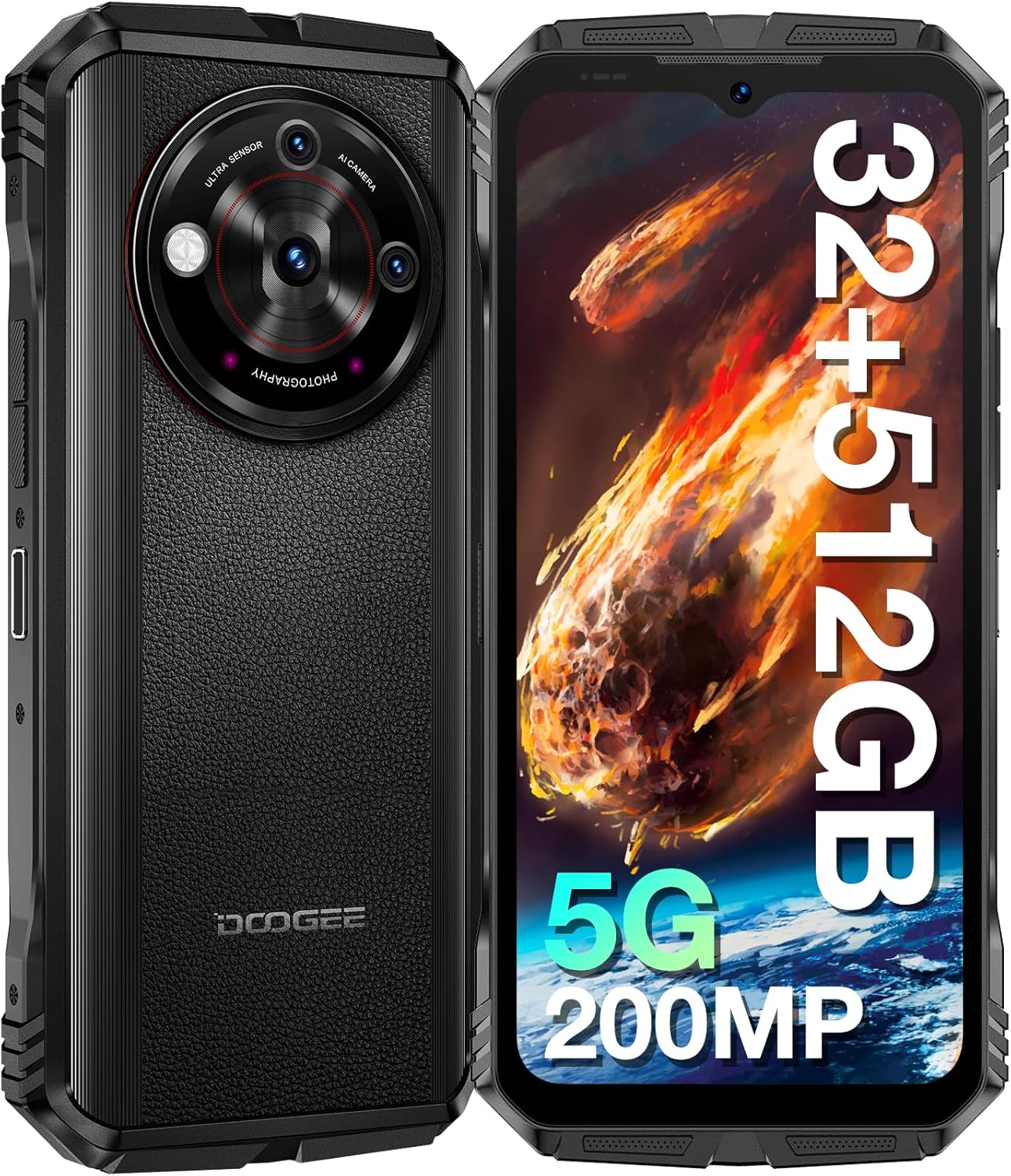
Image: Front and back view of the DOOGEE V30 PRO 5G Rugged Smartphone, highlighting its robust design and camera module.

Image: An overview of the DOOGEE V30 PRO's key features, including its 200MP camera, 120Hz display, Dimensity 7050 processor, and 10800mAh battery.
2. Setup Guide
2.1 Package Contents
Before starting, ensure all items are present in the box:
- DOOGEE V30 PRO Smartphone
- 33W Super Fast Charger
- USB Cable (Type-C)
- SIM Tray Ejector Tool
2.2 SIM Card and TF Card Installation
The DOOGEE V30 PRO supports dual Nano SIM cards or one Nano SIM card and one TF (microSD) card for expanded storage.
- Locate the SIM card tray on the side of the device.
- Insert the SIM tray ejector tool into the small hole next to the tray and press gently until the tray pops out.
- Place your Nano SIM card(s) and/or TF card into the designated slots on the tray, ensuring correct orientation.
- Carefully push the tray back into the slot until it is flush with the device body.

Image: Diagram illustrating the Nano SIM1 and Nano-SIM2/TF card slot for proper installation.
2.3 Initial Charging and Power On
- Connect the USB cable to the 33W Super Fast Charger and then to the Type-C port on your phone.
- Plug the charger into a power outlet. It is recommended to fully charge the device before first use.
- To power on, press and hold the Power button (usually on the side) until the DOOGEE logo appears on the screen.
- Follow the on-screen prompts to complete the initial Android 13.0 setup, including language selection, Wi-Fi connection, and Google account setup.
3. Operating Your Device
3.1 Display and Interaction
The DOOGEE V30 PRO features a 6.58-inch FHD+ IPS display with a 120Hz refresh rate for smooth visuals and responsiveness.
- Touchscreen Navigation: Interact with the device by tapping, swiping, pinching, and long-pressing on the screen.
- Physical Buttons: Utilize the Power button for screen lock/unlock and power options, and Volume buttons for audio control.
- Custom Key Button: The device includes a customizable side button that can be programmed for quick access to specific functions or applications.

Image: The 6.58-inch FHD+ IPS display with 120Hz refresh rate, showcasing its vibrant visuals.
3.2 Camera Features
Capture high-quality photos and videos with the versatile camera system.
- 200MP AI Main Camera: For detailed and high-resolution images.
- 24MP Night Vision Camera: Enables clear photography in low-light or complete darkness.
- 32MP Front Camera: Ideal for selfies and video calls.
- 4K Video Capture: Record high-definition videos.

Image: The AI Triple Camera setup on the DOOGEE V30 PRO, featuring the 200MP main sensor.

Image: A comparison demonstrating the clarity of the 24MP Night Vision Camera in dark conditions.
3.3 Connectivity
The device offers advanced connectivity options:
- 5G Network: Provides fast and stable mobile data connectivity.
- Wi-Fi 6: For high-speed wireless internet access with lower latency.
- Bluetooth 5.2: For connecting wireless accessories like headphones and speakers.
- NFC (Near Field Communication): Supports mobile payments and quick pairing with compatible devices.
- Navigation: Integrated GPS, GLONASS, Galileo, Beidou, and AGPS for accurate positioning.
3.4 Security Features
Secure your device and data:
- Side Fingerprint Recognition: Unlock your phone quickly and securely using the side-mounted fingerprint sensor.
- Face Recognition: Use your face to unlock the device.
3.5 Battery Management
The 10800mAh battery provides extended usage time.
- Long Standby Time: Up to 720 hours.
- 33W Fast Charging: Quickly recharge your device using the included charger.
- OTG (On-The-Go) Function: Use your phone to charge other electronic devices in emergencies.

Image: Illustration of the 10800mAh battery capacity and 33W fast charging capability.
3.6 Storage and Performance
The DOOGEE V30 PRO offers ample storage and smooth performance:
- 32GB RAM: (12GB physical + 20GB virtual RAM) for seamless multitasking.
- 512GB ROM: Internal storage for apps and data.
- 2TB TF Card Expansion: Expand storage further using a microSD card.

Image: Visual representation of the Dimensity 7050 Octa Core processor, highlighting its 32GB RAM and 512GB ROM with 2TB expandable storage.
3.7 Rugged Features and Toolbag
Designed for extreme conditions, the V30 PRO is IP68/IP69K and MIL-STD-810H certified, making it resistant to:
- 1.5M Drop-Test: Withstands drops from up to 1.5 meters.
- 1.5M Water Deep: Submersible in water up to 1.5 meters for 30 minutes.
- Dust-proof: Fully protected against dust ingress.
The device also includes a suite of practical tools:
- Protractor
- SoundMeter
- HeightMeasure
- Pic Hanging
- Magnifier
- Compass
- Gradienter
- Plumb Bob
- Mirror

Image: Demonstrates the solid and waterproof structure of the DOOGEE V30 PRO, highlighting its resistance to drops, water, and dust.

Image: Icons representing the various built-in toolbag applications available on the DOOGEE V30 PRO.
3.8 Underwater Mode
The DOOGEE V30 PRO supports an Underwater Mode, allowing you to capture photos and videos while submerged. Ensure the device is properly sealed before entering water.

Image: A person using the DOOGEE V30 PRO in Underwater Mode to capture images beneath the surface.
4. Maintenance
4.1 Cleaning Your Device
To maintain the ruggedness and appearance of your DOOGEE V30 PRO:
- Wipe the device with a soft, damp cloth.
- For stubborn dirt, use a mild soap solution and rinse thoroughly with clean water.
- Ensure all ports and covers are dry before charging or using in wet conditions.
4.2 Battery Care
To prolong battery life:
- Avoid exposing the device to extreme temperatures.
- Use only the original charger and cable provided.
- Do not fully discharge the battery regularly.
4.3 Software Updates
Regularly check for and install software updates to ensure optimal performance, security, and access to new features. Updates are typically found in the device's settings menu under 'System' or 'About phone'.
5. Troubleshooting
This section addresses common issues you might encounter with your DOOGEE V30 PRO.
5.1 Common Issues and Solutions
- Device not powering on:
- Ensure the battery is charged. Connect to the charger for at least 10 minutes before attempting to power on.
- Press and hold the Power button for 10-15 seconds to force a restart.
- Poor network connectivity (calls/data):
- Check if the SIM card is correctly inserted. Re-insert if necessary.
- Ensure you are within network coverage.
- Toggle Airplane Mode on and off.
- Restart the device.
- Apps crashing or freezing:
- Clear the cache of the problematic app (Settings > Apps > [App Name] > Storage > Clear cache).
- Ensure the app is updated to its latest version.
- Restart the device.
- Battery draining quickly:
- Reduce screen brightness.
- Close unused background apps.
- Disable Wi-Fi, Bluetooth, or GPS when not in use.
- Check battery usage in Settings to identify power-hungry apps.
- NFC not working (e.g., with CGMs):
- Ensure NFC is enabled in Settings.
- Verify compatibility with the specific NFC device or system you are trying to use. Not all NFC applications are universally supported.
5.2 Factory Reset
If issues persist, a factory reset can resolve many software-related problems. Warning: This will erase all data on your phone. Back up important data before proceeding.
- Go to Settings > System > Reset options.
- Select 'Erase all data (factory reset)'.
- Confirm your decision and enter your PIN/pattern if prompted.
6. Specifications
| Feature | Specification |
|---|---|
| Model Name | V30PRO |
| Operating System | Android 13.0 |
| Processor | MediaTek Dimensity 7050 Octa Core (2.6 GHz) |
| RAM | 32 GB (12GB physical + 20GB virtual) |
| Internal Storage (ROM) | 512 GB |
| Expandable Storage | Up to 2TB (TF card) |
| Display Size | 6.58 Inches |
| Display Resolution | 1080 x 2408 (FHD+) |
| Refresh Rate | 120 Hz |
| Main Camera | 200 MP AI Main Camera |
| Night Vision Camera | 24 MP |
| Front Camera | 32 MP |
| Battery Capacity | 10800 mAh |
| Charging | 33W Super Fast Charge (Type-C) |
| Connectivity | 5G, Wi-Fi 6, Bluetooth 5.2, NFC |
| Navigation | GPS, GLONASS, Galileo, Beidou, AGPS |
| Durability Standards | IP68 / IP69K / MIL-STD-810H |
| Security | Side Fingerprint Recognition, Face Recognition |
| Dimensions | 7.48 x 4.06 x 3.27 inches |
| Item Weight | 1.46 pounds |
7. Warranty and Support
The DOOGEE V30 PRO Rugged Smartphone comes with a two-year quality guarantee.
For technical assistance, warranty claims, or general inquiries, please contact DOOGEE customer service. Our personal customer service provides a friendly and fast response within 24 hours.
You can also visit the official DOOGEE store for more information and support resources: DOOGEE Store on Amazon
