
ViaBecs 6GB+128GB
ViaBecs Android 13 Car Stereo User Manual
Model: 6GB+128GB
For 2013-2018 Toyota RAV4
1. Introduction
This manual provides detailed instructions for the installation, operation, and maintenance of your ViaBecs Android 13 Car Stereo. Designed specifically for 2013-2018 Toyota RAV4 models, this unit integrates advanced features such as wireless Apple CarPlay, Android Auto, and a high-resolution QLED touchscreen to enhance your driving experience.

Image: The ViaBecs Android 13 Car Stereo unit, showcasing its sleek design and the Apple CarPlay interface on its QLED display.
2. Product Features
- Toyota RAV4 Specific Design: Tailored for 2013-2018 Toyota RAV4, includes a plug-and-play harness supporting original reverse camera, JBL Amplifier, steering wheel controls (SWC), USB & AUX, TPMS, parking sensor, and 360 camera.
- Integrated Wireless Connectivity: Supports both wired and wireless Android Auto, and wired Apple CarPlay for seamless smartphone integration. Control apps like Pandora and Spotify directly from the touchscreen.
- Powerful Performance: Equipped with Android 13, a built-in UIS7862 Octa-core processor (2 Cortex-A75 + 6 Cortex-A55 cores at 1.8GHz), 6GB RAM, and 128GB internal storage for high performance and low power consumption.
- Enhanced Bluetooth: Bluetooth 5.0 ensures a stable connection for hands-free calling, music streaming, and phonebook syncing. Features a dual MIC system for ultra-clear audio.
- Superior Audio Quality: Built-in DSP (Digital Sound Processor) with 36-band EQ and ST7850 4*50W Amplifier output provides comprehensive control over frequency response for optimal sound.
- Vibrant QLED Display: 10.2-inch QLED touchscreen offers vivid colors and a superior visual experience for media playback and navigation.
- Multitasking Capability: Supports split-screen functionality, allowing you to run multiple applications simultaneously for a more enjoyable driving experience.

Image: The car stereo displaying its Android 13 interface, surrounded by icons representing key features like 6G/128G, Steering Wheel Control, Siri Compatible, Android Auto, Apple CarPlay, Bluetooth, Map Navigation, Radio, Music, and Online System Update.
3. Installation Guide
The ViaBecs Android 13 Car Stereo is designed for a straightforward installation in compatible Toyota RAV4 models (2013-2018). It includes a plug-and-play harness to simplify the process and ensure compatibility with your vehicle's existing systems.
3.1. Compatibility
This unit is compatible with original features such as the reverse camera, JBL Amplifier, steering wheel controls, original USB & AUX ports, original TPMS, parking sensors, and 360 camera systems in the specified Toyota RAV4 models.

Image: A visual comparison showing the original Toyota RAV4 dashboard radio setup versus the new 10.2-inch QLED car stereo installed, highlighting the seamless integration and larger display.
3.2. Wiring Diagram
Refer to the detailed wiring diagram provided with your product packaging for specific connections. Ensure all connections are secure before powering on the unit.

Image: A visual representation of the different connectivity options: Wireless Apple CarPlay, Wireless/Wired Android Auto, and Wired/Wireless Mirror Link, showing their respective interfaces on the car stereo screen.
For a comprehensive installation guide, please refer to the official Installation Manual (PDF) available for download from the product page or contact customer support.
4. Operating Instructions
4.1. Wireless Apple CarPlay & Android Auto
To use Apple CarPlay or Android Auto, ensure your phone's Bluetooth and Wi-Fi are enabled. The system will guide you through the pairing process. Once connected, you can access navigation, music, calls, and messages directly from the car stereo's touchscreen.
4.2. Bluetooth Handsfree & Audio Streaming
Pair your smartphone via Bluetooth 5.0 for hands-free calling and high-quality audio streaming. Access your phonebook and manage calls directly from the unit. The dual microphone ensures clear communication.

Image: Illustration of the ultra-clear microphone feature, showing a Bluetooth connection between a smartphone and the car stereo for hands-free communication.
4.3. Audio Settings (DSP & EQ)
Utilize the built-in DSP and 36-band equalizer to customize your audio experience. Navigate to the 'EQ' or 'DSP' app on the main screen to adjust frequency responses, bass, and surround sound settings to your preference.
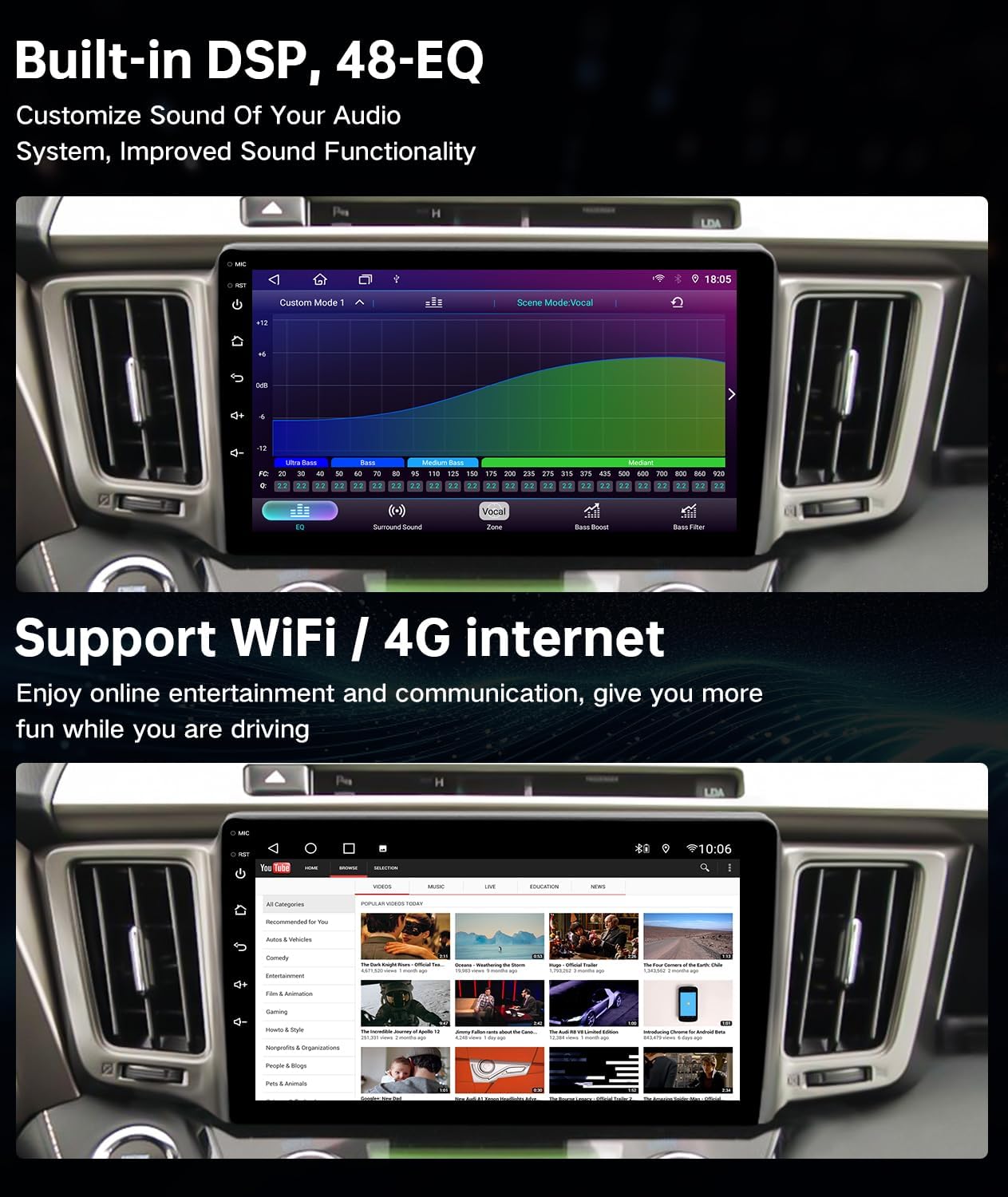
Image: Displays the car stereo's interface for the built-in DSP with a 48-band EQ for sound customization, and a separate screen showing online entertainment options via WiFi/4G internet.
4.4. Split-Screen Multitasking
The split-screen function allows you to run two applications simultaneously, such as navigation and music playback. To activate, open one app, then long-press the recent apps button or drag another app from the recent apps list to the side of the screen.
5. Troubleshooting
5.1. Resolving Wireless Apple CarPlay Connection Problems
If you experience difficulties with wireless Apple CarPlay connection, particularly with call audio, updating the Tlink5 application to the latest version often resolves the issue. Follow the steps below:
- Online Upgrade:
- Ensure your car stereo is connected to Wi-Fi or a mobile hotspot.
- Open the 'Dofun Play' app from your apps menu.
- Navigate to the 'Class' or 'Manage' section within the Dofun Play app.
- Locate 'T-Link5' and tap 'Update' or 'Download'.
- Once downloaded, tap 'Install' and follow the on-screen prompts to complete the update.
- USB Installation:
- Download the latest Tlink5 installer file (APK) to your computer and transfer it to a USB stick.
- Plug the USB stick into your car stereo's USB port.
- Open the 'File Manager' app on your head unit.
- Navigate to the USB folder (e.g., 'usbdisk1') and locate the Tlink5 installer file.
- Tap the installer file to begin the installation/update process.
After updating, launch Tlink5 and attempt to connect to wireless CarPlay. Make a test call to verify functionality.
Video: A guide demonstrating how to resolve connection problems with Wireless Apple CarPlay by updating the Tlink5 application on the car stereo unit.
5.2. Dofun Play App Not Visible
If the 'Dofun Play' app is not visible on your screen, it might be disabled in the factory settings. To enable it:
- Go to Settings > Factory.
- Enter the password: 123456.
- Navigate to Config info.
- Turn on the option for "Dofunplay".
6. Specifications
| Feature | Detail |
|---|---|
| Operating System | Android 13 |
| Processor | UIS7862 Octa-core (2 Cortex-A75 + 6 Cortex-A55 cores at 1.8GHz) |
| RAM | 6GB |
| Internal Storage | 128GB |
| Display Size | 10.2 Inch |
| Display Type | QLED Touchscreen |
| Connectivity | Bluetooth 5.0, USB, Wi-Fi, 4G (via SIM slot) |
| Audio Output Mode | Stereo |
| Surround Sound Channel | 5 |
| Output Power | 45 Watts (4*50W Amplifier) |
| Special Features | Equalizer (36-band EQ), DSP, Split-screen, Dual MIC |
| Compatible Devices | Smartphone, Speaker |
| Item Weight | 4.99 pounds |
| Package Dimensions | 20 x 10.25 x 5.2 inches |
7. Maintenance
To ensure the longevity and optimal performance of your ViaBecs car stereo, consider the following general maintenance tips:
- Regular Cleaning: Use a soft, lint-free cloth to gently wipe the touchscreen and exterior. Avoid abrasive cleaners or solvents.
- Software Updates: Periodically check for and install software updates to ensure the system runs efficiently and securely.
- Avoid Extreme Temperatures: Protect the unit from prolonged exposure to direct sunlight or extreme cold, which can affect performance and display quality.
- Secure Connections: Ensure all wiring connections remain secure to prevent intermittent issues.
8. Warranty and Support
Your ViaBecs Android 13 Car Stereo comes with a 12-month warranty. For any questions, technical assistance, or warranty claims, please reach out to our professional technical support team via email. Contact information is typically provided on the After-sales card included with your product. We are committed to promptly addressing your inquiries and ensuring your satisfaction.
Related Documents - 6GB+128GB
 |
ViaBecs Car Stereo Installation Guide for Toyota Tundra & Sequoia Step-by-step installation guide for ViaBecs 10.2-inch Apple CarPlay and Android Auto car stereo systems in Toyota Tundra (2007-2013) and Sequoia (2008-2018) models, including harness connection and backup camera setup. |
 |
ViaBecs SW5216 RAV4 Radio Installation Guide and FAQs Comprehensive installation guide for the ViaBecs SW5216 car radio for Toyota RAV4 (2013-2018). Includes factory radio checks, YT5760B wiring diagrams, backup camera connection, canbus setup, and head unit FAQs covering Zlink, Apple CarPlay, and Android Auto. |
 |
ViaBecs SYFT7172M Tundra Radio Installation Guide Comprehensive installation guide for the ViaBecs SYFT7172M Tundra Radio, covering factory radio checks, backup camera connection, wiring diagrams, and frequently asked questions for Toyota Tundra and Sequoia models. |
 |
ViaBecs SW5440 Radio Installation Guide and Features Comprehensive guide to installing the ViaBecs SW5440 car stereo, covering factory radio compatibility, JBL amplifier and backup camera connections, wiring diagrams, and frequently asked questions about features like Apple CarPlay. |
 |
ViaBecs SYFT7210 Highlander Radio Installation Guide Comprehensive installation guide for the ViaBecs SYFT7210 Highlander car stereo, covering wiring, setup, and common FAQs for 2014-2019 Toyota Highlander models. |
 |
Installation Guide for ViaBecs SYFT7294L Tacoma Radio Comprehensive installation guide and FAQs for the ViaBecs SYFT7294L Tacoma Radio, covering factory radio checks, wiring, canbus setup, and troubleshooting for Toyota Tacoma models. |
Ask a question about this manual
Ask about setup, troubleshooting, compatibility, parts, safety, or missing instructions. Manuals+ will review the question and use this page’s manual context to help answer it.