
KQLKJ KQ-21
KQLKJ Air Purifier User Manual
Model: KQ-21
Brand: KQLKJ
1. Introduction and Overview
The KQLKJ Air Purifier is designed to significantly improve indoor air quality in medium to large rooms, covering areas up to 1076 square feet. It effectively removes 99.99% of common airborne particles such as odor, pollen, smoke, dust, and pet dander, contributing to a healthier living environment.
This air purifier features a high-efficiency three-stage 360° filtration system, intelligent operating modes, and real-time air quality monitoring, making it an essential appliance for homes with pets, children, or individuals seeking cleaner air.

Figure 1: KQLKJ Air Purifier, a white cylindrical device with a black control panel on top, designed for efficient air purification.
2. Setup
Before first use, ensure all packaging materials are removed from the air purifier and its filter. The filter is typically located inside the unit and may be wrapped in plastic for protection during shipping.
- Carefully remove the air purifier from its packaging.
- Turn the unit upside down and twist the base cover to unlock it.
- Remove the filter, unwrap any plastic packaging, and place the filter back into the unit.
- Securely reattach the base cover by twisting it until it locks into place.
- Place the air purifier on a flat, stable surface, ensuring adequate space around it for optimal airflow.
- Plug the power cord into a standard electrical outlet.
Video 1: Unboxing and initial filter setup for the KQLKJ Air Purifier (Model KQ-21). This video demonstrates how to prepare the unit for first use by removing the filter's protective plastic and securing it back in place.
3. Operating Instructions
The KQLKJ Air Purifier features an intuitive control panel for easy operation.

Figure 2: Control panel of the KQLKJ Air Purifier, showing touch-sensitive buttons for various functions.
- Power On/Off: Press the Power button to turn the unit on or off.
- Fan Speeds: Use the Mode button to cycle through 3 adjustable fan speeds (1F/2F/3F) or select Auto Mode.
- Auto Mode: When in Auto Mode, the air purifier automatically adjusts fan speed based on detected air quality.
- Timer Settings: Press the Timer button to set the operating duration for 2, 4, or 8 hours.
- Child Lock: Long press the Child Lock button for 3 seconds to activate or deactivate the child lock, preventing accidental button presses.
- Scene Modes: Use the Scene button to select specific modes for ODOR, PET, or POLLEN, optimizing purification for these common issues.
- Air Quality Feedback: The built-in PM2.5 sensor provides real-time air quality feedback via indicator lights: Blue (Good), Yellow (Normal), Red (Bad).
- Temperature/Humidity Display: The display shows current room temperature and humidity levels in real-time.
Video 2: Demonstration of the KQLKJ Air Purifier's effectiveness in quickly absorbing smoke, showcasing its rapid purification capabilities.
4. Features
- High Performance Three-Stage 360° Filter: The air purifier utilizes a comprehensive filtration system including an external pre-filter to capture large particles, an H13 true HEPA filter for 99.97% of particles as small as 0.3 microns (like pollen, dust, dander), and a high-efficiency activated carbon filter to absorb odors, smoke, and VOCs.
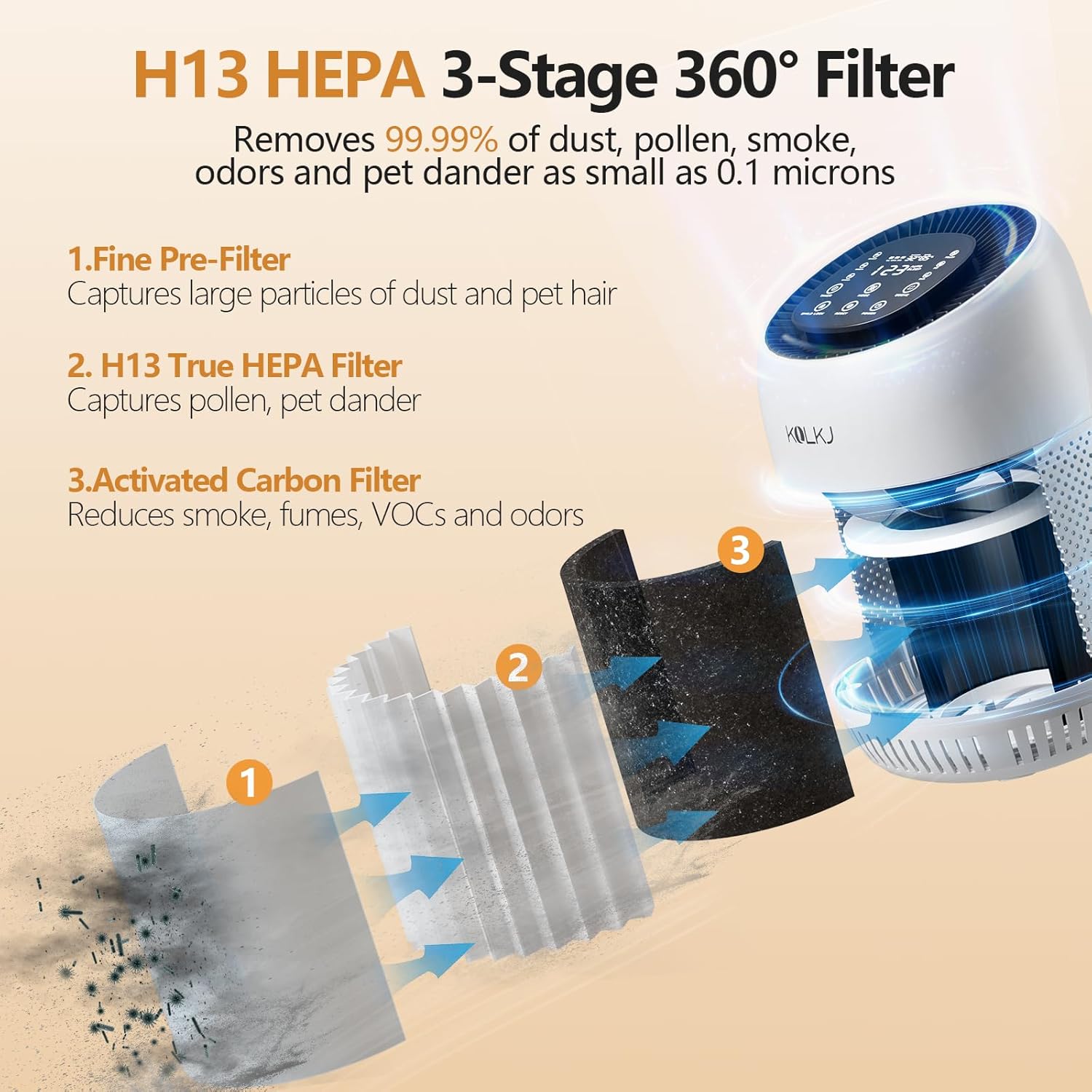
Figure 3: Detailed diagram illustrating the three-stage 360° filtration process of the KQLKJ Air Purifier.
- Wide Coverage Area: Designed for medium to large rooms, providing 1 air change per hour in areas up to 1076ft² and 6 air changes per hour in 215ft² rooms.

Figure 4: Visual representation of the air purifier's effective coverage in a typical room setting.
- Quiet Sleep Mode: Operates at a low noise level of 24dB in sleep mode, ensuring an undisturbed night's rest while maintaining air purification.

Figure 5: The air purifier operating in quiet sleep mode, designed for minimal disturbance during rest.
- Comprehensive Air Purification: Effectively tackles dust, smoke, pollen, odor, germs, pet dander, and VOCs, providing cleaner and fresher air.

Figure 6: The air purifier actively working to remove various airborne pollutants for a healthier indoor environment.
5. Maintenance
Regular maintenance ensures the longevity and optimal performance of your KQLKJ Air Purifier.
- Filter Replacement: The filter needs to be replaced approximately every 800 hours of use. The numeric area on the control panel will blink and sound 3 times to indicate it's time for a replacement.
- Resetting Filter Timer: After replacing the filter, press and hold the Reset button for 6 seconds until you hear a "drop" sound. This resets the timer and begins counting the working hours again.
- Cleaning: Periodically wipe the exterior of the unit with a soft, dry cloth. Do not use abrasive cleaners or solvents.
6. Troubleshooting
If you encounter any issues with your air purifier, please refer to the following common troubleshooting tips:
- Unit not turning on: Ensure the power cord is securely plugged into a working electrical outlet. Check if the child lock is activated.
- Reduced airflow or unusual noise: Check if the filter is clogged and needs replacement. Ensure the filter is installed correctly and the base cover is securely locked.
- Air quality indicator always red/yellow: Ensure the air quality sensor at the back of the unit is not obstructed or dirty. Clean the sensor area if necessary.
For persistent issues not resolved by these steps, please contact KQLKJ customer support.
7. Specifications
| Product Dimensions | 8.26"D x 7.87"W x 12.59"H |
| Item Model Number | KQ-21 |
| Manufacturer | KQLKJ |
| Color | White |
| Floor Area Coverage | 1076 Square Feet |
| Wattage | 24 watts |
| Certifications | FCC Certified, ETL Certified, CARB Certified |
8. Warranty and Support
KQLKJ stands behind the quality of its products.
- Warranty: This KQLKJ Air Purifier comes with a 5-year warranty service.
- Customer Service: For any problems during purchase or use, please contact our professional after-sales team. We offer 24-hour online service to assist you as soon as possible.
- User Guide PDF: For a downloadable version of this user guide, please refer to the User Guide (PDF).