1. Introduction
Thank you for choosing the WeBeqer Dash Cam Q20. This front and rear dash camera system is designed to enhance your driving safety and provide reliable recording of your journeys. Featuring Ultra HD 4K front and Full HD 1080P rear clarity, a compact 1.47-inch display, and seamless WiFi connectivity for app control, the Q20 offers comprehensive security features including Parking Monitor and G-sensor. This manual provides detailed instructions for setup, operation, and maintenance to ensure optimal performance of your device.
2. What's Included
Please verify that all items listed below are present in your package:
- 1 x 4K Front Dash Cam
- 1 x 1080P Rear Camera
- 1 x Type C Car Charger
- 1 x USB Card Reader
- 1 x 64GB SD Card
- 1 x SD Card Ejector Pin
- Several Cable Clips
- Several Adhesive Stickers
- 1 x Wiring Crowbar
- 1 x User Manual
Included components of the WeBeqer Dash Cam Q20.
3. Key Features
3.1 Dual Dash Cam Coverage
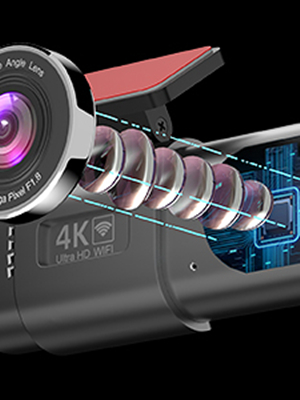
The WeBeqer Q20 features dual cameras, providing Ultra HD 4K clarity for the front view and Full HD 1080P for the rear view. This comprehensive coverage ensures enhanced security by recording both the road ahead and behind your vehicle.

Dual camera recording for comprehensive coverage.
Video demonstrating the dual camera recording capabilities and wide-angle views (Front 170°, Rear 140°).
3.2 WiFi Smart Control
Connect your dash cam to your smartphone via WiFi for easy access and control. The intuitive mobile app allows for convenient viewing of footage, effortless sharing, and hassle-free settings adjustments, delivering a smarter driving experience.

Control your dash cam via the dedicated smartphone app.
3.3 Compact and Portable Design
The Q20 features a discreet 1.47-inch display, designed to keep your driving view unobstructed. Its minimalist design seamlessly integrates into your car's interior, providing on-the-go convenience without being a distraction.

The compact design of the WeBeqer Q20 dash cam.
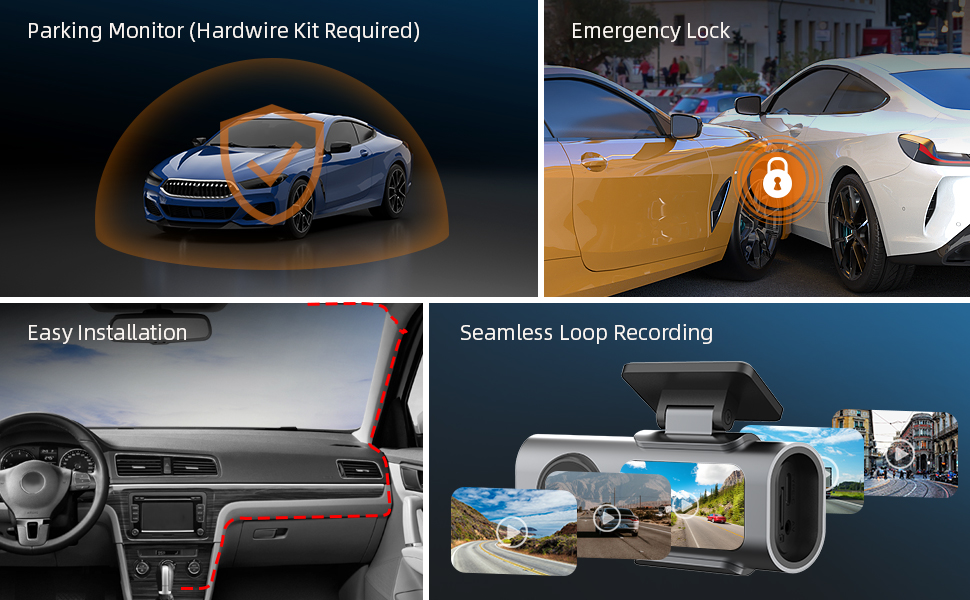
3.4 Enhanced Parking Security (24H Parking Monitor)
Fortify your vehicle's safety with the enhanced parking monitor feature. When activated (requires a separate Hardwire Kit), it provides 24/7 protection, ensuring continuous surveillance even when parked. Coupled with the G-sensor, this feature offers peace of mind by detecting and recording impacts.

24-hour parking monitor for continuous surveillance.
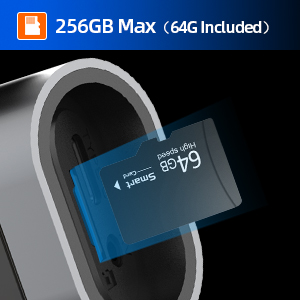
3.5 USB C Port and 64GB SD Card
The dash cam is equipped with a USB-C port for stable power supply and comes with a 64GB SD card for ample storage capacity. Combined with the loop recording feature, your dash cam is ready for continuous, seamless recording.

USB-C port and included 64GB SD card for reliable operation and storage.
3.6 Emergency Lock (G-Sensor)
The emergency lock feature automatically detects sudden impacts or collisions via its built-in G-sensor. It then locks and protects crucial recordings, preventing vital evidence from being overwritten and offering comprehensive security for insurance claims or incident reporting.

Emergency Lock feature safeguards critical footage during impacts.
3.7 Super Night Vision
Equipped with WDR (Wide Dynamic Range) technology, the dash cam ensures clear and detailed images even in low-light conditions, providing enhanced visibility during night driving.
Super Night Vision for clear recordings in low light.
3.8 Seamless Loop Recording
Loop recording prevents storage overflows by continuously overwriting the oldest unlocked footage when the SD card is full. This ensures uninterrupted video capture while efficiently managing memory card space.
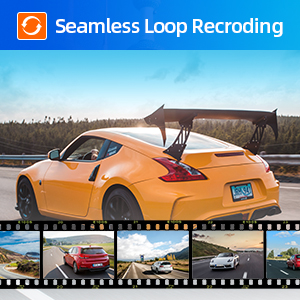
Seamless Loop Recording ensures continuous capture.
4. Setup and Installation
4.1 Preparing the SD Card
- Insert the included 64GB SD card into the dash cam's SD card slot. Ensure it clicks into place.
- It is recommended to format the SD card within the dash cam's settings before first use and periodically thereafter to maintain optimal performance.
4.2 Mounting the Front Dash Cam
- Clean the windshield area where you intend to mount the dash cam. Ensure it is free of dust and grease.
- Attach the adhesive mount to the dash cam.
- Peel off the protective film from the adhesive pad and firmly press the dash cam onto the chosen spot on your windshield, ideally behind the rearview mirror for an unobstructed view. Hold for at least 30 seconds.
- Adjust the lens angle to ensure it captures the road ahead clearly.
4.3 Installing the Rear Camera
- Connect the rear camera cable to the main front dash cam unit.
- Route the rear camera cable neatly along the vehicle's headliner and trim to the rear of the vehicle. Use the included cable clips and wiring crowbar to tuck the cable away for a clean installation.
- Mount the rear camera on the rear windshield using its adhesive pad, ensuring a clear view of the road behind.
4.4 Power Connection
- Plug the Type-C car charger into the dash cam's USB-C port.
- Insert the other end of the car charger into your vehicle's 12V power outlet (cigarette lighter socket).
- Route the power cable neatly to avoid interference with driving controls.
- The dash cam will automatically power on and begin recording when your vehicle starts.
Note: For 24-hour parking monitoring functionality, a separate hardwire kit (not included) is required to provide continuous power to the dash cam when the vehicle is off. Please refer to the hardwire kit's instructions for installation.
5. Operation
5.1 Basic Recording
- Once powered on, the dash cam will automatically start continuous loop recording.
- The front camera records in 4K UHD, and the rear camera records in 1080P Full HD.
- Recordings are saved to the inserted SD card.
5.2 Using the Mobile App (WiFi Control)
- Download the dedicated "WeBeqer Dash Cam" app from the App Store (iOS) or Google Play Store (Android).
- Turn on the dash cam's WiFi (refer to the dash cam's on-screen menu or user manual for specific steps).
- On your smartphone, go to WiFi settings and connect to the dash cam's WiFi network (SSID and password usually found on the dash cam screen or manual).
- Open the app. You can now:
- View live footage from both cameras.
- Access recorded videos and photos.
- Download footage directly to your phone.
- Adjust dash cam settings (e.g., resolution, G-sensor sensitivity, loop recording duration).
- Share videos to social media platforms.
5.3 Emergency Recording (G-Sensor)
- The built-in G-sensor automatically detects sudden impacts or rapid acceleration/deceleration.
- When an event is detected, the current video segment is automatically locked and saved to a protected folder on the SD card, preventing it from being overwritten by loop recording.
- You can also manually trigger an emergency recording by pressing the designated button on the dash cam (refer to device layout for button location).
5.4 Parking Monitor
- With a hardwire kit installed, the parking monitor feature provides continuous surveillance when your vehicle is parked.
- The dash cam will automatically start recording if it detects motion or an impact while parked.
6. Maintenance
- SD Card Formatting: To ensure stable recording and prevent data corruption, format the SD card within the dash cam's settings once a month.
- Lens Cleaning: Regularly clean the camera lenses with a soft, lint-free cloth to ensure clear video quality. Avoid abrasive materials that could scratch the lens.
- Device Cleaning: Wipe the dash cam's body with a dry or slightly damp cloth. Do not use harsh chemicals or solvents.
- Temperature: Avoid exposing the dash cam to extreme temperatures for prolonged periods, as this can affect battery life and device performance.
7. Troubleshooting
| Problem | Possible Cause | Solution |
|---|---|---|
| Dash cam does not power on. | No power supply; loose connection; faulty charger. | Check power connection to the car's 12V outlet. Ensure the USB-C cable is securely plugged into the dash cam. Try a different power source or charger if available. |
| "Video Locked" message appears frequently. | G-sensor sensitivity is too high; frequent impacts/vibrations. | Reduce the G-sensor sensitivity in the dash cam settings via the app or device menu. Avoid harsh driving conditions if possible. |
| Rear camera not recording or displaying. | Loose cable connection; faulty rear camera or cable. | Ensure the rear camera cable is securely connected to both the rear camera and the main unit. Check the cable for any visible damage. If the issue persists, contact customer support. |
| WiFi connection issues with the app. | Incorrect WiFi password; app not updated; interference. | Ensure you are connecting to the correct WiFi network and entering the correct password. Update the app to the latest version. Try restarting both the dash cam and your smartphone. |
| Footage is blurry or unclear. | Dirty lens; protective film still on lens; incorrect focus. | Clean the camera lenses with a soft cloth. Ensure any protective film has been removed from the lenses. Check dash cam settings for focus or resolution options. |
| SD card error or recording stops. | SD card full; corrupted SD card; incompatible SD card. | Format the SD card regularly. If the issue persists, try a new high-speed (Class 10 or U3) SD card from a reputable brand. |
If you encounter problems not listed here or if the solutions do not resolve your issue, please contact WeBeqer customer support for assistance.
8. Specifications
| Feature | Detail |
|---|---|
| Model Name | WeBeqer Dash Cam Q20 |
| Video Capture Resolution | Front: 4K UHD (2160p), Rear: 1080P Full HD |
| Display Size | 1.47 inches |
| Field of View | Front: 170 degrees, Rear: 140 degrees |
| Connectivity Technology | USB-C, Wireless (WiFi) |
| Storage | Supports up to 256GB (64GB SD card included) |
| Special Features | Night Vision (WDR), Parking Monitor (requires hardwire kit), G-Sensor (Emergency Lock), Loop Recording |
| Power Source | Lithium Polymer Battery (included), Type C Car Charger |
| Mounting Type | Dashboard Mount |
| Product Dimensions | 1 x 2 x 1 inches |
| Item Weight | 15.5 ounces |
9. Warranty and Support
The WeBeqer Dash Cam Q20 comes with a 3-Year Warranty. For any inquiries, technical assistance, or warranty claims, please contact our customer support team. We aim to provide satisfactory solutions and offer 24-hour email response.
WeBeqer customer support and warranty information.
For the most up-to-date contact information, please refer to the official WeBeqer website or the contact details provided in your product packaging.


