
1. Introduction
This manual provides detailed instructions for setting up, operating, maintaining, and troubleshooting your BOSGAME Mini PC P5 Pro. Please read this manual thoroughly before using the device to ensure proper operation and longevity.
2. Package Contents
Please check the package contents upon unboxing. If any items are missing or damaged, contact BOSGAME customer support.
- BOSGAME Mini PC P5 Pro
- Power Adapter
- HDMI Cable
- User Manual (this document)
- (Other accessories may vary by region or package)
3. Product Overview
The BOSGAME Mini PC P5 Pro is a compact and powerful desktop computer designed for various applications, from office work to light gaming and home theater use. It features an AMD Ryzen 7 6800H processor, integrated AMD Radeon Graphics, and extensive connectivity options.
3.1 Front and Rear Panel Layout

Image: Front and rear view of the BOSGAME Mini PC P5 Pro, highlighting various ports and buttons.
This image displays the comprehensive port layout of the mini PC. The front panel typically includes USB ports, a headphone jack, and the power button. The rear panel features multiple HDMI ports, additional USB ports, an Ethernet port, and the DC power input.

Image: Detailed diagram of the BOSGAME Mini PC P5 Pro's multi-port configuration.
This diagram provides a clear view of the available ports. On the rear, you will find RJ45 LAN, 2x USB 2.0, 2x HDMI 1.2, and DC power input. On the front, there are 2x USB 3.2 Gen 2, a full-function Type-C port, a 3.5mm combo audio jack, and the power button. A CLR CMOS button is also visible.
3.2 Key Features
- Processor: AMD Ryzen 7 6800H (8 Cores, 16 Threads)
- Graphics: Integrated AMD Radeon Graphics
- Memory: 32GB DDR4 SO-DIMM (expandable to 64GB)
- Storage: 512GB NVMe SSD (expandable up to 2TB)
- Display Output: Quad Display support via HDMI and Type-C (4K UHD)
- Networking: 2.5G Ethernet, Wi-Fi 6E, Bluetooth 5.2
- Operating System: Pre-installed with Windows 11 Pro (supports Ubuntu, Linux)
4. Setup Guide
4.1 Connecting Peripherals
- Connect Monitor(s): Use HDMI cables to connect your monitor(s) to the HDMI ports on the rear of the Mini PC. For multi-display setups, you can also use the full-function Type-C port.
- Connect Keyboard and Mouse: Plug your USB keyboard and mouse into the available USB ports (USB 2.0 or USB 3.2) on the Mini PC.
- Connect Network (Optional): For a wired internet connection, connect an Ethernet cable from your router/modem to the RJ45 LAN port on the rear. For wireless, ensure Wi-Fi is enabled in the operating system.
- Connect Audio (Optional): If using external speakers or headphones, connect them to the 3.5mm combo audio jack on the front panel.
4.2 Powering On
- Connect Power Adapter: Plug the power adapter into the DC input port on the rear of the Mini PC, then plug the other end into a power outlet.
- Power On: Press the power button located on the front panel. The power indicator light will illuminate.
- Initial Setup: Follow the on-screen instructions to complete the initial setup of Windows 11 Pro.
5. Operating Instructions
5.1 Operating System
Your BOSGAME Mini PC P5 Pro comes with Windows 11 Pro pre-installed. You can also install other operating systems such as Ubuntu or various Linux distributions.
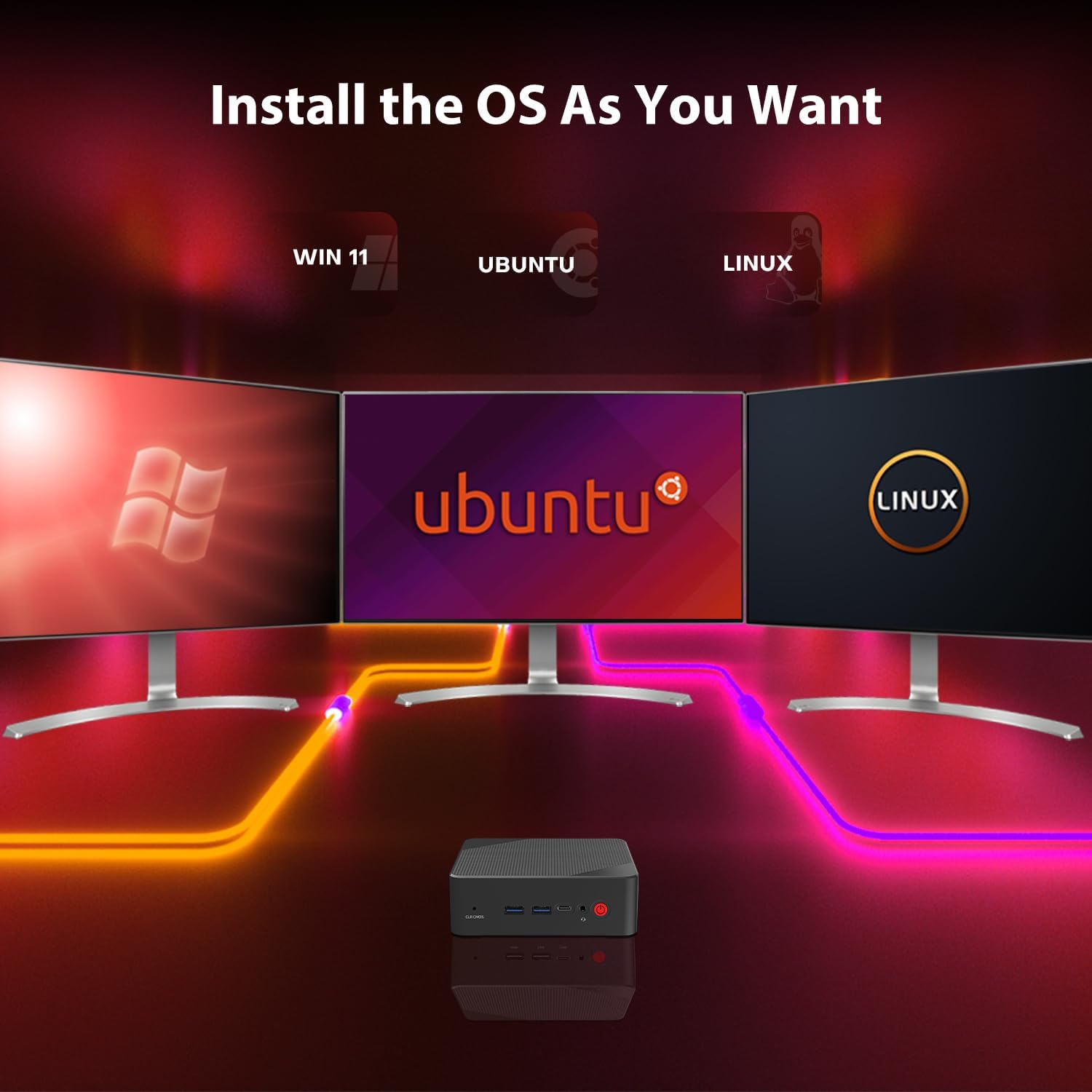
Image: Illustration of the BOSGAME Mini PC P5 Pro supporting multiple operating systems.
This image demonstrates the flexibility of the Mini PC to run Windows 11, Ubuntu, or other Linux distributions, allowing users to install their preferred OS.
5.2 Multi-Display Setup
The Mini PC supports up to four displays simultaneously, allowing for enhanced productivity or immersive entertainment experiences. Connect monitors using the available HDMI ports and the full-function Type-C port.

Image: Example of a triple 4K UHD display setup with the BOSGAME Mini PC P5 Pro.
This image illustrates the capability of the Mini PC to drive multiple 4K UHD displays, ideal for multitasking, content creation, or extended desktop environments.
5.3 Storage and Memory Expansion
The BOSGAME Mini PC P5 Pro offers flexible options for upgrading its memory and storage. It supports dual SO-DIMM DDR4 memory slots, allowing expansion up to 64GB. The M.2 SSD can also be upgraded to a larger capacity, up to 2TB.

Image: Internal view showing dual SO-DIMM memory slots and M.2 SSD slot.
This image highlights the internal layout for memory and storage, showing two SO-DIMM slots for RAM and one M.2 slot for the SSD, indicating easy upgradeability.

Image: Diagram illustrating DIY storage and memory expansion options.
This diagram details the memory support for dual SO-DIMM DDR4 3200MHz up to 64GB and M.2 SSD replacement up to 2TB, emphasizing the performance benefits of dual-channel memory.
Note: When upgrading components, ensure the device is powered off and unplugged. Refer to professional guides or seek assistance if unsure.
5.4 Cooling System
The Mini PC incorporates an efficient 4-in-1 cooling and noise-cancelling system to maintain optimal performance and a quiet operating environment.

Image: Visual representation of the Mini PC's cooling and noise reduction.
This image illustrates the airflow within the Mini PC for effective cooling and highlights its low noise output, comparable to ambient sounds like rustling leaves.
5.5 Connectivity
The BOSGAME Mini PC P5 Pro offers robust connectivity options for both wired and wireless networks.
- Wired: 2.5G Ethernet port for high-speed wired network connections.
- Wireless: Wi-Fi 6E for fast and stable wireless internet, and Bluetooth 5.2 for connecting peripherals like keyboards, mice, and audio devices.

Image: Depiction of the Mini PC's high-speed network capabilities.
This image emphasizes the 2500Mbps Gigabit network support, along with Wi-Fi and Bluetooth connectivity, ensuring fast and reliable data transfer.
5.6 Performance Overview
Equipped with an AMD Ryzen 7 6800H processor and integrated AMD Radeon Graphics, the Mini PC delivers strong performance for daily tasks, multimedia, and light gaming.

Image: Visual of the AMD Ryzen processor with performance benchmarks.
This image showcases the AMD Ryzen processor, detailing its 8 cores, 16 threads, 8MB cache, and base/burst frequencies, along with CINEBENCH R23 scores for single and multi-core performance.

Image: Illustration of the AMD Radeon Graphics capabilities.
This image highlights the integrated 8-core AMD Radeon Graphics, indicating its capability for smooth visual processing and supporting various applications.
Image: Overview of multi-port functionality for various devices.
This image demonstrates the versatility of the Mini PC's ports, allowing connection to NAS, surveillance cameras, projectors, printers, TVs, and monitors, making it suitable for diverse environments.
5.7 Gaming Performance (Demonstration Videos)
The BOSGAME Mini PC P5 Pro is capable of handling various games. Below are demonstrations of its performance in popular titles.
Assassin's Creed Mirage Gaming Test
Video Description: This video demonstrates the BOSGAME Mini PC's performance while running Assassin's Creed Mirage. On-screen overlays show real-time CPU, GPU, RAM usage, and FPS metrics, providing insight into gaming capabilities.
PUBG Gaming Test
Video Description: This video showcases the BOSGAME Mini PC's performance during a PUBG gameplay session. Similar to the previous video, it includes performance metrics displayed on-screen to illustrate frame rates and resource utilization during gaming.
6. Maintenance
6.1 Cleaning
- Exterior: Use a soft, dry cloth to wipe the exterior of the Mini PC. For stubborn marks, slightly dampen the cloth with water or a mild cleaning solution (avoid harsh chemicals).
- Vents: Periodically use compressed air to clear dust from the ventilation grilles to ensure optimal airflow and prevent overheating. Do this with the device powered off and unplugged.
6.2 Software Updates
- Regularly update your operating system (Windows 11) to ensure you have the latest security patches and performance improvements.
- Keep device drivers (graphics, chipset, network) updated. You can usually find these on the BOSGAME support website or through Windows Update.
6.3 Storage Management
- Periodically clean up unnecessary files and applications to free up storage space and maintain system performance.
- Consider using disk defragmentation tools (for HDDs, though less critical for SSDs) or SSD optimization tools provided by your operating system.
7. Troubleshooting
| Problem | Possible Solution |
|---|---|
| No Power |
|
| No Display Output |
|
| No Internet Connection |
|
| System Slowdown |
|
| Peripheral Not Detected |
|
If the problem persists after trying these solutions, please contact BOSGAME customer support for further assistance.
8. Specifications
| Feature | Detail |
|---|---|
| Brand | BOSGAME |
| Model Name | P5 Pro (Also referred to as P1 in some documentation) |
| Processor | AMD Ryzen 7 6800H (8 Cores, 16 Threads, up to 4.7 GHz) |
| Graphics | Integrated AMD Radeon Graphics (8-core) |
| RAM | 32GB DDR4 SO-DIMM (3200 MHz, 2 slots, expandable to 64GB) |
| Storage | 512GB NVMe SSD (M.2, expandable up to 2TB) |
| Operating System | Windows 11 Pro |
| Ethernet | 2.5G Gigabit Ethernet |
| Wi-Fi | Wi-Fi 6E |
| Bluetooth | Bluetooth 5.2 |
| Video Output | 2x HDMI, 1x Full-function Type-C (Supports Quad Display 4K UHD) |
| USB Ports | 2x USB 3.2 Gen 2, 2x USB 2.0, 1x Type-C (Full-function) |
| Audio | 3.5mm Combo Audio Jack |
| Dimensions | 8.46 x 5.91 x 2.56 inches (approx.) |
| Weight | 2.3 pounds (approx.) |
9. Warranty and Support
BOSGAME products come with a standard manufacturer's warranty. Please refer to the warranty card included in your package or visit the official BOSGAME website for detailed warranty terms and conditions.
For technical support, troubleshooting assistance, or warranty claims, please contact BOSGAME customer service:
- Website: BOSGAME Official Store (for general inquiries and product information)
- Email: (Refer to product packaging or official website for specific support email)
When contacting support, please have your product model (P5 Pro) and serial number ready.