
1. Introduction
Thank you for choosing the UGREEN Revodok Max 213 Thunderbolt 4 Dock. This powerful 13-in-1 docking station is designed to expand the connectivity of your laptop or tablet, providing high-speed data transfer, multiple display outputs, and efficient power delivery. This manual will guide you through the setup, operation, and troubleshooting of your new device.
2. Safety Information
- Keep the device away from water, fire, high temperatures, and corrosive substances.
- Do not attempt to disassemble, repair, or modify the device.
- Use only the provided power adapter and Thunderbolt 4 cable to ensure stable performance and prevent damage.
- Avoid dropping or subjecting the device to strong impacts.
- Ensure proper ventilation around the dock during operation.
3. Package Contents

Image: UGREEN Revodok Max 213 Dock package contents.
- User Manual
- UGREEN Revodok Max 213 Thunderbolt 4 Dock
- 180W GaN Power Adapter
- Power Cable
- 0.8m Thunderbolt 4 Cable
4. Product Overview
Port Layout

Image: Front and back view of the UGREEN Revodok Max 213 Dock.

Image: Detailed 13-in-1 Connectivity diagram with port labels.
The UGREEN Revodok Max 213 features a comprehensive array of ports to meet your connectivity needs:
- Front Ports: Power Button, 1x USB-C (10Gbps, 20W PD), 2x USB-A (10Gbps), 1x SD 4.0 Card Slot, 1x TF 4.0 Card Slot, 1x 3.5mm Combo Audio In/Out.
- Rear Ports: 1x Thunderbolt 4 Upstream (40Gbps, 90W PD), 2x Thunderbolt 4 Downstream (40Gbps), 1x DisplayPort 1.4, 2x USB-A (5Gbps), 1x 2.5 Gigabit Ethernet (RJ45), 1x DC-IN (21V 8.57A).
Key Features
- Massive 13-in-1 Expansion: Equipped with 2 downstream Thunderbolt 4 ports (backward compatible with Thunderbolt 3/USB 4), a DisplayPort 1.4, a 180W DC port, a USB-C 3.2 10Gbps port, 2 USB-A 3.2 10Gbps ports, 2 USB-A 3.0 ports, an RJ45 Ethernet port, 2 SD/TF 4.0 card slots, and a 3.5mm audio port, meeting all your high-performance expansion needs.
- Dual 4K@60Hz Display: For Windows, connect a single display up to 8K@30Hz or dual displays up to 4K@60Hz. For macOS (M1/M2/M3 Pro & M1/M2/M3 Max & Intel Chip), connect a single display up to 4K@60Hz or dual displays up to 4K@60Hz. MacBook with M1/M2/M3 chips only supports a single display up to 4K@60Hz. Note: Ensure the product is connected to a Thunderbolt 4/3 or USB 4 port and your computer supports DP1.4 output.
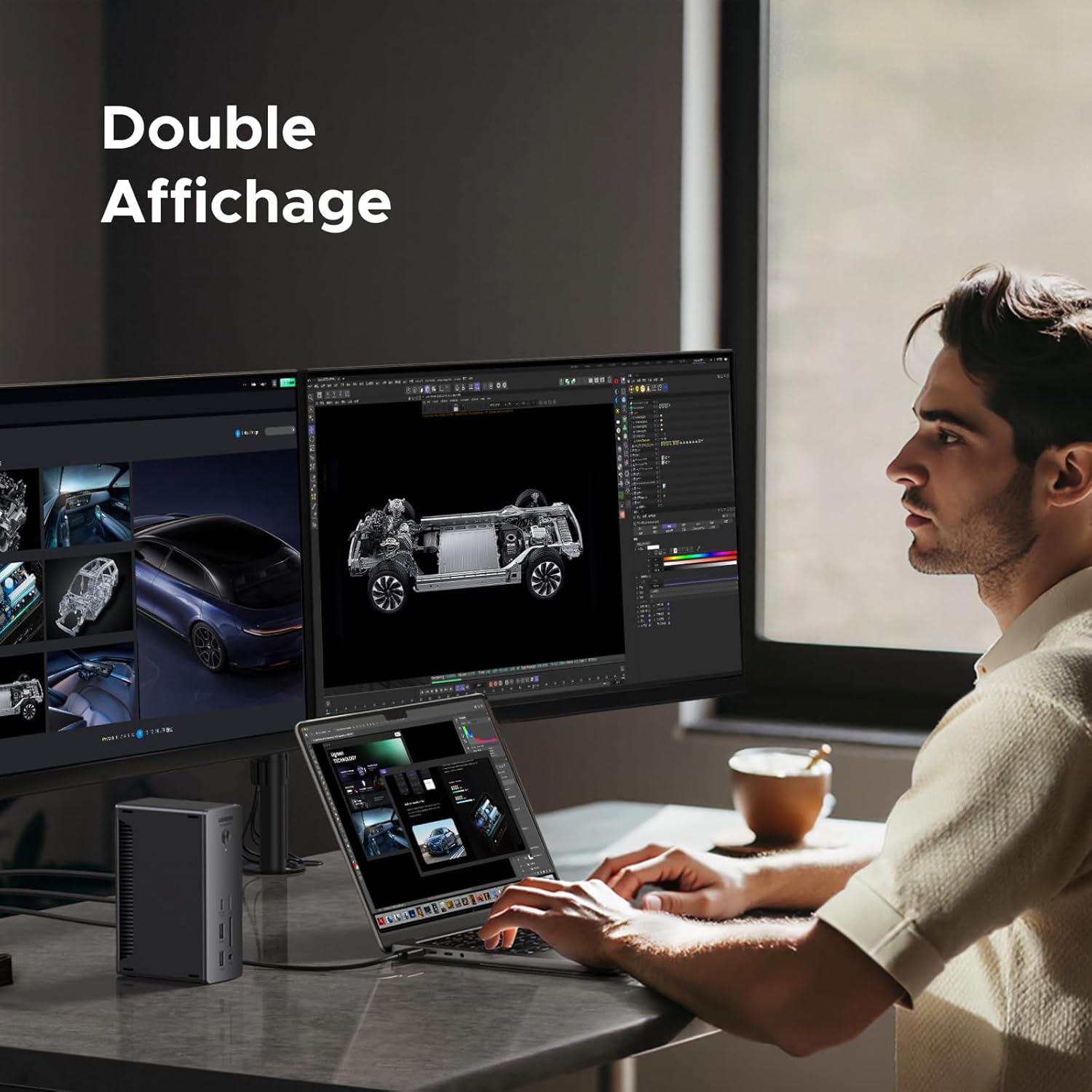
Image: Dual Display setup example.
- Powerful Thunderbolt 4: With 2 downstream Thunderbolt 4 ports, transfer data at speeds up to 40Gbps or connect an external display with resolution up to 8K@30Hz. Experience high-performance work like never before. The docking station also features multiple USB-A & USB-C data ports, perfectly meeting the needs for connecting peripherals such as keyboards, mice, hard drives, etc.

Image: Intel x UGREEN Thunderbolt 4 Certified chip.

Image: 40Gbps Data Transfer illustration.
- RJ45 2.5GbE & 90W Charging: Featuring an ultra-fast 2.5GbE RJ45 port, this Thunderbolt 4 docking station allows you to connect to networks, routers, and NAS devices, helping you maximize work efficiency. With the included 180W DC GaN charger, the Thunderbolt 4 dock can charge your laptop up to 90W while you work. Note: The docking station must be connected to the charger to function.

Image: All-in-One Charging setup.

Image: 2.5 Gigabit Ethernet connection.
- SD & microSD 4.0: Front-facing SD and microSD slots facilitate access to your cards, both supporting UHS-II performance with speeds up to 312MB/s.

Image: SD & microSD 4.0 feature.
- Universal Compatibility: The Thunderbolt 4 docking station is compatible with most Thunderbolt 4, Thunderbolt 3, USB 4, or USB-C computers or tablets, including MacBooks (macOS 11.4 and above), Windows laptops (Windows 10 and above), iPads, or other tablets with USB-C ports. Note: Laptops and tablets with full-function USB-C ports only support a single external display. Not compatible with Mac mini 2018 (Intel).

Image: Universal Compatibility chart.
- Thermal Management & Design: The Revodok Max 213 effectively manages heat thanks to its silicone coating and pleated aluminum casing. It can be placed vertically or horizontally to save desk space.

Image: Thermal Management illustration.

Image: Vertical or Horizontal Placement.
- 6-Level Security: Equipped with 6 safety functions such as protection against overcurrent, overvoltage, overheating, short circuits, etc.

Image: 6-Level Security illustration.
- Compact 180W GaN Power Adapter: The 180W GaN adapter for the Revodok Max 213 is 33% smaller than traditional power adapters, while offering the same power for charging your laptop.

Image: 180W GaN Power Adapter size comparison.
5. Setup
Connecting the Dock
- Connect the provided 180W GaN power adapter to the DC-IN port on the back of the Revodok Max 213, then plug the power cable into a wall outlet.
- Connect one end of the provided Thunderbolt 4 cable to the Thunderbolt 4 Upstream port on the back of the dock.
- Connect the other end of the Thunderbolt 4 cable to a Thunderbolt 4, Thunderbolt 3, USB 4, or full-function USB-C port on your host laptop or tablet.
- Press the power button on the front of the dock to turn it on. The indicator light will illuminate.
Connecting Peripherals
Once the dock is connected to your host device, you can connect your peripherals:
- Monitors: Use the DisplayPort 1.4 or the downstream Thunderbolt 4 ports to connect your external monitors. Refer to the 'Display Configuration' section for specific setup instructions.
- USB Devices: Connect USB drives, keyboards, mice, and other USB peripherals to the available USB-A (10Gbps, 5Gbps) and USB-C (10Gbps) ports.
- Ethernet: Connect an Ethernet cable from your router or network switch to the 2.5 Gigabit Ethernet (RJ45) port for a stable wired network connection.
- SD/TF Cards: Insert your SD or microSD cards into the front-facing card slots for quick data access.
- Audio: Connect headphones or speakers to the 3.5mm combo audio jack.
Display Configuration
The Revodok Max 213 supports various display configurations depending on your host device's capabilities:

Image: Display Compatibility Table.
For macOS Devices:

Image: Mac Display Configurations.
- M1/M2/M3 Chip: Supports a single external display via Thunderbolt or DisplayPort.
- M1/M2/M3 Pro & Max & Ultra Chips, M4/M4 Pro/Max Chips, Intel TBT3 Macs: Supports dual external displays via Thunderbolt or DisplayPort.
For Windows Devices:

Image: Windows Display Configurations.
- Thunderbolt 4/3 or USB 4: Supports dual external displays via Thunderbolt or DisplayPort.
- Full-function USB-C: Supports a single external display via Thunderbolt or DisplayPort.
6. Operating Instructions
Once connected, the UGREEN Revodok Max 213 operates automatically. Your connected peripherals and displays should be recognized by your computer. You can manage display settings through your operating system's display preferences.
- Power Button: Press the power button on the front to turn the dock on or off.
- Charging: Ensure your laptop is connected to the upstream Thunderbolt 4 port for up to 90W power delivery. The front USB-C port can provide up to 20W for charging smaller devices.
- Data Transfer: Utilize the high-speed USB and Thunderbolt ports for rapid data transfer with external storage devices.
7. Maintenance
To ensure the longevity and optimal performance of your UGREEN Revodok Max 213 Dock:
- Keep the dock clean by wiping it with a soft, dry cloth. Avoid using liquid cleaners or aerosols.
- Do not block the ventilation slots on the sides of the dock.
- Store the dock in a cool, dry place when not in use.
- Handle cables and connectors gently to prevent damage.
8. Troubleshooting
If you encounter issues with your UGREEN Revodok Max 213 Dock, please refer to the following common questions and answers:
Q: What is the minimum macOS and Windows version required to use the Revodok Max 213?
A: It requires macOS 11.4 (Big Sur) and Windows 10 (20H2) or later.
Q: Is the Revodok Max 213 backward compatible with a Thunderbolt 3 PC or USB-C?
A: Yes, the Revodok Max 213 is compatible with Thunderbolt 3 PCs and full-function USB-C PCs. Some Windows PCs limit USB-C functions such as display output and charging. Please check your PC's USB-C capabilities with the manufacturer.
Q: Does the Revodok Max 213 work with Macs equipped with M-series chips?
A: Yes, the Revodok Max 213 is compatible with MacBook Pro M4/M4 Pro/M4 Max (14"/16"), Mac mini M4 Pro, iMac M4, MacBook Pro M3/M3 Pro/M3 Max (14"/16"), MacBook Air M3 (13"/15"), MacBook Air M2, MacBook Pro M2 13", MacBook Pro M2 Pro/M2 Max (14"/16"), Mac mini M2/M2 Pro, MacBook Pro/iMac/Mac mini based on the original M1.
Q: Is it normal for a pop-up window to appear on my MacBook asking for permission to connect the docking station?
A: This security feature is for MacBooks running macOS Ventura or later. When using Thunderbolt for the first time, select "Allow" to enable the dock to be recognized for charging, data transfer, and video streaming.
Q: What is the maximum resolution for a single monitor and two monitors connected to the Revodok Max 213?
A: For a single monitor: 8K@30Hz for Windows PCs (TBT4/TBT3/USB-C with DP1.4 DSC); 6K@60Hz for Mac M1/M2/M3 Pro/Max/Ultra and M4, M4 Pro/Max. For dual monitors: Dual 4K@60Hz for Windows PCs (TBT4/USB4/TBT3 with DP1.4 DSC) and Mac M1/M2/M3 Pro/Max/Ultra and M4, M4 Pro/Max.
Q: How can I tell if my computer supports two monitors?
A: The data below is for reference only. Please check with your computer manufacturer for confirmation. macOS (M1/M2/M3): 1 external display. macOS (M1/M2/M3 Pro/Max/Ultra): 2 external displays. macOS (M4, M4 Pro/Max): 2 external displays. macOS (Intel Thunderbolt 3): 1 external display. Windows (TBT4/USB4/TBT3): 2 external displays. Windows (USB-C): 1 external display.
Q: How to connect a single monitor to Revodok Max 213?
A: DisplayPort Monitor: Connect a DisplayPort monitor directly to the DP port or connect a USB-C to DP video adapter (not supplied) to one of the available Thunderbolt ports. Thunderbolt/USB-C Monitor: Connect a Thunderbolt/USB-C monitor directly to one of the available Thunderbolt ports. HDMI Monitor: Add a DP to HDMI adapter (not included) to the DP port or connect a USB-C to HDMI video adapter (not included) to one of the Thunderbolt ports.
Q: Is the Revodok Max 213 fully compatible with the Studio Display at full resolution?
A: Yes, M1/M2/M3 Macs and M1/M2/M3 Pro, Max, and Ultra Macs can support 5K@60Hz display with the Studio Display when connected via Thunderbolt 4 cables. M1/M2/M3 Pro, Max, and Ultra Macs can also support dual 5K@60Hz display with the Studio Display, which requires Thunderbolt 4 cables for connection.
Q: Why does the external monitor show a color difference after being connected to the Revodok Max 213?
A: This Revodok Max 213 supports HDR for better image quality. If your monitor does not support HDR, color differences may appear. You can manually disable the HDR function on the laptop.
Q: How to connect two monitors to Revodok Max 213?
A: Option 1: - Connect one monitor to the DisplayPort. - Connect the second monitor to one of the available Thunderbolt 4 ports via a USB-C video adapter (not included). Option 2: - Connect one monitor to one of the available Thunderbolt 4 ports via a USB-C video adapter (not included). - Connect the second monitor to one of the spare Thunderbolt 4 ports via a USB-C video adapter (not included). Option 3: - Connect two USB-C or Thunderbolt monitors directly to two of the Thunderbolt 4 ports.
Q: Is it normal for my Revodok Max 213 to heat up during operation?
A: At full power, the surface temperature of the Revodok Max 213 can reach approximately 50°C, which is normal.
Important Notes:
- The docking station only supports a single external display for M1/M2/M3 Macs and full-function USB-C Windows PCs.
- The front 10Gbps USB-C port does not support multimedia display.
- To connect a single display higher than 4K 60Hz, both your host GPU and monitor must support DSC 1.2 and DP 1.4 HBR3.
- M1/M2/M3 Pro, Max, and Ultra Macs support two 5K@60Hz displays with the Studio Display, requiring Thunderbolt 4 cables for connection.
- Certain refresh rates require DP 1.4 HBR3 and DSC 1.2 support from the host GPU and monitor.
- Bit depth/color depth may vary to support higher refresh rates.
- Always use the power adapter and Thunderbolt 4 cable supplied with the docking station, as improper power supply may lead to unstable performance or device failure.
9. Specifications
| Feature | Specification |
|---|---|
| Brand | UGREEN |
| Model Number | 25054EU |
| Color | Gray |
| Interface Hardware | Thunderbolt 4 |
| Total USB Ports | 5 (2x USB-A 10Gbps, 2x USB-A 5Gbps, 1x USB-C 10Gbps) |
| Number of Ports | 13 |
| Power Delivery | 90W (to host laptop), 20W (front USB-C) |
| Power Adapter | 180W GaN DC 21V 8.57A |
| Ethernet | 2.5 Gigabit RJ45 |
| Card Reader | SD 4.0, TF 4.0 (up to 312MB/s) |
| Display Output | 1x DisplayPort 1.4, 2x Thunderbolt 4 (supports DP Alt Mode) |
| Max Resolution (Single) | 8K@30Hz (Windows), 6K@60Hz (Mac M1/M2/M3 Pro/Max/Ultra, M4/M4 Pro/Max) |
| Max Resolution (Dual) | 4K@60Hz (Windows, Mac M1/M2/M3 Pro/Max/Ultra, M4/M4 Pro/Max) |
| Compatible Devices | Laptops and tablets with Thunderbolt 4, Thunderbolt 3, USB 4, or USB-C ports |
| Supported OS | Windows 10 (20H2) and above, macOS 11.4 (Big Sur) and above |
10. Warranty and Support
UGREEN products come with a standard warranty. For detailed warranty information, product support, or technical assistance, please visit the official UGREEN website or contact their customer service directly. You can find contact information and FAQs on their support page.
UGREEN Official Website: www.ugreen.com


