
Introduction
This manual provides essential information for setting up, operating, maintaining, and troubleshooting your Samsung Galaxy Tab S7 FE 12.4-inch tablet and its accompanying Slim Keyboard Cover. Please read this manual thoroughly to ensure proper use and to maximize your device's capabilities.
What's in the Box
Verify that the following items are included in your product package:
- Samsung Galaxy Tab S7 FE 12.4-inch Tablet
- Samsung Slim Keyboard Cover
- USB-C Charging Cable
- Power Adapter (may vary by region)
- Quick Start Guide
- S Pen (integrated with tablet or cover)
Setup
1. Initial Charging
Before first use, fully charge your Galaxy Tab S7 FE. Connect the USB-C cable to the tablet's charging port and the other end to the power adapter, then plug it into a wall outlet.
2. Powering On/Off
- To Power On: Press and hold the Power button (located on the top edge) until the Samsung logo appears.
- To Power Off: Press and hold the Power button, then tap 'Power off' on the screen.
- To Restart: Press and hold the Power button, then tap 'Restart' on the screen.
3. Attaching the Keyboard Cover
The Samsung Slim Keyboard Cover attaches magnetically to your tablet. Align the tablet with the magnetic connectors on the keyboard cover. The tablet will snap into place, and the keyboard will automatically connect via POGO pins.
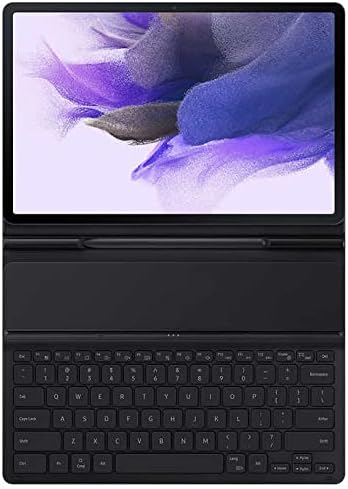
Image: Samsung Galaxy Tab S7 FE with Slim Keyboard Cover attached, viewed from the front. The tablet screen is active, displaying a colorful wallpaper.
4. Initial Setup Wizard
Follow the on-screen instructions to complete the initial setup:
- Select your preferred language.
- Connect to a Wi-Fi network.
- Review and accept the End User License Agreement.
- Sign in with your Google account or create a new one.
- Set up security features (PIN, pattern, password, or fingerprint).
- Restore data from a previous device (optional).
5. S Pen Usage
The S Pen is included and can be used for writing, drawing, and navigating. It attaches magnetically to the back of the tablet for storage and charging.
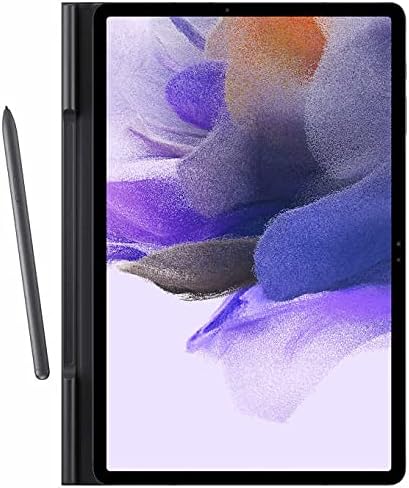
Image: Samsung Galaxy Tab S7 FE in portrait orientation with the S Pen magnetically attached to its right side. The tablet screen displays a vibrant, abstract wallpaper.
Operating Instructions
1. Basic Navigation
- Touch Gestures: Tap to select, swipe to scroll, pinch to zoom.
- Home Screen: Swipe up from the bottom to access the app drawer.
- Notifications Panel: Swipe down from the top of the screen to view notifications and quick settings.

Image: The Samsung Galaxy Tab S7 FE screen displaying the lock screen. It shows the time '12:45' and date 'Thu, Aug 5' with a 'Swipe to unlock' prompt at the bottom.
2. Using the Keyboard Cover
Once attached, the keyboard cover functions like a standard laptop keyboard. You can type directly into text fields. The cover also acts as a stand for comfortable viewing and typing.

Image: Samsung Galaxy Tab S7 FE with its keyboard cover folded into a stand, viewed from a side angle. The tablet screen is angled upwards, ready for use.
3. Connecting to Wi-Fi and Bluetooth
- Wi-Fi: Go to Settings > Connections > Wi-Fi. Turn Wi-Fi on and select your desired network. Enter the password if prompted.
- Bluetooth: Go to Settings > Connections > Bluetooth. Turn Bluetooth on and select a device to pair with.
4. Camera Usage
Open the Camera app from your home screen or app drawer. Tap the shutter button to take photos or switch to video mode for recording. You can switch between front and rear cameras.
5. Sound and Display Settings
Adjust brightness, sound volume, notification sounds, and display modes (e.g., Dark mode) through the Settings menu under Display and Sounds and vibration.
Maintenance
1. Cleaning Your Device
- Use a soft, lint-free cloth to clean the screen and body.
- For stubborn smudges, lightly dampen the cloth with water or a screen cleaner designed for electronics.
- Avoid harsh chemicals, abrasive materials, or excessive moisture.
2. Battery Care
- Avoid extreme temperatures, which can degrade battery life.
- Do not leave the tablet fully charged or fully discharged for extended periods.
- Use only Samsung-approved chargers and cables.
3. Software Updates
Regularly check for and install software updates to ensure optimal performance and security. Go to Settings > Software update > Download and install.
4. Storage Management
Periodically review and delete unnecessary files, apps, and media to free up storage space. You can check storage usage in Settings > Battery and device care > Storage.
Troubleshooting
1. Tablet Not Powering On
- Ensure the battery is charged. Connect to a charger for at least 10-15 minutes.
- Perform a forced restart: Press and hold the Power button and Volume Down button simultaneously for about 7-10 seconds.
2. Wi-Fi Connection Issues
- Restart your tablet and your Wi-Fi router.
- Forget the network and reconnect: Go to Settings > Connections > Wi-Fi, tap the gear icon next to your network, then 'Forget'.
- Ensure your tablet is within range of the Wi-Fi router.
3. Keyboard Cover Not Responding
- Ensure the tablet is correctly aligned and securely attached to the keyboard cover's magnetic connectors.
- Clean the POGO pins on both the tablet and the keyboard cover with a dry, soft cloth.
- Restart your tablet.
4. Screen Unresponsive or Frozen
- Perform a forced restart (see 'Tablet Not Powering On' above).
- If the issue persists, consider a factory data reset (Warning: This will erase all data on your tablet. Back up important data first). Go to Settings > General management > Reset > Factory data reset.
Specifications
| Feature | Specification |
|---|---|
| Brand | Samsung |
| Model Name | Galaxy Tab S7 FE |
| Model Number | SM-T733NZKYXAR |
| Screen Size | 12.4 Inches |
| Display Resolution | 2560x1440 (Maximum), 1920x1080 (Native) |
| Memory Storage Capacity | 64 GB |
| Operating System | Android |
| Processor Brand | Samsung (Exynos) |
| CPU Model Number | SM7225 |
| Battery Average Life | 12 Hours |
| Camera Description | Front, Rear |
| Video Capture Resolution | 4K UHD 2160p |
| Wireless Technology | Bluetooth |
| Human-Interface Input | OCR, Touchscreen with Stylus Support |
| Built-In Media | Samsung Slim Keyboard Cover |
Warranty Information
Your Samsung Galaxy Tab S7 FE and its accessories are covered by a limited manufacturer's warranty. For specific terms, conditions, and duration of your warranty, please refer to the warranty card included in your product packaging or visit the official Samsung support website for your region. Keep your proof of purchase for warranty claims.
Support
For further assistance, technical support, or service, please contact Samsung customer service or visit the official Samsung support website:
- Samsung Support Website: www.samsung.com/us/support/ (or your regional equivalent)
- Refer to the contact information provided in your product's quick start guide or warranty documentation.


