
Introduction
The Vekesen D02 Bluetooth Scrolling Ring is a versatile remote control designed to enhance your digital experience across various applications. This device allows for hands-free control of scrolling, media playback, and camera functions on compatible iOS and Android devices. Please read this manual carefully to ensure proper setup and operation.
Product Overview

Image: The Vekesen D02 Bluetooth Scrolling Ring, highlighting its multi-functional buttons for various controls.
The D02 Scrolling Ring features an ergonomic design for comfortable wear and intuitive button placement for easy control. It connects wirelessly via Bluetooth to your smartphone or tablet, providing seamless interaction with your favorite apps.
Setup Instructions
1. Charging the Device
Before initial use, ensure the scrolling ring is fully charged. Place the ring into its charging case. The indicator light on the case will show charging status.

Image: The scrolling ring in its charging case, illustrating battery life and charging duration.
2. Bluetooth Pairing
- Press and hold the power button on the scrolling ring for 3 seconds until the red and blue lights flash alternately. This indicates the device is in pairing mode.
- On your smartphone or tablet, go to Settings > Bluetooth.
- Ensure Bluetooth is turned on.
- Look for "D02" in the list of available devices and tap to connect. Once connected, the indicator light on the ring will stop flashing.
3. iOS Specific Settings (iPhone/iPad)
For iPhone and iPad users, you must enable 'AssistiveTouch' for the scrolling ring to function correctly. Android devices do not require this step.
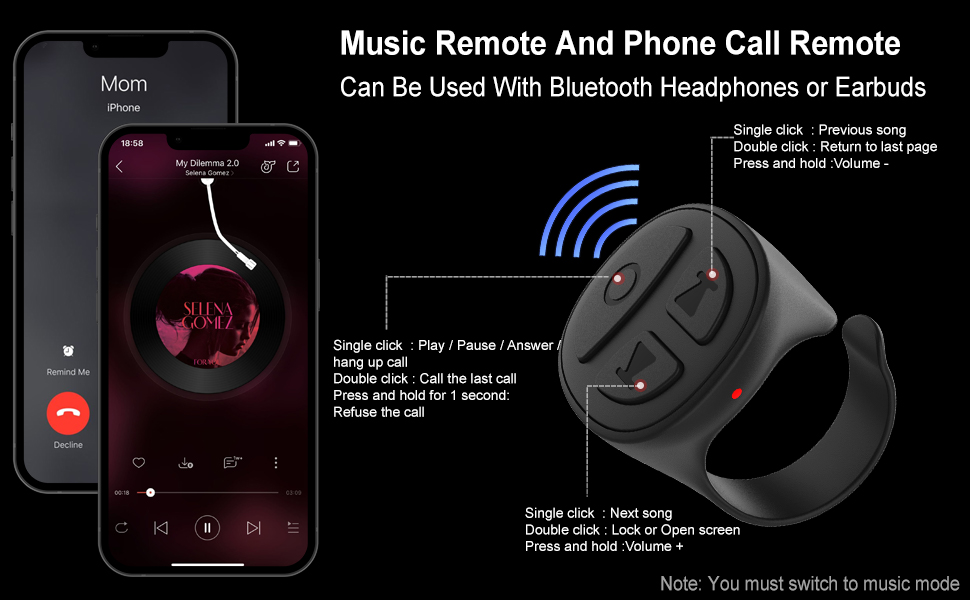
Image: Step-by-step guide to enable AssistiveTouch on iOS devices.
- Go to Settings > Accessibility.
- Tap Touch.
- Tap AssistiveTouch.
- Toggle AssistiveTouch to the 'On' position. A small gray dot will appear on your screen once enabled.
Operating Instructions
1. Switching Modes (TikTok Video / Music)
The D02 Scrolling Ring supports two main modes: TikTok Video mode and Music mode. To switch between modes:
- Press and hold the up and down buttons simultaneously for 2 seconds. The blue and red lights will flash 3 times, indicating a successful mode switch.

Image: Visual guide for switching between TikTok Video and Music modes.
2. TikTok Video Mode Operation
In TikTok Video mode, the ring allows for hands-free interaction with TikTok, YouTube, and Instagram videos.

Image: Detailed button functions for TikTok Video mode.
- Scroll Up/Down: Single click the up/down arrow buttons.
- Swipe Left/Right: Double click the left/right arrow buttons.
- Play/Pause: Single click the center button.
- Send a Like: Double click the center button.
- Continuous Likes (for Live streams): Triple click the center button to start/stop continuous likes.
- Volume Control: Press and hold the up arrow button for Volume +, press and hold the down arrow button for Volume -.
- Lock/Open Screen: Press and hold the center button for 1 second.
3. Kindle App Page Turning
The scrolling ring can remotely control page turning in the Kindle app. This function is only available for the Kindle app, not for Kindle e-reader devices.

Image: Guide for setting up and using the scrolling ring with the Kindle app.
- Open the Kindle app and open a book.
- Tap the middle of the screen to bring up the menu, then tap the 'Aa' icon.
- Go to the 'Layout' tab and ensure 'Continuous Scrolling' is turned OFF.
- Double click the up arrow button to turn the page forward.
- Double click the down arrow button to turn the page backward.
4. Music Mode Operation
In Music mode, the ring controls music playback and phone calls.

Image: Detailed button functions for Music and Phone Call mode.
- Play/Pause: Single click the center button.
- Next Song: Single click the right arrow button.
- Previous Song: Single click the left arrow button.
- Volume Control: Press and hold the up arrow button for Volume +, press and hold the down arrow button for Volume -.
- Answer/Hang Up Call: Single click the center button.
- Refuse Call: Press and hold the center button for 1 second.
- Call Last Number: Double click the center button.
5. Bluetooth Camera Shutter Remote
The scrolling ring can also function as a remote camera shutter for taking photos and recording videos within 33 feet.
- Open your phone's camera app.
- Long press either the up or down arrow button on the ring to activate the camera shutter.
Maintenance
1. Charging
The scrolling ring is powered by Lithium Polymer batteries. Charge the device using the provided charging case. A full charge takes approximately 1 hour. The charging case provides multiple recharges, extending the total usage time significantly.
2. Cleaning
Wipe the device with a soft, dry cloth. Avoid using harsh chemicals or abrasive materials.
3. Storage
Store the device in a cool, dry place away from direct sunlight and extreme temperatures. When not in use for extended periods, charge the device periodically to maintain battery health.
Troubleshooting
- Device not pairing: Ensure the ring is fully charged and in pairing mode (red and blue lights flashing alternately). Check your phone's Bluetooth settings to ensure it's on and visible. If using iOS, verify AssistiveTouch is enabled.
- Functions not working (iOS): Confirm that AssistiveTouch is enabled in your iPhone/iPad settings. Without it, the ring's functions will not register.
- Kindle page turning not working: In the Kindle app's 'Layout' settings, ensure 'Continuous Scrolling' is turned OFF.
- Intermittent connection: Ensure the device is within the Bluetooth range (approximately 33 feet) of your phone. Avoid obstacles that may interfere with the signal.
- Device stopped working: Try resetting the device by turning it off and on again. Ensure it is charged. If issues persist, contact customer support.
Specifications
- Product Dimensions: 1 x 0.86 x 1.2 inches
- Item Weight: 0.16 ounces
- Item Model Number: D02
- Batteries: 2 Lithium Polymer batteries required (included)
- Brand: Vekesen
- Special Feature: Multi-functional
- Color: Blue (variant specific)
- Max Number of Supported Devices: 1
- Compatible Devices: Android devices, iOS devices
Warranty and Support
This Vekesen product comes with a One Year Manufacturer Warranty. If you encounter any problems with your Vekesen D02 Bluetooth Scrolling Ring, please feel free to contact us. We are committed to providing quick responses and satisfactory after-sales service to ensure a happy shopping experience for our customers.
For support, please refer to the contact information provided with your purchase or visit the official Vekesen store on Amazon.