Introduction
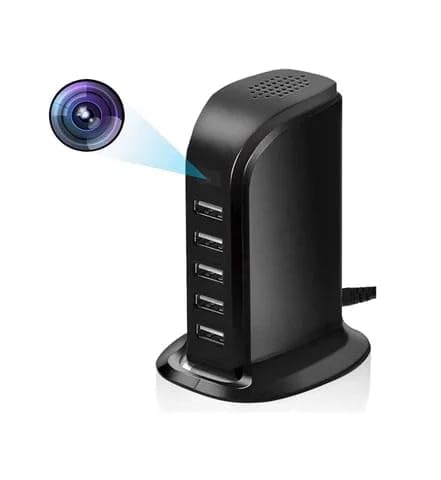
This image displays the Smars 30W USB Power Adapter, highlighting its integrated mini WiFi camera. The camera lens is subtly placed within the adapter's design, making it discreet for surveillance purposes.
Thank you for choosing the Smars 30W USB Power Adapter with Full HD 1080P Mini WiFi Camera. This device combines a functional USB charging hub with a discreet security camera, offering remote monitoring capabilities. This manual provides detailed instructions for setup, operation, and maintenance to ensure optimal performance and security.
Product Overview
The Smars USB Power Adapter Camera is designed for discreet surveillance and charging. It features a 1080P camera, motion detection, and WiFi connectivity for remote access.
Key Features:
- Full HD 1080P Resolution: Captures clear video footage.
- Mini WiFi Camera: Discreet design for covert surveillance.
- Motion Detection: Automatically records upon detecting movement and sends alerts.
- Remote Monitoring: Access live feed and recordings via a mobile application.
- Loop Recording: Overwrites oldest files when the memory card is full.
- USB Charging Ports: Functions as a 30W USB power adapter with multiple ports.
- Wide-Angle Lens: Provides a broad surveillance coverage area.
Components:
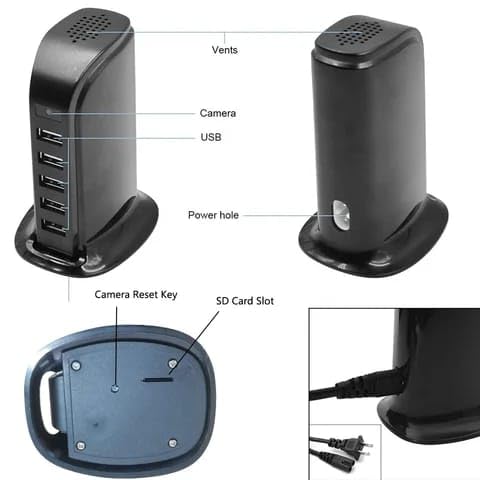
This image illustrates the various components of the Smars USB Power Adapter Camera. Key parts include the vents at the top, the discreet camera lens, multiple USB charging ports on the front, a power input hole, a camera reset key, and an SD card slot located at the bottom.
- Vents: For heat dissipation.
- Camera Lens: The discreet lens for video recording.
- USB Ports: Multiple ports for charging devices.
- Power Hole: Input for the power cable.
- Camera Reset Key: Used to reset the camera to factory settings.
- SD Card Slot: For inserting a microSD card (16-128GB, not included) for local storage.
Setup Instructions
- Insert SD Card: Locate the SD card slot at the bottom of the device. Gently insert a microSD card (16GB to 128GB, not included) until it clicks into place. Ensure the card is formatted correctly (FAT32 recommended).
- Power On: Connect the power adapter to a standard electrical outlet using the provided power cable. The device will power on automatically.
- Download Mobile App: Scan the QR code provided in the product packaging or search for the designated application (e.g., "LookCam" or similar, refer to product packaging for exact app name) in your mobile device's app store (Android / iOS). Download and install the app.
- Connect to WiFi:
- Open the installed app on your smartphone.
- Follow the in-app instructions to add a new device.
- The camera will broadcast its own WiFi hotspot. Connect your phone to this hotspot (e.g., "IPC-XXXXXX").
- Once connected to the camera's hotspot, return to the app and select your home/office WiFi network. Enter the password for your WiFi network.
- The camera will then connect to your WiFi network, allowing remote access.
- Positioning: Place the device in a location where it has a clear view of the area you wish to monitor. Ensure it is within range of your WiFi network for stable connectivity.
Operating Instructions
Remote Monitoring via App:
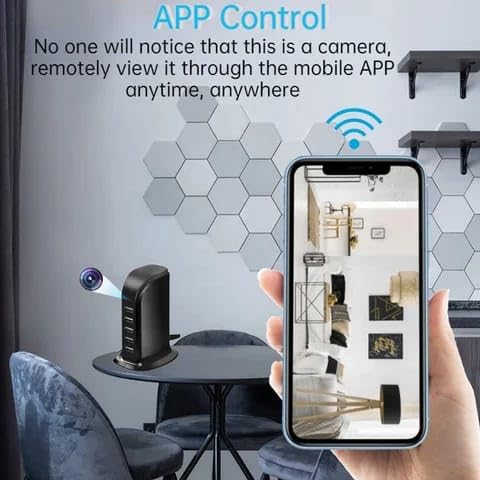
This image demonstrates the remote viewing capability of the camera. A smartphone screen shows the live video feed from the Smars USB Power Adapter Camera, indicating that users can monitor their space anytime, anywhere through the mobile application.
- Once the camera is connected to your WiFi network, open the mobile app.
- Select the camera from the device list to view the live video feed.
- Within the app, you can access various functions such as:
- Viewing live video.
- Accessing recorded footage stored on the SD card.
- Adjusting camera settings (e.g., resolution, motion detection sensitivity).
- Taking snapshots or manually recording video.
Multi-User and Multi-View Support:
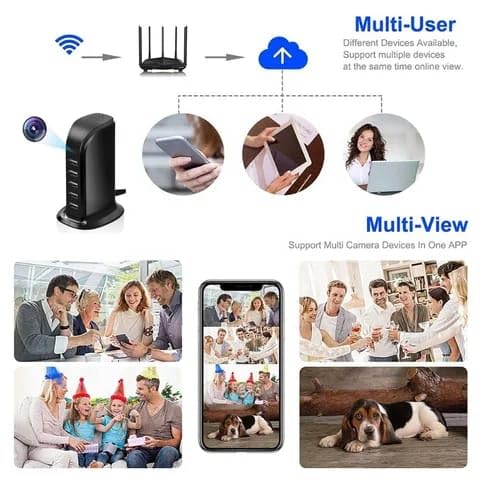
This diagram illustrates the camera's multi-user and multi-view capabilities. It shows that different devices (smartphones, tablets, laptops) can connect to the camera via WiFi and cloud services, allowing multiple users to view the feed simultaneously. The image also depicts various monitoring scenarios, such as family gatherings and pet surveillance, highlighting the versatility of the system.
The mobile application supports multiple users viewing the camera feed simultaneously. You can also add multiple Smars cameras to a single app for comprehensive monitoring.
Audio Recording:

This image suggests the camera's audio recording capabilities. It shows three individuals in a discussion, with a "Listening" icon, implying that the device can capture clear audio, which can be saved as evidence.
The camera is equipped with a microphone to record audio. The sound quality is designed to be clear, allowing for the capture of important sound evidence. Please be aware of local laws regarding audio recording.
Motion Detection
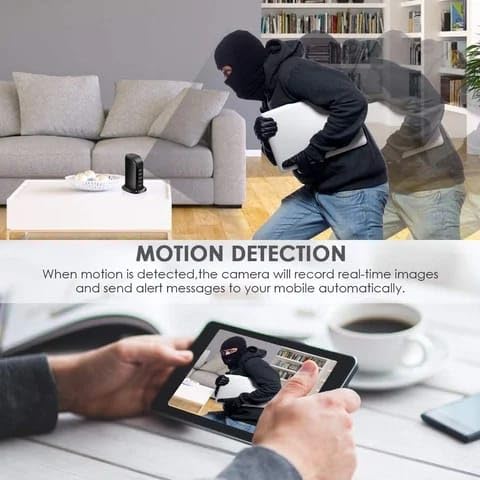
This image demonstrates the motion detection feature. It shows a person moving within a room, and simultaneously, a tablet screen displays an alert with the detected motion. This illustrates that when motion is detected, the camera records real-time images and sends alert messages to your mobile device automatically.
The camera features intelligent motion detection. When motion is detected within its field of view, the camera will automatically begin recording. You can configure the sensitivity of the motion sensor through the mobile application.
Alerts:
Upon detecting motion, the camera will send push notifications with images to your connected smartphone. You can then log into the app to view the live feed and assess the situation in real-time.
Loop Recording
The camera supports loop recording. When the inserted SD card reaches its full capacity, the system will automatically overwrite the oldest video files with new recordings. This ensures continuous recording without the need for manual deletion of old footage.
Note: Ensure your SD card is properly inserted and formatted for this feature to function correctly.
Maintenance
- Cleaning: Use a soft, dry cloth to clean the camera lens and the device exterior. Avoid using liquid cleaners or abrasive materials.
- SD Card Management: Periodically check the SD card for proper function. If you experience recording issues, try reformatting the SD card via the app or a computer.
- Firmware Updates: Check the mobile application regularly for any available firmware updates for the camera. Keeping the firmware updated ensures optimal performance and security.
- Resetting the Camera: If the camera malfunctions or you need to reconfigure its settings, use the Camera Reset Key (refer to the Components diagram) to restore factory defaults. This may require re-pairing with the app and WiFi.
Troubleshooting
| Problem | Possible Cause | Solution |
|---|---|---|
| Camera not connecting to WiFi. | Incorrect WiFi password, camera too far from router, 5GHz WiFi network. |
|
| No video recording. | No SD card, faulty SD card, SD card full, motion detection not enabled. |
|
| App not receiving push notifications. | App permissions, notification settings, internet connectivity. |
|
| Poor video quality. | Low light conditions, dirty lens, network bandwidth. |
|
Specifications
| Model | USB AD-30W |
| Video Resolution | 1080P / 720P (Configurable) |
| Video Format | AVI |
| Viewing Angle | 90 degrees |
| Motion Detection Distance | Up to 6 meters (straight line) |
| Minimum Illumination | 1 LUX |
| Continuous Recording Time | 24 hours (with power connected) |
| Compressed Format | H.264 |
| Recording Range | 5m² |
| Power Consumption | 240MA/3.7V |
| Storage Temperature | -20 to 80 degrees Celsius |
| Operating Temperature | -10 to 60 degrees Celsius |
| Operating Humidity | 15% - 85% RH |
| Memory Card Type | TF card (MicroSD), 16GB-128GB (not included) |
| Mobile Operating System | Android / iOS |
| Wattage | 30 Watts |
| Input Voltage | 240 Volts (DC) |
| Output Voltage | 5 Volts (DC) |
| Output Current | 6 Amps |
| Number of USB Ports | 5 |
| Item Weight | 350 g |
| Package Dimensions | 10 x 8 x 8 cm |
Important Safety Information and Legal Disclaimer

This image displays a critical legal disclaimer from Smars. It explicitly states that Smars hidden camera products are strictly prohibited for any illegal activity. The seller disclaims responsibility for any crimes committed through product misuse. Customers are urged to respect local laws concerning spy cameras before purchasing or using these products. It also notes that some countries prohibit the use of spy cameras as illegal, unless permitted by law. A technical helpline number is provided for concerns.
Usage Restrictions: Smars hidden camera products are strictly prohibited for use in any kind of illegal activity. The manufacturer and seller shall not be held responsible for any crimes committed by using this product.
Legal Compliance: Users are requested to kindly respect the laws and regulations of the country or region in which they reside regarding the use of surveillance devices. Be aware that some countries prohibit the use of hidden cameras, and it is the user's responsibility to ensure compliance with local laws.
Ethical Use: This device is intended for legitimate security and monitoring purposes, such as monitoring your own property or ensuring the safety of your family, with appropriate consent and within legal boundaries.
For any concerns, please contact the technical helpline number provided in your product packaging or on the official Smars website.


