1. Introduction
The UGREEN USB 3.0 Switch (Model 35313) is a device designed to enable two computers to share up to two USB 3.0 peripheral devices. This allows for efficient use of peripherals such as keyboards, mice, printers, scanners, and webcams between two distinct computer systems without the need to constantly swap cables. This manual provides detailed instructions for the proper setup, operation, and maintenance of your UGREEN USB 3.0 Switch.
2. Package Contents
Please verify that all items are present in your package:
- 1 x UGREEN 2-Port USB 3.0 Switch (Model 35313)
- 2 x USB 3.0 A to A Cables (approximately 5 feet / 1.5 meters each)
- 1 x User Manual

Figure 2.1: Package Contents. The image displays the UGREEN USB 3.0 Switch unit, two black USB-A to USB-A cables, and a small user manual, indicating all items included in the product box.
3. Product Overview
The UGREEN USB 3.0 Switch features a compact design with clearly labeled ports and indicators for ease of use.
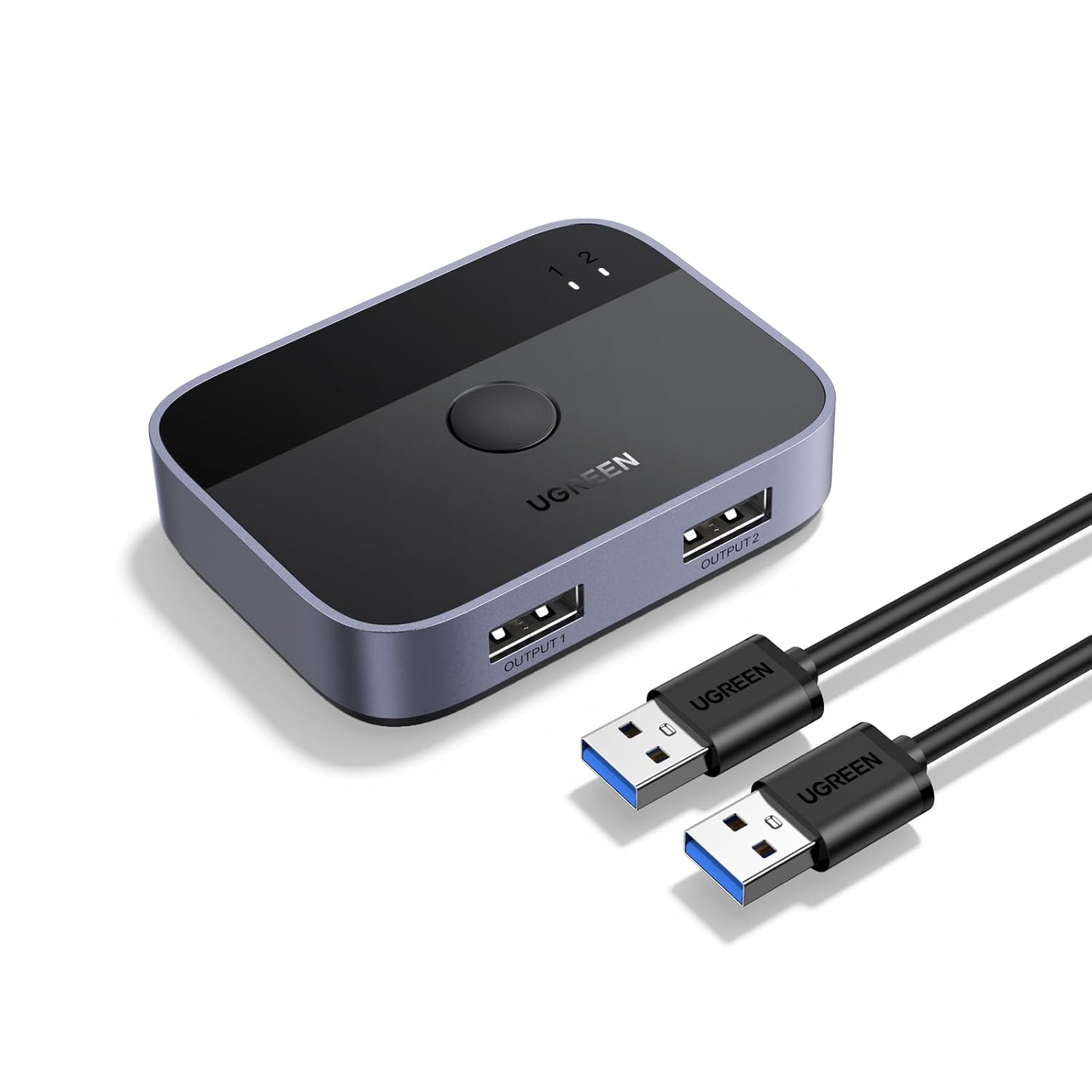
Figure 3.1: UGREEN USB 3.0 Switch and Cables. This image shows the main unit of the UGREEN USB 3.0 Switch, a dark gray rectangular device with a central button and two output USB 3.0 ports, alongside two black USB-A to USB-A cables.
3.1 Device Layout
- Input Ports (USB-A): Located on the rear/side (not explicitly shown in main image, but implied by connection diagram). These ports connect to your two computers.
- Output Ports (USB 3.0 Type-A): Labeled "OUTPUT 1" and "OUTPUT 2" on the front. These ports connect to your USB peripheral devices.
- Switch Button: A large circular button on the top surface used to toggle between the two connected computers.
- LED Indicators: Two small LED lights (labeled 1 and 2) next to the switch button, indicating which computer is currently active. Typically, one is blue and the other green.

Figure 3.2: Switch Button and LED Indicators. This image highlights the central push button for switching and the two small LED indicators (labeled 1 and 2) that show which connected computer is currently active.
3.2 Data Transfer Speed
The switch supports USB 3.0 data transfer speeds up to 5Gbps, ensuring fast performance for connected devices. It is also backward compatible with USB 2.0.

Figure 3.3: Data Transfer Speed Comparison. This graphic visually compares the data transfer speed of UGREEN USB 3.0 (5Gbps) with USB 2.0 (480Mbps), emphasizing the faster performance of USB 3.0.
4. Setup Instructions
Follow these steps to set up your UGREEN USB 3.0 Switch:
- Connect Computers: Use the provided USB 3.0 A to A cables to connect the input ports of the switch to the USB 3.0 ports on your two computers (PC1 and PC2). Ensure the cables are securely inserted.
- Connect Peripherals: Connect your USB peripheral devices (e.g., keyboard, mouse, printer, webcam) to the "OUTPUT 1" and "OUTPUT 2" ports on the front of the switch.
- Power Supply: The switch draws power from the connected computers. Ensure at least one computer is powered on and connected to provide sufficient power for the switch to operate correctly. If using high-power devices, a powered USB hub connected to one of the switch's output ports may be necessary.
- Initial Recognition: Your operating system should automatically detect the switch and connected peripherals. No additional drivers are typically required.

Figure 4.1: Connection Diagram. This diagram illustrates how to connect two computers (desktop and laptop) to the UGREEN USB 3.0 Switch, which then allows them to share multiple USB devices such as a keyboard, mouse, printer, and flash drive.

Figure 4.2: Example Setup. This image displays a practical setup where a laptop and a desktop computer are both connected to the UGREEN USB 3.0 Switch, enabling them to share a single keyboard and mouse, enhancing work efficiency.
5. Operating Instructions
Using the UGREEN USB 3.0 Switch is straightforward:
- Select Computer: Press the large circular switch button on the top of the device to toggle between the two connected computers.
- Indicator Lights: The LED indicators (1 and 2) will illuminate to show which computer is currently active and has control over the connected USB peripherals. For example, a blue LED might indicate PC1 is active, and a green LED might indicate PC2 is active.
- Device Recognition: After switching, there may be a brief delay (typically 1-5 seconds) as the operating system of the newly selected computer recognizes the connected USB devices.
6. Troubleshooting
If you encounter issues with your UGREEN USB 3.0 Switch, please refer to the following common solutions:
- Devices Not Recognized:
- Ensure all cables are securely connected to both the switch and the computers/peripherals.
- Verify that the correct computer is selected by checking the LED indicator.
- Try disconnecting and reconnecting the USB cables.
- Restart the affected computer.
- Switch Not Powering On / Intermittent Operation:
- The switch requires power from the connected computers. Ensure at least one computer is fully powered on and its USB port is active.
- If using high-power USB devices (e.g., external hard drives), the switch might require more power than a single computer's USB port can provide. Consider using a powered USB hub connected to one of the switch's output ports, or ensure both computers are on.
- Slow Switching Response:
- A brief delay (1-5 seconds) is normal for the operating system to recognize devices after switching.
- Ensure your computer's USB drivers are up to date.
- Incorrect Port Labeling:
- Some users have noted that the "input" and "output" labels might appear counter-intuitive. If your setup is not working, try reversing the connections (i.e., connect computers to ports typically used for outputs and peripherals to ports typically used for inputs, though this is generally not the intended design). Always refer to the connection diagram in this manual for the correct setup.
- Not a KVM Switch:
- This device is a USB switch for peripherals only. It does not support video switching for monitors. For video switching, a dedicated KVM (Keyboard, Video, Mouse) switch is required.
7. Specifications
| Feature | Specification |
|---|---|
| Model Number | UGREEN 2-Port USB 3.0 Switch (35313) |
| Brand | UGREEN |
| Product Dimensions | 27.56 x 15.75 x 9.45 inches (approx. 70 x 40 x 24 cm) |
| Item Weight | 8 ounces (approx. 227 grams) |
| Operation Mode | Manual (Push Button) |
| Current Rating | 2 Amps |
| Operating Voltage | 5 Volts |
| Connector Type | USB 3.0 (Type-A) |
| Circuit Type | 2-way |
| Compatibility | Windows, macOS, Chrome OS, Linux (Driver-free) |
8. Maintenance
To ensure the longevity and optimal performance of your UGREEN USB 3.0 Switch, follow these maintenance guidelines:
- Cleaning: Use a soft, dry cloth to clean the exterior of the device. Avoid using liquid cleaners or abrasive materials.
- Storage: Store the switch in a cool, dry place away from direct sunlight and extreme temperatures.
- Handling: Avoid dropping the device or subjecting it to strong impacts.
- Connectivity: Ensure cables are not bent sharply or under excessive tension, which can damage the connectors or internal wiring.
9. Warranty and Support
UGREEN products are designed for reliability and performance. For specific warranty information, please refer to the warranty card included with your product or visit the official UGREEN website. For technical support, product inquiries, or assistance with troubleshooting beyond this manual, please contact UGREEN customer service through their official channels.
UGREEN Official Website: www.ugreen.com


