
Asus A303 TG H1 GEN II MIKU
ASUS TUF Gaming H1 GEN II Hatsune Miku Edition Wired Gaming Headset User Manual
Model: A303 TG H1 GEN II MIKU
Introduction
Thank you for choosing the ASUS TUF Gaming H1 GEN II Hatsune Miku Edition Wired Gaming Headset. This manual provides essential information for setting up, operating, maintaining, and troubleshooting your new headset. Please read it thoroughly to ensure optimal performance and longevity of your device.
Product Overview
The ASUS TUF Gaming H1 GEN II Hatsune Miku Edition headset is designed for immersive gaming audio and clear communication. It features 40mm ASUS Essence drivers, virtual 7.1 surround sound, and a TeamSpeak-certified unidirectional microphone. Its lightweight design and durable ear cushions ensure comfort during extended use.

Figure 1: ASUS TUF Gaming H1 GEN II Hatsune Miku Edition Headset with in-line controls.
Key Features:
- Lightweight and Ergonomic Design: Weighing approximately 297 grams with a metal suspension headband for comfortable, extended gaming sessions.
- Exceptional Audio Quality: Equipped with 40mm ASUS Essence drivers and virtual 7.1 surround sound for immersive in-game audio.
- Enhanced Communication: Features a TeamSpeak-certified unidirectional microphone for clear voice chat.
- Durable Ear Cushions: Easy-to-remove and resistant to alcohol and hypochlorous acid for convenient daily cleaning.
- In-line Controls: Convenient controls for volume adjustment, audio mute, virtual 7.1 surround sound activation, and lighting.
- Eye-catching Style: Incorporates Hatsune Miku’s signature teal color and lighting for a distinctive look.
- Multi-Platform Compatibility: Connects via USB Type-A, compatible with PCs, PlayStation 4, and PlayStation 5.
Package Contents
Verify that all items are present and in good condition upon opening the package.
- ASUS TUF Gaming H1 GEN II Hatsune Miku Edition Gaming Headset
- User Manual
- Additional accessories (refer to packaging for specific items like stickers or promotional materials)
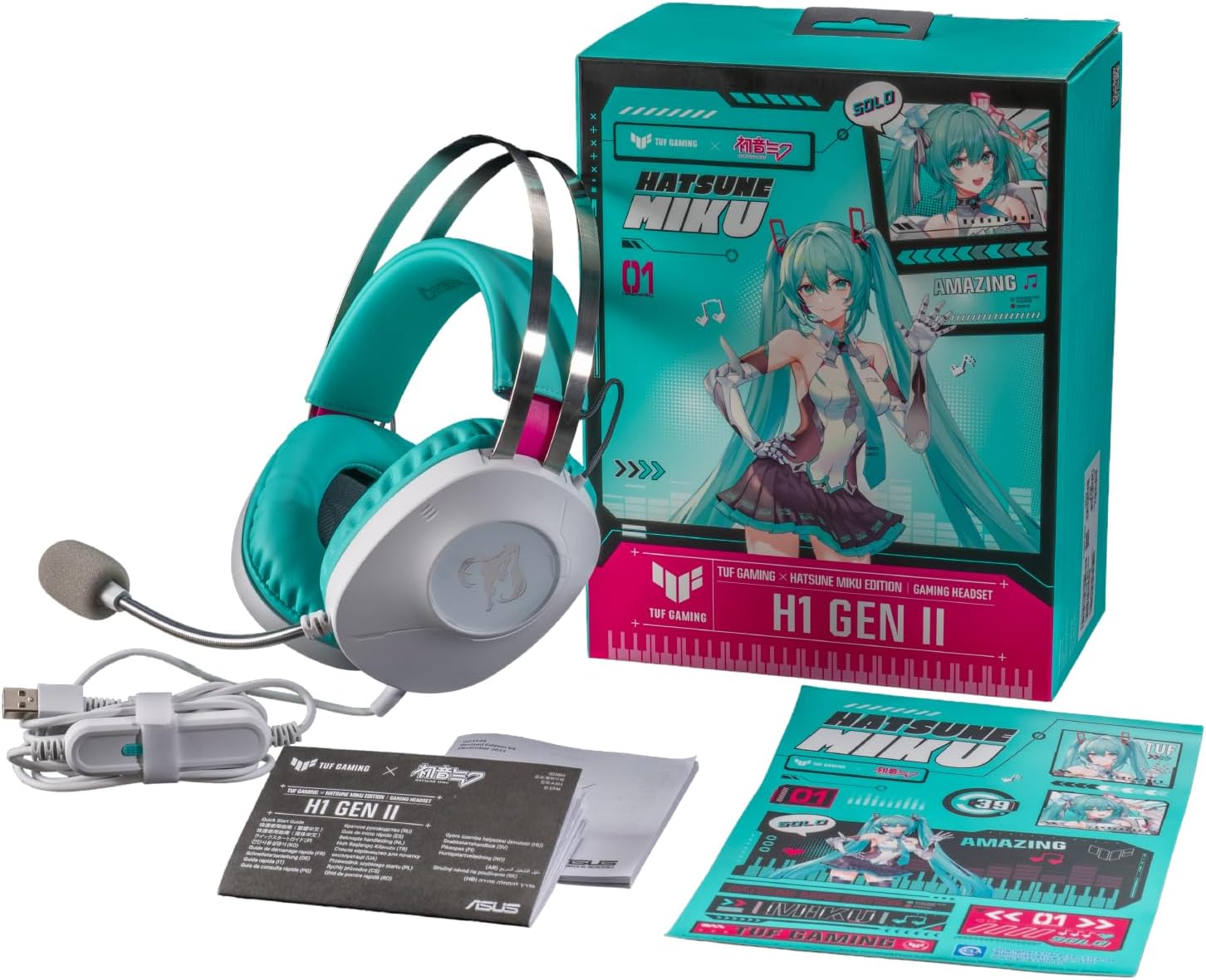
Figure 2: Contents of the headset package, including the headset, manual, and stickers.
Setup
Connecting the Headset:
- Locate the USB Type-A connector on your headset cable.
- Plug the USB Type-A connector into an available USB port on your PC, PlayStation 4, or PlayStation 5.
- The headset should be automatically recognized by your device. You may need to select it as the default audio input/output device in your system settings.
Microphone Adjustment:
- The unidirectional microphone is designed for clear voice pickup. Position the microphone boom arm close to your mouth for optimal clarity.
- Use the in-line controls to mute or unmute the microphone as needed.
Operating the Headset
In-line Controls:
The headset features convenient in-line controls for quick adjustments during use.
- Volume Control: Use the scroll wheel or buttons to adjust the audio volume.
- Audio Mute: Press the dedicated button to mute or unmute the headset audio.
- Microphone Mute: Press the dedicated button to mute or unmute the microphone.
- Virtual 7.1 Surround Sound: Activate or deactivate virtual 7.1 surround sound for an immersive audio experience.
- Lighting Control: Adjust or toggle the headset's lighting effects.

Figure 3: Headset with visible in-line controls for volume, mute, and 7.1 surround sound.

Figure 4: Close-up of the headset earcup, emphasizing the 40mm ASUS Essence drivers for exceptional audio quality.

Figure 5: Headset with its TeamSpeak-certified unidirectional microphone for clear communication.
Maintenance
Cleaning the Headset:
- Use a soft, dry cloth to wipe down the headset's exterior.
- The ear cushions are designed to be easy to remove and are resistant to alcohol and hypochlorous acid. For thorough cleaning, gently remove the ear cushions and wipe them with a suitable cleaning solution. Ensure they are completely dry before reattaching.
- Avoid using abrasive cleaners or solvents that may damage the headset's finish.
Storage:
- Store the headset in a cool, dry place away from direct sunlight and extreme temperatures.
- Avoid placing heavy objects on the headset to prevent damage.
Troubleshooting
| Problem | Possible Cause | Solution |
|---|---|---|
| No audio from headset |
|
|
| Microphone not working |
|
|
| Virtual 7.1 surround sound not working |
|
|
Specifications
| Feature | Detail |
|---|---|
| Model | A303 TG H1 GEN II MIKU |
| Connectivity | Wired (USB Type-A) |
| Drivers | 40mm ASUS Essence Drivers |
| Impedance | 32 Ohms |
| Frequency Response | 20 Hz - 20 KHz |
| Microphone | TeamSpeak-certified unidirectional microphone |
| Virtual Surround Sound | Virtual 7.1 Surround Sound |
| Weight | Approximately 297g (0.7 lbs) |
| Ear Cushions | Durable, easy-to-remove, alcohol- and hypochlorous acid-resistant |
| Controls | In-line: Volume, Audio Mute, Virtual 7.1 Surround Sound, Lighting |
| Compatible Devices | Desktops, Laptops, PlayStation 4, PlayStation 5 |
| Material | Metal, Plastic |
| Color | White with Teal accents |
Warranty and Support
For warranty information, please refer to the warranty card included in your product packaging or visit the official ASUS support website. You can find drivers, FAQs, and contact information for technical support there.
ASUS Support Website: www.asus.com/support/
Related documentsA303 TG H1 GEN II MIKU


Ask a question about this manual
Ask about setup, troubleshooting, compatibility, parts, safety, or missing instructions. Manuals+ will review the question and use this page’s manual context to help answer it.