
Introduction
This manual provides comprehensive instructions for the installation, operation, maintenance, and troubleshooting of your VOCOlinc BR30 Smart Light Bulbs. These bulbs offer advanced features including RGBW color changing, dimmable brightness, and compatibility with popular smart home platforms like Apple HomeKit, Alexa, and Google Assistant. Please read this manual carefully to ensure proper use and optimal performance of your smart light bulbs.
Setup
1. Physical Installation
- Power Off: Before installation, ensure the power to the light fixture is turned off at the main switch.
- Insert Bulb: Carefully screw the VOCOlinc BR30 smart light bulb into a standard E26 base socket. Do not overtighten.
- Power On: Turn the power back on to the light fixture. The bulb should light up, indicating it is ready for pairing.

Image: Four VOCOlinc BR30 smart light bulbs in their packaging, showcasing compatibility with Apple Home, Alexa, and Hey Google.

Image: A single VOCOlinc BR30 smart light bulb, highlighting its E26 base and the VOCOlinc logo. This bulb is designed for easy installation into standard light fixtures.
2. App Installation and Pairing
To control your VOCOlinc BR30 smart light bulbs, you will need to download the VOCOlinc app or use your preferred smart home platform (Apple Home, Google Home, or Alexa).
- Download the App: Search for "VOCOlinc" in your device's app store (iOS or Android) and install the application.
- Wi-Fi Requirement: Ensure your smartphone is connected to a 2.4GHz Wi-Fi network. The smart bulbs require a 2.4GHz connection for initial setup.
- Open App and Add Device:
- Open the VOCOlinc app and follow the on-screen instructions to add a new device.
- For Apple HomeKit, open the Home app, tap the "+" icon, and select "Add Accessory". Scan the HomeKit QR code located on the bulb or its packaging.
- For Google Assistant or Alexa, follow the respective app's instructions to link your VOCOlinc account or discover new devices.
- Complete Pairing: Follow any remaining prompts in the app to complete the pairing process. Once successfully paired, you can control your bulb via the app or voice commands.
Operating Your Smart Light Bulbs
1. App Control
The VOCOlinc app provides full control over your smart light bulbs.
- Power On/Off: Tap the bulb icon in the app to toggle power.
- Brightness Adjustment: Use the slider to adjust the brightness from 1% to 100%.
- Color Selection: Choose from 16 million colors using the color wheel or select from preset colors. You can also adjust the color temperature from 2200K (warm white) to 7000K (cool white).
- Light Effects: Explore various dynamic light effects such as Blink, Breathe, Flicker, Candle, and Flow for different moods or occasions.
- Schedules and Timers: Set custom schedules for your lights to turn on/off or change settings at specific times. Create countdown timers for automated actions.
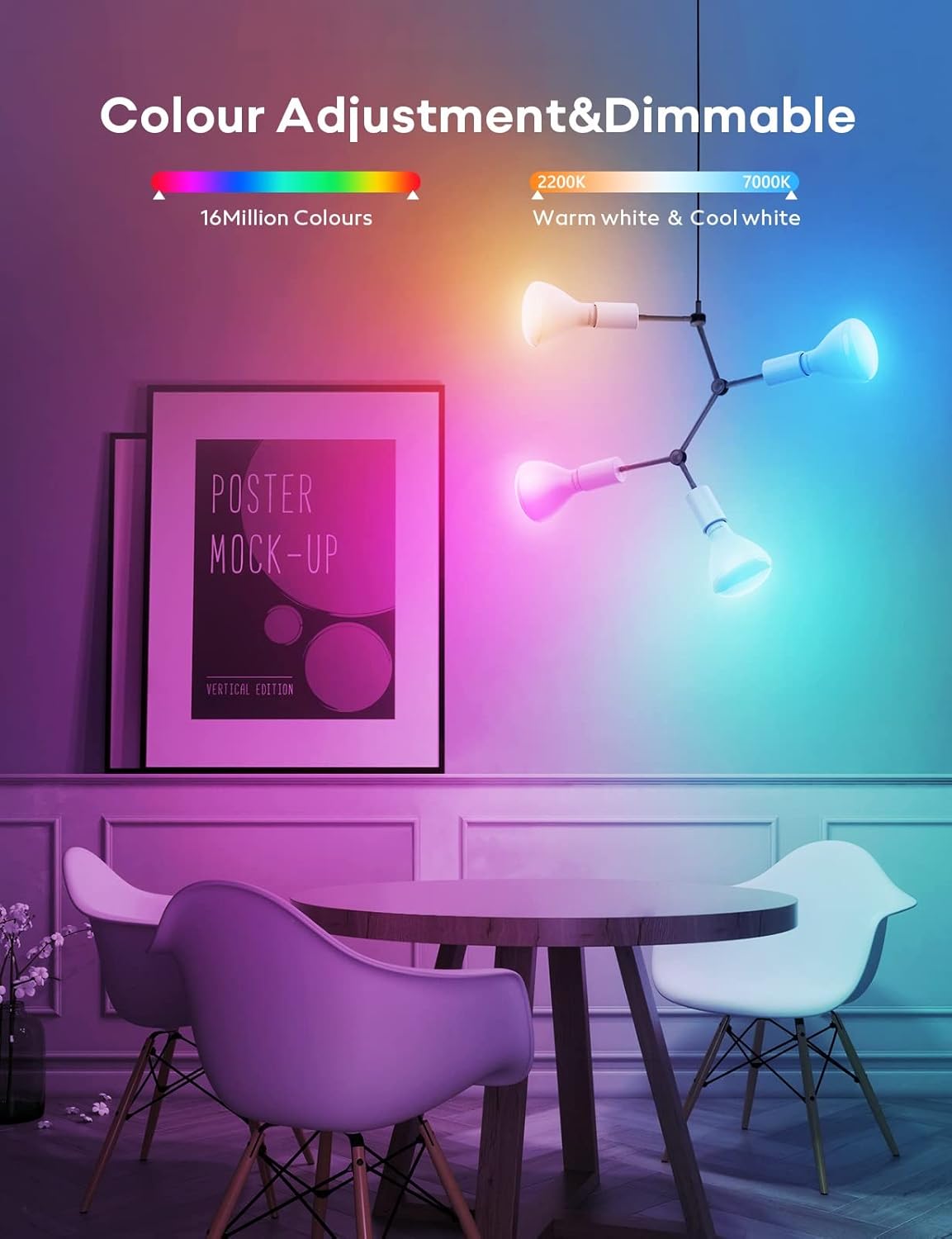
Image: An interior scene featuring multiple VOCOlinc smart light bulbs illuminating a dining area with a range of colors, demonstrating the extensive color adjustment and dimming capabilities.

Image: A hand holding a smartphone displaying the VOCOlinc app interface, with a modern house illuminated by smart lights in the background, illustrating the remote control functionality from anywhere.

Image: A smartphone screen displaying a light scheduling interface, with a bedroom scene in the background. This demonstrates how users can set personal schedules for their lights to turn on or off at specific times with comfortable brightness levels.
2. Voice Control
Control your VOCOlinc BR30 smart light bulbs using voice commands through compatible smart assistants.
- Apple HomeKit (Siri): "Hey Siri, turn on the living room lights." or "Hey Siri, dim the kitchen lights to 50%."
- Amazon Alexa: "Alexa, set the bedroom to blue." or "Alexa, turn off the lights."
- Google Assistant: "Hey Google, change the lamp to purple." or "Hey Google, brighten the lights."

Image: A person relaxing on a couch, interacting with a smart speaker to control a VOCOlinc smart light bulb, illustrating the convenience of voice control with compatible smart home systems.
3. Group Control
Manage multiple smart bulbs simultaneously by creating groups within the VOCOlinc app or your smart home platform.
- Create Groups: In the app, navigate to the group settings and select the bulbs you wish to control together (e.g., "Living Room Lights").
- Control as One: Once grouped, you can turn them on/off, change colors, or adjust brightness for all bulbs in that group with a single command.

Image: An illustrative diagram of a multi-level home, showing various smart light bulbs in different rooms. A smartphone app is depicted controlling these lights collectively, demonstrating the group control feature.
4. Adaptive Lighting
Adaptive lighting automatically adjusts the color temperature and brightness of your bulbs throughout the day to mimic natural light patterns, promoting comfort and well-being. This feature is particularly useful for fixtures that are typically left on.
- Enable Adaptive Lighting: Access the "Daylight" or "Adaptive Lighting" settings within the VOCOlinc app.
- Customize Schedule: You can customize the start and end times for different phases (Sunrise, Day, Evening, Sleep) to match your daily routine.
- Note: If a bulb is set to adaptive lighting and is turned off, it may automatically turn on at a scheduled time to adjust its color and brightness according to the set schedule.
Maintenance
The VOCOlinc BR30 Smart Light Bulbs require minimal maintenance.
- Cleaning: Ensure the bulb is powered off and cool before cleaning. Wipe with a soft, dry cloth. Do not use liquid cleaners or abrasive materials.
- Handling: Handle the bulbs with care. Avoid dropping or subjecting them to strong impacts.
- Firmware Updates: Periodically check the VOCOlinc app for available firmware updates to ensure optimal performance and access to new features.
Troubleshooting
- Bulb Not Responding:
- Check if the bulb is securely screwed into the socket and the power switch is on.
- Ensure your Wi-Fi network is active and your smartphone is connected to the 2.4GHz band.
- Restart the bulb by turning the power off and on at the switch.
- If using Apple HomeKit, ensure your Home Hub (HomePod, Apple TV, or iPad) is online and within range.
- Unable to Pair:
- Confirm your Wi-Fi is 2.4GHz. 5GHz networks are not supported for initial pairing.
- Move closer to your Wi-Fi router during the pairing process.
- Reset the bulb to factory settings (usually by cycling power on/off multiple times, refer to the app for specific instructions).
- Voice Commands Not Working:
- Verify that your smart assistant (Alexa, Google Assistant, Siri) is properly linked to your VOCOlinc account or HomeKit.
- Check your internet connection.
- Ensure the smart assistant device is powered on and listening.
Specifications
| Feature | Detail |
|---|---|
| Brand | VOCOlinc |
| Model Name | BR30 |
| Light Type | LED |
| Bulb Shape Size | BR30 |
| Bulb Base | E26 |
| Wattage | 9.5 Watts |
| Incandescent Equivalent | 60 Watts |
| Brightness | 800 Lumens |
| Color Temperature | 2200K-7000K (Tunable White) |
| Color | RGBW (16 Million Colors) |
| Voltage | 120 Volts (AC) |
| Control Method | App, Voice (Alexa, Apple HomeKit, Google Assistant) |
| Connectivity | 2.4GHz Wi-Fi (No Hub Required) |
| Average Life | 25,000 Hours |
| Indoor/Outdoor Usage | Indoor |
| Material | Acrylonitrile Butadiene Styrene (ABS) |
Warranty and Support
VOCOlinc is committed to providing high-quality smart home products. For warranty information, technical support, or any inquiries, please refer to the official VOCOlinc website or contact their customer service directly.
- Customer Service: VOCOlinc offers 24-hour email service and return service for customer satisfaction.
- Online Resources: Visit the VOCOlinc Store on Amazon for additional product information and support.

