
1. Introduction
This manual provides essential information for the safe and effective use of your Ziegoal Kids Smart Watch W1. Please read it thoroughly before operating the device and retain it for future reference. This smart watch is designed to offer entertainment and educational features for children, including dual cameras, games, learning activities, and daily habit tracking.
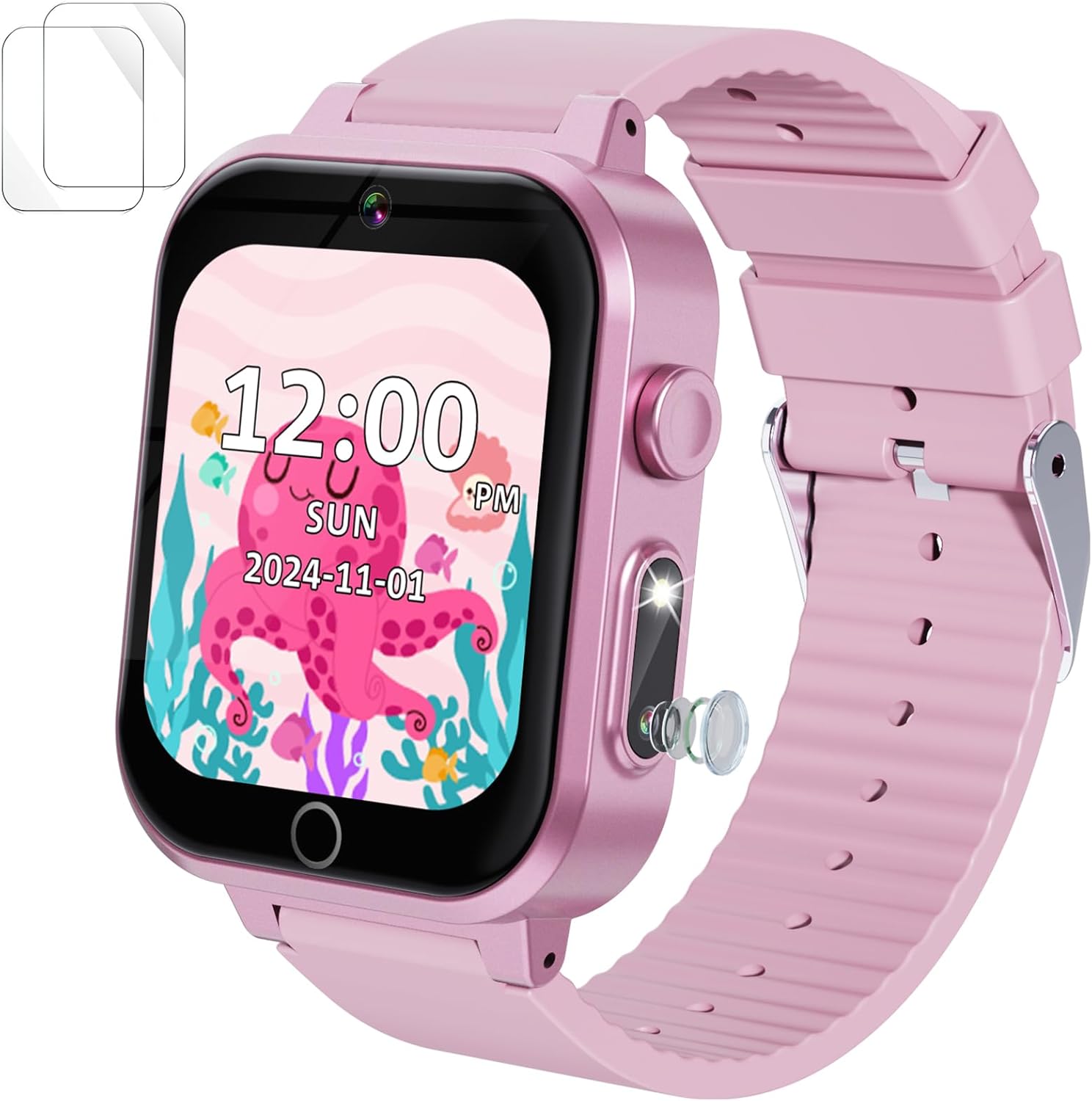
Image 1.1: Ziegoal Kids Smart Watch W1
2. Safety Information
- Water Exposure: This watch is not waterproof. Avoid contact with water, including rain, splashes, baths, or swimming. Water damage is not covered under warranty.
- Choking Hazard: Small parts may be present. Not suitable for children under 3 years old.
- Battery Safety: Do not attempt to replace the battery. Use only the provided charging cable. Do not expose the watch to extreme temperatures.
- Screen Protector: Apply the included screen protector to prevent scratches and enhance durability.
- Supervision: Adult supervision is recommended during use, especially for younger children.
3. Package Contents
Please check the package for the following items:
- Ziegoal Kids Smart Watch W1
- USB Charging Cable
- Screen Protector Film
- Instruction Manual (this document)
4. Product Overview
Familiarize yourself with the components of your smart watch:

Image 4.1: Ziegoal Kids Smart Watch W1 Components
- 1.5" IPS Touch Screen: Main display for interaction.
- Dual Cameras: Front and side cameras for photos and videos.
- Power Button: Located on the side, used for power on/off and screen wake/sleep.
- Microphone: For recording audio.
- Speaker: For audio playback.
- USB Port: For charging and data transfer.
5. Getting Started (Setup)
5.1 Charging the Device
- Connect the USB charging cable to the watch's USB port.
- Plug the other end of the USB cable into a standard USB power adapter (not included) or a computer's USB port.
- The watch screen will display a charging indicator. A full charge typically takes 2-3 hours.
- Ensure the watch is fully charged before first use for optimal battery life.
5.2 Powering On/Off
- To Power On: Press and hold the Power Button until the screen lights up.
- To Power Off: Press and hold the Power Button until a power-off option appears on the screen. Tap to confirm.
5.3 Applying the Screen Protector
Carefully apply the included screen protector film to the watch screen to prevent scratches and enhance durability. Ensure the screen is clean and dust-free before application.
6. Basic Operation
6.1 Navigating the Touch Screen
- Tap: Select an icon or confirm an action.
- Swipe: Move between different screens or menus.
6.2 Setting Time and Date
Access the 'Settings' menu on the watch to adjust the time, date, and time format (12-hour or 24-hour).
6.3 Adjusting Volume and Brightness
Within the 'Settings' menu, you can find options to adjust the watch's volume for sounds and music, as well as the screen brightness for comfortable viewing.
7. Key Features
7.1 Dual Camera
The watch features dual 30W pixel cameras to capture photos and record videos.
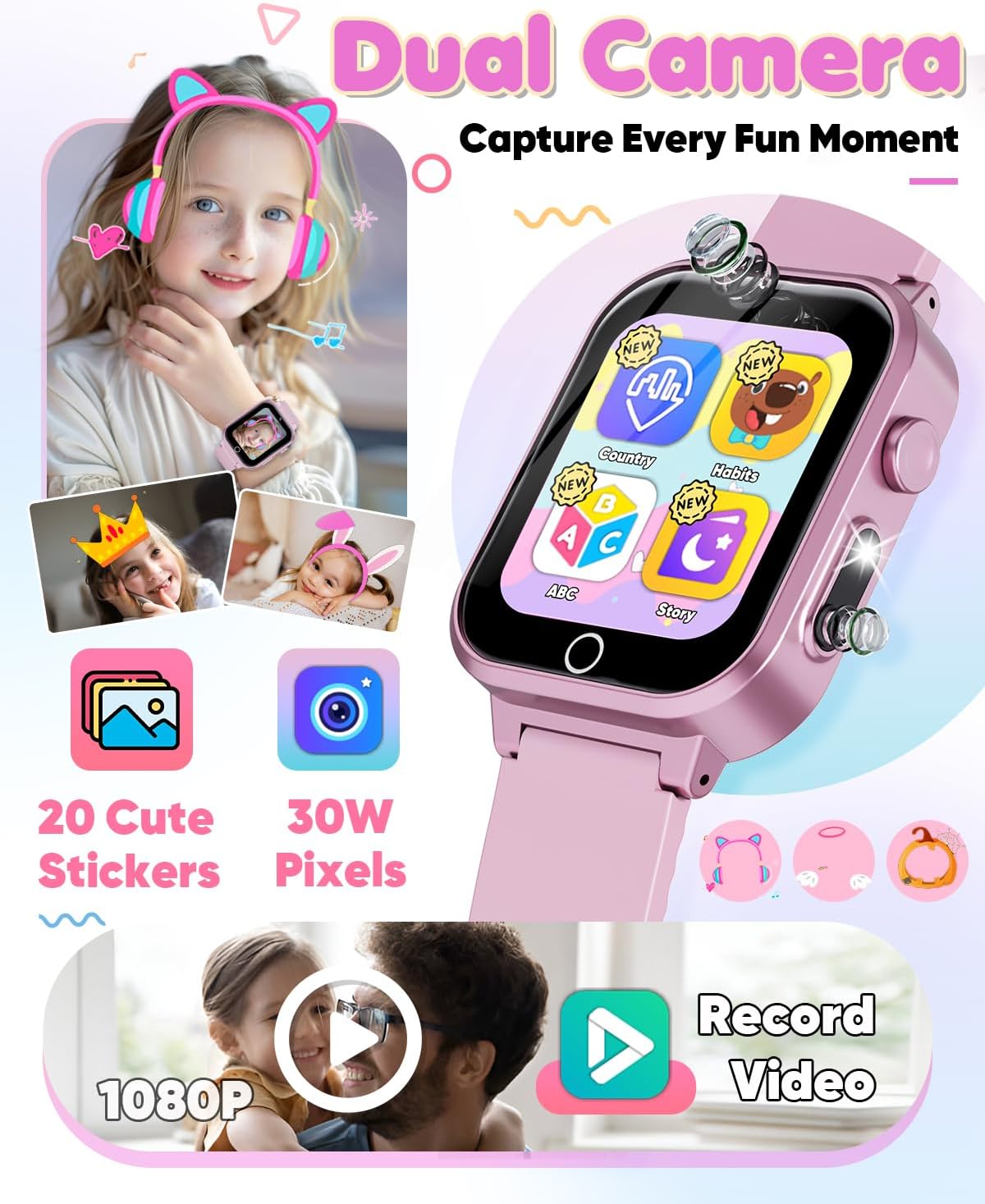
Image 7.1: Dual Camera Features
- Taking Photos: Tap the camera icon on the main screen, then tap the shutter button to take a picture.
- Recording Videos: Switch to video mode within the camera app and tap to start/stop recording.
- Photo Stickers: Enhance photos with 20 built-in fun stickers.
7.2 Music Player
Enjoy music directly from your watch.
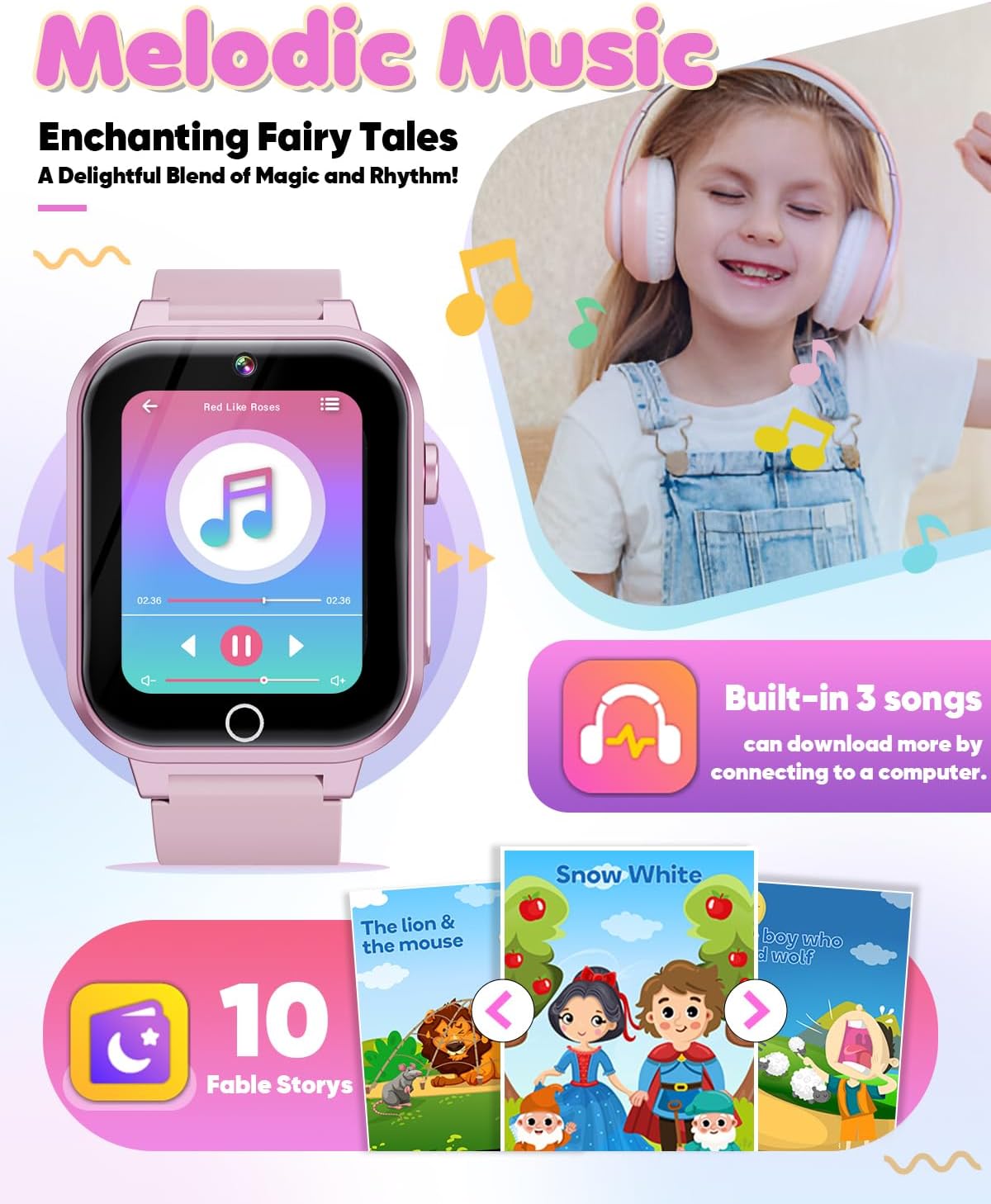
Image 7.2: Music Player Interface
- Playing Music: Access the 'Music' app. The watch comes with 3 built-in songs.
- Transferring Music: Connect the watch to a computer using the USB cable. The watch will appear as a removable drive. You can then drag and drop MP3 files into the designated music folder on the watch.
7.3 Educational Activities
Engage in various learning activities designed to enhance cognitive skills.

Image 7.3: Educational Features
- ABC Animal Learning: Interactive lessons for learning the alphabet with animal associations.
- Landmark Buildings: Explore famous global landmarks.
- Audio Fables: Listen to engaging stories.
7.4 Games
The watch includes 14 engaging puzzle games to enhance hand-eye coordination and logical thinking.
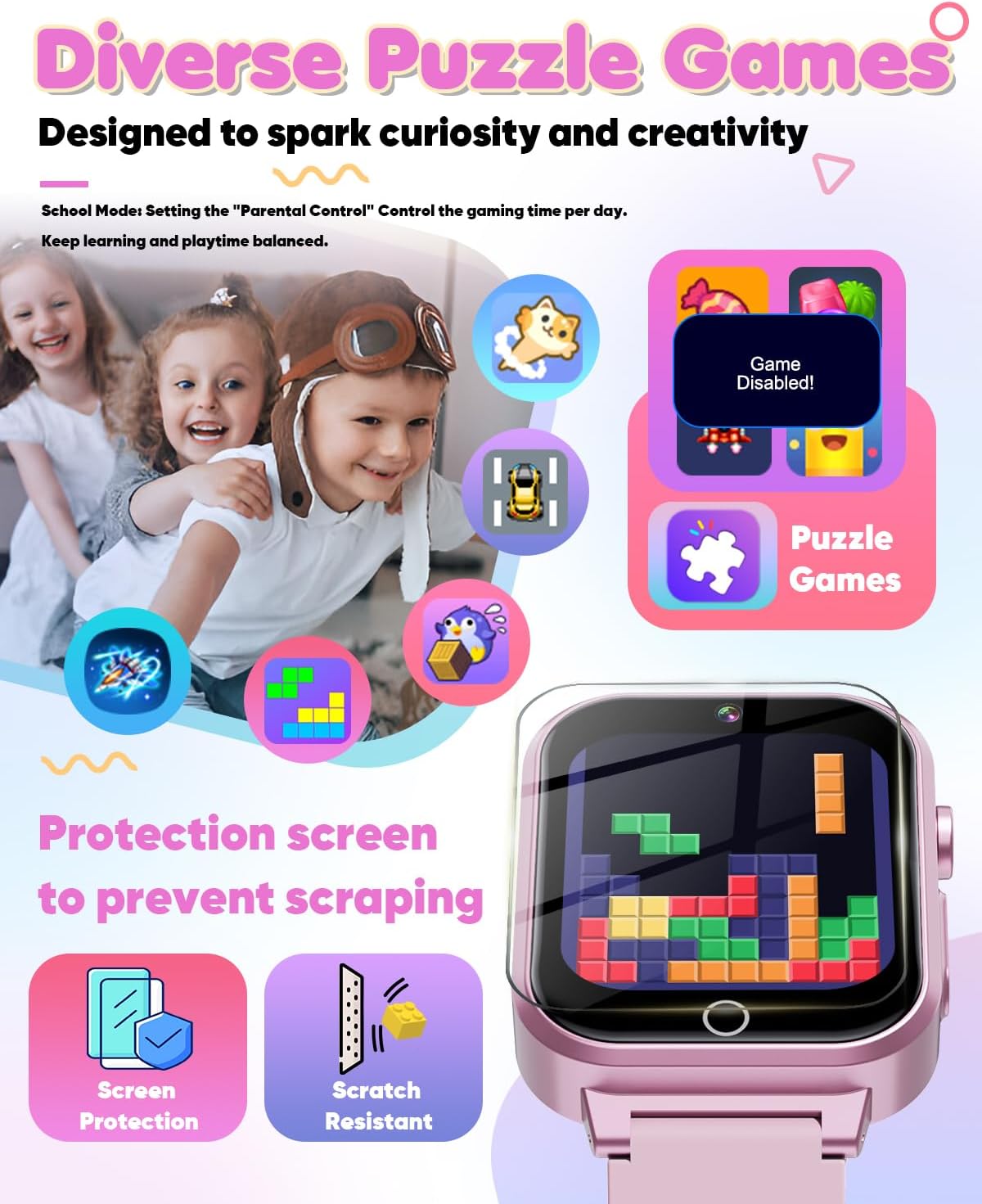
Image 7.4: Diverse Puzzle Games
- Playing Games: Select the 'Games' app to choose from the available puzzle games.
- School Mode (Parental Control): Parents can activate 'School Mode' in the settings to manage and limit game playtime, ensuring a balance between learning and play.
7.5 Daily Management
Utilize the watch to help establish and track daily routines.

Image 7.5: Lifestyle Management and Habit Tracking
- Habit Tracking: The watch features a 12-habit tracking alarm system to encourage consistent daily routines.
- Alarm Settings: Set up to 3 alarms simultaneously for various activities like waking up, homework, or bedtime.
7.6 Utility Tools
The watch includes practical tools for daily use.

Image 7.6: Utility Applications
- Calculator: Perform basic arithmetic calculations.
- Timer: Set countdown timers for various activities.
- Flashlight: A small LED light for convenience.
7.7 Customization
Personalize the watch's appearance.

Image 7.7: Wallpaper Themes and Battery Life
- Wallpapers: Choose from 29 customizable wallpapers and 10 themes to personalize the watch face.
8. Maintenance
- Cleaning: Wipe the watch with a soft, dry cloth. Do not use harsh chemicals or abrasive materials.
- Battery Care: To prolong battery life, avoid fully discharging the watch frequently. Charge it regularly. The 400mAh rechargeable battery provides up to 5 hours of gaming or 2-3 hours of continuous video recording.
- Storage: Store the watch in a cool, dry place away from direct sunlight when not in use.
- Water Exposure: As stated in the safety information, this watch is not waterproof. Exposure to water will damage the device and void the warranty.
9. Troubleshooting
- Watch will not power on: Ensure the watch is fully charged. Connect it to the charger and wait a few minutes before attempting to power on again.
- Screen is unresponsive: Try restarting the watch by holding down the Power Button. If the issue persists, ensure the screen is clean and free of debris.
- Battery not charging: Check the USB cable for damage and ensure it is securely connected to both the watch and the power source. Try a different USB port or power adapter.
- Cannot transfer music: Ensure the watch is properly connected to the computer and recognized as a storage device. Check that the music files are in MP3 format.
- Games are disabled: Check if 'School Mode' is activated in the settings, which limits game access.
10. Specifications
| Model Name | W1 |
| Brand | Ziegoal |
| Screen Size | 1.5 Inches |
| Battery Capacity | 400 mAh Lithium Ion |
| Connectivity Technology | USB |
| Item Weight | 4.6 ounces (0.13 Kilograms) |
| Product Dimensions | 0.52 x 1.48 x 9.91 inches |
| Special Features | Alarm Clock, Calendaring, Camera, Music Player, Games, Learning Activities |
11. Warranty and Support
For warranty information and customer support, please refer to the contact details provided with your purchase or visit the official Ziegoal website. Keep your proof of purchase for any warranty claims.
