1. Product Overview
This FINTIE Keyboard Case is designed to enhance the functionality and protection of your Samsung Galaxy tablet. It features a detachable wireless Bluetooth keyboard, multiple viewing angles, and an integrated S Pen holder.
1.1. Compatibility
This case is compatible with the following Samsung Galaxy tablet models:
- Samsung Galaxy Tab S10 Lite 5G 10.9 inch (Model SM-X400/X406B) 2025 Release
- Samsung Galaxy Tab S10 FE 5G 10.9 inch (Model SM-X520/X526B/X528U) 2025 Release
- Samsung Galaxy Tab S9 FE 5G 10.9 inch (Model SM-X510/X516B/X518U) 2023 Release
- Samsung Galaxy Tab S9 11 inch (Model SM-X710/X716B/X718U) 2023 Release
Note: This case is NOT compatible with any other tablet models.

Image 1: Compatible tablet models and instructions on how to locate your tablet's model number via the settings menu (Settings > About tablet > Model name).
1.2. Materials and Design
The case features a durable PU leather cover and an anti-slip rubber-lined interior for comprehensive tablet protection. The premium polycarbonate shell securely holds your tablet and absorbs impacts. The keyboard is constructed from high-end ABS material.
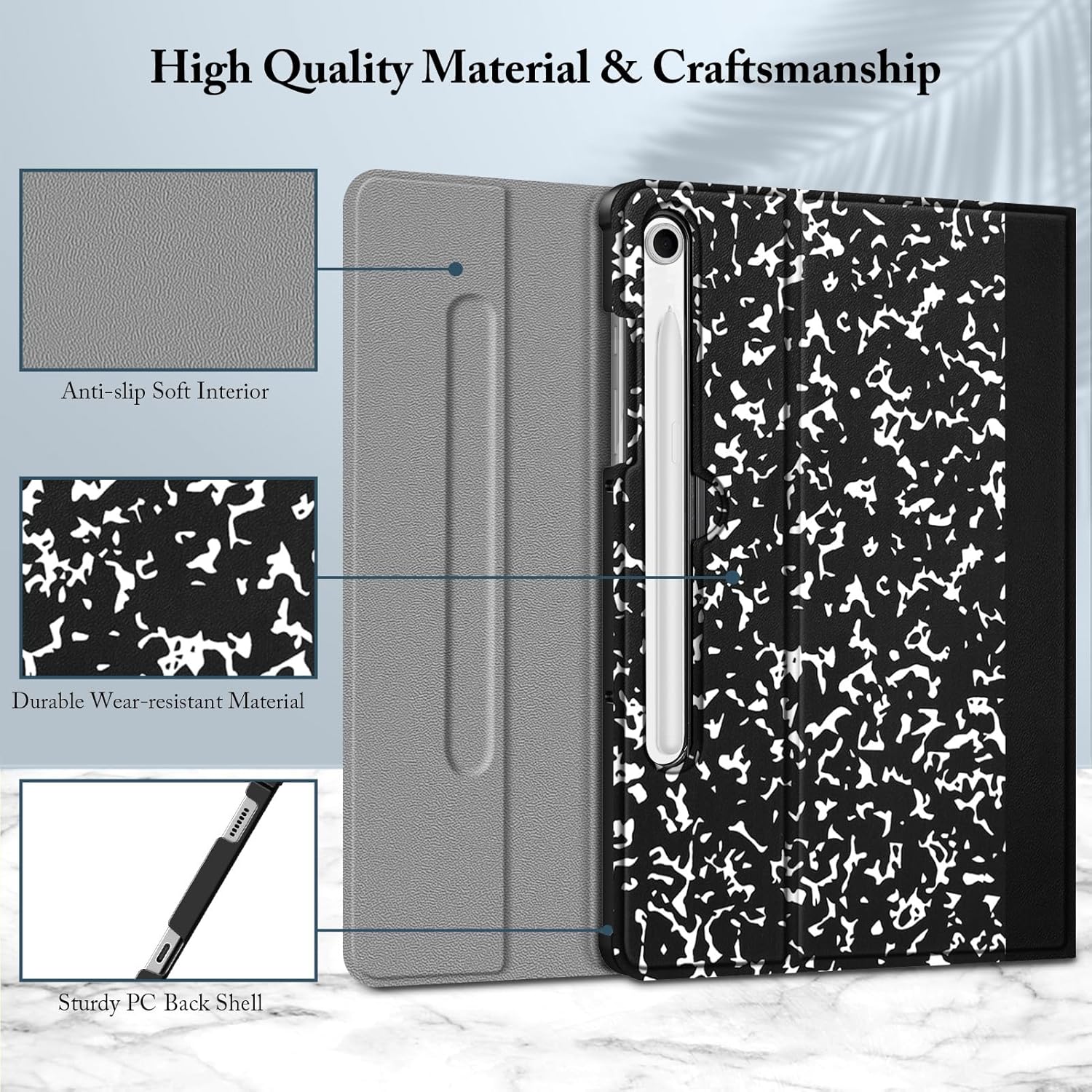
Image 2: Detailed view of the case's construction, highlighting the anti-slip soft interior, durable wear-resistant material, and sturdy PC back shell.
2. Package Contents
The package includes:
- One FINTIE Keyboard Case for Samsung Galaxy Tab S10 Lite/ S10 FE/ S9 FE 10.9''/ S9 11''
- One Detachable Wireless Bluetooth Keyboard
- USB-C Charging Cable (for keyboard)
- User Manual (this document)
3. Setup and Installation
3.1. Installing Your Tablet
- Carefully align your Samsung Galaxy tablet with the protective shell of the case.
- Gently press the tablet into the shell until it is securely seated. Ensure all edges are properly covered by the case.
3.2. Charging the Keyboard
Before initial use, fully charge the Bluetooth keyboard. Use the provided USB-C charging cable to connect the keyboard to a power source (e.g., computer USB port, USB wall adapter).
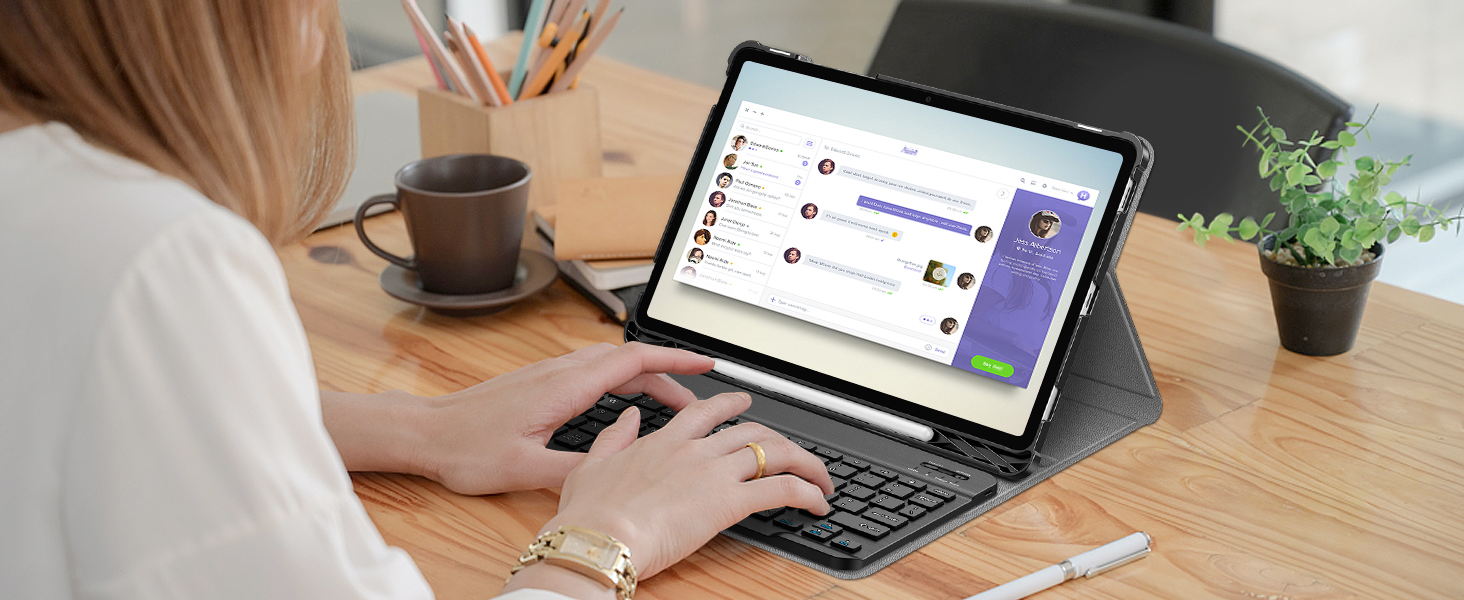
Image 3: The Bluetooth keyboard connected to a USB-C charging cable for charging.
3.3. Pairing the Bluetooth Keyboard
- Turn on the keyboard by sliding the power switch to the "ON" position. The indicator light will illuminate.
- Press the "Connect" button on the keyboard. The Bluetooth indicator light will start blinking, indicating it's in pairing mode.
- On your Samsung Galaxy tablet, go to Settings > Connected devices > Bluetooth.
- Turn on Bluetooth and search for available devices.
- Select "FINTIE Keyboard" (or similar name) from the list of available devices.
- Follow any on-screen prompts to complete the pairing process. A successful connection will be indicated by the Bluetooth light on the keyboard turning off or staying solid.
The keyboard utilizes Bluetooth Low Energy 5.0 technology for a stable and fast connection.

Image 4: The FINTIE Bluetooth keyboard, showcasing its design and Bluetooth Low Energy 5.0 technology for extended battery life.
4. Operating Instructions
4.1. Using the Detachable Keyboard
The keyboard attaches magnetically to the case, allowing for flexible positioning. It supports both iOS and Android systems, eliminating the need for system switching.

Image 5: The keyboard magnetically attached to the case, ready for use with the tablet.
The ergonomic and mechanical scissor keys are designed to reduce noise and provide comfortable typing for extended periods.
4.2. Adjusting Viewing Angles
The case features anti-slip grooves that allow you to securely position your tablet at multiple viewing angles in landscape mode. This is ideal for typing, viewing media, or video calls.

Image 6: The case offering multiple viewing angles with anti-slip grooves for stability.
4.3. S Pen Holder
A built-in S Pen holder allows you to conveniently store and access your S Pen with your device. The S Pen is not included with this product.
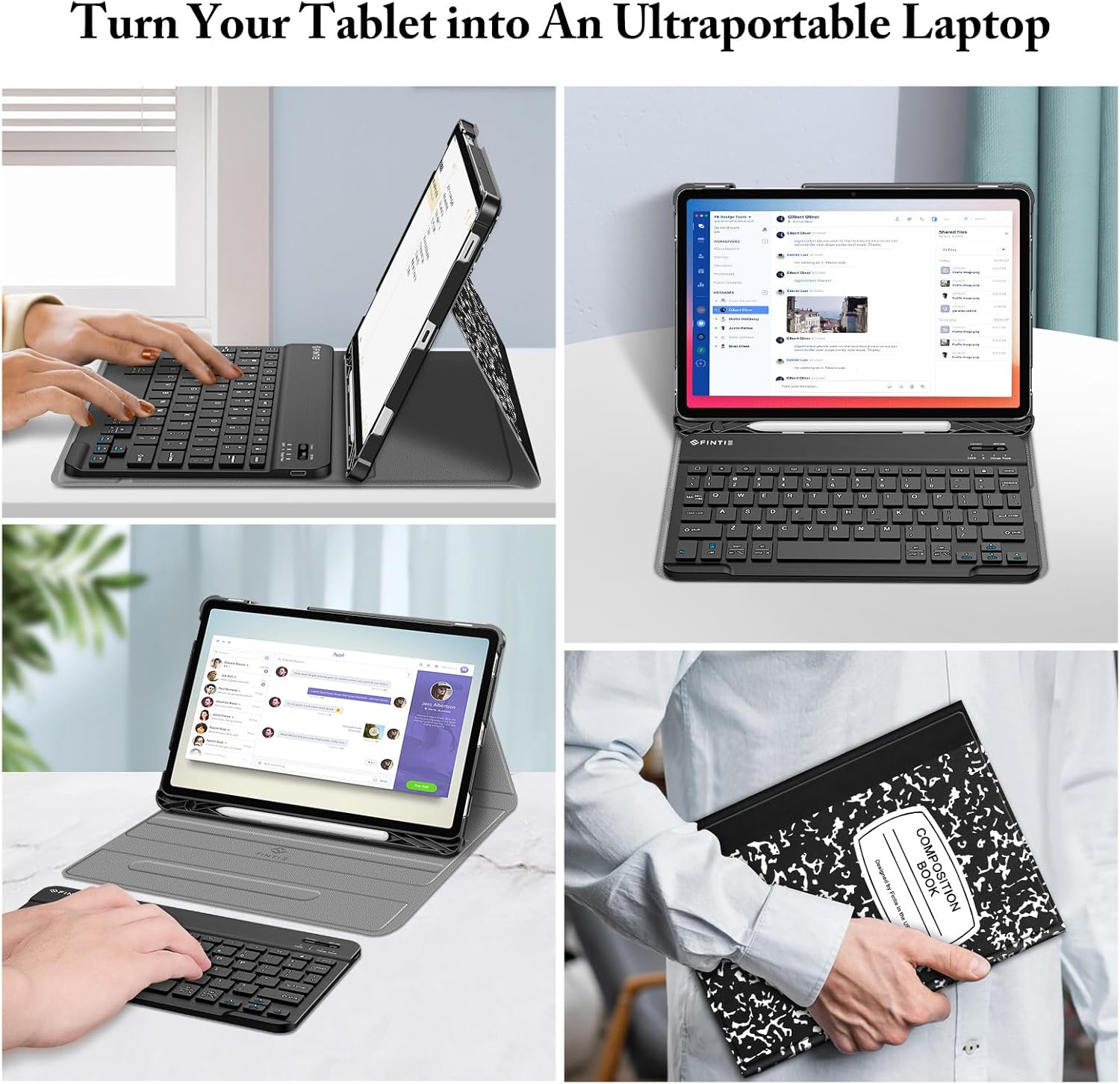
Image 7: The integrated S Pen holder, designed for easy storage and access.
4.4. Auto Sleep/Wake Function
The case supports the auto sleep/wake function when the tablet is installed. Closing the case will put your tablet to sleep, and opening it will wake it up, conserving battery life.
5. Maintenance and Care
- Cleaning the Case: Wipe the PU leather cover with a soft, damp cloth. Avoid harsh chemicals or abrasive cleaners.
- Cleaning the Keyboard: Use a soft, dry cloth to clean the keyboard. For stubborn dirt, a slightly damp cloth can be used, ensuring no moisture enters the keys.
- Storage: When not in use for extended periods, ensure the keyboard is turned off to conserve battery. Store the case and keyboard in a cool, dry place.
- Protection: The premium polycarbonate shell provides protection against drops and bumps. However, avoid excessive force or impact to prevent damage to your tablet and case.
6. Troubleshooting
6.1. Keyboard Not Connecting
- Ensure the keyboard is turned on and fully charged.
- Verify Bluetooth is enabled on your tablet.
- Put the keyboard back into pairing mode by pressing the "Connect" button.
- Forget the device on your tablet's Bluetooth settings and attempt to re-pair.
- Restart both your tablet and the keyboard.
6.2. Keyboard Input Lag or Unresponsiveness
- Ensure the keyboard is within the 14-meter Bluetooth range of your tablet.
- Check for interference from other wireless devices.
- Recharge the keyboard battery.
6.3. Auto Sleep/Wake Function Not Working
- Ensure your tablet is correctly seated in the case.
- Check your tablet's settings to ensure the smart cover function is enabled (if applicable).
7. Specifications
| Feature | Detail |
|---|---|
| Product Dimensions | 0.38 x 0.38 x 0.38 inches |
| Item Weight | 1.63 pounds |
| Model Number | CSBH026-C |
| Batteries | 1 Lithium Polymer battery (included) |
| Connectivity Technology | Bluetooth Low Energy 5.0 |
| Keyboard Description | Multi Functional, Scissor Keys |
| Special Features | Foldable, Multiple Viewing Angles, Detachable Keyboard, S Pen Holder |
| Material | Durable PU leather cover, anti-slip rubber-lined interior, premium polycarbonate shell, high-end ABS material keyboard |
8. Official Product Video
Video 1: An official product video demonstrating the FINTIE Keyboard Case features, including tablet installation, S Pen holder, adjustable angles, and magnetic keyboard attachment.
9. Warranty and Support
For warranty information or technical support, please refer to the manufacturer's official website or contact their customer service directly. Details are typically provided with your purchase documentation or on the product packaging.


