
Introduction
The CORSAHD 8K@60Hz HDMI 2.1 Switch 4x1 allows you to connect up to four HDMI source devices to a single HDMI display. This device supports advanced video and audio formats, including 8K@60Hz, 4K@120Hz, HDR10, Dolby Vision, Dolby Atmos, and DTS-HD Master Audio. It features HDMI 2.1 compliance with 48Gbps bandwidth, HDCP 2.3, ARC, VRR, and CEC for seamless integration into your home entertainment system. This manual provides detailed instructions for setup, operation, and troubleshooting to ensure optimal performance.
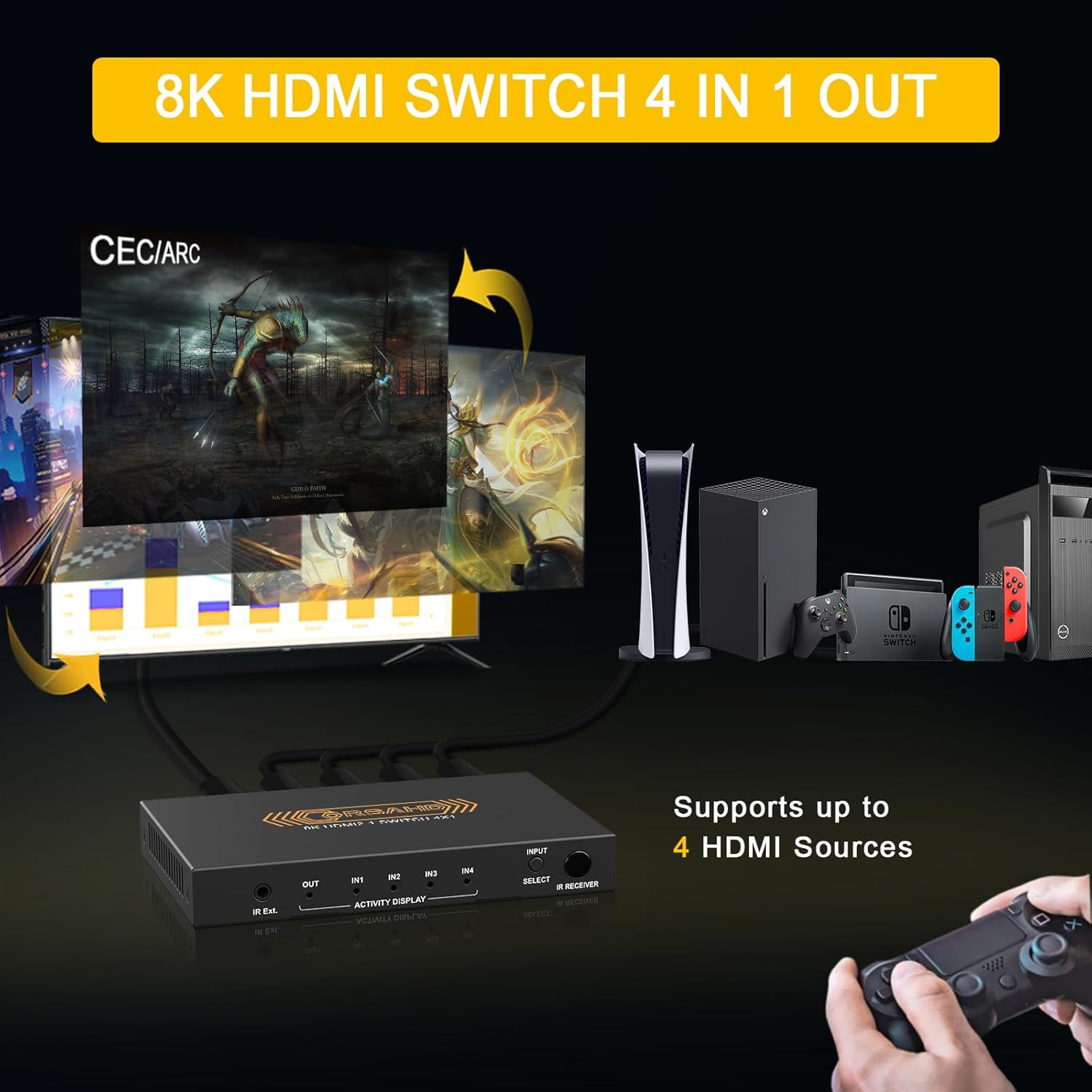
Image: The CORSAHD 8K HDMI Switch 4 in 1 Out connected to various gaming consoles and a display, illustrating its function.
Safety Information
- Ensure proper ventilation around the device to prevent overheating.
- Do not expose the device to water, moisture, or extreme temperatures.
- Use only the provided power adapter or a compatible 5V DC power source.
- Avoid placing heavy objects on the device.
- Keep the device away from strong electromagnetic fields.
- Disconnect power during lightning storms or when unused for extended periods.
Package Contents
Please verify that all items are present in your package:
- CORSAHD 8K@60Hz HDMI 2.1 Switch 4x1 Unit
- IR Remote Control
- IR Receiver Extension Cable
- USB Power Cable (DC 5V)
- User Manual
Product Diagram

Image: A detailed view of the CORSAHD HDMI 2.1 Switch, showing the front panel with input indicators and select button, and the rear panel with HDMI input/output ports, IR Ext. port, and DC/5V power input.
Front Panel
- IR Ext.: Port for connecting the IR receiver extension cable.
- IN1-IN4 LEDs: Indicate the currently active HDMI input.
- SELECT Button: Press to cycle through HDMI inputs.
- IR Receiver: Built-in IR receiver for remote control (use if not using IR Ext. cable).
Rear Panel
- HDMI1-HDMI4 (Input): Connect your HDMI source devices (e.g., PS5, Xbox, Blu-ray player).
- HDMI (Output): Connect to your HDMI display (e.g., TV, monitor, projector).
- DC/5V: Power input port. Connect the provided USB power cable.
Features
- HDMI 2.1 Compliance: Supports 48Gbps bandwidth.
- High Resolution Support: Up to 8K@60Hz and 4K@120Hz (4:4:4 8bit).
- Advanced Video Formats: HDR10, Dolby Vision, 3D effect.
- Audio Return Channel (ARC): Supports ARC for audio output to soundbars/receivers.
- Advanced Audio Formats: Dolby Atmos, Dolby True HD, DTS-HD Master Audio, LPCM 7.1.
- Consumer Electronics Control (CEC): Allows control of connected devices.
- High-Bandwidth Digital Content Protection (HDCP): Supports HDCP 2.3.
- Variable Refresh Rate (VRR): Enhances gaming experience.
- Easy Switching: Switch between 4 HDMI sources via front panel button or IR remote.
- Plug and Play: No driver installation required.
Specifications
| Feature | Specification |
|---|---|
| HDMI Version | HDMI 2.1 |
| Bandwidth | 48Gbps |
| Input Ports | 4 x HDMI |
| Output Ports | 1 x HDMI |
| Max Resolution | 8K@60Hz, 4K@120Hz |
| Color Depth | 4:4:4 8bit |
| HDR Support | HDR10, Dolby Vision |
| Audio Support | ARC, Dolby Atmos, Dolby True HD, DTS-HD Master Audio, LPCM 7.1 |
| HDCP Compliance | HDCP 2.3 |
| Other Features | VRR, CEC, 3D |
| Power Supply | DC 5V (via USB cable) |
| Control | Front panel button, IR Remote |
| Color | Black |
Setup Instructions
Follow these steps to connect your CORSAHD HDMI 2.1 Switch:
- Power Off Devices: Ensure all HDMI source devices and your display are powered off before making connections.
- Connect HDMI Sources: Connect up to four HDMI source devices (e.g., gaming consoles, Blu-ray players, streaming boxes) to the HDMI IN1, IN2, IN3, and IN4 ports on the rear of the switch using high-quality HDMI 2.1 cables (recommended length less than 10ft/3m).
- Connect to Display: Connect your HDMI display (TV, monitor, projector) to the HDMI OUT port on the rear of the switch using a high-quality HDMI 2.1 cable.
- Connect IR Receiver (Optional): If you plan to hide the switch, connect the IR receiver extension cable to the 'IR Ext.' port on the front panel. Position the IR receiver in a location where it can receive signals from the remote control.
- Connect Power: Connect the provided USB power cable to the DC/5V port on the switch and then to a USB power source (e.g., a USB port on your TV, a USB wall adapter). The switch will power on automatically.
- Power On Devices: Power on your HDMI display and then your HDMI source devices.

Image: A visual guide demonstrating how to connect source devices like PS5, Xbox, Nintendo Switch, and Blu-ray DVD to the HDMI input ports, and a display device like a projector, monitor, or TV to the HDMI output port, along with power connection.
Operating Instructions
Switching Inputs
You can switch between connected HDMI sources using two methods:
- Front Panel Button: Press the 'SELECT' button on the front panel of the switch to cycle through the HDMI inputs (IN1, IN2, IN3, IN4). The corresponding LED indicator will light up to show the active input.
- IR Remote Control: Use the provided IR remote control to directly select the desired input. Press the '1', '2', '3', or '4' button on the remote to switch to HDMI IN1, IN2, IN3, or IN4 respectively.

Image: A user interacting with the CORSAHD HDMI Switch by pressing the 'SELECT' button and using the IR remote control to switch between multiple display sources.
ARC Usage
The switch supports Audio Return Channel (ARC) functionality. This allows audio from your TV's built-in apps (e.g., Netflix, YouTube) to be sent back to a connected soundbar or AV receiver via the HDMI output port of the switch.
- Enable ARC on TV: Ensure ARC is enabled in your TV's audio settings. Refer to your TV's user manual for specific instructions.
- Connect Soundbar/Receiver: Connect your ARC-compatible soundbar or AV receiver to the HDMI output port of the switch.
- Important Note: When ARC mode is active, only the HDMI output port functions for audio return. The other three HDMI input ports are disabled for video/audio input. Both your TV and stereo system need to support ARC for this feature to work correctly.

Image: A diagram showing how ARC works with the CORSAHD HDMI Switch, allowing audio from TV apps to be sent to an ARC-compatible soundbar via the switch's output port.
Troubleshooting
If you encounter issues, please refer to the following common problems and solutions:
- No Picture/Signal:
- Ensure all HDMI cables are securely connected.
- Verify that the correct input is selected on the switch and your display.
- Check if the switch is receiving power (LED indicators should be on).
- Try using shorter, certified HDMI 2.1 cables, especially for 8K/4K@120Hz signals.
- Bypass the switch and connect the source directly to the display to confirm the source and display are working correctly.
- No Audio:
- Check audio settings on your source device and display.
- Ensure ARC is properly configured if you are using it (see ARC Usage section).
- Verify that your soundbar/receiver is set to the correct input.
- Intermittent Signal/Flickering:
- This can often be resolved by using higher quality, shorter HDMI 2.1 cables.
- Ensure the power supply is stable.
- Reduce the resolution or refresh rate temporarily to see if the issue persists.
- Remote Control Not Working:
- Check the battery in the remote control.
- Ensure there are no obstructions between the remote and the IR receiver (either built-in or extension cable).
- Confirm the IR extension cable is securely plugged into the 'IR Ext.' port.
- CEC Issues:
- CEC functionality can vary between brands and devices. Ensure CEC is enabled on all connected devices (TV, source devices).
- Try disconnecting and reconnecting devices to reset CEC communication.
Maintenance
To ensure the longevity and optimal performance of your HDMI switch, follow these maintenance guidelines:
- Cleaning: Use a soft, dry cloth to clean the exterior of the device. Do not use liquid cleaners or abrasive materials.
- Ventilation: Ensure the device is placed in a well-ventilated area to prevent overheating. Do not block any ventilation openings.
- Cable Management: Keep HDMI cables organized and avoid sharp bends or excessive tension, which can damage cables or ports.
- Storage: If storing the device for an extended period, disconnect all cables and store it in a cool, dry place.
Warranty and Support
This product follows the Amazon Warranty Policy. For specific details regarding warranty coverage and duration, please refer to your purchase documentation or Amazon's official warranty information.
For technical support or further assistance, please contact CORSAHD customer service through the platform where you purchased the product. Provide your order number and a detailed description of the issue for prompt support.