
1. Introduction
Thank you for choosing the EMANER Smart Security Light Motion Sensor. This device combines advanced motion detection with smart control features, offering adjustable brightness, color temperature, and seamless integration with smart home systems like Alexa and Google Home. This manual provides detailed instructions for safe installation, configuration, and operation of your new security light.

Image 1.1: EMANER Smart Security Lights with smart home integration.
2. Safety Information
WARNING: Risk of electric shock. Installation should be performed by a qualified electrician or a person with electrical knowledge. Disconnect power at the fuse box or circuit breaker before installation or servicing.
- Ensure the power supply is turned off before installation.
- Follow all local electrical codes and ordinances.
- Do not attempt to modify the product.
- Keep the product away from flammable materials.
- This product is designed for outdoor use and is water-resistant. However, do not submerge it in water.
3. Package Contents
Verify that all components are present before beginning installation:
- EMANER Smart Security Light (2 units for 2-Pack)
- Mounting Hardware (screws, wire nuts, mounting plate)
- Instruction Manual (this document)
4. Specifications
| Feature | Detail |
|---|---|
| Brand | EMANER |
| Model Name | EMR-8030 |
| Light Output | 2800 Lumens (Max) |
| Color Temperature | 2700K-6500K (Tunable) |
| Dimmable | 1% to 100% via App |
| Power Source | Corded Electric (120 Volts) |
| Connectivity | 2.4GHz Wi-Fi |
| Control Methods | App (Smart Life/Tuya Smart), Voice (Alexa, Google Assistant) |
| Motion Sensor Range | Up to 26 feet (adjustable) |
| Light Duration | 5 seconds to 60 minutes (adjustable) |
| Material | Plastic |
| Dimensions | 12"L x 6.7"W x 6"H |
| Water Resistance | Water Resistant (Weatherproof) |

Image 4.1: Product dimensions and adjustable light heads.
5. Setup
5.1. Installation
- Turn off Power: Before starting, ensure the power to the junction box is turned off at the circuit breaker.
- Prepare Mounting: Attach the mounting plate to your outdoor junction box using the provided screws.
- Wire Connections: Connect the light's wires to your household wiring:
- Black wire (Live) to Black wire (Live)
- White wire (Neutral) to White wire (Neutral)
- Green/Bare Copper wire (Ground) to Green/Bare Copper wire (Ground)
- Mount Fixture: Carefully tuck the wires into the junction box and secure the light fixture to the mounting plate.
- Adjust Light Heads: The three light heads and the motion sensor are rotatable. Adjust them to cover your desired area.
- Restore Power: Turn the power back on at the circuit breaker.
5.2. App Connection (Smart Life / Tuya Smart)
The EMANER Smart Security Light connects via 2.4GHz Wi-Fi to the Smart Life or Tuya Smart app.
- Download App: Download the "Smart Life" or "Tuya Smart" app from your smartphone's app store (iOS or Android).
- Register/Login: Open the app and register for a new account or log in if you already have one.
- Add Device:
- Ensure your phone is connected to a 2.4GHz Wi-Fi network.
- In the app, tap the "+" icon in the top right corner to add a device.
- Select "Lighting" or "Security & Sensor" and then "Light Source (Wi-Fi)" or "Floodlight (Wi-Fi)".
- Follow the in-app instructions to put the light into pairing mode. This usually involves turning the light off and on a few times until it blinks rapidly.
- Enter your Wi-Fi network password when prompted.
- Wait for the app to discover and connect to the device. Once connected, you can rename the light.
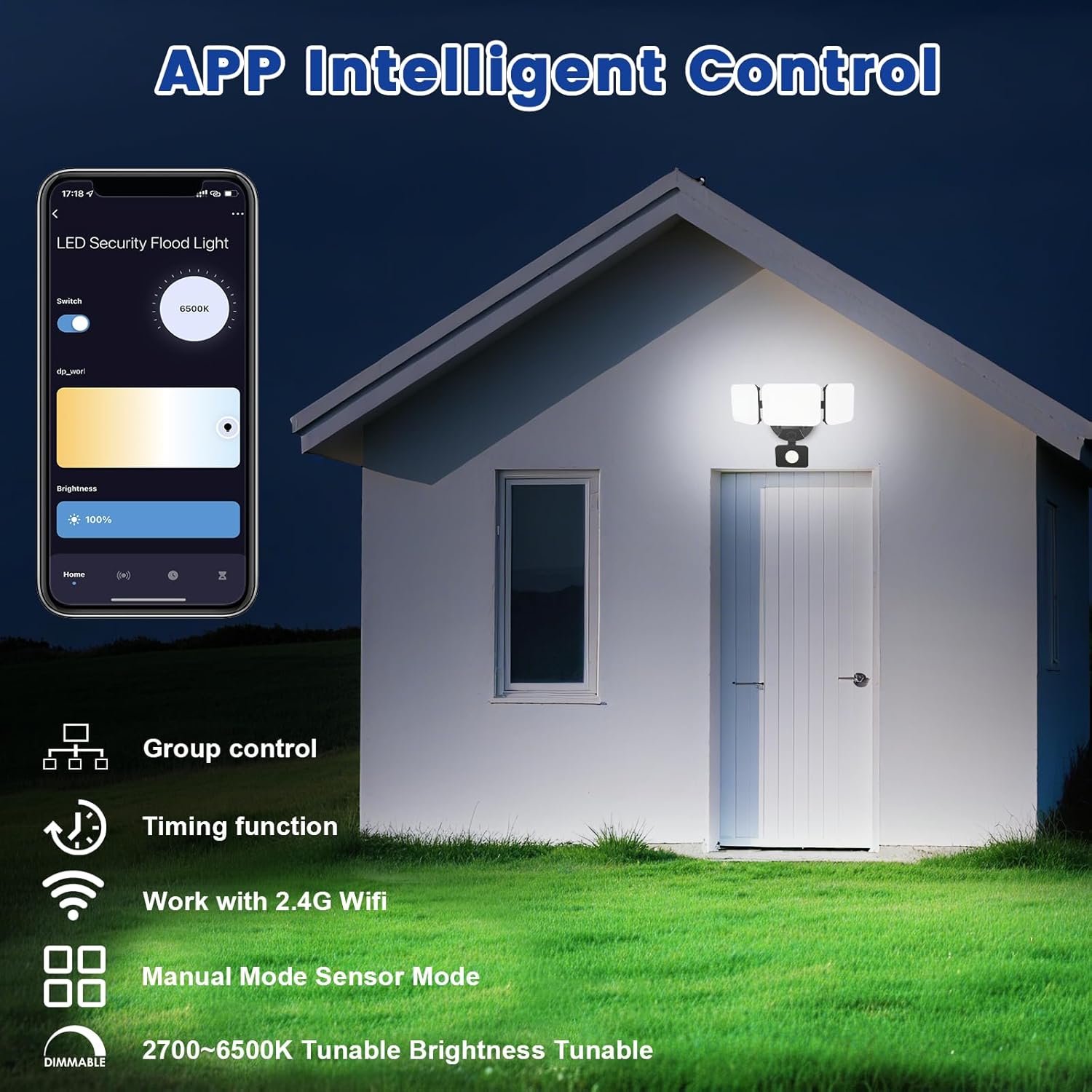
Image 5.1: App interface for intelligent control.
6. Operating Instructions
6.1. App Control
Once connected, use the Smart Life/Tuya Smart app to control your security light:
- Brightness Adjustment: Adjust the light intensity from 1% to 100%.
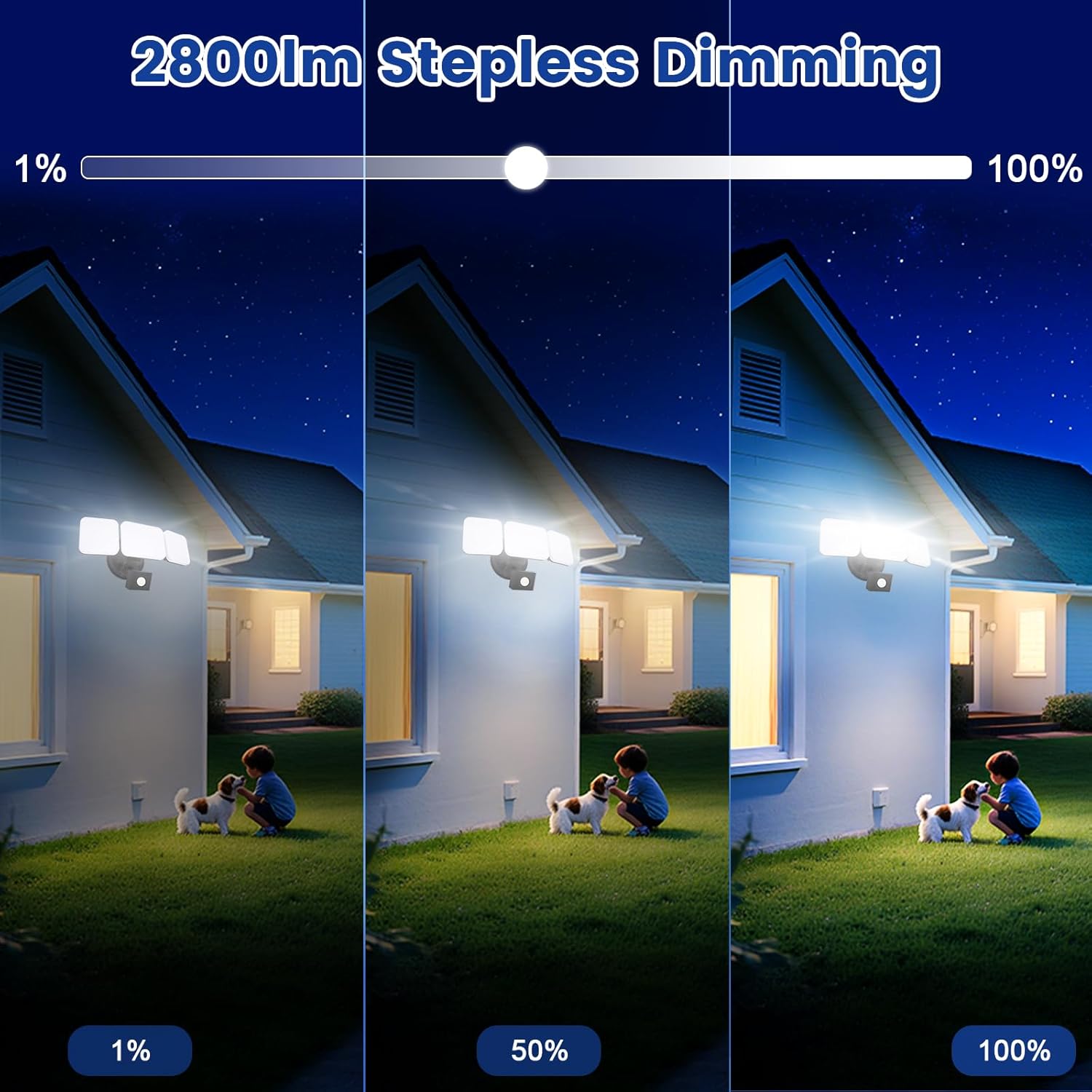
Image 6.1: Stepless dimming from 1% to 100% brightness.
- Color Temperature Adjustment: Change the light color from warm white (2700K) to daylight white (6500K).
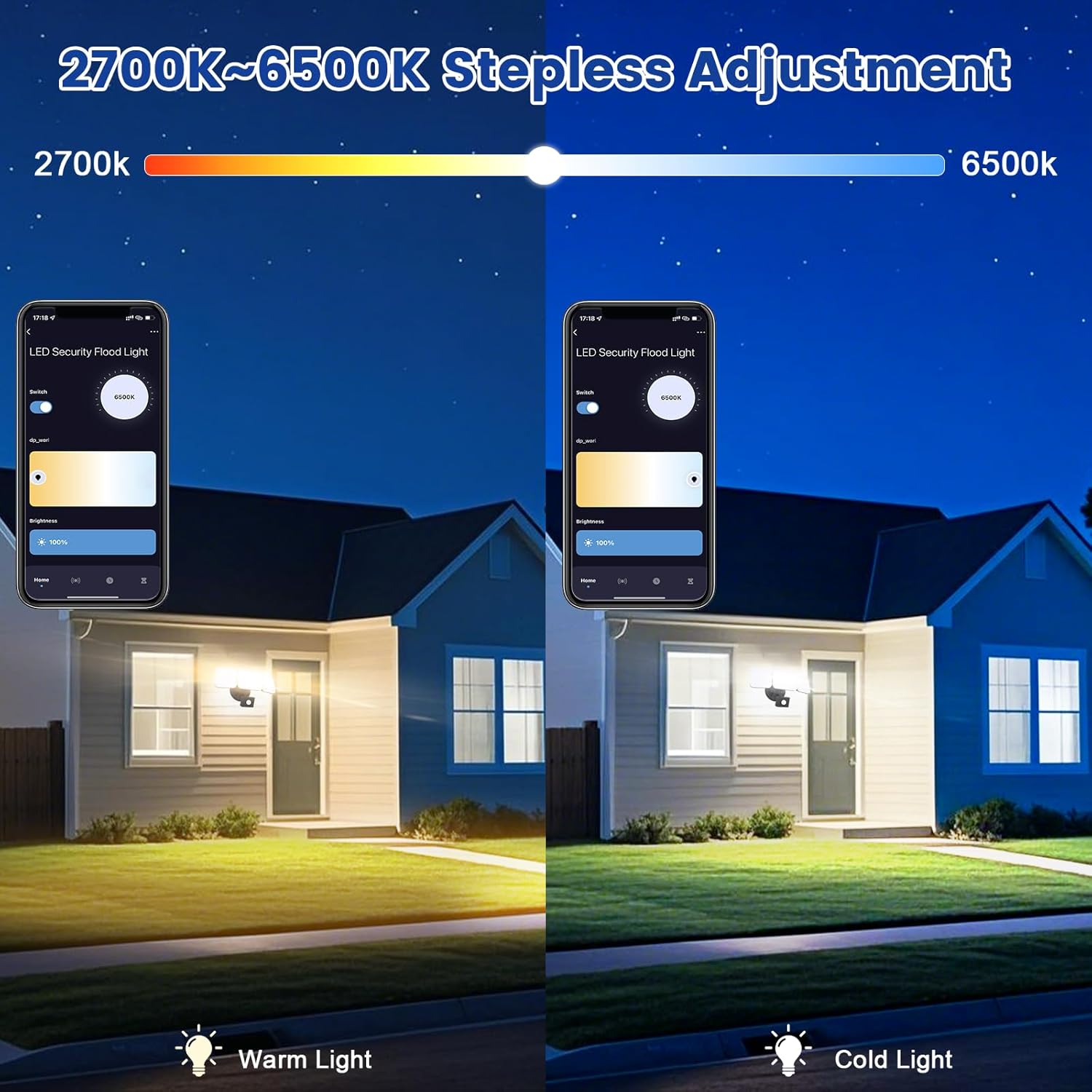
Image 6.2: Tunable white from 2700K (Warm) to 6500K (Daylight).
- Operating Modes:
- Manual Mode: Functions as a regular light. You can set it to turn on/off at specific times and adjust brightness/color temperature.
- Sensor Mode: Activates the motion sensor. Customize sensor settings like sensitivity and light duration.
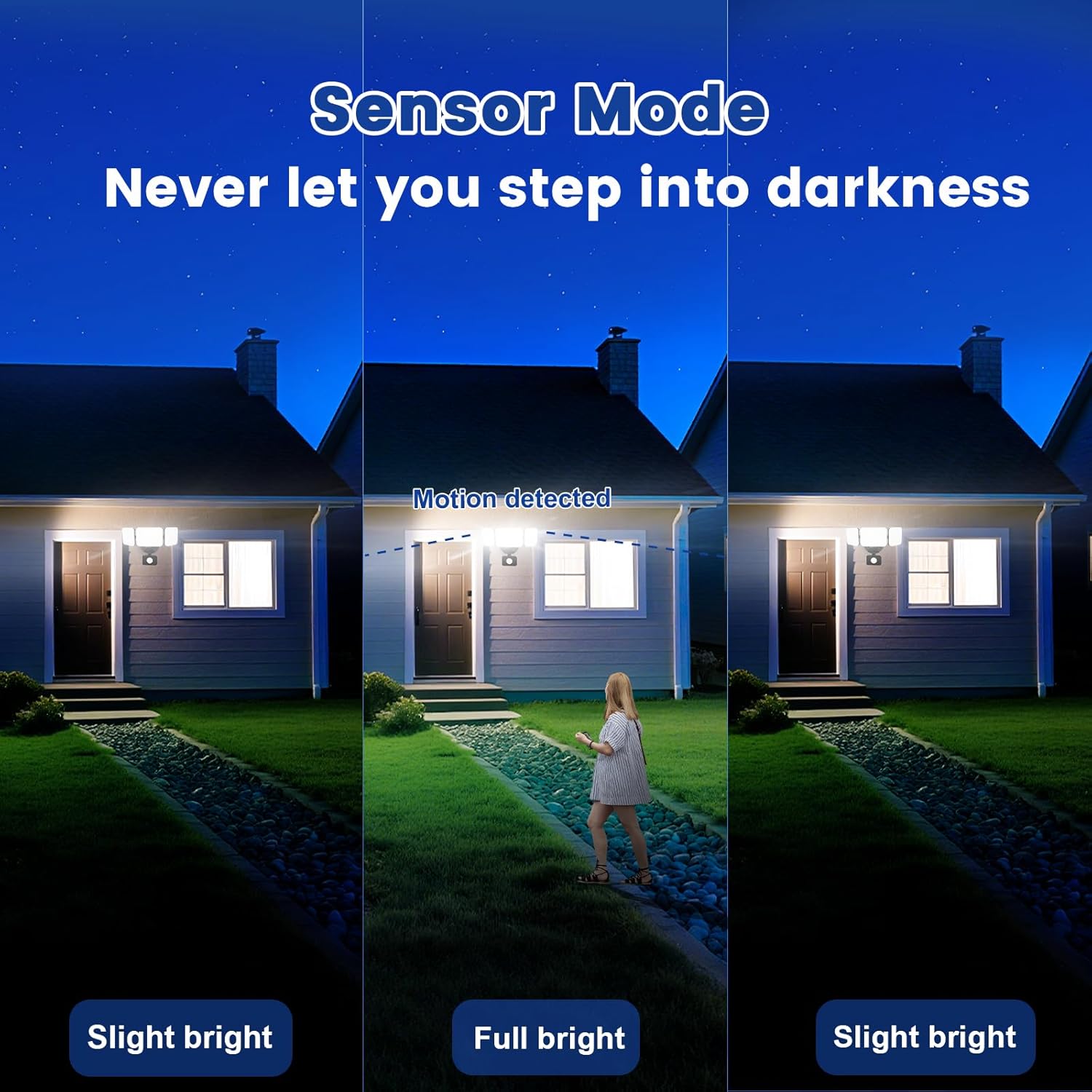
Image 6.3: Sensor Mode operation, detecting motion and adjusting brightness.
- Motion Sensor Settings: Adjust the detection range (up to 26ft) and the duration the light stays on after motion is detected (5 seconds to 60 minutes).

Image 6.4: Adjustable full light duration time.
- Scheduling: Set schedules for the light to turn on or off at specific times.

Image 6.5: Time scheduling and delay settings.
- Group Control: Group multiple EMANER smart lights together for simultaneous control.
6.2. Voice Control (Alexa / Google Assistant)
Integrate your EMANER Smart Security Light with Amazon Alexa or Google Assistant for convenient voice commands.
- Link Account: In the Alexa or Google Home app, enable the "Smart Life" or "Tuya Smart" skill/service and link your account.
- Discover Devices: Ask Alexa or Google Assistant to "Discover devices."
- Voice Commands: Use commands such as:
- "Alexa, turn on the security light."
- "Hey Google, set the security light to 50% brightness."
- "Alexa, change the security light to warm white."
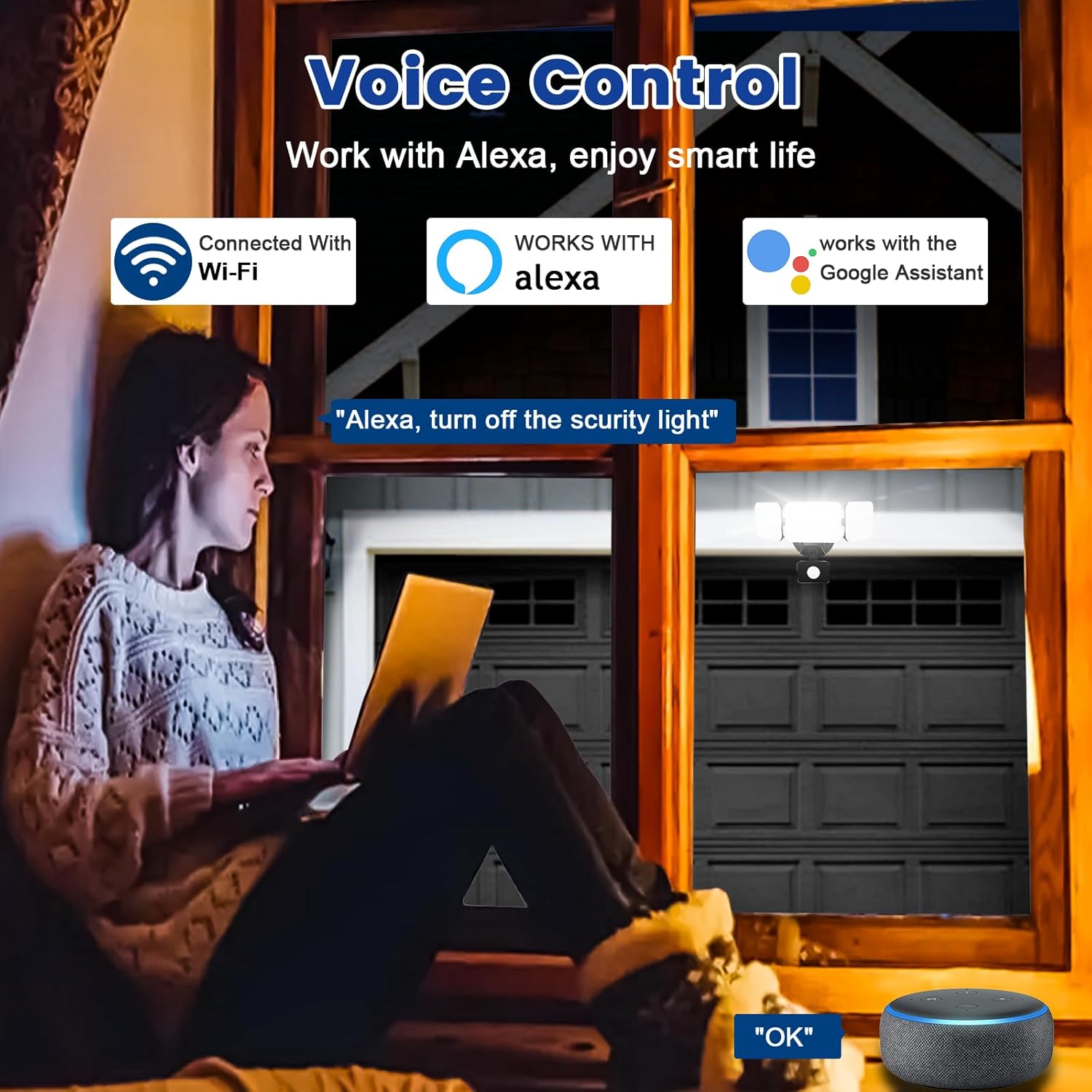
Image 6.6: Voice control integration with Alexa and Google Assistant.
7. Maintenance
- Cleaning: Periodically clean the light fixture with a soft, damp cloth. Do not use abrasive cleaners or solvents.
- Inspection: Regularly check for any loose wiring or damage to the fixture.
- Firmware Updates: Keep the Smart Life/Tuya Smart app updated to ensure your device receives the latest firmware for optimal performance and security.
8. Troubleshooting
| Problem | Possible Cause | Solution |
|---|---|---|
| Light does not turn on. | No power, loose wiring, faulty fixture. | Check circuit breaker. Ensure all wiring connections are secure. Contact support if issue persists. |
| Cannot connect to Wi-Fi. | Incorrect Wi-Fi band (not 2.4GHz), wrong password, light not in pairing mode, weak signal. | Ensure your router is broadcasting 2.4GHz Wi-Fi. Verify password. Put light into pairing mode (turn off/on several times). Move router closer or use a Wi-Fi extender. |
| Motion sensor not working or too sensitive. | Incorrect settings in app, obstruction, environmental factors. | Adjust sensitivity and detection range in the Smart Life/Tuya Smart app. Ensure sensor is not obstructed. Avoid aiming at heat sources or reflective surfaces. |
| Voice control not responding. | App account not linked, device not discovered, incorrect commands. | Ensure Smart Life/Tuya Smart skill is enabled and linked in Alexa/Google Home app. Ask to "Discover devices." Use correct voice commands. |
9. Warranty and Support
EMANER provides a Lifetime Warranty for this product, ensuring quality and customer satisfaction. For technical support, warranty claims, or any questions regarding your EMANER Smart Security Light, please contact EMANER customer service through the retailer's platform or visit the official EMANER website for contact information.
Online Resources:
- For app-related issues, refer to the help section within the Smart Life or Tuya Smart application.
- Visit the EMANER Store on Amazon for product information and support.
