
1. Introduction
This manual provides essential instructions for the installation, operation, and maintenance of your Garmin BlueNet 20 Switch. Please read this manual thoroughly before using the device to ensure proper function and to prevent damage.
The Garmin BlueNet 20 Switch is designed to facilitate network connectivity for compatible Garmin marine devices, enabling high-speed data transfer and communication within your vessel's network.
2. Safety Information
WARNING:
- Always disconnect power before performing any installation or maintenance.
- Ensure all connections are secure and properly insulated to prevent electrical hazards.
- Do not expose the device to extreme temperatures or moisture beyond its specified operating limits.
- Refer to local regulations and standards for proper disposal of electronic components.
CAUTION:
- Incorrect installation can void your warranty. Consult a qualified marine electronics installer if you are unsure about any steps.
- Use only Garmin-approved accessories and cables.
3. What's in the Box
The Garmin BlueNet 20 Switch package includes the following components:
- Main component only
Please inspect the contents upon opening the package to ensure all items are present and undamaged. Contact your dealer immediately if any components are missing or damaged.
4. Setup and Installation
Follow these steps for proper installation of your Garmin BlueNet 20 Switch:
- Mounting Location: Select a dry, protected location on your vessel that is easily accessible for wiring and future maintenance. Ensure adequate ventilation around the unit.
- Power Connection: Connect the power cable to a 10-32 Vdc power source. Ensure the power source is fused appropriately (refer to specifications for fuse requirements). Observe correct polarity.
- Network Connections: Connect compatible Garmin marine devices to the BlueNet ports using BlueNet network cables. Ensure cables are securely fastened and waterproofed if exposed to marine environments.
- Grounding: Connect the device to the vessel's common ground system to prevent electrical interference.
- Power On: Once all connections are secure, apply power to the device. The status indicator lights should illuminate, indicating proper function.
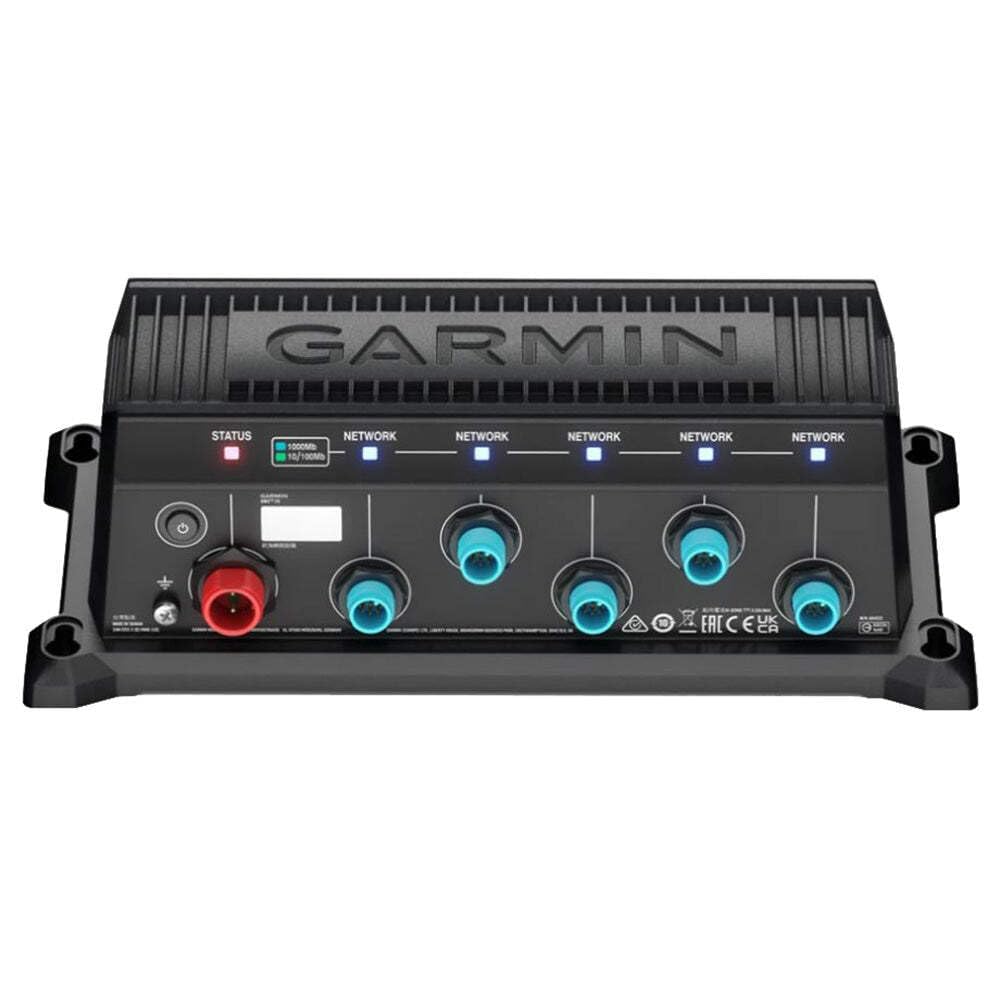
Figure 1: Garmin BlueNet 20 Switch main unit. This image shows the compact design of the BlueNet 20 Switch, highlighting its ports and mounting points for installation.
5. Operating Instructions
The Garmin BlueNet 20 Switch operates automatically once properly installed and powered. It acts as a central hub for your Garmin marine network.
- Power Indicator: A solid green LED indicates the device is powered on and functioning correctly.
- Network Port Indicators: Each BlueNet port may have an LED indicator. A solid green light typically indicates a successful network connection to a device. A blinking light may indicate data activity.
- Device Recognition: Connected Garmin devices should automatically detect the network switch and begin communicating. Refer to the individual manuals of your connected devices for specific network configuration settings.
- Firmware Updates: Periodically check the Garmin website for firmware updates for your BlueNet 20 Switch and connected devices to ensure optimal performance and compatibility.
6. Maintenance
Regular maintenance ensures the longevity and reliable operation of your BlueNet 20 Switch.
- Cleaning: Clean the exterior of the device with a soft, damp cloth. Do not use harsh chemicals or abrasive cleaners.
- Cable Inspection: Periodically inspect all power and network cables for signs of wear, corrosion, or damage. Replace any damaged cables immediately.
- Connection Check: Ensure all cable connections remain secure and free from moisture ingress.
- Environmental Check: Verify that the mounting location remains dry and within the specified operating temperature range.
7. Troubleshooting
If you encounter issues with your Garmin BlueNet 20 Switch, refer to the following troubleshooting guide:
| Problem | Possible Cause | Solution |
|---|---|---|
| Device does not power on. | No power supply; incorrect wiring; blown fuse. | Check power connections; verify fuse; ensure correct polarity. |
| Connected devices not recognized. | Loose network cable; faulty cable; incompatible device. | Ensure network cables are securely connected; test with a different cable; verify device compatibility. |
| Intermittent network connection. | Loose connections; electrical interference; damaged cable. | Check all connections; ensure proper grounding; inspect cables for damage. |
If the problem persists after attempting these solutions, contact Garmin Product Support.
8. Specifications
Key technical specifications for the Garmin BlueNet 20 Switch (Model 010-02612-00):
- Brand: Garmin
- Model Number: 010-02612-00
- Item Weight: 1 Pounds
- UPC: 753759324261
- Included Components: Main component only
- Manufacturer: Garmin
Note: Specifications are subject to change without notice.
9. Warranty and Support
Warranty Information:
This product is covered by a warranty. Please contact us if you experience any issues within 30 days of receipt. For detailed warranty terms and conditions, please refer to the official Garmin warranty statement available on their website or contact Garmin customer service directly.
Product Support:
For technical assistance, troubleshooting beyond this manual, or to inquire about service and repairs, please contact Garmin Product Support. You can typically find contact information, including phone numbers and online support resources, on the official Garmin website (www.garmin.com/support).
When contacting support, please have your product model number (010-02612-00) and serial number (if applicable) ready.