1. Introduction
Thank you for choosing the ciciglow Portable 4G LTE Mobile Hotspot. This device provides high-speed 4G internet access, allowing you to create a Wi-Fi hotspot for multiple users and connect wired devices via its RJ45 port. This manual will guide you through the setup, operation, and maintenance of your device.
2. Product Overview
2.1 Key Features
- High-Speed 4G LTE Connectivity: Provides fast internet access using a 4G SIM card.
- RJ45 WAN/LAN Port: Offers flexible connectivity for both internet input (WAN) and wired device output (LAN).
- Multi-User Support: Connects up to 32 users simultaneously.
- Portable Design: Compact and lightweight with a 2600mAh rechargeable battery for on-the-go use.
- Long Battery Life: Up to 10 hours working time and 300 hours standby time.
2.2 Device Layout
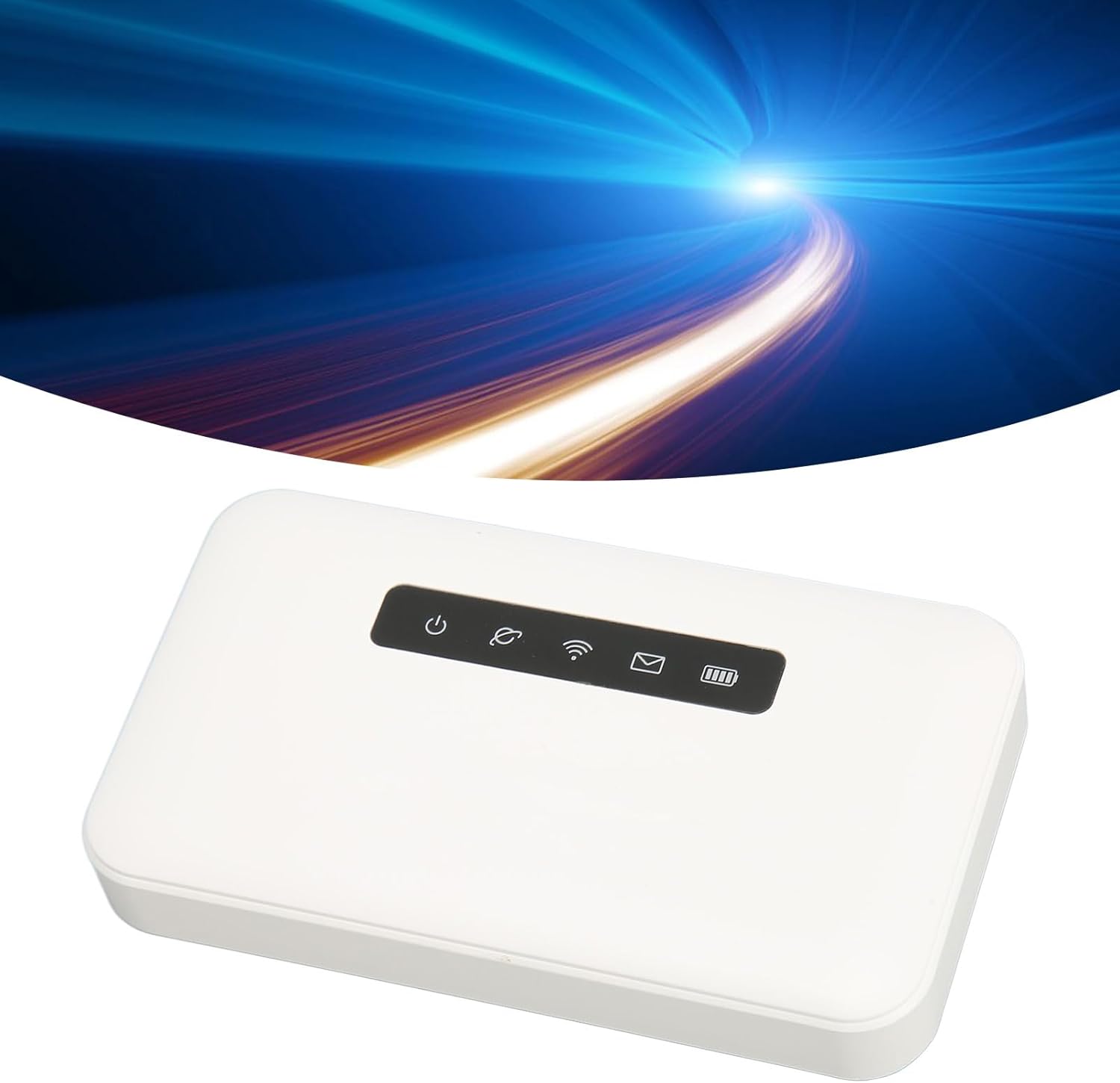

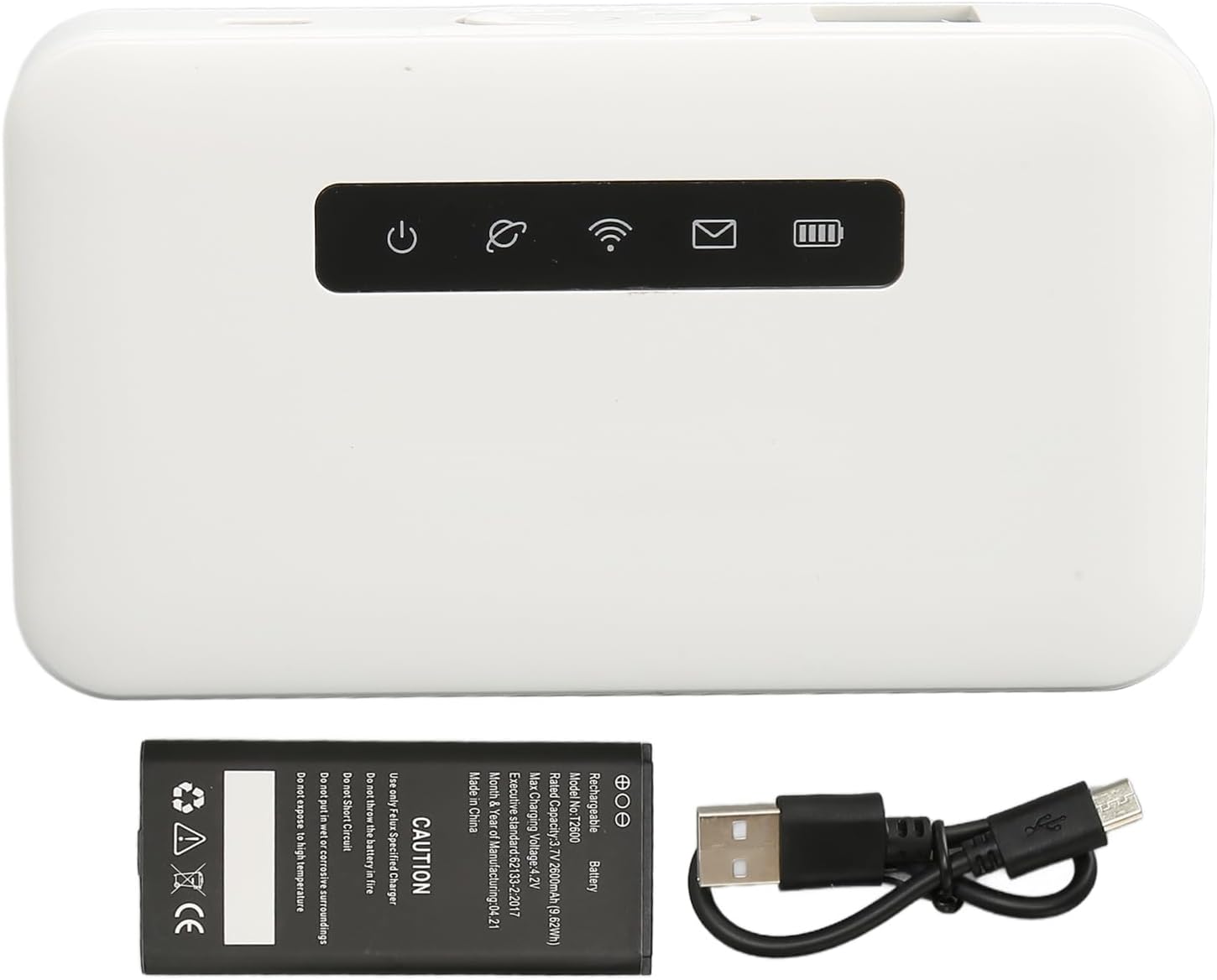
2.3 Package Contents
- 1 x ciciglow 4G LTE Mobile Hotspot
- 1 x Rechargeable Lithium-Ion Battery (2600 mAh)
- 1 x USB Cable
- 1 x User Manual (This document)
3. Setup
3.1 Battery Installation
- Remove the back cover of the hotspot device.
- Insert the provided 2600mAh lithium-ion battery into the battery compartment, ensuring the contacts align correctly.
- Replace the back cover until it clicks securely into place.
3.2 SIM Card Insertion
The device supports a Micro SIM card. Ensure your SIM card is activated and has an active data plan.
- Locate the Micro SIM card slot on the side of the device (refer to Figure 2).
- Carefully insert the Micro SIM card into the slot with the gold contacts facing down and the notched corner oriented as shown on the device.
- Push the SIM card gently until it locks into place.
3.3 Powering On/Off
- To Power On: Press and hold the Power button (refer to Figure 2) for approximately 3 seconds until the indicator lights illuminate.
- To Power Off: Press and hold the Power button for approximately 3 seconds until the indicator lights turn off.
3.4 Initial Charging
Before first use, it is recommended to fully charge the device. Connect the provided USB cable to the micro USB port on the hotspot and the other end to a compatible USB power adapter (not included) or a computer USB port. The battery indicator will show charging status.
4. Operating Instructions
4.1 Connecting Devices via Wi-Fi
- Ensure the hotspot is powered on.
- On your Wi-Fi enabled device (smartphone, tablet, laptop), search for available Wi-Fi networks.
- Select the network name (SSID) of your ciciglow hotspot. The default SSID and password are usually found on a label inside the battery compartment or on the device packaging.
- Enter the Wi-Fi password when prompted.
- Once connected, your device will have internet access.
4.2 Connecting Devices via RJ45 Port (LAN Mode)
The RJ45 port can be used to provide internet to a wired device (e.g., a desktop computer, gaming console).
- Connect one end of an Ethernet cable to the RJ45 port on the hotspot.
- Connect the other end of the Ethernet cable to the Ethernet port on your wired device.
- The wired device should automatically obtain an IP address and connect to the internet.
4.3 Using the RJ45 Port (WAN Mode)
The RJ45 port can also function as a WAN input, allowing the hotspot to use a wired internet connection as its source, then broadcast it as Wi-Fi.
- Connect an Ethernet cable from an active internet source (e.g., a wall Ethernet jack, another router's LAN port) to the RJ45 port on the hotspot.
- The hotspot will automatically detect the WAN connection and distribute internet via Wi-Fi.
4.4 Indicator Lights
Refer to Figure 1 for the location of the indicator lights.
- Power Indicator: Indicates if the device is on or off.
- Wi-Fi Indicator: Shows Wi-Fi status (on/off, activity).
- Signal Indicator: Displays the strength of the 4G network signal.
- Message Indicator: May indicate new SMS messages (if supported by your SIM card and carrier).
- Battery Indicator: Shows the current battery level and charging status.
5. Maintenance
5.1 Cleaning
Wipe the device with a soft, dry cloth. Do not use liquid cleaners or abrasive materials.
5.2 Battery Care
- Avoid exposing the battery to extreme temperatures.
- Charge the battery regularly, even if the device is not in use, to maintain its lifespan.
- Use only the specified charger or a compatible USB power source.
6. Troubleshooting
| Problem | Possible Cause | Solution |
|---|---|---|
| No internet connection | No SIM card, inactive SIM, no data plan, poor signal, incorrect settings. | Ensure SIM card is inserted correctly and active. Check signal strength. Restart the device. |
| Cannot connect to Wi-Fi | Incorrect Wi-Fi password, device too far from hotspot, Wi-Fi disabled. | Verify Wi-Fi password. Move closer to the hotspot. Ensure Wi-Fi indicator is on. |
| Slow internet speed | Poor signal, too many connected users, network congestion. | Move to an area with better signal. Disconnect unnecessary devices. |
| Device not powering on | Low battery, battery not installed correctly, faulty battery. | Charge the device. Reinstall the battery. If problem persists, contact support. |
6.1 Factory Reset
If you experience persistent issues, a factory reset may resolve them. This will erase all custom settings and restore the device to its default configuration.
- With the device powered on, locate the reset button (often a small pinhole, refer to Figure 2).
- Use a thin object (like a paperclip) to press and hold the reset button for approximately 5-10 seconds until the device restarts.
7. Specifications
| Feature | Specification |
|---|---|
| Model Number | ciciglowBA9PNW6I12 |
| Dimensions | Approx. 105 x 60 x 18mm (4.1 x 2.36 x 0.7 inches) |
| Weight | Approx. 5.7 ounces |
| Battery Type | Lithium-Ion (Rechargeable) |
| Battery Capacity | 2600 mAh |
| Working Time | Up to 10 hours |
| Standby Time | Up to 300 hours |
| Interface Type | 1x RJ45 (WAN/LAN Adaptive), 1x Micro USB Port, 1x Power Button, 1x WPS Button |
| Card Slots | 1x Micro SIM Card Slot, 1x Memory Card Slot (supports up to 32GB, card not included) |
| SIM Card Bands | LTE FDD: B1/B2/B3/B4/B5/B7/B8/B17/B20/B28; LTE TDD: B38/B39/B40/B41; HSPA+/HSPA/UMTS: B1/B2/B5/B9; GSM: 850MHz/900MHz/1800MHz/1900MHz |
| Transmission Rate | Up to 300Mbps |
| Firewall Function | Supported |
| Wi-Fi Standard | 802.11 b/g/n |
| Max Users | 32 |
8. Safety Information
- Do not expose the device to water, moisture, or high humidity.
- Avoid extreme temperatures. Operate the device within its specified temperature range.
- Do not attempt to disassemble, repair, or modify the device. This will void the warranty.
- Keep the device away from heat sources and direct sunlight.
- Use only approved accessories and chargers.
9. Warranty and Support
For warranty information or technical support, please refer to the documentation provided with your purchase or contact your retailer. Keep your proof of purchase for warranty claims.