
Introduction
Welcome to the user manual for your Poounur Smartwatch Y6. This guide provides essential information on setting up, operating, maintaining, and troubleshooting your device to ensure optimal performance and a seamless user experience. Please read this manual thoroughly before using your smartwatch.
1. Getting Started: Setup
1.1 Package Contents
Ensure your package contains the Poounur Smartwatch Y6, a charging cable, and this user manual.
1.2 Charging the Device
Before first use, fully charge your smartwatch. Connect the magnetic charging cable to the charging contacts on the back of the watch and plug the USB end into a standard USB power adapter (not included). The watch display will indicate charging status.
1.3 Powering On/Off
- To Power On: Press and hold the side button until the screen lights up.
- To Power Off: Press and hold the side button, then select the 'Power Off' option on the screen.
1.4 Pairing with Your Smartphone
- Download and install the companion application (e.g., 'FitCloudPro' or similar, refer to the watch screen or packaging for the exact app name) from your smartphone's app store (App Store for iOS, Google Play Store for Android).
- Ensure Bluetooth is enabled on your smartphone.
- Open the companion application and follow the on-screen instructions to create an account and add your device.
- Select 'Y6' from the list of available devices in the app to initiate pairing. Confirm the pairing request on both your phone and the smartwatch.
2. Operating Instructions
2.1 Basic Navigation
- Touchscreen: Swipe left/right, up/down to navigate through menus and features. Tap to select.
- Side Button: Press to return to the home screen or wake the device. Press and hold for power options.
2.2 Bluetooth Call Function
The Poounur Y6 Smartwatch supports Bluetooth calling, allowing you to make and receive calls directly from your wrist when connected to your smartphone.
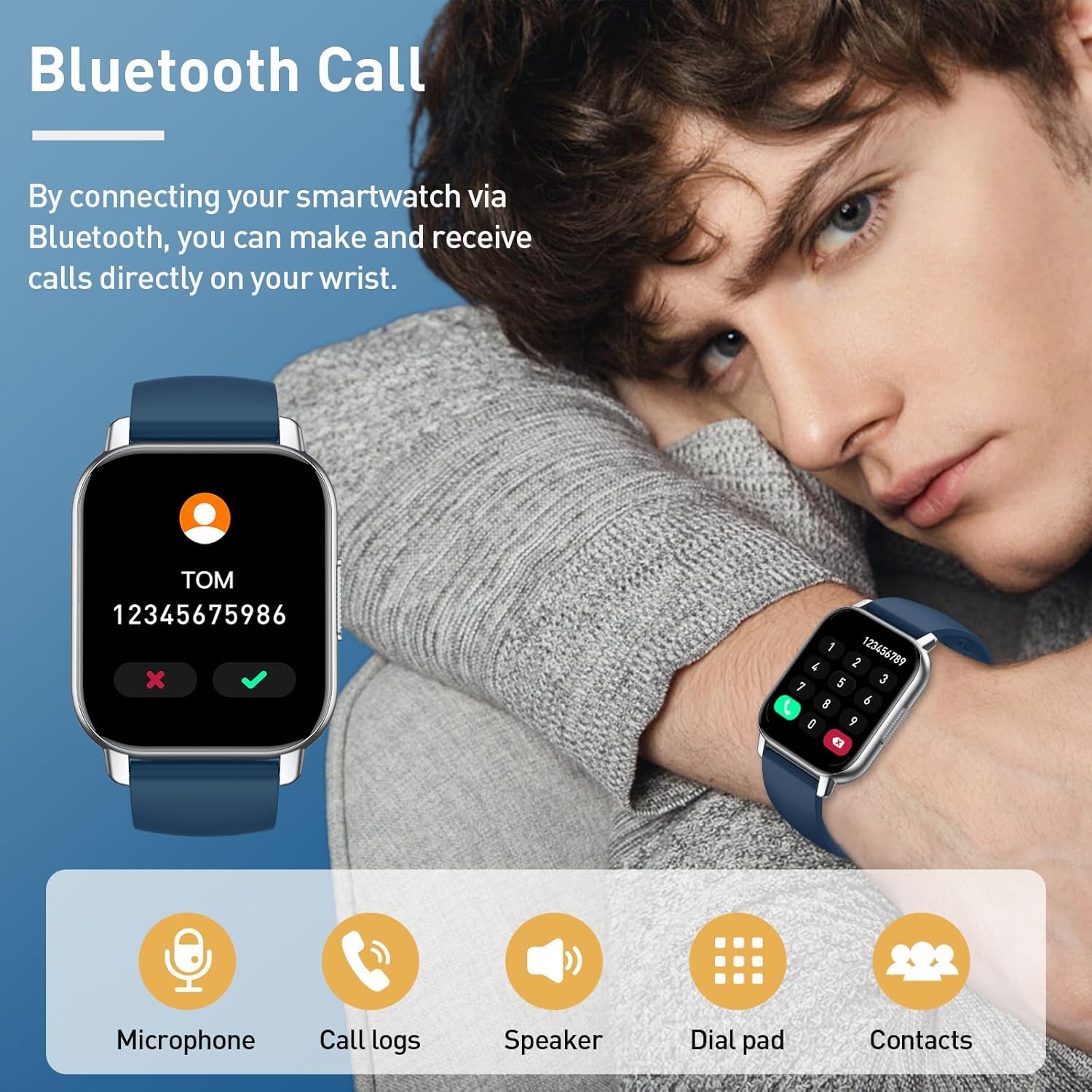
- Making a Call: Access the 'Dial Pad' or 'Contacts' feature on your watch. You can dial a number directly or select a contact from your synced phonebook.
- Receiving a Call: When a call comes in, the watch will display the caller ID. Tap the green icon to answer or the red icon to reject.
- Audio: The watch uses its built-in microphone and speaker for calls. Ensure your watch is close enough to your mouth for clear communication.
2.3 24-Hour Health Monitoring
Your smartwatch continuously monitors key health metrics throughout the day.

- Heart Rate: View your current heart rate and historical data in the 'Heart Rate' section.
- Sleep Tracking: The watch automatically tracks your sleep patterns, including deep and light sleep, when worn during sleep. Access 'Sleep' data for insights.
- Blood Oxygen (SpO2): Measure your blood oxygen levels on demand or view continuous monitoring data in the 'Blood Oxygen' feature.
Note: Health monitoring data is for reference only and should not be used for medical diagnosis or treatment. Consult a medical professional for health concerns.
2.4 Sports Modes
The smartwatch offers 112 sports modes to track your physical activities, helping you monitor exercise time and calories burned.

- Selecting a Mode: Navigate to the 'Sports' or 'Workout' section on your watch. Choose your desired activity from the list.
- Starting/Stopping: Tap to start tracking. During the activity, you can pause or end the workout.
- Data Review: After completing an activity, review your performance data (duration, calories, heart rate, etc.) on the watch or in the companion app.
2.5 Customizing Watch Faces
Personalize your smartwatch with a wide range of watch faces available through the companion app.

- Changing Watch Faces: Open the companion app on your smartphone. Navigate to the 'Watch Faces' or 'Dial Settings' section.
- Online Watch Faces: Browse and download from over 200 online watch faces.
- Custom Watch Faces: Some apps allow you to upload your own photos as watch backgrounds and customize text colors.
2.6 Other Features
- Notifications: Receive call, SMS, and app notifications directly on your wrist. Enable notification permissions in the companion app.
- Alarms: Set alarms through the companion app, and your watch will vibrate to alert you.
- Music Control: Control music playback on your smartphone (play, pause, skip) from your watch.
- Weather: View current weather conditions and forecasts after syncing with the app.
3. Maintenance
3.1 Cleaning the Device
Regularly clean your smartwatch and strap to prevent skin irritation and maintain device functionality.
- Wipe the screen and body with a soft, lint-free cloth.
- For stubborn dirt, slightly dampen the cloth with water. Avoid using harsh chemicals or abrasive materials.
- Ensure the charging contacts are clean and dry before charging.
3.2 Water and Dust Resistance
The Poounur Y6 Smartwatch is designed with water and dust resistance. This means it can withstand splashes, rain, and brief immersion in shallow water. However, it is not suitable for hot showers, saunas, diving, or high-speed water sports.
- Do not press buttons underwater.
- Dry the watch thoroughly after exposure to water.
- Water resistance is not a permanent condition and may decrease over time with normal wear and tear.
3.3 Battery Care
- Avoid extreme temperatures, which can shorten battery life.
- Charge the battery regularly, but avoid leaving it fully discharged for extended periods.
- Use only the provided charging cable.
4. Troubleshooting
4.1 Common Issues and Solutions
| Issue | Solution |
|---|---|
| Watch not powering on | Ensure the watch is fully charged. Press and hold the side button for several seconds. |
| Unable to pair with smartphone | Check if Bluetooth is enabled on your phone. Ensure the watch is within range. Restart both the watch and phone. Reinstall the companion app. |
| Call function not working | Verify the watch is properly connected via Bluetooth for calls (often a separate Bluetooth connection). Check app permissions for phone calls. |
| Inaccurate health data | Ensure the watch is worn snugly on your wrist, not too tight or too loose. Clean the sensor on the back of the watch. |
| Notifications not received | Check notification permissions in your phone's settings for the companion app. Ensure the app is running in the background. |
4.2 Resetting the Device
If you encounter persistent issues, you may need to reset your smartwatch. This will erase all data on the watch and restore factory settings.
- Navigate to 'Settings' on your smartwatch.
- Look for 'System', 'Reset', or 'Factory Reset' options.
- Confirm the reset. You will need to pair the watch with your phone again after a factory reset.
5. Specifications
Below are the key specifications for the Poounur Smartwatch Y6:

- Model Number: Y6
- Brand: Poounur
- Screen Size: 1.85 Inches
- Operating System: Android (for compatibility, not watch OS)
- Connectivity: Bluetooth
- Special Features: Bluetooth Calls, Water and Dust Resistance
- Compatible Devices: Smartphone
- Battery Composition: Lithium-polymer
- Rechargeable Battery: Yes
- Memory Storage Capacity: 1 GB
- GPS: Integrated GPS


