
COCOCAM ZY-C1
Contents
COCOCAM 2K Wireless Indoor/Outdoor Security Camera User Manual
Model: ZY-C1
1. Introduction
Thank you for choosing the COCOCAM 2K Wireless Indoor/Outdoor Security Camera. This manual provides essential information for setting up, operating, and maintaining your camera to ensure optimal performance and security. Please read this manual thoroughly before use and keep it for future reference.
2. Product Overview
2.1 Key Features
- 100% Wireless & Easy Installation: Built-in high-capacity battery, suitable for both indoor and outdoor use. Works with 2.4G Wi-Fi.
- 2K QHD & Color Night Vision: Captures clear, vivid details even in low-light conditions.
- Smart Detection & Instant Alerts: AI recognition and PIR motion detection for humans, vehicles, and pets, sending instant notifications.
- Remote Access & Two-Way Audio: Live view via the Cococam app, with built-in microphone and speaker for real-time communication.
- Flexible Storage Options: Supports up to 128GB SD card (not included) and Cococam Cloud storage.
2.2 Package Contents
- 1 x COCOCAM 2K Wireless Security Camera
- Mounting Accessories (Wall Mount, Ceiling Mount)
- Charging Cable
- User Manual
2.3 Product Diagram

Figure 2.3.1: Front view of the COCOCAM 2K Wireless Security Camera with a smartphone displaying its 2K video feed.

Figure 2.3.2: Overview of key features including 2K QHD, 2.4G Wi-Fi, 10m color night vision, AI recognition, PIR motion detection, IP66 weather resistance, 180-day battery life, cloud/SD storage, indoor/outdoor use, and two-way audio.
3. Setup
3.1 Charging the Camera
Before initial use, fully charge the camera using the provided charging cable. The battery indicator will show charging status.
3.2 App Download and Account Creation
- Download the 'Cococam' app from your smartphone's app store (iOS or Android).
- Open the app and follow the on-screen instructions to create a new account or log in if you already have one.
3.3 Connecting the Camera to Wi-Fi
- In the Cococam app, tap 'Add Device' or the '+' icon.
- Select your camera model from the list.
- Follow the app's instructions to connect the camera to your 2.4G Wi-Fi network. Ensure your smartphone is also connected to the same 2.4G Wi-Fi network during setup.
- The camera will indicate successful connection.

Figure 3.3.1: The camera supports smart connections with devices such as smartwatches, cellphones, and tablets for convenient monitoring.

Figure 3.3.2: A user holding the camera and a smartphone, demonstrating the wireless setup process.
3.4 Installation
The camera can be mounted on a wall or ceiling. Choose a location that provides the desired viewing angle and is within Wi-Fi range. Use the included mounting accessories to securely fasten the camera.

Figure 3.4.1: The camera mounted on an exterior wall, suitable for outdoor surveillance.

Figure 3.4.2: The camera mounted on a ceiling, demonstrating flexible installation options.
4. Operating
4.1 Live View and Video Quality
Access the live feed of your camera anytime, anywhere through the Cococam app. The camera provides 2K QHD resolution for clear and detailed images.
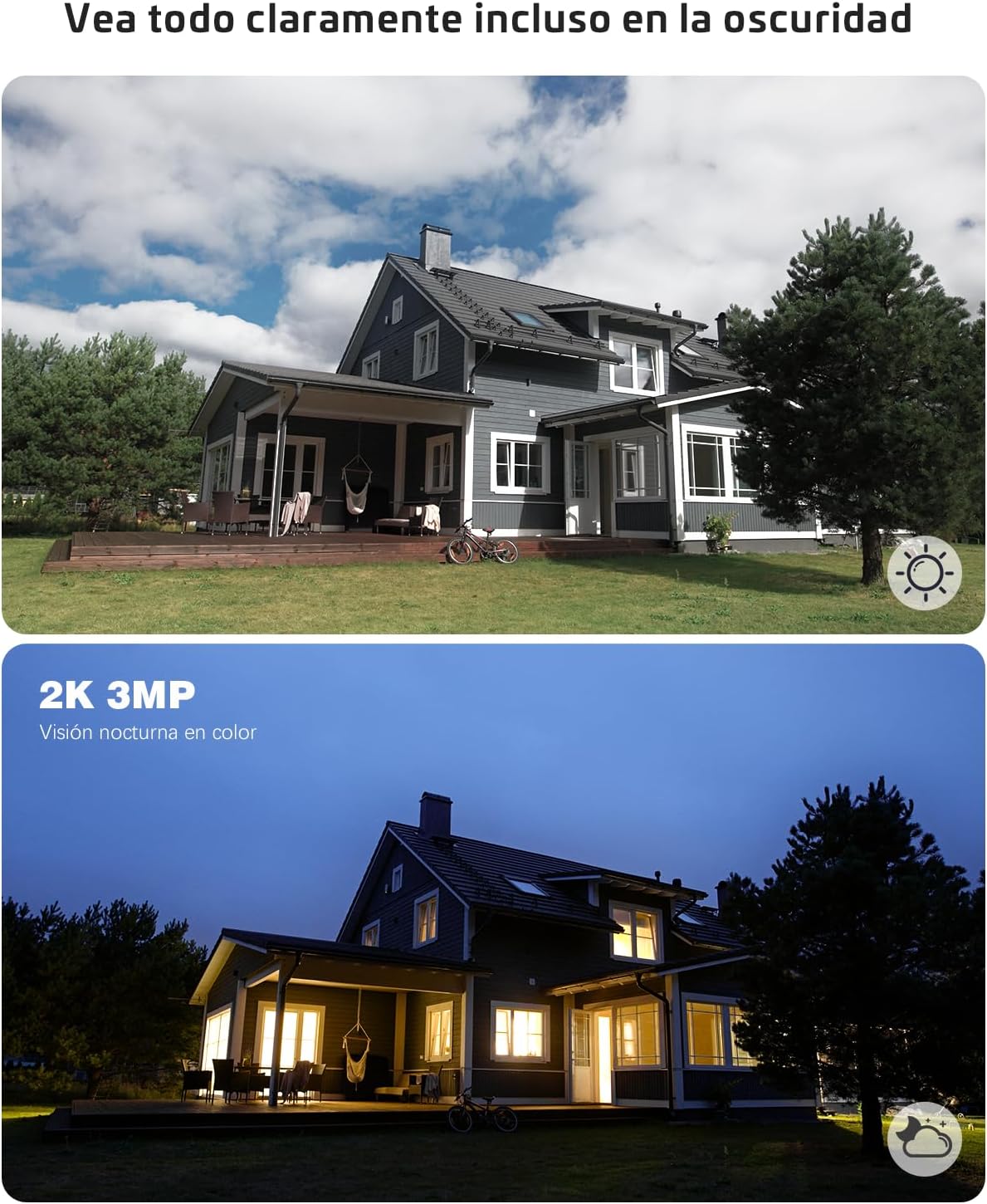
Figure 4.1.1: Comparison of day vision (top) and color night vision (bottom), showcasing the camera's ability to capture clear images in various lighting conditions.
4.2 Two-Way Audio
Use the two-way audio feature to communicate with visitors or deter intruders. Tap the microphone icon in the app to speak, and listen through the camera's speaker.

Figure 4.2.1: A child watering plants while a voice bubble indicates two-way audio communication, showing the camera's interactive capabilities.
4.3 Smart Detection and Alerts
The camera utilizes AI recognition and PIR (Passive Infrared) motion detection to identify humans, vehicles, and pets, reducing false alarms. When motion is detected, you will receive instant notifications on your smartphone.

Figure 4.3.1: AI recognition highlighting a person, dog, and car, demonstrating the camera's ability to differentiate subjects and reduce false alarms.

Figure 4.3.2: An illustration showing adjustable PIR motion detection sensitivity levels from 1 to 10, allowing customization to suit specific needs.

Figure 4.3.3: A smartphone displaying an instant alarm notification after detecting movement, such as a person approaching a doorstep.
4.4 Storage Options
The camera supports local storage via a Micro SD card (up to 128GB, not included) and cloud storage services. Cloud storage offers a 7-day free trial.

Figure 4.4.1: Visual representation of cloud storage and Micro SD card storage options for the camera. Remember to format the SD card before first use.
4.5 Smart Home Integration
The COCOCAM camera is compatible with Amazon Alexa and Google Assistant, allowing for voice control and integration into your smart home ecosystem.
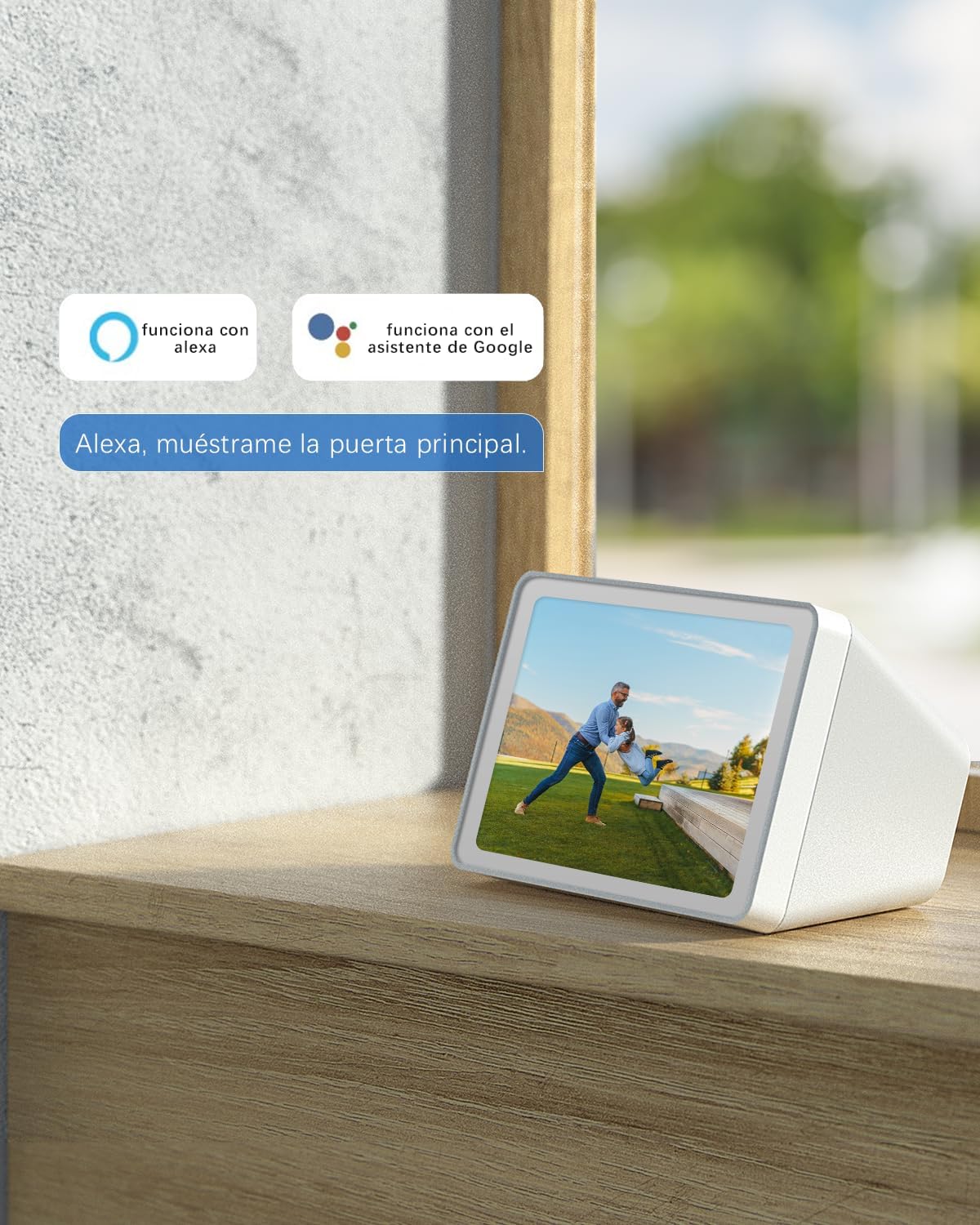
Figure 4.5.1: The camera integrates with Amazon Alexa and Google Assistant, allowing users to view the camera feed on compatible smart displays by voice command.
5. Maintenance
5.1 Battery Management
The camera features a built-in rechargeable battery. Monitor the battery level through the Cococam app and recharge as needed. For optimal battery life, avoid extreme temperatures.
5.2 Cleaning
Wipe the camera lens and body with a soft, dry cloth to remove dust and smudges. Do not use harsh chemicals or abrasive cleaners.
5.3 Weather Resistance
The camera has an IP66 rating, meaning it is protected against dust and powerful water jets. It is designed to withstand various weather conditions, but avoid submerging it in water.

Figure 5.3.1: The camera being exposed to water, illustrating its IP66 water resistance and ability to withstand extreme weather conditions.
6. Troubleshooting
6.1 Common Issues and Solutions
- Camera not connecting to Wi-Fi: Ensure your Wi-Fi is 2.4G and the signal strength is adequate at the camera's location. Restart your router and the camera, then try connecting again.
- Battery drains quickly: Frequent motion detection events, live viewing, or poor Wi-Fi signal can increase battery consumption. Adjust PIR sensitivity, reduce live viewing time, or consider a solar panel accessory if available.
- Motion detection not working or too sensitive: Adjust the PIR sensitivity levels in the app (1-10). Ensure there are no obstructions in the detection zone.
- Poor image quality: Check the camera lens for dirt or smudges. Ensure adequate lighting for optimal night vision performance.
- Two-way audio issues: Check your device's volume settings and ensure the camera's microphone and speaker are not obstructed.
If you encounter persistent issues, please refer to the support section or contact COCOCAM customer service.
7. Specifications
| Feature | Specification |
|---|---|
| Model Number | ZY-C1 |
| Mounting Type | Wall Mount, Ceiling Mount |
| Video Capture Resolution | 3 MP (2K QHD) |
| Color | Black |
| Included Components | 1 unit |
| Wireless Communication Technology | Wi-Fi (2.4G) |
| Form Factor | Bullet |
| Installation Type | Screw-in |
| Night Vision Range | 20 Meters |
| Frame Rate | 25 fps |
| Material | Plastic |
| Voltage | 5 Volts (DC) |
| Wattage | 2 watts |
| Product Dimensions (L x W x H) | 47 x 54 x 90 millimeters |
| Battery Type | Lithium (1 AAA required, included) |
| Special Features | Two-way audio |
| Usage | Indoor, Outdoor |
| Compatible Devices | Smartphone |
| Power Source | Battery |
| Controller Type | Amazon Alexa, Google Assistant |
8. Warranty and Support
8.1 Warranty Information
COCOCAM offers a 2-year warranty for this product, ensuring a worry-free purchase experience. Please retain your proof of purchase for warranty claims.
8.2 Customer Support
For any questions, technical assistance, or support, please contact our professional technical support team. You can typically find support contact information within the Cococam app or on the official COCOCAM website.

Figure 8.2.1: A customer support representative ready to assist with product inquiries.

Figure 8.2.2: Icons representing COCOCAM's commitment to customer satisfaction, including lifetime warranty, quick response, and 24/7 professional technical support.
Ask a question about this manual
Ask about setup, troubleshooting, compatibility, parts, safety, or missing instructions. Manuals+ will review the question and use this page’s manual context to help answer it.