
Introduction
This manual provides detailed instructions for the setup, operation, maintenance, and troubleshooting of your PEIOUS Wireless Mouse Jiggler. This device combines the functionality of a standard wireless mouse with an integrated mouse jiggler feature, designed to keep your computer active during periods of inactivity.

Image: The PEIOUS Wireless Mouse Jiggler in Gradient Purple, showcasing its ergonomic design and vibrant color.
Setup
Unpack the Mouse: Carefully remove the mouse and its accessories from the packaging. Ensure all components are present: the wireless mouse, USB receiver, and USB-C charging cable.
Locate the USB Receiver: The USB receiver is typically stored in a compartment on the underside of the mouse for safekeeping during transport. Remove it before use.
Connect the USB Receiver: Plug the USB receiver into an available USB-A port on your computer or laptop. Your computer should automatically recognize the device as a standard mouse without requiring additional drivers.
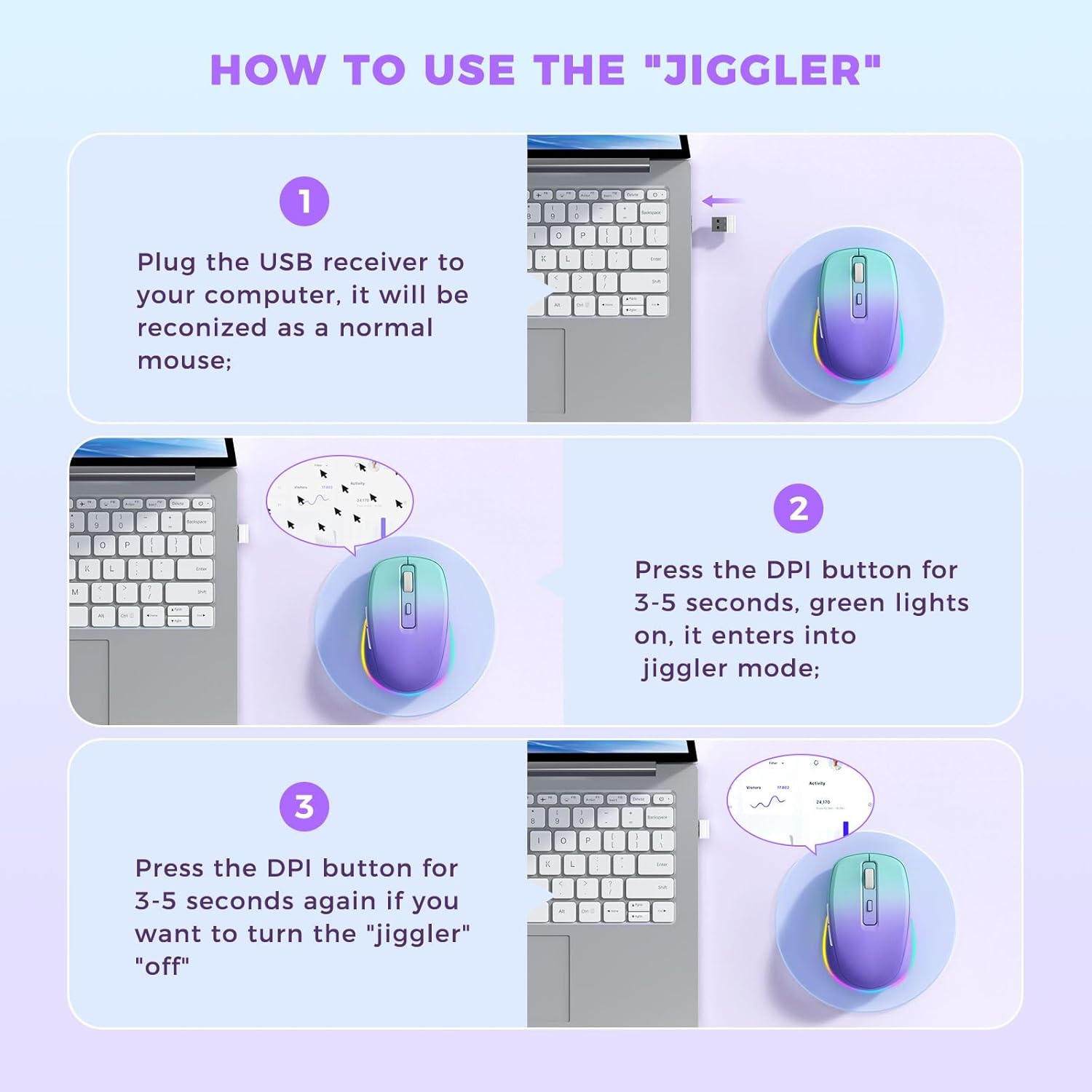
Image: A visual guide showing the USB receiver being plugged into a laptop's USB port, ready for use.
Power On the Mouse: Locate the power switch on the underside of the mouse and slide it to the 'ON' position. The mouse should now be ready for use.
Operating Instructions
Standard Mouse Functionality
The PEIOUS Wireless Mouse functions as a standard 6-button optical mouse. It includes a left button, right button, scroll wheel (which also acts as a middle button), a DPI button, and two side buttons (forward and backward).

Image: A detailed diagram labeling the right button, left button, DPI/Mouse Jiggler Mode Switch, Forward Button, Backward Button, Charging Port, Light Mode Switch, Power Switch, and USB Receiver.
- Left/Right Click: Perform standard selection and context menu actions.
- Scroll Wheel: Scroll through documents and web pages. Pressing the wheel can activate specific functions in some applications.
- Forward/Backward Buttons: Navigate web pages or folders (note: side buttons are not compatible with macOS).
Adjusting DPI (Sensitivity)
The mouse offers four adjustable DPI settings to suit different tasks and preferences:
- DPI Levels: 800, 1200, 1600, 2000 DPI.
- How to Adjust: Press the DPI button (located below the scroll wheel) to cycle through the available DPI settings. Each press will change the cursor speed.

Image: The mouse with an overlay indicating the four adjustable DPI settings: 800, 1200, 1600, and 2000 DPI.
Activating/Deactivating Jiggler Mode
The integrated mouse jiggler feature helps keep your computer awake and active.
- To Activate Jiggler Mode: Press and hold the DPI button for 3-5 seconds. Green lights will illuminate, indicating that jiggler mode is active. The cursor will begin to move randomly on the screen.
- Auto-Pause/Resume: If you move the mouse while in jiggler mode, the jiggler function will automatically pause, allowing you to use the mouse normally. After 3-5 seconds of inactivity, the jiggler mode will automatically resume.
- To Fully Exit Jiggler Mode: Press and hold the DPI button again for 3-5 seconds. The green lights will turn off, and the jiggler function will be completely deactivated.

Image: The mouse positioned on a desk next to a laptop, illustrating its dual functionality as both a mouse and a jiggler.
Light-Up Design
The mouse features colorful LED lighting that adds a visual element and makes it easier to locate in low-light conditions. The light mode can be controlled via a switch on the underside of the mouse.
Maintenance
Charging the Mouse
The PEIOUS Wireless Mouse has a built-in rechargeable battery. When the battery is low, the mouse's performance may decrease, or the LED lights might dim/turn off.
- Charging Port: Connect the included USB-C cable to the charging port located at the front of the mouse.
- Power Source: Plug the other end of the USB-C cable into a USB power source (e.g., computer USB port, wall adapter).
- Charging Indicator: An indicator light on the mouse will show its charging status. Refer to the product packaging or specific model details for exact indicator behavior.
- Battery Life: A full charge provides extended usage. Charging regularly is recommended to maintain optimal performance.

Image: The wireless mouse connected via a USB-C cable, illustrating the charging process.
Cleaning
To maintain the mouse's appearance and functionality:
- Use a soft, dry cloth to wipe the surface of the mouse.
- For stubborn dirt, slightly dampen the cloth with water or a mild cleaning solution. Avoid excessive moisture.
- Do not use harsh chemicals or abrasive materials, as these can damage the mouse's finish.
Troubleshooting
| Problem | Possible Solution |
|---|---|
| Mouse not responding |
|
| Jiggler mode not activating/deactivating |
|
| Cursor movement is erratic or inaccurate |
|
| Side buttons not working on macOS |
|
Specifications
- Brand: PEIOUS
- Model: B0CLLMQJWG
- Color: Gradient Purple
- Connectivity Technology: 2.4G Wireless (USB receiver)
- Movement Detection Technology: Optical
- DPI Settings: 800, 1200, 1600, 2000 dots_per_inch
- Buttons: 6 (Left, Right, Scroll Wheel, DPI, Forward, Backward)
- Hand Orientation: Right
- Power Source: Rechargeable Lithium Ion battery (included)
- Included Components: USB-C cable
- Operating System Compatibility: Windows 10, Windows 7, Windows 8, Windows XP, macOS, Chrome OS, Linux (Note: side buttons not compatible with macOS)
- Wireless Range: 10.0 meters
- Material: Plastic
- Special Features: LED Mouse, Mouse and Jiggler 2 in 1, Rechargeable Mouse
Warranty and Support
This PEIOUS Wireless Mouse Jiggler is backed by a 12-month warranty. If you encounter any issues with your product, please contact PEIOUS customer support for assistance. Refer to your purchase documentation for specific contact details or visit the official PEIOUS website.