
AULA F99 (Grey+White - Graywood Switch)
AULA F99 Wireless Mechanical Keyboard User Manual
Model: F99 (Grey+White - Graywood Switch) | Brand: AULA
1. Introduction
Thank you for choosing the AULA F99 Wireless Mechanical Keyboard. This high-performance keyboard is designed for versatility and an enhanced typing experience, featuring multi-device connectivity, hot-swappable switches, and customizable RGB backlighting. This manual provides detailed instructions to help you set up, operate, and maintain your keyboard.

Figure 1.1: AULA F99 Wireless Mechanical Keyboard (Black&Grey&White variant)
2. Key Features
- Multi-Device Connection: Supports BT5.0, 2.4GHz wireless, and USB wired modes, allowing connection to up to five devices simultaneously.
- Hot-Swappable Design: Easily replace 3-pin/5-pin switches and keycaps without soldering. Comes with a keycap/switch puller.
- Pre-lubed Linear Switches: Equipped with smooth, quiet, and quick-response Leobog Greywood V3 switches for a pleasant typing experience.
- RGB Backlighting: Features 16 RGB lighting effects and supports 16.8 million customizable colors via driver software, including music rhythm lighting effects.
- Advanced Structure: Incorporates an extended integrated silicone pad and PCB single key slotting for optimized resilience, stability, and a softer, more elastic feel.
- Five Layers of Sound-Dampening: Internal filling silencer layers effectively reduce cavity noise and provide a solid feel.
- High-Capacity Battery: Built-in 8000mAh battery for extended wireless usage (approx. 53 hours with backlight on, 400 hours with backlight off).
- Compact 96% Layout: 99 keys layout saves desktop space while retaining essential arrow keys and a number pad.
- PBT Keycaps: Durable double-shot PBT keycaps ensure characters remain vibrant, clear, and fade-resistant.
- N-Key Rollover: Ensures all key presses are registered simultaneously, crucial for fast-paced gaming.

Figure 2.1: Overview of AULA F99 Keyboard's key features.
3. Setup Guide
3.1 Package Contents
Before you begin, please ensure all items are present in the package:
- AULA F99 Wireless Mechanical Keyboard
- Keycap Puller
- USB-C to USB-A Cable
- English Manual (this document)
- Extra 2 Grey Pre-lubed Linear Switches
3.2 Connecting Your Keyboard
The AULA F99 keyboard offers three connection modes:
- USB Wired Mode:
Connect the provided USB-C cable to the keyboard's USB-C port and the other end to your computer's USB-A port. The keyboard will automatically be recognized and powered.
- 2.4GHz Wireless Mode:
Locate the 2.4GHz USB dongle, usually stored in a slot on the top edge of the keyboard. Plug the dongle into an available USB port on your device. Switch the keyboard to 2.4GHz mode using the physical switch (refer to the "Operating Instructions" section for switch location). The keyboard should connect automatically.
- Bluetooth 5.0 Mode:
Switch the keyboard to Bluetooth mode using the physical switch. On your device (PC, tablet, smartphone, etc.), enable Bluetooth and search for new devices. Select "AULA F99" from the list of available devices to pair. The keyboard can store up to five Bluetooth connections.

Figure 3.1: Illustration of the three connection modes: USB-C, 2.4GHz, and Bluetooth.
4. Operating Instructions
4.1 Switching Between Devices
To switch between connected devices (especially in Bluetooth mode), use the combination keys involving the Fn key. Refer to the keyboard's markings or the full PDF manual for specific key combinations to cycle through paired Bluetooth devices or switch to 2.4GHz/wired mode.
4.2 RGB Backlight Control
The AULA F99 features extensive RGB backlighting customization.
- Fn + Shift (right): Switch light bar mode or turn off the bar backlight.
- Fn + \: Switch between 15 RGB light effects.
- Fn + Tab: Switch lighting color.
- Fn + ↑: Increase lighting brightness.
- Fn + ↓: Decrease lighting brightness.
- Fn + ←: Decrease lighting speed.
- Fn + →: Increase lighting speed.

Figure 4.1: Demonstrating 16.8 Million RGB Backlight capabilities and controls.
4.3 Macro Customization and Software
The keyboard supports macro customization, allowing you to record and edit macros, customize key functions, and access 16.8 million light colors. It also supports cool music rhythm lighting effects.
To utilize these advanced features, you will need to download and install the official driver software. Please note that the driver currently supports Windows systems.
Important: Run the driver in wired mode for proper functionality.

Figure 4.2: Customization options available through the driver software.
5. Maintenance
5.1 Cleaning
To keep your keyboard in optimal condition, regularly clean it. Use a soft, lint-free cloth to wipe down the keycaps and chassis. For dust and debris between keys, use compressed air. Avoid using harsh chemicals or abrasive materials.
5.2 Replacing Switches and Keycaps
The AULA F99 is hot-swappable, allowing for easy replacement of switches and keycaps.
- Keycap Removal: Use the included keycap puller to gently pull keycaps straight up.
- Switch Removal: Use the included switch puller to carefully grip the switch from its top and bottom clips, then pull it straight out.
- Installation: Align the new switch's pins with the PCB's holes and press firmly until it clicks into place. For keycaps, align and press down.

Figure 5.1: Close-up of hot-swappable sockets and pre-lubed switches.
6. Troubleshooting
| Problem | Possible Cause | Solution |
|---|---|---|
| Keyboard not responding in wireless mode. | Low battery, incorrect mode selected, dongle not connected, or Bluetooth not paired. | Charge the keyboard. Ensure the correct mode (2.4GHz/BT) is selected via the physical switch. Re-insert the 2.4GHz dongle or re-pair Bluetooth. Try wired mode to confirm keyboard functionality. |
| RGB lighting not working or behaving unexpectedly. | Incorrect lighting mode selected, driver issue, or low battery. | Use Fn key combinations to cycle through lighting effects and adjust brightness. Ensure the keyboard is charged. If using custom effects, ensure the driver is installed and running in wired mode. |
| Keys not registering or delayed input. | Loose switch, software conflict, or wireless interference. | Check if any switches are loose and re-seat them. Try connecting via USB wired mode to rule out wireless interference. Ensure no conflicting software is running. Update keyboard drivers if available. |
| Cannot connect to multiple devices. | Incorrect pairing procedure or device limit reached. | Ensure you are following the correct pairing procedure for each device. The keyboard supports up to five Bluetooth connections. If you have reached the limit, you may need to unpair an old device. |
7. Specifications
| Feature | Detail |
|---|---|
| Model Number | Grey+White - Graywood Switch |
| Connectivity Technology | BT5.0, 2.4GHz, USB-C |
| Keyboard Description | Mechanical |
| Number of Keys | 99 |
| Keycap Material | Double-shot PBT |
| Switch Type | Pre-lubed Linear (Leobog Greywood V3) |
| Backlighting | RGB (16.8 Million Colors) |
| Battery Capacity | 8000mAh |
| Battery Life (Backlight On) | Approx. 53 hours |
| Battery Life (Backlight Off) | Approx. 400 hours |
| Product Dimensions | 5.78 x 1.67 x 15.38 inches |
| Item Weight | 3.31 pounds |
| Compatible Devices | Laptop, PC, Gaming Console (PS/Xbox), Tablet, Smartphone |
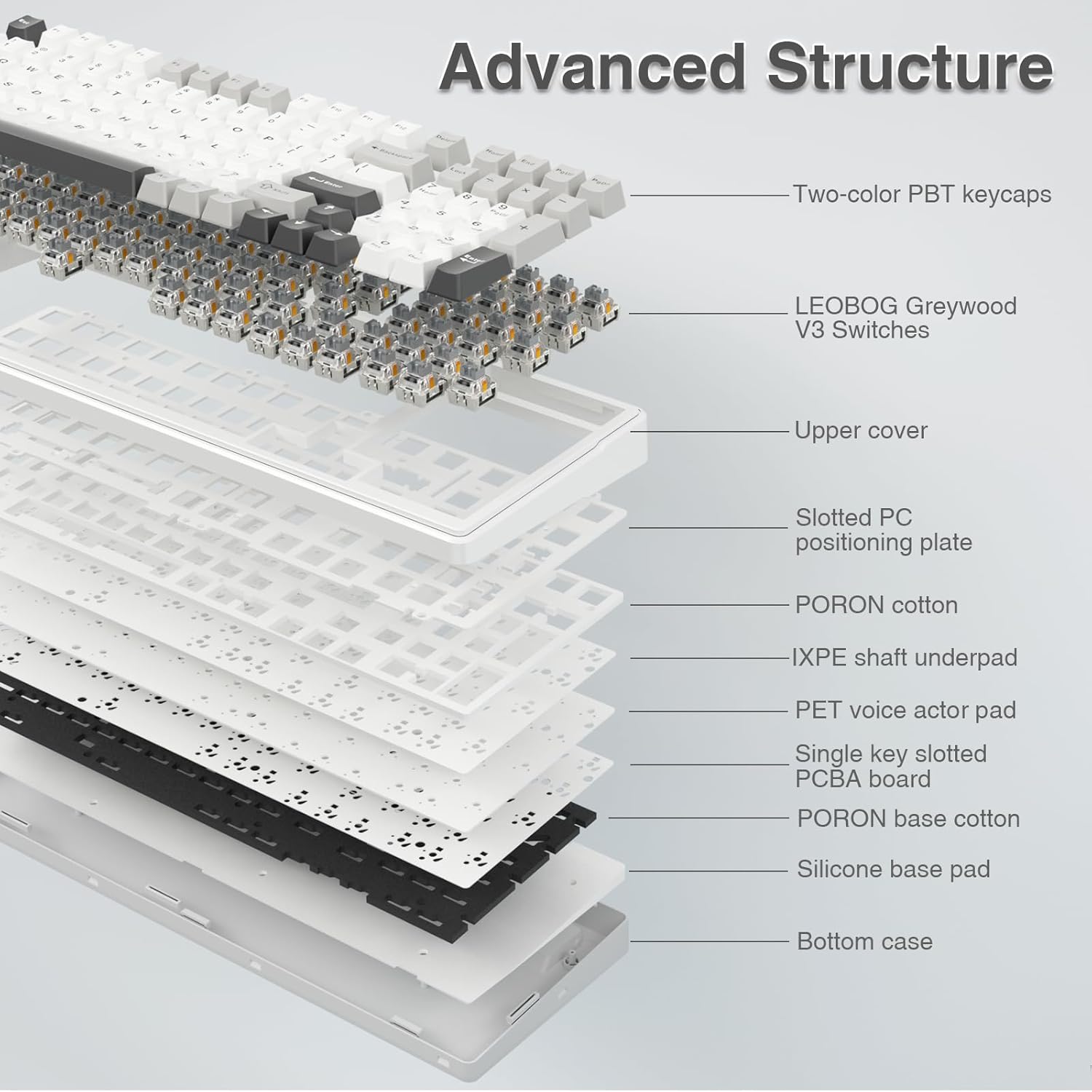
Figure 7.1: Diagram illustrating the advanced internal structure of the AULA F99 keyboard.

Figure 7.2: Visual representation of the 8000mAh high-capacity battery.
8. Warranty and Support
For warranty information and technical support, please refer to the official AULA website or contact the retailer from whom you purchased the product. Keep your proof of purchase for any warranty claims.
You can also find additional resources and a downloadable PDF user manual at the following link: AULA F99 User Manual (PDF).
Related documentsF99 (Grey+White - Graywood Switch)


Ask a question about this manual
Ask about setup, troubleshooting, compatibility, parts, safety, or missing instructions. Manuals+ will review the question and use this page’s manual context to help answer it.