
1. Introduction
Thank you for purchasing the CORSAHD 4K@60Hz HDMI Splitter 1x2, Model CO-SP12H2. This device is designed to duplicate one HDMI source signal to two HDMI displays simultaneously. It supports advanced features such as 4K@60Hz resolution, 4:4:4 chroma, 18Gbps bandwidth, HDCP 2.2 bypass, EDID management, and downscaling functionality. This manual provides essential information for proper installation, operation, and troubleshooting to ensure optimal performance.
2. Package Contents
- 1x CORSAHD 4K@60Hz HDMI Splitter 1x2 (CO-SP12H2)
- 1x USB Power Cable
- 1x User Manual
3. Product Overview
The CORSAHD HDMI Splitter features a compact design with clearly labeled ports and controls for easy setup and operation.

Image: Front and back view of the CORSAHD HDMI Splitter, showing HDMI IN, HDMI OUT1, HDMI OUT2, Power/FW port, UPDATE button, EDID switch, and SCALER switch.
Ports and Controls:
- HDMI IN: Connect your HDMI source device (e.g., PS5, Xbox, Blu-ray player).
- HDMI OUT1: Connect to your primary display device.
- HDMI OUT2: Connect to your secondary display device.
- POWER/FW: USB-C port for power supply and firmware updates.
- UPDATE Button: Press for 3 seconds to resolve HDCP issues or picture flickering.
- EDID Switch: Manages Extended Display Identification Data. Settings include 4K7.1, 4K5.1, and COPY1.
- SCALER Switch: Controls downscaling functionality for HDMI OUT2. Settings include OFF, ON 1, and ON 2.
4. Setup Instructions
Follow these steps to set up your CORSAHD HDMI Splitter:
- Prepare Cables: Ensure you use certified HDMI 2.0 cables less than 10ft/3m for optimal performance.
- Connect HDMI Source: Plug an HDMI cable from your source device (e.g., PS5, Xbox) into the HDMI IN port on the CORSAHD Splitter.
- Connect Displays: Connect HDMI cables from the HDMI OUT1 and HDMI OUT2 ports on the splitter to your two display devices (e.g., TV, monitor).
- Power On: Connect the provided USB power cable to the POWER/FW port on the splitter and then to a 5V USB power adapter (not included) or a USB port on your source device/display.
- Verify Connection: Power on all connected devices. The displays should now show the duplicated signal from your HDMI source.
Video: CORSAHD 4K HDMI2.0 Splitter, CO-SP12H2 Set Up Instruction. This video demonstrates the step-by-step process of connecting your HDMI source and displays to the splitter and powering it on.
5. Operating Instructions
The CORSAHD HDMI Splitter offers EDID management and downscaling features to optimize compatibility and performance across different display setups.
EDID Settings:
The EDID switch on the splitter allows you to control the Extended Display Identification Data communicated to the source device. This helps ensure compatibility with various audio and video formats.

Image: Diagram illustrating the EDID and SCALER switch positions and their functions.
- 4K7.1: Outputs 4K@60Hz video (4:4:4, Dolby Vision, Dolby Atmos, 7.1CH, 3D, HDR) to the display and 7.1Ch audio to the audio device. Applicable for soundbars, AV amplifiers, and speakers with HDMI (non-eARC/ARC) ports.
- 4K5.1: Outputs 4K@60Hz video and 5.1Ch audio to the audio device. Applicable for soundbars, AV amplifiers, and speakers with SPDIF/Optical ports.
- COPY1: The video and audio output will be set according to the capabilities of the device connected to HDMI OUT1. Generally, TVs only support 2.1Ch audio format.
Scaler Settings:
The SCALER switch allows you to downscale the video resolution for HDMI OUT2.
- OFF: The signal will pass through without any modification.
- ON: The 4K signal will be downscaled to 1080P for HDMI OUT2.
Common Usage Scenarios:
- 4K & 1080P TV Work in Sync: Set EDID to COPY1 mode. Connect your 4K TV to HDMI OUT1 and your 1080P TV to HDMI OUT2. Set the SCALER switch to ON for OUT2.
- 4K HDR and Soundbar Work in Sync: Set your HDMI source video to 4K HDR/HDR10/Dolby Vision and audio bitstream to Dolby Atmos. Set the splitter's EDID to 4K7.1. Connect your 4K TV to HDMI OUT1 and your soundbar to HDMI OUT2.
- Two 1080P TVs Work in Sync: Set EDID to 4K7.1 or 4K5.1 mode.
Video: CORSAHD, CO-SP12H2, EDID Setup Instruction. This video explains how to configure the EDID settings for different audio and video requirements.
6. Wide Compatibility
The CORSAHD HDMI Splitter is designed for broad compatibility with various HDMI 2.0 HDCP 2.2/HDCP 2.3 devices.
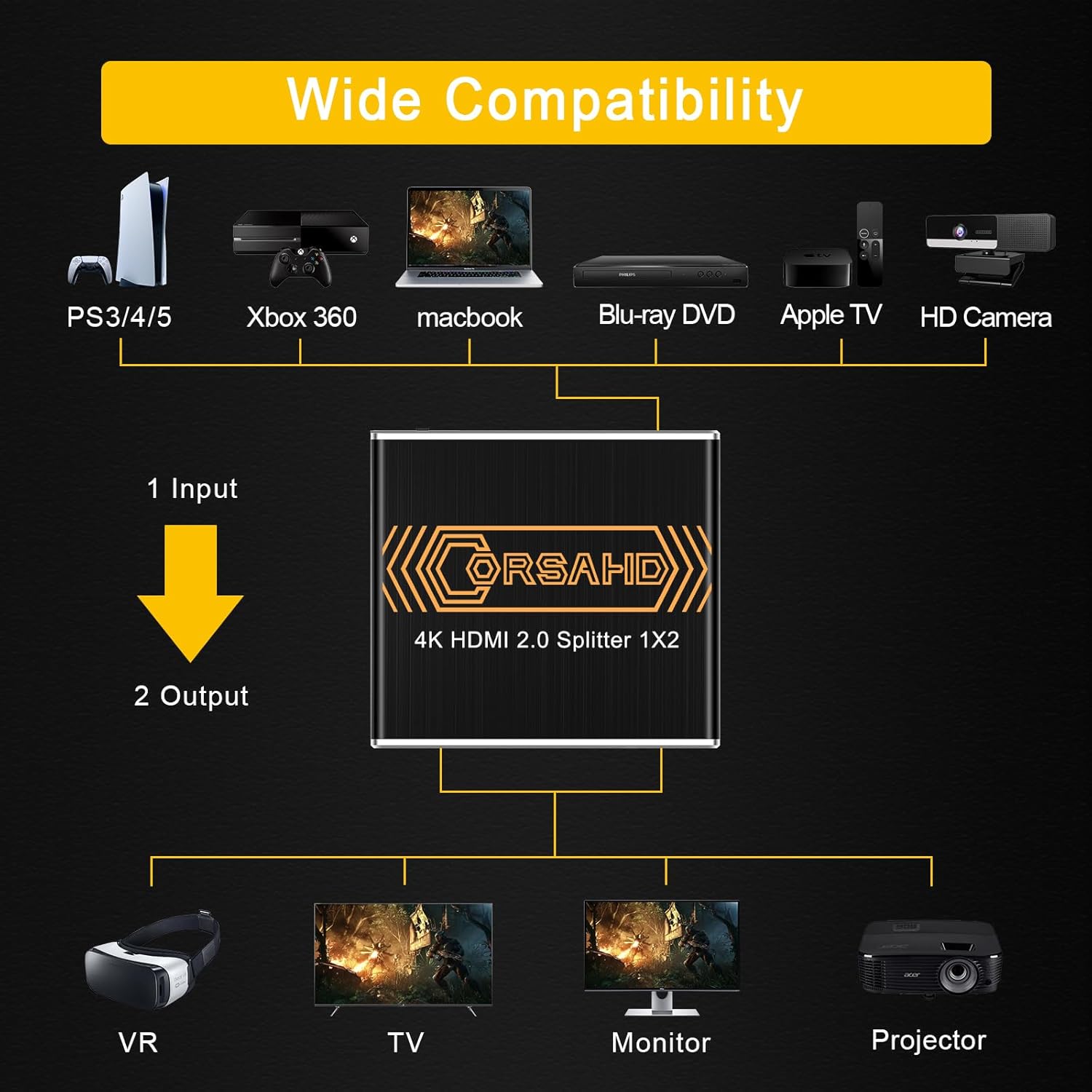
Image: Illustration of the wide range of compatible devices, including gaming consoles, media players, and displays.
- Gaming Consoles: Xbox, PS4, PS5, Nintendo Switch.
- Streamers: Apple TV, Fire Stick, Roku.
- Displays: UHD TVs, monitors, projectors.
- Other Devices: Blu-ray DVD players, MacBooks, HD Cameras.
Note: To achieve both Dolby Atmos and Dolby Vision, ensure both your TV and receiver support these technologies. The splitter supports TV 4K 60Hz HDR video and Soundbar 7.1ch audio working in sync.
7. Specifications
| Feature | Description |
|---|---|
| Model | CO-SP12H2 |
| HDMI Version | HDMI 2.0 |
| Bandwidth | 18 Gbps |
| Video Resolution | Up to 4K@60Hz (3840x2160@60Hz), 1080p@120Hz/60Hz 3D, 1440p@60Hz |
| Chroma Support | 4:4:4 8bit |
| HDR Support | HDR, Dolby Vision |
| HDCP Support | HDCP 2.2, HDCP 2.3 Bypass |
| Audio Format | Dolby Atmos, Digital 7.1CH, Dolby True HD, DTS-HD Master Audio |
| EDID Management | 4K7.1, 4K5.1, COPY1 |
| Downscaler | 4K to 1080P for HDMI OUT2 |
| Color | Black |
| Connector Type | HDMI |
| Number of Ports | 3 (1 In, 2 Out) |
| UPC | 605129034600 |
Does NOT support: ARC, e-ARC/Sonos ARC, CEC, VRR, 4K@120Hz Upscale. Does NOT extend screen, only duplicate/copy/mirror. EDID pass-through only, does not create. Does NOT down-scale to 4:2:2.
8. Troubleshooting
If you encounter issues with your CORSAHD HDMI Splitter, please refer to the following common solutions:
- No Picture or Flickering Screen:
- Ensure all HDMI cables are securely connected and are certified HDMI 2.0 cables (less than 10ft/3m).
- Press the UPDATE button on the splitter for 3 seconds to resolve potential HDCP issues or picture flickering.
- Try connecting the HDMI source directly to the display to confirm the source and display are working correctly.
- Check the power connection to the splitter.
- Incorrect Audio/Video Format:
- Adjust the EDID switch on the splitter to the appropriate setting (4K7.1, 4K5.1, or COPY1) based on your display and audio device capabilities. Refer to the "Operating Instructions" section for details.
- If the audio device fails to output the correct audio format, go to the audio settings of your HDMI source and manually set it to output the corresponding audio format (e.g., 7.1ch).
- If the display device fails to output the correct display format, go to the video settings of your HDMI source and manually set it to output the corresponding video format (e.g., 2160p).
- 4K Signal Not Displaying on 1080P TV:
- Ensure the SCALER switch for HDMI OUT2 is set to ON to enable 4K to 1080P downscaling.
- No Dolby Atmos/Vision:
- Confirm that both your TV and audio receiver/soundbar fully support Dolby Atmos and Dolby Vision.
- Ensure the EDID setting is appropriate for these formats (e.g., 4K7.1).
9. Safety Information
Please read and follow these safety guidelines to prevent damage to the device and ensure your safety:
- Do not expose this device to water, moisture, or excessive humidity.
- Do not attempt to open, modify, or repair the device. This may cause electric shock or damage and will void the warranty.
- Use only the provided USB power cable. Ensure the power source meets the specified voltage requirements.
- Keep the device away from heat sources, direct sunlight, and flammable materials.
- Ensure proper ventilation around the device to prevent overheating.
- Disconnect power during lightning storms or when unused for long periods.
10. Warranty and Support
CORSAHD products are designed for reliability and performance. This product comes with a standard manufacturer's warranty. For specific warranty details, please refer to the warranty card included in your package or contact CORSAHD customer support.
Customer Support:
If you have any questions, require technical assistance, or need to report an issue, please contact our customer support team. You can typically find contact information on our official website or through your purchase platform.
Please have your product model number (CO-SP12H2) and purchase details ready when contacting support.


