1. Product Overview
The FANGOR Portable 15.6 Inch Monitor is a versatile, ultra-slim display designed for enhanced productivity and entertainment on the go. Featuring a Full HD 1080P IPS screen, it delivers vibrant visuals and wide viewing angles, making it ideal for various applications from extending your laptop display to gaming with consoles.

Figure 1.1: FANGOR Portable Monitor with its smart cover, showcasing its sleek design.
Its lightweight and ultra-slim profile, combined with a smart protective case, ensures easy portability. The monitor offers multiple display modes to suit different needs, including Copy Mode, Extended Mode, Second Screen Mode, and Portrait Mode, enhancing your browsing, editing, or viewing experience.

Figure 1.2: Visual representation of the monitor's key display features and specifications.
2. What's in the Box
Upon opening the package, please verify that all the following items are included:

Figure 2.1: All components included in the product packaging.
- FANGOR Portable Monitor (15.6 Inch)
- Magnetic Smart Cover
- USB Type-C to Type-C Cable
- USB Type-C to USB-A Cable
- Mini HDMI to HDMI Cable
- Power Adapter
- User Manual (this document)
3. Setup and Connections
The FANGOR portable monitor offers wide compatibility with various devices through its USB Type-C and Mini HDMI ports. Ensure your device has a full-featured Type-C port or an HDMI port for direct connection. If not, an additional adapter may be required.

Figure 3.1: Overview of monitor ports and their typical uses.
3.1 Connecting to a Laptop/PC (USB-C)
- Connect one end of the USB Type-C to Type-C cable to the monitor's Type-C port.
- Connect the other end of the USB Type-C to Type-C cable to your laptop's full-featured Type-C port.
- The monitor should automatically detect the signal and display. If not, ensure your laptop's Type-C port supports video output (DisplayPort Alternate Mode).
3.2 Connecting to a Laptop/PC/Console (HDMI)
- Connect one end of the Mini HDMI to HDMI cable to the monitor's Mini HDMI port.
- Connect the other end of the Mini HDMI to HDMI cable to your device's HDMI port.
- Connect the power adapter to the monitor's DC IN port for power, or use the USB Type-C to USB-A cable to provide power from a USB port on your device or a separate power source.
- The monitor should automatically detect the signal.
3.3 Connecting to a Smartphone (USB-C)
- Ensure your smartphone's USB Type-C port supports video output (DisplayPort Alternate Mode).
- Connect one end of the USB Type-C to Type-C cable to the monitor's Type-C port.
- Connect the other end of the USB Type-C to Type-C cable to your smartphone.
- The monitor will mirror or extend your phone's display.

Figure 3.2: Extending your phone's view to the portable monitor.
4. Operating the Monitor
4.1 Display Modes
The monitor supports various display modes to optimize your experience:
- Copy Mode: Duplicates your primary screen's content. Ideal for presentations or sharing content.
- Extended Mode: Extends your desktop, providing more screen real estate for multitasking.
- Second Screen Mode: Uses the portable monitor as the sole display, turning off the primary screen.
- Portrait Mode: Allows you to rotate the display vertically, useful for coding, document viewing, or social media feeds. Adjust settings on your connected device.
4.2 On-Screen Display (OSD) Menu
The monitor features an intuitive OSD menu for adjusting settings such as brightness, contrast, color temperature, and input source. Refer to the physical buttons on the monitor for navigation and selection.
4.3 Usage Scenarios

Figure 4.1: The monitor provides an immersive gaming experience.

Figure 4.2: Enhance productivity by extending your workspace.
5. Maintenance
Proper care and maintenance will ensure the longevity and optimal performance of your FANGOR Portable Monitor.
- Cleaning the Screen: Use a soft, lint-free cloth slightly dampened with water or a non-abrasive screen cleaner. Avoid harsh chemicals or abrasive materials.
- Cleaning the Body: Wipe the monitor's casing with a soft, dry cloth.
- Storage: When not in use, store the monitor in its smart protective case to prevent scratches and damage. Avoid placing heavy objects on top of the monitor.
- Temperature and Humidity: Operate and store the monitor in a dry environment within recommended temperature ranges. Avoid extreme heat, cold, or high humidity.
- Handling: Always handle the monitor by its edges. Avoid applying pressure directly to the screen.
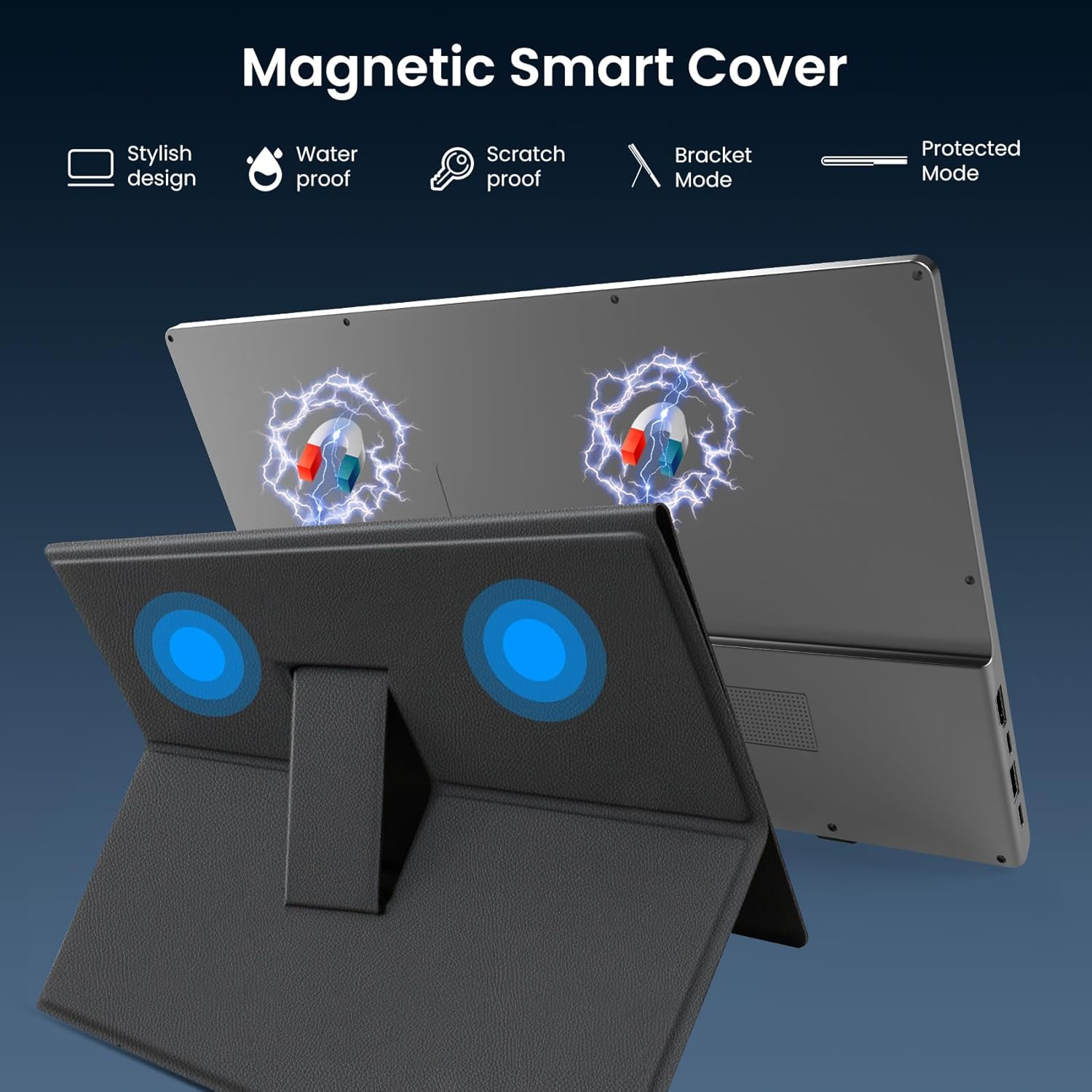
Figure 5.1: The magnetic smart cover provides essential protection for the monitor.
6. Troubleshooting
If you encounter issues with your FANGOR Portable Monitor, please refer to the following common troubleshooting steps:
- No Signal/Black Screen:
- Ensure all cables (USB-C, HDMI, power) are securely connected to both the monitor and your device.
- Verify that your device's output port (e.g., USB-C) supports video output.
- Try a different cable or port on your device.
- Ensure the monitor is receiving adequate power. If using HDMI, a separate power source is usually required.
- Check your device's display settings to ensure the external monitor is detected and enabled (e.g., Windows Display Settings, macOS System Preferences > Displays).
- Flickering Screen:
- Check cable connections.
- Ensure the monitor is receiving stable power.
- Reduce the refresh rate or resolution in your device's display settings.
- No Audio:
- Check the volume settings on both the monitor (via OSD menu) and your connected device.
- Ensure the audio output is set to the FANGOR monitor in your device's sound settings.
- Monitor Not Turning On:
- Verify the power adapter is correctly connected and the power outlet is functional.
- If using USB-C for power, ensure your device provides sufficient power.
7. Specifications
Detailed technical specifications for the FANGOR Portable Monitor:
| Feature | Value |
|---|---|
| Product Dimensions | 0.5 x 14.4 x 9 inches |
| Item Weight | 4.36 pounds |
| Manufacturer | FANGOR |
| ASIN | B0CLL4HH5K |
| Item model number | Portable Monitor |
| Standing screen display size | 15.6 Inches |
| Aspect Ratio | 16:9 |
| Resolution | 1920 x 1080 Pixels (FHD 1080p) |
| Brand | FANGOR |
| Screen Size | 15.6 Inches |
| Screen Surface Description | Glossy |
| Date First Available | December 22, 2023 |

Figure 7.1: Physical dimensions and weight of the monitor.
8. Warranty and Support
FANGOR stands behind the quality of its products. Your portable monitor is covered by a 365-day no-reason replacement policy from the date of purchase.
For any inquiries, technical assistance, or warranty claims, please contact FANGOR customer service. Our dedicated support team is available 24/7 to assist you.
Please refer to the contact information provided on the product packaging or the official FANGOR website for the most up-to-date support channels.


