
Cudy RE1200 Outdoor
Contents
Cudy RE1200 Outdoor AC1200 WiFi5 Outdoor Fast Access Point Mesh User Manual
Model: RE1200 Outdoor
Product Overview
The Cudy RE1200 Outdoor AC1200 WiFi5 Outdoor Fast Access Point Mesh is a versatile networking device designed to extend Wi-Fi coverage to outdoor environments. It supports dual-band Wi-Fi speeds up to 867 Mbps (5 GHz) and 300 Mbps (2.4 GHz) simultaneously, utilizing 802.11ac technology. This device can function as an outdoor Wi-Fi extender, an access point, or a Mesh Satellite, offering flexible deployment options for various outdoor networking needs.
Key features include IP65-rated waterproof housing, 4KV lightning protection, and detachable 5dBi Wi-Fi antennas for enhanced signal quality. It is powered via 24V Passive PoE (Power over Ethernet) with an included adapter, simplifying installation by delivering both power and data through a single Ethernet cable.

Figure 1: Cudy RE1200 Outdoor AC1200 WiFi5 Outdoor Fast Access Point Mesh with its two detachable antennas.
Package Contents
Verify that all items are present in the package:
- Cudy RE1200 Outdoor AC1200 WiFi5 Outdoor Fast Access Point Mesh Unit
- 2 x Detachable 5dBi Wi-Fi Antennas
- 24V Passive PoE Adapter
- Mounting Kit (for pole or wall installation)
- CD (containing documentation or software)
Setup Guide
1. Physical Installation
The RE1200 Outdoor unit can be mounted on a pole or a wall using the included mounting kit. Ensure the chosen location provides optimal signal coverage and is within reach of a power source via Ethernet cable.

Figure 2: Illustration of wall-mounting and pole-mounting options for the RE1200 Outdoor unit. The total height with antennas installed is approximately 438 mm (17.2 inches).
- Attach Antennas: Screw the two detachable 5dBi Wi-Fi antennas onto the RP-SMA connectors on the top of the RE1200 unit.
- Choose Mounting Location: Select a suitable outdoor location, considering signal propagation and protection from direct impact. The device is IP65 rated for water and dust resistance.
- Mount the Device: Use the provided mounting kit to securely attach the RE1200 to a wall or pole. Follow the instructions in the detailed mounting guide (if available on the included CD or manufacturer's website).
2. Power and Network Connection (PoE)
The RE1200 Outdoor is powered using the included 24V Passive PoE adapter. This allows both power and data to be transmitted over a single Ethernet cable.

Figure 3: Close-up view of the 10/100 Mbps Ethernet Port (Po-In) on the RE1200 Outdoor unit, indicating its PoE capability.
- Connect one end of an Ethernet cable to the "PoE" port on the 24V Passive PoE adapter.
- Connect the other end of this Ethernet cable to the "LAN/WAN PoE In" port on the RE1200 Outdoor unit.
- Connect another Ethernet cable from the "LAN" port on the PoE adapter to your router or network switch.
- Plug the power cord of the PoE adapter into an electrical outlet. The device will power on.
3. Initial Configuration
The RE1200 can be configured via a web browser or the Cudy app.
Web Browser Setup:
- Ensure your computer is connected to the same network as the RE1200 (either directly via Ethernet to the PoE adapter's LAN port, or wirelessly if the device is broadcasting a default SSID).
- Open a web browser and enter the default IP address (usually
192.168.10.1or refer to the included documentation). - Log in using the default username and password (refer to the device label or manual).
- Follow the on-screen wizard to configure the operating mode (Extender, Access Point, or Mesh Satellite), Wi-Fi settings (SSID, password), and other network parameters.
Cudy App Setup:
For simplified setup and management, download the Cudy app from your mobile device's app store.


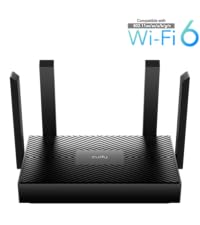
Figure 4: Screenshots of the Cudy App, demonstrating its streamlined management capabilities for setting up and monitoring Cudy devices.
- Download and install the Cudy app on your smartphone or tablet.
- Open the app and follow the prompts to add your RE1200 device.
- The app will guide you through the configuration process, including selecting the operating mode and setting up Wi-Fi.
Operating Modes
The Cudy RE1200 supports three primary operating modes:
- Wi-Fi Extender (RE Mode): Extends the range of an existing Wi-Fi network.
- Access Point (AP Mode): Creates a new Wi-Fi network from a wired Ethernet connection.
- Mesh Satellite Mode: Integrates into a Cudy Mesh network to provide seamless whole-home Wi-Fi coverage. This mode requires a compatible Cudy Mesh router as a gateway.

Figure 5: Illustration of a Cudy Mesh network, demonstrating how multiple RE1200 units can work together with a Cudy Mesh Router for seamless Wi-Fi coverage.
To switch between modes, access the device's web management interface or use the Cudy app and navigate to the operating mode settings.
Maintenance
Regular maintenance ensures optimal performance and longevity of your Cudy RE1200 Outdoor unit.
- Firmware Updates: Periodically check the Cudy website or the Cudy app for firmware updates. Keeping the firmware updated can improve performance, add new features, and enhance security.
- Physical Inspection: Although the device is IP65 rated, occasionally inspect the unit and its cable connections for any signs of wear, damage, or debris buildup. Gently clean the exterior with a soft, dry cloth if necessary.
- Antenna Check: Ensure the antennas are securely attached and positioned for optimal signal.
- Environmental Considerations: While designed for outdoor use, avoid placing the unit in locations prone to extreme physical stress or prolonged submersion.
Troubleshooting
| Problem | Possible Cause | Solution |
|---|---|---|
| Device not powering on. | No power from PoE adapter; faulty cable; power outlet issue. | Check PoE adapter connection to power outlet and RE1200. Ensure Ethernet cable is properly seated. Test power outlet with another device. |
| Cannot access web management page. | Incorrect IP address; network connectivity issue; firewall blocking access. | Verify the device's IP address (check manual or router's DHCP client list). Ensure your computer is on the same network segment. Temporarily disable firewall. Try resetting the device to factory defaults. |
| Poor Wi-Fi signal or limited range. | Obstructions; improper antenna alignment; interference; device placement. | Adjust antenna orientation. Relocate the RE1200 to a more central or less obstructed position. Minimize physical barriers (walls, metal). Check for sources of interference. |
| Frequent disconnections. | Signal instability; channel interference; outdated firmware. | Update firmware. Change Wi-Fi channel in settings to avoid interference. Ensure stable power supply. |
| Cudy App cannot find the device. | Device not powered on; not on the same network; app permissions. | Ensure the RE1200 is powered and connected to your network. Verify your mobile device is connected to the same network. Check app permissions for local network access. |
If problems persist, consult the full user manual on the included CD or visit the Cudy support website for further assistance.
Specifications
| Feature | Detail |
|---|---|
| Model Number | RE1200 Outdoor |
| Wireless Communication Standard | 802.11ac |
| Data Transfer Rate | 867 Mbps (5 GHz), 300 Mbps (2.4 GHz) |
| Frequency Band Class | Dual-Band |
| Special Features | Access Point Mode, Guest Mode, Remote Access, WPS, Weatherproof (IP65 rated), 4KV Lightning Protection |
| Dimensions (L x W x H) | 3.94 x 2.11 x 9.45 inches (10 x 5.36 x 24 cm) |
| Item Weight | 1.69 pounds (0.77 kg) |
| Manufacturer | Shenzhen Cudy Technology Co., Ltd. |
| First Available Date | October 20, 2023 |
Warranty and Support
For warranty information, please refer to the documentation included with your product or visit the official Cudy website. Cudy provides technical support and resources to assist with product setup, operation, and troubleshooting.
Cudy Support: www.cudy.com/support
Cudy App: Available for download on iOS and Android app stores for convenient device management.
Ask a question about this manual
Ask about setup, troubleshooting, compatibility, parts, safety, or missing instructions. Manuals+ will review the question and use this page’s manual context to help answer it.