1. Introduction
This manual provides detailed instructions for the installation, operation, and maintenance of your MHCOZY WiFi Smart Temperature and Humidity Controller. This device allows for remote monitoring and control of temperature and humidity, energy consumption tracking, and integration with smart home platforms like Tuya, Amazon Alexa, and Google Home.
2. Product Overview
2.1 Key Features
- Remote ON/OFF: Control connected electrical devices from anywhere via the Tuya Smart Life app.
- Temperature & Humidity Monitoring: Real-time display and historical data tracking.
- Energy Consumption Monitoring: Track daily, monthly, and yearly power usage.
- Automated Control: Set temperature and humidity ranges for automatic device activation/deactivation.
- Voice Control: Compatible with Amazon Alexa and Google Home for hands-free operation.
- Network Support: Operates on Wi-Fi 2.4GHz b/g/n and 2/3/4G mobile networks.
- Offline Bluetooth Control: Control the device via Bluetooth through the Tuya app when Wi-Fi is unavailable (within range).
- Share Control: Easily share device control with family members.
2.2 Package Contents
- 1 x MHCOZY 16A WiFi Wireless Smart Switch
- 1 x Temperature and Humidity Sensor Cable (DS18B20 waterproof probe)
- 1 x Instruction Manual

Figure 1: MHCOZY WiFi Smart Temperature and Humidity Controller with attached sensor.
3. Specifications
| Power Supply | 85-250V AC |
| Max. Current | 16A |
| Max. Power | 3000W |
| Wireless Standard | Wi-Fi 2.4GHz b/g/n |
| Security Mechanism | WEP/WPA-PSK/WPA2-PSK |
| Operating Temperature | -20°C to 70°C (-4°F to 158°F) |
| Humidity Range | 5% - 90% RH (non-condensing) |
| Material | RF-ABS (Acrylonitrile Butadiene Styrene) |
| Dimensions | 9.4 x 5.7 x 3.3 cm (3.7 x 2.2 x 1.3 inches) |
| Connector | Universal |
| Item Model Number | TYTHED2 |
4. Safety Information
- Ensure the power supply is disconnected before installation or wiring to prevent electric shock.
- Do not exceed the maximum load current of 16A or 3000W. Overloading can cause damage to the device and connected appliances, and poses a fire hazard.
- This device is designed for indoor use. Avoid exposure to moisture, extreme temperatures, or corrosive environments.
- Keep the device out of reach of children.
- Only use the provided temperature and humidity sensor.
- If you are unsure about electrical wiring, consult a qualified electrician.
5. Setup
5.1 Wiring Instructions
The smart switch requires a live (L) and neutral (N) connection for both input and output. Follow the diagram below carefully.

Figure 2: Wiring diagram for the MHCOZY Smart Switch. Connect AC 85-250V input to 'IN L' and 'IN N'. Connect your appliance to 'OUT L' and 'OUT N'.
- Disconnect Power: Ensure the main power supply is turned off before beginning any wiring.
- Connect Input: Connect the live wire (L) from your power source to the 'IN L' terminal and the neutral wire (N) to the 'IN N' terminal on the smart switch.
- Connect Output: Connect the live wire (L) of your appliance to the 'OUT L' terminal and the neutral wire (N) to the 'OUT N' terminal on the smart switch.
- Connect Sensor: Plug the temperature and humidity sensor cable into the designated port on the smart switch.
- Restore Power: Once all connections are secure, restore power to the circuit.
5.2 App Download and Pairing
The MHCOZY Smart Switch works with the Tuya Smart Life app. Ensure your Wi-Fi router is operating on a 2.4GHz frequency, as 5GHz networks are not supported for initial pairing.

Figure 3: The device is compatible with Tuya Smart Life, Amazon Alexa, and Google Home.
- Download App: Download the 'Tuya Smart' or 'Smart Life' app from the App Store (iOS) or Google Play Store (Android).
- Register/Login: Open the app and register for a new account or log in with an existing one.
- Add Device: Tap the '+' icon in the top right corner of the app to add a new device.
- Select Device Type: Choose 'Electrical Switch' or 'Temperature Controller' from the device list.
- Enter Wi-Fi Details: Follow the on-screen instructions to put the device into pairing mode (usually by pressing and holding the reset button on the switch until the indicator light blinks rapidly). Enter your 2.4GHz Wi-Fi network name and password.
- Pairing: The app will search for and connect to the device. Once connected, you can rename the device for easier identification.
6. Operating Instructions
6.1 Remote ON/OFF Control
From the Tuya Smart Life app, you can manually turn the connected appliance ON or OFF at any time, from anywhere with an internet connection.
6.2 Temperature and Humidity Monitoring
The app displays real-time temperature and humidity readings from the connected sensor. You can view historical data by day, month, or year.

Figure 4: App interface displaying historical temperature and humidity data over time.
6.3 Automated Control (Auto Mode)
Set specific temperature or humidity ranges within the app to automatically turn your appliance ON or OFF. This is ideal for maintaining desired environmental conditions.

Figure 5: Example of setting an auto-work temperature range in the app (e.g., turn on heating at 76°F, turn off at 85°F).
6.4 Energy Consumption Monitoring
The app provides real-time and historical data on the power consumption of the connected device. This allows you to monitor and manage energy usage.
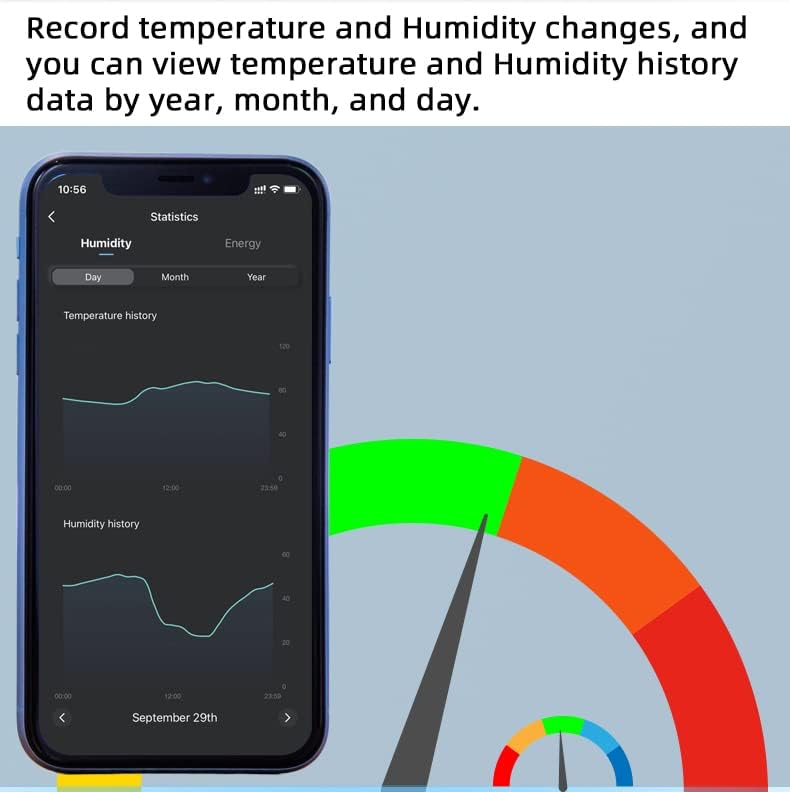
Figure 6: App interface displaying current and cumulative energy consumption data.
6.5 Voice Control Integration
Once paired with the Tuya Smart Life app, you can link your device to Amazon Alexa or Google Home for voice commands.
- For Amazon Alexa: Enable the 'Smart Life' skill in the Alexa app and link your Tuya account. Discover devices.
- For Google Home: Link the 'Smart Life' service in the Google Home app.
You can then use commands such as: "Alexa, turn on [Device Name]" or "Hey Google, what is the temperature of [Device Name]?"
6.6 Bluetooth Control (Offline)
If your Wi-Fi network is temporarily unavailable, you can still control the device via Bluetooth through the Tuya app, provided your phone is within Bluetooth range of the switch.
7. Maintenance
- Cleaning: Wipe the device with a soft, dry cloth. Do not use harsh chemicals or abrasive cleaners.
- Sensor Care: Keep the temperature and humidity sensor clean and free from dust or debris for accurate readings. Avoid submerging the sensor in liquids unless it is specifically designed for such use.
- Firmware Updates: Periodically check the Tuya Smart Life app for available firmware updates to ensure optimal performance and security.
8. Troubleshooting
| Problem | Possible Cause | Solution |
| Device cannot connect to Wi-Fi. | Incorrect Wi-Fi password; 5GHz Wi-Fi network; device too far from router; pairing mode not activated. | Ensure correct 2.4GHz Wi-Fi password. Move device closer to router. Re-enter pairing mode (refer to 5.2). Confirm your router supports 2.4GHz. |
| Appliance not responding to control. | Device offline; wiring issue; appliance power issue. | Check Wi-Fi connection. Verify wiring (refer to 5.1). Ensure appliance is powered on and functional independently. |
| Inaccurate temperature/humidity readings. | Sensor dirty or damaged; sensor placed in an unsuitable location. | Clean the sensor. Relocate the sensor to an area with stable ambient conditions, away from direct heat sources or drafts. |
| Voice control not working. | Skill not enabled; account not linked; incorrect device name. | Ensure 'Smart Life' skill/service is enabled and linked in Alexa/Google Home app. Use the exact device name set in the Tuya app. |
9. Warranty and Support
For warranty information and technical support, please refer to the product packaging or contact your retailer. You may also visit the MHCOZY official website for further assistance.
The product packaging includes a barcode with the identifier X001SX4II1 for product identification.

Figure 7: Product packaging displaying product identifier X001SX4II1.

