
1. Important Safety Information
Please read all instructions carefully before using the EVTSCAN Projection Clock. Keep this manual for future reference.
- Do not expose the device to extreme temperatures, direct sunlight, or high humidity.
- Avoid dropping or subjecting the clock to strong impacts.
- Do not attempt to disassemble or repair the device yourself. Contact qualified service personnel.
- Use only the specified power adapter (DC 5.0V, 1.2A) or appropriate batteries (2xAAA, not included).
- Keep out of reach of children.
2. Product Overview
The EVTSCAN Projection Clock is a versatile digital alarm clock featuring a 3-inch backlit LCD screen that displays time, date, day of the week, temperature, and humidity. It includes a projection function to display time and temperature on a wall or ceiling, dual alarms with snooze, and a USB port for charging mobile phones.
Key Features:
- 12/24-hour time format display.
- Date and day of the week display (7 languages for week).
- Temperature detection (-9℃ to +50℃) and humidity detection (20% to 95%).
- Projection function with 180-degree rotation for time and temperature.
- Dual alarm clocks with slowly increasing volume.
- 5-minute snooze function.
- USB charging port for mobile devices.
- Adjustable backlight with 4 levels (high, medium, low, off).

Figure 2.1: Front view of the EVTSCAN Projection Clock, showing the LCD display and projection lens.
3. Package Contents
Upon unpacking, please ensure all items listed below are present and in good condition:
- 1 x EVTSCAN Projection Clock
- 1 x USB Cable
- 1 x English User Manual
Note: 2xAAA batteries are required for battery power and are not included in the package.
4. Setup
4.1 Powering the Device
The EVTSCAN Projection Clock can be powered by either AAA batteries or via the included USB cable.
4.1.1 Battery Installation
- Locate the battery compartment cover on the back of the clock.
- Slide open the cover.
- Insert two (2) AAA batteries, ensuring correct polarity (+/-).
- Close the battery compartment cover securely.
Note: When powered by batteries, the backlight will only light up for 8 seconds when activated to conserve power. The projection lamp will also light up for 8 seconds.
4.1.2 USB Power Connection
- Connect the small end of the provided USB cable to the DC 5.0V 1.2A input port on the back of the clock.
- Connect the larger end of the USB cable to a compatible USB power adapter (not included) or a powered USB port.
Note: When powered by USB, the backlight and projection lamp can remain continuously on, with adjustable brightness for the backlight.
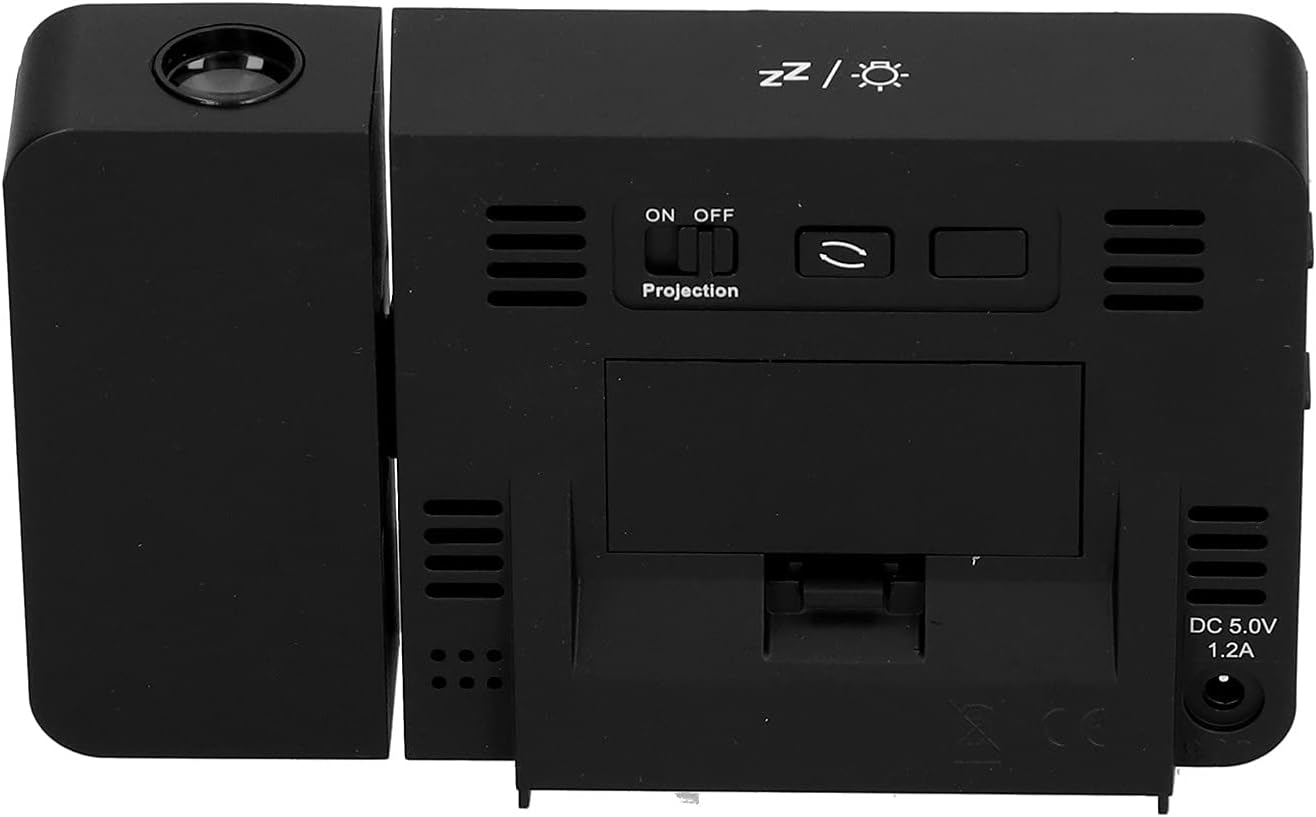
Figure 4.1: Rear view of the clock, indicating the battery compartment and DC 5.0V 1.2A power input.
5. Operating Instructions
5.1 Button Functions
Familiarize yourself with the control buttons located on the front and sides of the clock:
- TIME: Enters time setting mode.
- ALARM: Enters alarm setting mode.
- +: Increases values, switches 12/24HR format, adjusts backlight.
- -: Decreases values, switches temperature units (℃/℉).
- Projection ON/OFF Switch: Activates or deactivates the projection. (Located on the back/side)
- Alarm 1 ON/OFF Switch: Activates or deactivates Alarm 1. (Located on the side)
- Alarm 2 ON/OFF Switch: Activates or deactivates Alarm 2. (Located on the side)
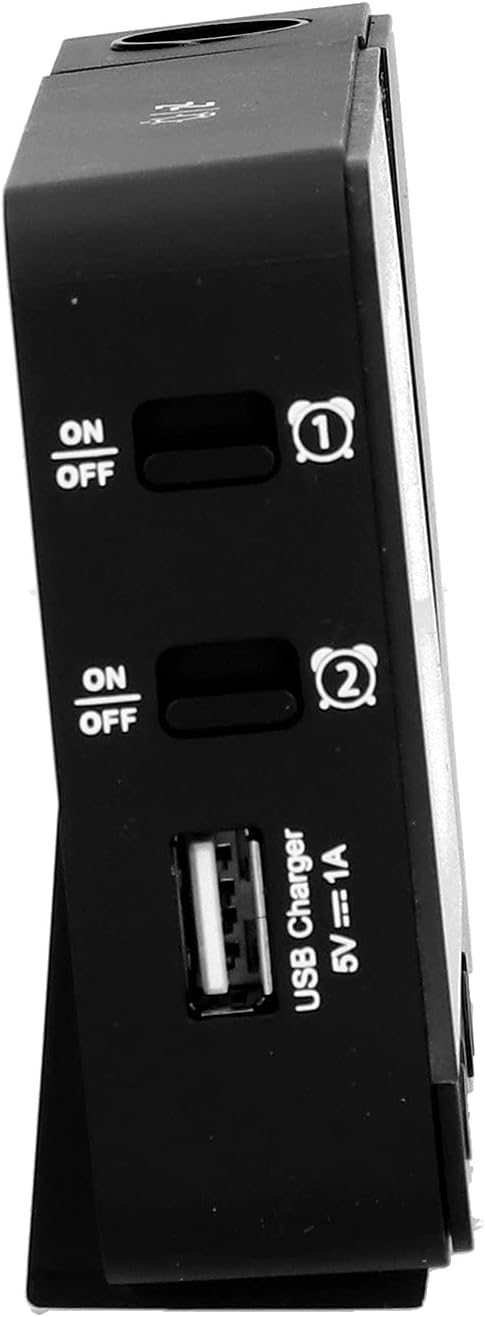
Figure 5.1: Side view showing Alarm 1 and Alarm 2 ON/OFF switches, and the USB charging port.
5.2 Setting Time and Date
- Press and hold the TIME button to enter time setting mode. The hour display will flash.
- Use the + or - buttons to adjust the hour.
- Press TIME again to confirm the hour and move to minute setting. Adjust with + or -.
- Continue pressing TIME to cycle through setting year, month, and day. Adjust each with + or -.
- After setting the day, press TIME one last time to exit setting mode.
- To switch between 12-hour and 24-hour format, press the + button during normal time display.
- To switch between Celsius (℃) and Fahrenheit (℉) for temperature, press the - button during normal time display.
5.3 Setting Alarms
The clock features two independent alarms (Alarm 1 and Alarm 2).
- Press and hold the ALARM button to enter Alarm 1 setting mode. The Alarm 1 hour display will flash.
- Use the + or - buttons to adjust the alarm hour.
- Press ALARM again to confirm the hour and move to Alarm 1 minute setting. Adjust with + or -.
- Press ALARM again to move to Alarm 2 hour setting, and repeat the process for Alarm 2.
- After setting Alarm 2 minutes, press ALARM one last time to exit setting mode.
- To activate or deactivate an alarm, use the corresponding Alarm 1 ON/OFF or Alarm 2 ON/OFF switch on the side of the clock. An alarm icon will appear on the display when active.
5.3.1 Snooze Function
When an alarm sounds, press any button (except the alarm ON/OFF switch) to activate the 5-minute snooze function. The alarm will sound again after 5 minutes. To turn off the alarm completely, slide the corresponding alarm ON/OFF switch to OFF.
5.4 Projection Function
The clock can project the time and temperature onto a wall or ceiling.
- Locate the Projection ON/OFF switch on the back of the clock. Slide it to ON to activate the projection.
- Adjust the angle of the projection arm (the part with the lens) to direct the projection as desired. The arm can rotate nearly 180 degrees.
- The projection will display the current time and temperature in a soft red color.

Figure 5.2: Side view showing the projection arm extended and ready for use.

Figure 5.3: The clock projecting time and temperature onto a wall in a bedroom setting.
5.5 Backlight Adjustment
When the clock is powered by USB, the backlight can be adjusted to four levels: high, medium, low, or off. Repeatedly press the + button during normal time display to cycle through the brightness levels.
When powered by batteries, the backlight will illuminate for 8 seconds when any button is pressed, then turn off to conserve power.
5.6 USB Charging Port
The clock features a USB charging port (5V=1A) on its side. You can use this port to charge your mobile phone or other small electronic devices while the clock is connected to USB power.
Note: The USB charging port only functions when the clock is powered via the USB cable. It does not work when the clock is running on battery power.
6. Maintenance
6.1 Cleaning
- Wipe the clock's surface with a soft, dry cloth.
- Do not use abrasive cleaners, solvents, or chemical sprays, as these may damage the finish or electronic components.
- Keep the projection lens clean for clear projection. Use a soft, lint-free cloth.
6.2 Battery Replacement
When the display becomes dim or the clock functions erratically while on battery power, it's time to replace the AAA batteries. Refer to Section 4.1.1 for battery installation instructions. Always replace both batteries at the same time with new ones.
7. Troubleshooting
| Problem | Possible Cause | Solution |
|---|---|---|
| Clock display is blank or dim. | No power, low batteries, or USB cable not connected. | Check battery installation and replace if necessary. Ensure USB cable is securely connected to a power source. |
| Projection is unclear or not visible. | Projection switch is OFF, lens is dirty, or projection distance is too far/close. | Ensure Projection switch is ON. Clean the projection lens. Adjust the clock's distance from the projection surface. |
| Alarm does not sound. | Alarm is not set or is deactivated. | Verify alarm time is set correctly. Ensure the corresponding Alarm ON/OFF switch is in the ON position. |
| USB charging port not working. | Clock is running on battery power, or USB cable is not connected to a power source. | Ensure the clock is powered via the USB cable and connected to a functional power adapter. |
| Incorrect time/date. | Time/date not set correctly. | Refer to Section 5.2 to reset the time and date. |
8. Specifications
| Model: | B0CLGDFCGX |
| Brand: | EVTSCAN |
| Material: | ABS (Acrylonitrile Butadiene Styrene) |
| Product Dimensions: | Approx. 13.5 x 8 x 2.5 cm (5.3 x 3.1 x 1.0 inches) |
| Weight: | Approx. 242g (8.5 oz) |
| Display Type: | Digital LCD with Backlight |
| Power Source: | 2xAAA batteries (not included) or DC 5.0V 1.2A via USB cable |
| USB Charging Output: | 5V=1A |
| Temperature Detection Range: | -9℃ to +50℃ (1℃ resolution) |
| Humidity Detection Range: | 20% to 95% (1% resolution) |
| Temperature/Humidity Calibration Time: | 30 seconds |
| Backlight Levels: | 4 levels (High, Medium, Low, Off) when USB powered; 8s illumination when battery powered. |
| Projection Lamp: | Always on when USB powered; 8s illumination when battery powered. |

Figure 8.1: Product dimensions: 5.3 inches wide by 3.1 inches high.
9. Warranty and Support
EVTSCAN products are manufactured to high quality standards. For specific warranty information, please refer to the warranty card included with your purchase or contact your retailer.
If you encounter any issues or have questions regarding your EVTSCAN Projection Clock, please contact the seller or EVTSCAN customer support for assistance. Please have your model number (B0CLGDFCGX) ready when contacting support.
For further assistance, you may visit the EVTSCAN Store on Amazon.