
MONOKEI STND87
MONOKEI Standard Keyboard User Manual
Model: STND87
Introduction
Welcome to the user manual for your MONOKEI Standard Keyboard. This mechanical keyboard is designed for versatility and a superior typing experience, featuring hot-swappable MX switches and durable PBT keycaps. It supports both wired and wireless connectivity, making it suitable for various devices and environments. This manual provides essential information for setup, operation, maintenance, and troubleshooting to ensure optimal performance and longevity of your keyboard.
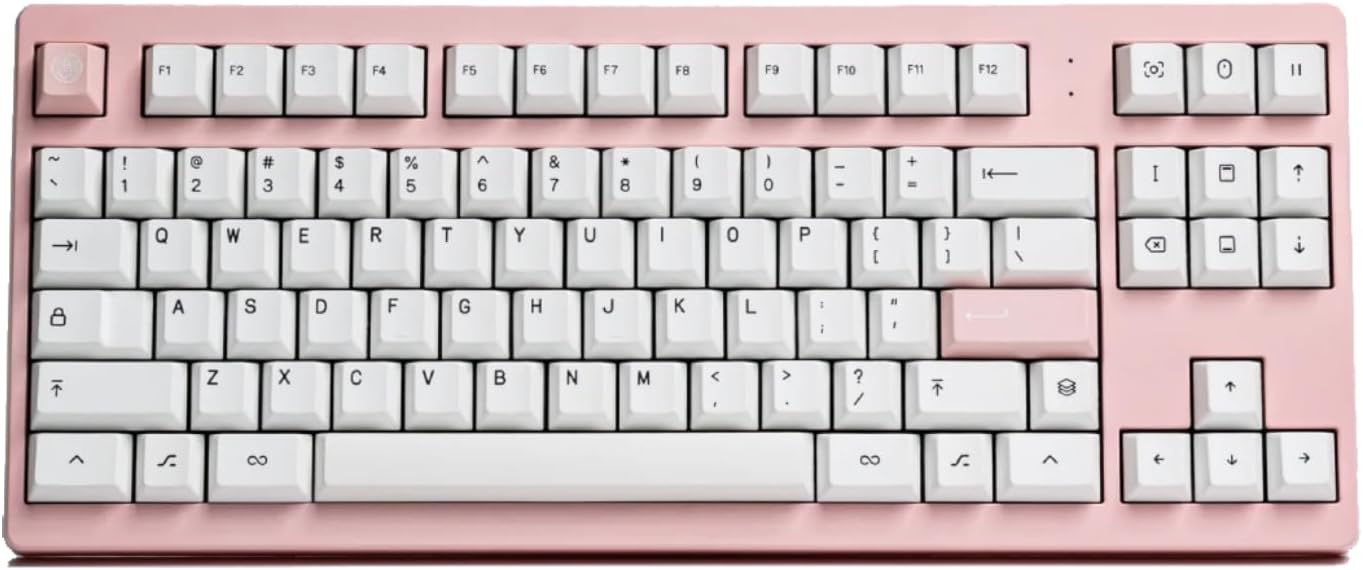
Image: Top-down view of the MONOKEI Standard Keyboard in Blush Pink with white keycaps.
What's in the Box
Upon unboxing your MONOKEI Standard Keyboard, please verify that all the following components are present:
- MONOKEI Standard Keyboard
- Keycap Puller
- USB Cable (USB-C to USB-A)

Image: The keyboard box open, showing the keyboard, keycap puller, and USB cable neatly arranged inside.
Setup
Initial Charging
Before first use, it is recommended to fully charge your MONOKEI Standard Keyboard.
- Connect the provided USB-C cable to the keyboard's USB-C port.
- Connect the other end of the USB cable to a powered USB port on your computer or a wall adapter.
- The keyboard's indicator light will show charging status (refer to LED indicator section for details).
Connectivity Options
The MONOKEI Standard Keyboard offers both wireless (Bluetooth) and wired (USB-C) connectivity.
Wireless (Bluetooth) Connection
- Ensure the keyboard is charged.
- Locate the connectivity switch on the keyboard (usually on the back or side) and set it to Bluetooth mode.
- On your device (Laptop, PC, Smartphone, Tablet), navigate to Bluetooth settings.
- Search for available devices and select "MONOKEI Standard" from the list.
- Follow any on-screen prompts to complete the pairing process.
- The keyboard can connect wirelessly to multiple devices, allowing quick switching.
Wired (USB-C) Connection
- Connect the provided USB-C cable to the keyboard's USB-C port.
- Connect the other end of the USB cable to a USB port on your computer.
- The keyboard will be automatically recognized and ready for use.

Image: The MONOKEI Standard Keyboard positioned next to a laptop, illustrating its use in a typical setup.
Operating Instructions
General Use
The MONOKEI Standard Keyboard is designed for intuitive use. Simply connect it via your preferred method (Bluetooth or USB-C) and begin typing. The keyboard features a standard 87-key layout, providing a familiar and efficient typing experience.
Hot-Swappable Switches
One of the key features of your MONOKEI Standard Keyboard is its hot-swappable sockets, allowing you to change out mechanical switches without soldering. This enables customization of your typing feel.
- Removing a Switch: Use the provided switch puller tool. Gently grip the switch from the top and bottom (where the clips are located) and pull upwards with even pressure until the switch detaches from the PCB.
- Installing a Switch: Align the pins of the new switch with the holes on the PCB. Ensure the pins are straight to avoid bending. Gently push the switch down until it clicks into place. Do not force the switch if it doesn't go in easily; check pin alignment.

Image: A hand demonstrating the use of a switch puller tool to remove a mechanical switch from the keyboard.
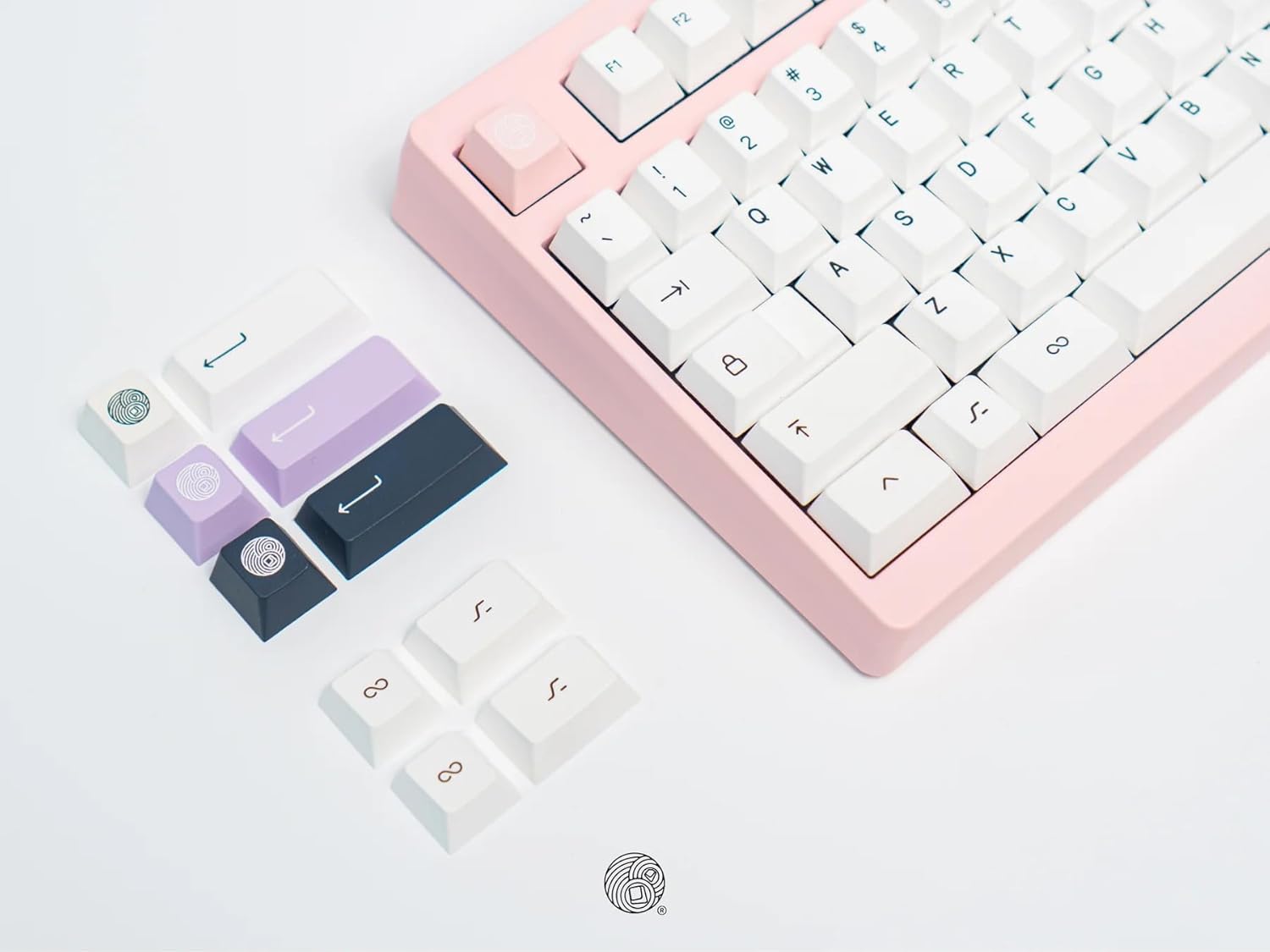
Image: A collection of different colored keycaps and a keycap puller tool, highlighting the customization options.
Keycap Replacement
The keyboard comes installed with Series 1 doubleshot PBT keycaps, known for their durability. You can replace them with other compatible keycaps.
- Removing a Keycap: Use the provided keycap puller. Place the puller over the keycap, ensuring the wires hook under opposite sides of the keycap. Pull straight up with gentle, even force.
- Installing a Keycap: Align the cross-shaped stem on the underside of the keycap with the stem on the switch. Press down firmly until the keycap is seated securely.
Maintenance
Cleaning Your Keyboard
Regular cleaning helps maintain the appearance and functionality of your keyboard.
- Keycaps: For general cleaning, wipe keycaps with a soft, damp cloth. For deeper cleaning, keycaps can be removed (using the keycap puller) and washed with mild soap and water. Ensure they are completely dry before reattaching.
- Keyboard Body: Use a soft, lint-free cloth, slightly dampened with water or a mild cleaning solution, to wipe down the keyboard body. Avoid excessive moisture.
- Between Keys: Use compressed air to blow out dust and debris from between the keycaps. A small brush can also be used to dislodge stubborn particles.
Caution: Do not immerse the keyboard in water or any liquid. Avoid using harsh chemicals or abrasive materials for cleaning.
Troubleshooting
| Problem | Possible Cause | Solution |
|---|---|---|
| Keyboard not responding (Wired) | Loose USB connection, faulty cable, driver issue. |
|
| Keyboard not responding (Bluetooth) | Keyboard not paired, out of range, low battery, Bluetooth interference. |
|
| Keys not registering or double-typing | Loose or faulty switch, debris under keycap/switch. |
|
| Battery not charging | Faulty USB cable, power source issue, keyboard defect. |
|
Specifications
- Model Number: STND87
- Product Dimensions: 14.3 x 5.9 x 1.5 inches (36.32 x 14.99 x 3.81 cm)
- Item Weight: 2.1 pounds (0.95 kg)
- Manufacturer: MONOKEI
- Connectivity Technology: Bluetooth BLE 5.1, USB-C
- Keyboard Description: Mechanical
- Number of Keys: 87
- Special Features: Hot-Swappable, Long lasting PBT keycaps, Positive typing experience, Wired, Wireless, Bluetooth
- Compatible Devices: Laptop, PC, Smartphone, Tablet (macOS / iOS / Windows / Android)
- Battery Life: Up to 30 days (based on 8 hours/day usage)
- Typing Angle: 5 degrees

Image: A graphic displaying key specifications of the MONOKEI Standard Keyboard, including compatibility, connectivity, dimensions, weight, battery life, and typing angle.
Warranty and Support
For warranty information and customer support, please refer to the official MONOKEI website or contact their customer service directly. Keep your proof of purchase for warranty claims.
You can visit the MONOKEI Store on Amazon for more information and product updates.
Related documentsSTND87


Ask a question about this manual
Ask about setup, troubleshooting, compatibility, parts, safety, or missing instructions. Manuals+ will review the question and use this page’s manual context to help answer it.