

1. Introduction
The iCON Pro Audio P1-M is a professional USB-MIDI Control Surface designed to provide tactile control over Digital Audio Workstations (DAWs). It features motorized faders, encoders, and a customizable touchscreen to streamline audio production workflows. This manual provides essential information for the proper setup, operation, and maintenance of your P1-M unit.
2. Setup
2.1 Unpacking and Initial Inspection
Carefully remove the P1-M from its packaging. Verify that all components listed in the 'What's in the Box' section are present and that the unit has no visible damage. Retain the original packaging for future transport or storage.
2.2 Connections
The P1-M offers plug-and-play compatibility with Mac and Windows operating systems. Connect the device to your computer using the provided USB-C cable. Ensure your DAW software is closed before connecting the P1-M for the first time.
Rear view of the P1-M, highlighting the USB-C and other connectivity ports for integration into your studio setup.
2.3 Software Installation and Firmware Update
For full functionality and customization, install the iMAPTM software from the iCON Pro Audio website. This software allows for 'drag and drop' customization of the touchscreen functions and is essential for firmware upgrades. Regularly check for and apply firmware updates to ensure optimal performance and compatibility.
3. Operation
3.1 Core Controls
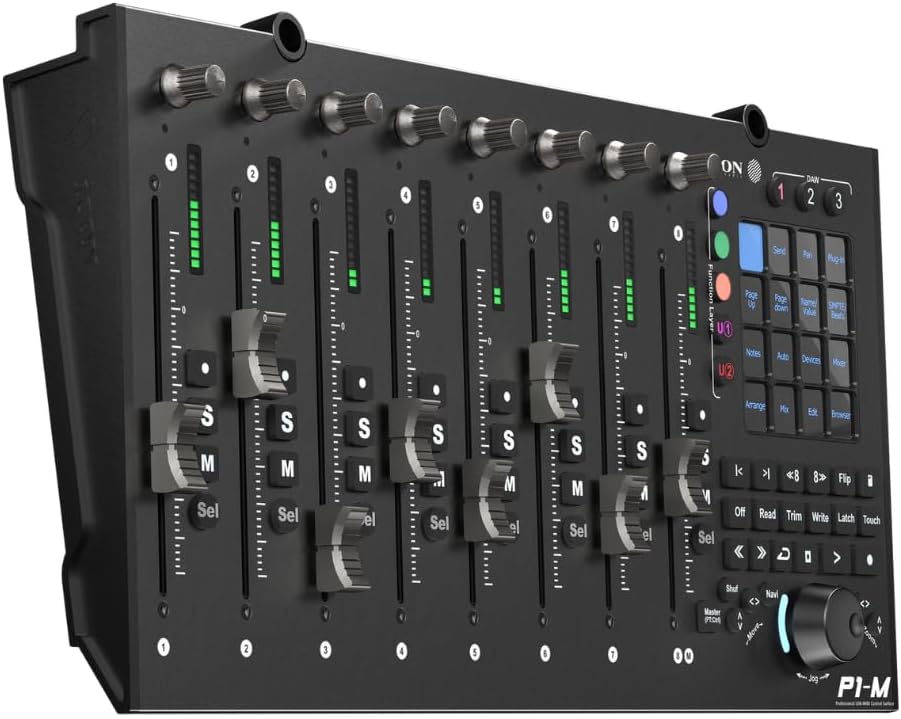
The P1-M features 8 touch-sensitive motorized faders with 12-bit resolution, providing precise control over your DAW's mixer channels. Each channel also includes dedicated encoders for various parameters.

An angled view of the P1-M, showcasing the eight motorized faders and rotary encoders for detailed control.
3.2 Customizable Touchscreen
The 4-inch, 16-panel digital touchscreen display is central to the P1-M's versatility. It allows for customization of up to 80 displayable and actionable functions. Use the iMAPTM software to 'drag and drop' functions and program the touchscreen to suit your workflow.
3.3 DAW Integration
The P1-M supports simultaneous connection to up to 3 DAWs using dedicated DAW select buttons. It offers seamless integration with leading DAW software including Pro Tools, Logic Pro, Ableton Live, and more, supporting Universal Mackie Control and HUI protocols.
3.4 Navigation and Transport Controls
The unit includes a smooth-action jog wheel for fast searching and precise control. Illuminated transport and automation controls provide clear feedback, even in low-light conditions. The illuminated “Zoom” button with 2 directional keys (Left/Right & Up/Down) works in combination with the jog wheel for enhanced navigation.
3.5 Expandable Options
The P1-M's capabilities can be expanded with optional units. The P1-X extender unit adds 8 additional channels, and the D-4T display unit provides enhanced channel information, further optimizing your control and workflow.
For a visual overview of the P1-M and its features, please watch the following video:
Official overview video for the iCON P1-M and P1-X, demonstrating key features and functionality.
4. Maintenance
4.1 Cleaning
To maintain the appearance and functionality of your P1-M, regularly wipe the surface with a soft, dry cloth. Avoid using abrasive cleaners or solvents, which can damage the finish and electronic components. Keep the fader tracks free of dust and debris.
4.2 Software Updates
Ensure your iMAPTM software and P1-M firmware are always up to date. Updates often include performance improvements, bug fixes, and enhanced compatibility with new DAW versions. Refer to the iCON Pro Audio website for the latest software and firmware releases.
5. Troubleshooting
5.1 Connectivity Issues
If the P1-M is not recognized by your computer or DAW, ensure the USB-C cable is securely connected to both the device and the computer. Try a different USB port or cable. Verify that the correct drivers are installed and that the iMAPTM software is up to date.
5.2 Software Compatibility
Some users have reported issues with specific DAW integrations, such as inconsistent VU meter behavior or lag. Ensure your DAW software is fully updated and check the iCON Pro Audio support resources for any known compatibility issues or specific setup instructions for your DAW. Reinstalling the iMAPTM software may resolve some software-related conflicts.
5.3 Motorized Fader Malfunctions
If motorized faders are not responding correctly, ensure the unit is powered on and properly connected. Check for any physical obstructions on the fader tracks. If the issue persists, a firmware reset or recalibration via the iMAPTM software might be necessary.
6. Specifications
| Feature | Detail |
|---|---|
| Model Name | P1-M |
| Item Weight | 5.85 pounds |
| Product Dimensions | 20.87 x 10.43 x 4.33 inches |
| Color Name | Mehrfarbig (Multicolor) |
| Compatible Devices | Laptop |
| Connector Type | USB |
| Hardware Interface | USB |
| Supported Software | Bitwig, Cubase, Logic Pro X, Ableton Live, Pro Tools |
| Material Type | Metal |
| Musical Style | Electronic |
| Number of Keyboard Keys | 8 |
| Mixer Channel Quantity | 8 |
| Hardware Platform | PC |
| Connectivity Technology | USB |
| Special Feature | Compact, Portable |
6.1 What's in the Box
- iCON Pro Audio P1-M DAW Control Surface
- USB Cable
7. Warranty and Support
7.1 Manufacturer's Warranty
The iCON Pro Audio P1-M comes with a standard manufacturer's warranty. Please refer to the warranty card included with your product or visit the official iCON Pro Audio website for detailed terms and conditions.
7.2 Extended Protection Plans
Extended protection plans may be available for purchase to provide additional coverage beyond the standard manufacturer's warranty. Options such as 3-Year and 4-Year Protection Plans, or a Complete Protect monthly plan, may be offered by retailers. Review these options at the point of purchase for additional peace of mind.
7.3 Technical Support
For technical assistance, troubleshooting, or product inquiries, please visit the official iCON Pro Audio support website or contact their customer service. Keep your product's model number and serial number readily available when seeking support.


