
1. Introduction
Thank you for choosing the Wantek USB Headset with Microphone 602F. This headset is designed to provide clear audio communication and comfort for various applications, including PC, laptop, and IP phone usage. It features a lightweight design, memory foam ear cushions, and versatile connectivity options to enhance your communication experience.
This manual provides detailed instructions on how to set up, operate, and maintain your headset, along with troubleshooting tips and product specifications. Please read this manual carefully before using your headset to ensure optimal performance and longevity.
2. Product Overview
The Wantek 602F USB Headset is engineered for extended comfort and superior sound quality, making it ideal for online meetings, customer service, and remote work. Its key features include:
- Extended Comfort-Fit Design: Adjustable padded headband and memory foam ear cushions wrapped in breathable protein leather for all-day comfort.
- Adjustable Boom Microphone: A 330° rotatable microphone for precise positioning and easy muting.
- Clear Audio with Noise Canceling: Advanced audio technology and a noise-canceling microphone minimize background noise for clear calls.
- Versatile Connectivity: Compatible with USB and 3.5mm jack devices.
- Inline Controls: Easy access to volume adjustment, microphone mute, and call answer functions.

Image 2.1: The Wantek USB Headset 602F, showcasing its design, inline controls, and included USB-C and 3.5mm jack connectors.

Image 2.2: A woman using the headset, illustrating its application for clear conversations in various settings.

Image 2.3: Detailed view of the headset's multi-adjustable design, highlighting the flexible microphone, adjustable headband, and rotatable earcups for personalized comfort.
3. Setup
The Wantek 602F headset offers plug-and-play functionality with both USB and 3.5mm jack connections, ensuring broad compatibility.
3.1 Connecting the Headset
- USB Connection: For PC, laptop, and Mac devices, connect the USB plug of the headset directly into an available USB port. The headset includes a USB-C adapter for devices with USB-C ports.
- 3.5mm Jack Connection: For tablets, smartphones, and other devices with a 3.5mm audio jack, connect the 3.5mm plug directly into the audio port.
The headset features an extra-long cable (approximately 6.23 ft / 1.9 m) to provide flexibility and freedom of movement during use.
3.2 System Configuration (Windows/macOS)
Upon connecting the headset, your operating system should automatically detect and install the necessary drivers. If you experience issues, verify the audio input and output settings:
- Windows: Go to 'Sound Settings' (right-click speaker icon in taskbar) and ensure 'USB Audio Device' is selected for both playback (output) and recording (input).
- macOS: Go to 'System Preferences' > 'Sound' and select 'USB Audio Device' for both input and output.

Image 3.1: Visual guide for USB connection reminders on Mac and Windows systems, alongside the inline control unit and various connection types.
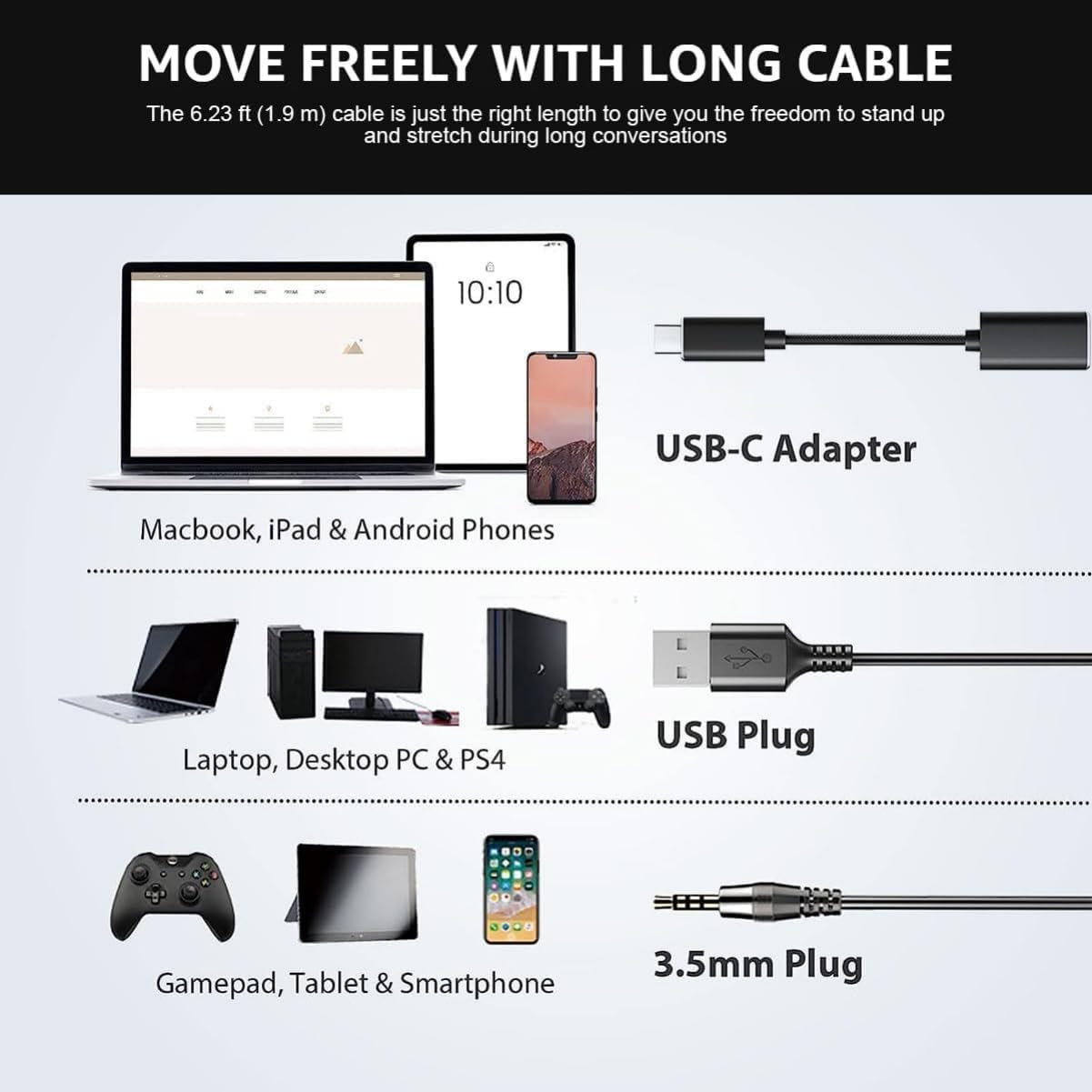
Image 3.2: Illustration of the headset's broad compatibility with devices such as Macbooks, iPads, Android phones (via USB-C), Laptops, Desktop PCs, PS4 (via USB), and Gamepads, Tablets, Smartphones (via 3.5mm plug).
4. Operating Instructions
The Wantek 602F headset features an intuitive inline control unit for easy management of calls and audio settings.
4.1 Inline Control Functions
- Volume Up (+): Press to increase listening volume.
- Volume Down (-): Press to decrease listening volume.
- Microphone Mute: Press to mute or unmute the microphone. An indicator light (if present) may show mute status.
- Call Answer/End Button: Press to answer an incoming call or end an active call when used with compatible communication software.
4.2 Microphone Adjustment
The microphone boom is rotatable by 330°. Position the microphone approximately 1-2 inches from your mouth for optimal voice pickup. Rotate it upwards when not in use or when you wish to mute it physically.
4.3 Software Compatibility
This headset is compatible with popular communication platforms such as Skype, Zoom, Microsoft Teams, and other softphone applications, facilitating seamless online courses, meetings, and gaming.

Image 4.1: Examples of the headset in use across various professional and personal communication scenarios, including office work, online meetings, remote work, and business calls.
5. Maintenance
Proper care and maintenance will extend the life of your Wantek headset.
- Cleaning: Gently wipe the ear cushions and headset body with a soft, dry cloth. For stubborn dirt, a slightly damp cloth can be used, but ensure no moisture enters the speaker grilles or microphone. Do not use harsh chemicals or abrasive cleaners.
- Storage: Store the headset in a clean, dry place away from extreme temperatures and direct sunlight. Avoid tangling the cable by coiling it loosely.
- Handling: Avoid dropping the headset or subjecting it to strong impacts. Do not pull on the cable to disconnect it; always grasp the plug.
6. Troubleshooting
If you encounter issues with your Wantek headset, please refer to the following common solutions:
6.1 No Sound from Headset
- Check Connection: Ensure the USB or 3.5mm jack is fully inserted into the correct port on your device.
- Volume Levels: Verify that the volume on the inline control unit is turned up. Also, check the system volume settings on your computer or device.
- Audio Output Device: Confirm that the headset ('USB Audio Device') is selected as the default playback device in your operating system's sound settings.
- Test on Another Device: Try connecting the headset to a different computer or device to determine if the issue is with the headset or the original device.
6.2 Microphone Not Working
- Check Mute Button: Ensure the microphone mute button on the inline control unit is not activated.
- Microphone Position: Adjust the microphone boom closer to your mouth.
- Audio Input Device: Confirm that the headset ('USB Audio Device') is selected as the default recording device in your operating system's sound settings and within your communication application (e.g., Zoom, Teams).
- Application Settings: Check the microphone settings within the specific application you are using (e.g., Skype, Zoom) to ensure the correct input device is selected and not muted.
6.3 Call Answer Button Not Functioning
- Software Compatibility: Ensure the communication software you are using supports the call answer/end function via headset controls. This feature may vary between applications.
- Active Application: Make sure the communication application is active and in focus on your computer.
7. Specifications
| Feature | Detail |
|---|---|
| Model Name | H-USB602-SC |
| Connectivity Technology | Wired (USB, 3.5mm Jack) |
| Headphones Jack | 3.5 mm Jack |
| Noise Control | Sound Isolation |
| Frequency Response (Headphones) | 20 Hz - 20,000 Hz |
| Sensitivity | 120 dB |
| Impedance | 32 Ohm |
| Audio Driver Size | 50 Millimeters |
| Earpiece Shape | Over-ear cups |
| Microphone Rotation | 330° Flexible |
| Control Type | Volume Control, Mute, Call Answer |
| Cable Feature | Tangle Free, Extra-long (approx. 1.9m / 6.23ft) |
| Material | Acrylonitrile Butadiene Styrene (ABS) |
| Item Weight | 150 Grams (approx. 5.3 ounces) |
| Product Dimensions | 6 x 4.5 x 2 inches |
| Water Resistance Level | Not Water Resistant |
| Included Components | User Manual, USB-C Jack Adapter |
8. Warranty and Support
8.1 Warranty Information
Wantek provides a 12-month warranty for this product. This warranty covers manufacturing defects and ensures your satisfaction. Please retain your proof of purchase for warranty claims.
8.2 Customer Support
If you encounter any issues with your Wantek USB Headset 602F or have questions not covered in this manual, please do not hesitate to contact Wantek customer support. Your satisfaction is our priority.
For support, please visit the official Wantek website or refer to the contact information provided with your product packaging.


