
1. Introduction
Thank you for choosing the Podofo Android 13 Car Radio. This manual provides essential information for the safe and efficient use of your new device. Please read it thoroughly before installation and operation. This unit is specifically designed for Volkswagen series vehicles, including Jetta, Passat, Caddy, Golf, Polo, SKODA, and others. It features a 7-inch touchscreen, 2GB RAM, 64GB ROM, Wireless CarPlay, Android Auto, GPS, WiFi, Bluetooth 4.2, FM/RDS radio, and AHD rearview camera support.
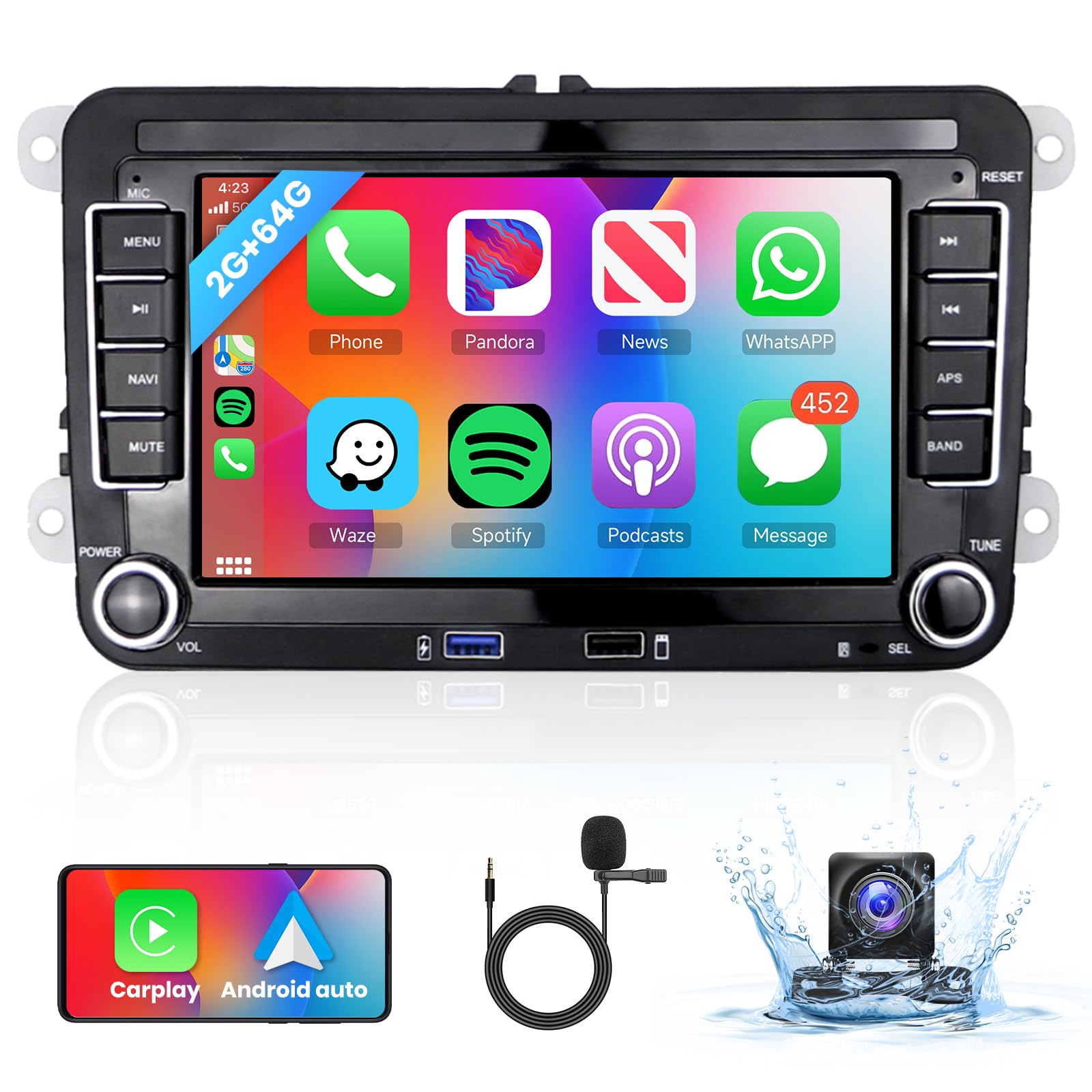
Image 1.1: Podofo Android 13 Car Radio main unit.
2. Setup and Installation
Professional installation is recommended. Ensure the vehicle's power is disconnected before beginning installation.
2.1. Package Contents
Before installation, verify all components are present:
- 1 x Car Radio Unit
- 1 x 36-pin Power Cable
- 1 x 40-pin Power Cable
- 1 x 52-pin Power Cable
- 1 x RCA Cable
- 1 x GPS Antenna
- 1 x Radio Antenna
- 1 x USB Cable
- 1 x Camera Input Cable
- 1 x User Manual
- 1 x AHD Rearview Camera with 6m Cable
- 1 x Canbus Decoder

Image 2.1: Included components in the package.
2.2. Wiring Connections
Connect the appropriate power cable (36-pin, 40-pin, or 52-pin) based on your vehicle's model and configuration. Ensure all connections are secure. The Canbus decoder is included for seamless integration with your vehicle's systems, including steering wheel controls.

Image 2.2: Power cable pin definitions for 36, 40, and 52 pin connectors.
Important Note: Some Volkswagen models may require careful attention to the orange power cable connection. Incorrect wiring can lead to continuous power draw, even when the vehicle is off, potentially draining the car battery. Consult a professional if unsure.
2.3. Vehicle Compatibility
This unit is compatible with various VW models. Please verify your car's year and model before installation.

Image 2.3: List of compatible Volkswagen models.
3. Operating Instructions
3.1. Wireless CarPlay and Android Auto
Establish a fast connection between your smartphone and the car radio to access phone contacts, emails, notifications, music, and map navigation. For Android Auto, ensure the 'Android Auto' app is installed on your smartphone.
- Wireless Connection: Enable Bluetooth and Wi-Fi on your smartphone. Pair your phone with the car radio via Bluetooth. Follow the on-screen prompts to initiate CarPlay or Android Auto.
- Wired Connection: Connect your smartphone to the car radio using a USB cable. The system should automatically detect and launch CarPlay or Android Auto.
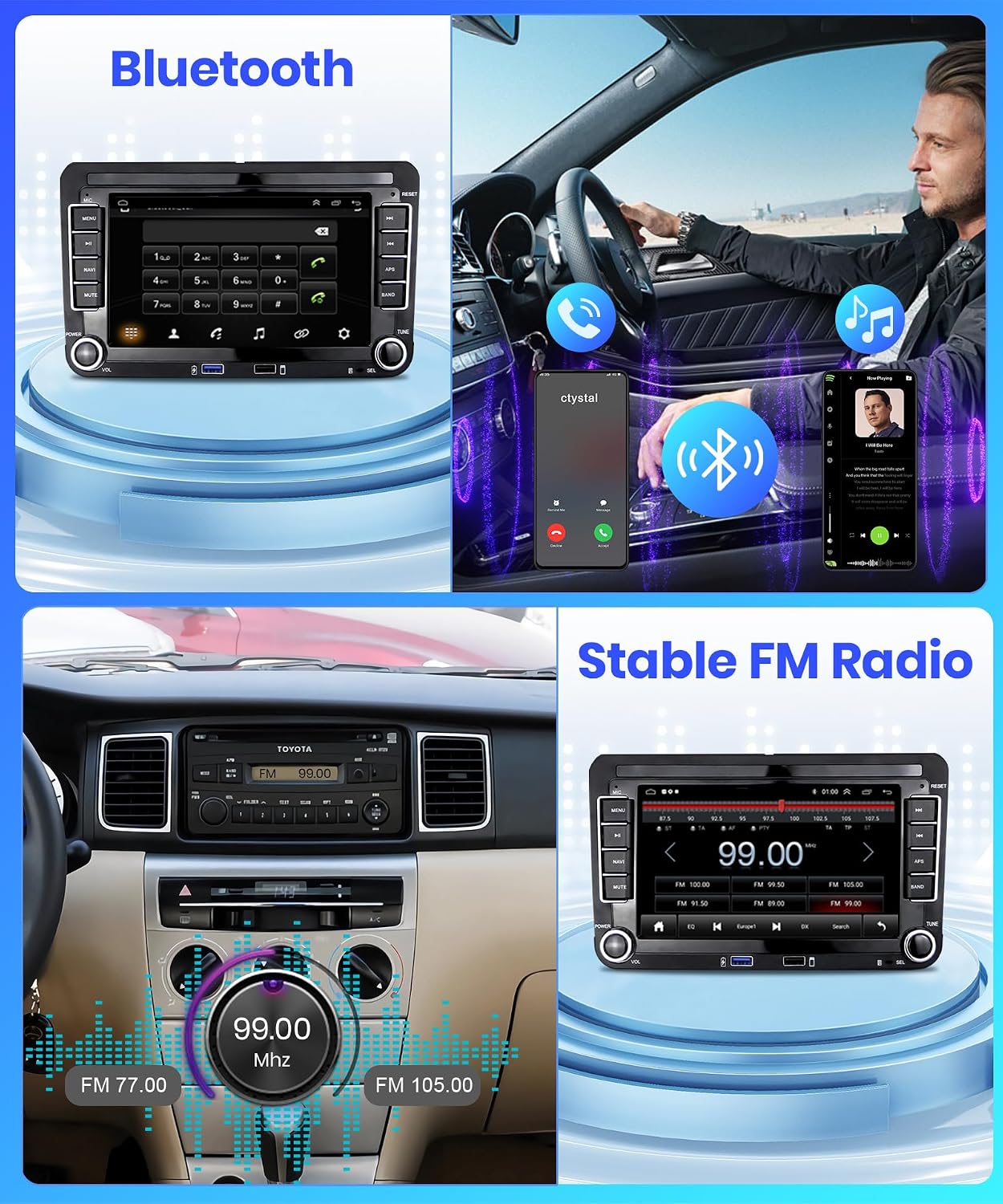
Image 3.1: Display of Wireless CarPlay and Android Auto interfaces.
3.2. Bluetooth 4.2
The unit features Bluetooth 4.2 for hands-free calling and wireless audio streaming. It includes a clear built-in microphone and supports an external microphone for enhanced call quality.
- Pairing: Go to the Bluetooth settings on the car radio and your smartphone. Search for available devices and select the car radio's name. Confirm the pairing code if prompted.
- Hands-Free Calling: Once paired, you can answer, make, and end calls directly from the car radio's screen.
- Audio Streaming: Play music from your smartphone wirelessly through the car's speakers.

Image 3.2: Bluetooth interface for calls and music.
3.3. GPS Navigation and WiFi
The integrated GPS module allows for precise navigation. Connect to WiFi to download maps, update software, and access online services.
- GPS: Use pre-installed navigation apps or download your preferred ones from the app store. Ensure the GPS antenna is properly installed for optimal signal reception.
- WiFi: Connect to a mobile hotspot or a local WiFi network to access online content, stream videos, and use internet-dependent applications.

Image 3.3: GPS navigation and WiFi application display.
3.4. FM/RDS Radio
Enjoy your favorite radio stations with the built-in FM/RDS tuner.
- Tuning: Use the touchscreen to scan for stations or manually tune to a specific frequency.
- RDS: Radio Data System (RDS) displays station information, song titles, and traffic announcements where available.

Image 3.4: FM Radio interface.
3.5. AHD Rearview Camera
The included AHD rearview camera provides an ultra-wide 140-degree viewing angle and IP69 waterproof rating with HD night vision, assisting with safer parking maneuvers.
- Automatic Display: When the vehicle is shifted into reverse, the camera feed will automatically display on the car radio screen.
- Installation: Ensure the camera is securely mounted and correctly wired to the car radio's camera input and the vehicle's reverse light power source.

Image 3.5: Rearview camera view on the car radio screen.
3.6. Steering Wheel Control (SWC)
The included Canbus decoder enables integration with your vehicle's steering wheel controls, allowing you to manage functions like switching songs, changing channels, adjusting volume, and answering calls without taking your hands off the wheel.
- Setup: Access the 'Steering Learn' or 'SWC Settings' menu on the car radio to program the buttons according to your preference.

Image 3.6: Steering Wheel Control learning interface.
3.7. Audio Equalizer (EQ)
Customize your audio experience with the built-in equalizer. Adjust sound settings to match your preferences and vehicle acoustics.
- Presets: Select from various preset EQ modes (e.g., Pop, Rock, Jazz, Classical).
- Customization: Manually adjust frequency bands to create your personalized sound profile.

Image 3.7: Hi-Fi audio equalizer settings.
4. Maintenance
To ensure the longevity and optimal performance of your car radio, follow these maintenance guidelines:
- Cleaning: Use a soft, dry cloth to clean the screen and unit exterior. For stubborn smudges, slightly dampen the cloth with water or a screen-safe cleaner. Avoid abrasive materials or harsh chemicals.
- Temperature: Avoid exposing the unit to extreme temperatures, both hot and cold, for extended periods.
- Software Updates: Periodically check for and install software updates to ensure the system runs efficiently and has the latest features and security patches.
5. Troubleshooting
If you encounter issues with your car radio, refer to the following common problems and solutions:
- No Power / Unit Does Not Turn On:
- Check all power connections, ensuring they are secure.
- Verify the vehicle's fuse for the radio is intact.
- Ensure the orange power cable is correctly wired to prevent battery drain. If it's causing continuous power draw, it might need to be disconnected or wired to an ignition-switched power source.
- Poor Radio Reception:
- Ensure the radio antenna is securely connected.
- Check for any obstructions or interference sources.
- Bluetooth/WiFi/GPS Connectivity Issues:
- Restart the car radio and your smartphone.
- Ensure Bluetooth and WiFi are enabled on both devices.
- For GPS, ensure the antenna has a clear view of the sky. Slow GPS performance might indicate a weak signal or an issue with the navigation app.
- If WiFi connection is slow, try connecting to a different hotspot or network to rule out network issues.
- CarPlay/Android Auto Not Connecting:
- For wired connection, try a different USB cable.
- For wireless, ensure Bluetooth and WiFi are active and paired.
- Ensure the 'Android Auto' app is installed and updated on your Android phone.
- Clock Not Updating Automatically:
- Check the time and date settings in the car radio's system settings.
- Ensure automatic time synchronization via GPS or network is enabled.
- Rearview Camera Not Displaying:
- Verify the camera's power and video input cables are correctly connected.
- Ensure the reverse trigger wire is properly connected to the vehicle's reverse light circuit.
- System Lag or Unresponsiveness:
- Close unnecessary background applications.
- Perform a system restart.
- If issues persist, consider a factory reset (note: this will erase all user data and settings).
6. Specifications
| Feature | Specification |
|---|---|
| Brand | podofo |
| Model Number | A3049A4B6MI2AM24EU1 |
| Operating System | Android 13 |
| RAM | 2 GB |
| ROM (Storage) | 64 GB |
| Screen Size | 7 Inches |
| Screen Resolution | 1024 x 600 |
| Touchscreen Type | Capacitive |
| Connectivity | Bluetooth 4.2, WiFi, USB |
| Special Features | Wireless CarPlay, Android Auto, GPS Navigation, FM/RDS Radio, AHD Rearview Camera Support, Steering Wheel Control (SWC) |
| Compatible Vehicle Type | Automobile (VW, Skoda, Seat) |
| Mounting Type | In-dash |
| Audio Output Mode | Digital |
7. Warranty and Support
7.1. Product Warranty
This Podofo car radio comes with a 2-year warranty from the date of purchase. This warranty covers manufacturing defects and malfunctions under normal use. It does not cover damage caused by improper installation, misuse, accidents, or unauthorized modifications.
7.2. Customer Support
For technical assistance, troubleshooting, or warranty claims, please contact Podofo customer support through the retailer's platform or the official Podofo website. Please have your product model number (A3049A4B6MI2AM24EU1) and proof of purchase ready when contacting support.


