
Cudy LT700E
Contents
Cudy Unlocked 4G LTE Cat 6 Gigabit Modem Router LT700E
User Manual
Product Overview
The Cudy LT700E is an advanced 4G LTE Cat 6 Gigabit Modem Router designed to provide high-speed internet connectivity. It features AC1200 dual-band Wi-Fi, a SIM card slot for cellular internet access, and multiple Gigabit Ethernet ports. This router supports various VPN protocols, including PPTP, L2TP, OpenVPN, Wireguard, and IPsec, ensuring secure and flexible networking options. It is also compatible with the Cudy APP for easy setup and management, and can integrate into a Cudy whole-home mesh system.

Front view of the Cudy LT700E router, showing indicator lights and the Cudy logo.
Key Features:
- 4G LTE Advanced Cat 6: Provides cellular download speeds up to 300Mbps.
- AC1200 Dual-Band Wi-Fi: Offers up to 867Mbps on 5GHz and 300Mbps on 2.4GHz for fast and wide-range wireless connectivity.
- Gigabit Ethernet Ports: Equipped with multiple LAN/WAN ports for high-speed wired connections.
- VPN Support: Includes PPTP, L2TP, OpenVPN, Wireguard, and IPsec VPN protocols for secure network access.
- SIM Card Slot: Allows direct insertion of a Nano SIM card for 4G LTE internet access.
- Cudy APP Compatible: Enables easy setup and management via the Cudy mobile application.
- Whole Home Mesh System: Compatible with Cudy mesh equipment to build a seamless mesh network.

The Cudy LT700E supports Faster 4G LTE Cat 6 connectivity, offering up to 300 Mbps download speeds, an improvement over Cat 4.

The router provides Dual Band AC1200 Wi-Fi, with rapid speeds of 867 Mbps on 5 GHz and wide-range coverage at 300 Mbps on 2.4 GHz.

The Cudy LT700E is capable of connecting up to 128 devices simultaneously, including mobile phones, laptops, tablets, smart speakers, and smart TVs.
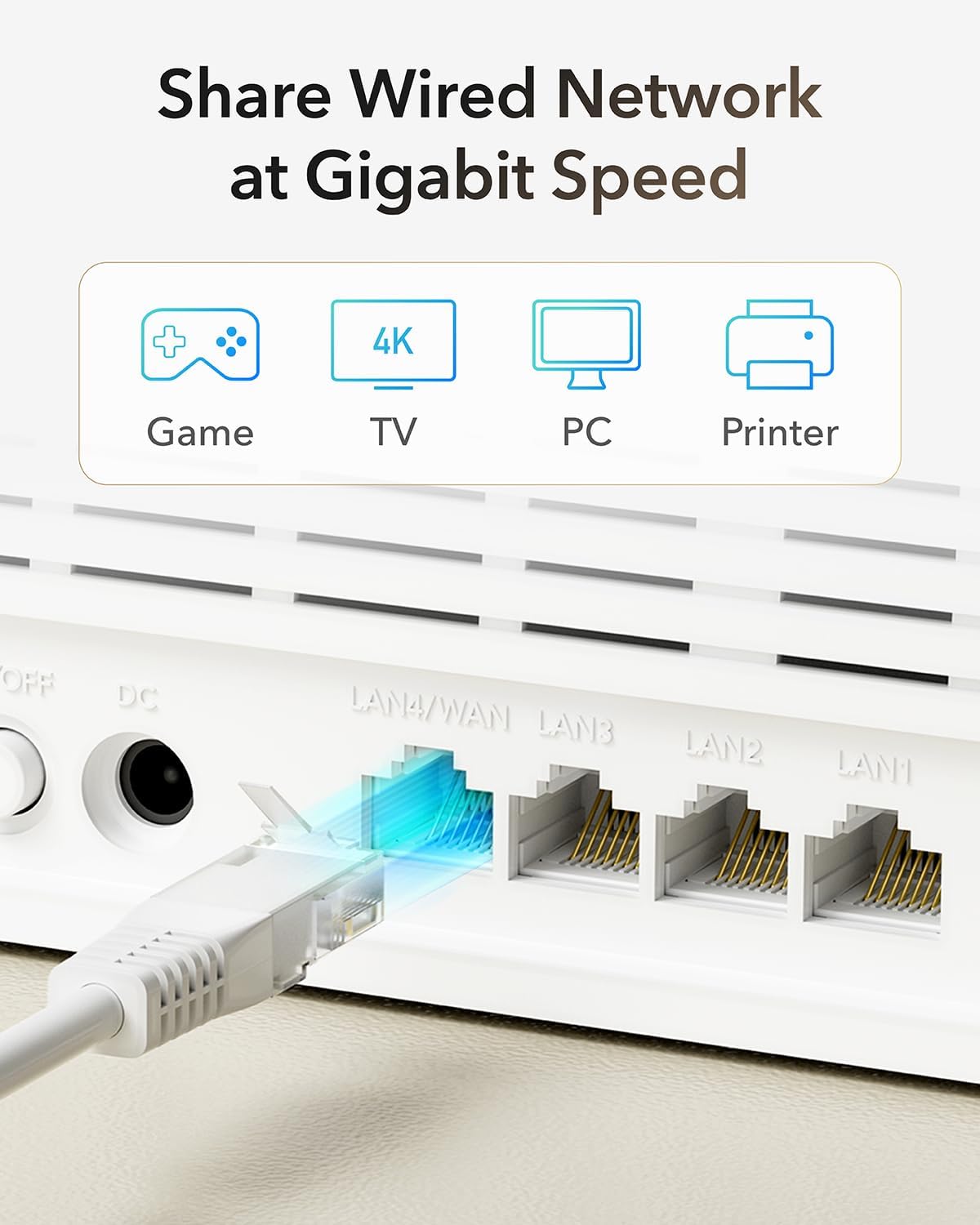
Wired network devices such as gaming consoles, 4K TVs, PCs, and printers can share internet at Gigabit speeds through the router's LAN ports.

The router supports secure internet browsing with VPN protocols like Zerotier, L2TP, IPsec, PPTP VPN, and DNS over TLS with Cloudflare, Google, and Quad9.

The Cudy LT700E provides internet connectivity for diverse environments, including home, travel, parties, and retail shops.
Setup Guide
Follow these steps for the initial setup of your Cudy LT700E router. The device is designed for plug-and-play functionality, minimizing complex wiring.
1. Insert SIM Card:
Locate the Nano SIM card slot on the router. Ensure the router is powered off before inserting the SIM card. Gently push the Nano SIM card into the slot until it clicks into place. The correct orientation is usually indicated by a small diagram next to the slot.

The router features a Nano SIM card slot for direct cellular internet access. Insert the SIM card as indicated.
2. Power Connection:
Connect the provided power adapter to the DC-in port on the back of the router. Plug the other end of the power adapter into a standard electrical outlet. Press the ON/OFF button to power on the device.
3. Indicator Lights:
Once powered on, observe the indicator lights on the front panel. The Power indicator should turn solid blue. The Internet indicator will light up when a successful internet connection is established via the SIM card. The 2.4GHz and 5GHz Wi-Fi indicators will illuminate when the respective wireless networks are active. The signal strength indicators will show the strength of the 4G LTE signal.
4. Connect to the Network:
You can connect to the router's Wi-Fi network using the SSID (network name) and password printed on the label at the bottom of the router. Alternatively, for a wired connection, use an Ethernet cable to connect your computer or other network device to one of the LAN ports on the back of the router.
Operating Instructions
Wi-Fi Connectivity:
The Cudy LT700E operates on dual Wi-Fi bands: 2.4 GHz and 5 GHz. The 2.4 GHz band provides wider coverage, suitable for general browsing and smart home devices. The 5 GHz band offers faster speeds, ideal for streaming high-definition video and online gaming. Ensure your devices are connected to the appropriate band for optimal performance.
VPN Functionality:
The router supports multiple VPN protocols, allowing you to establish secure connections to private networks. This includes PPTP, L2TP, OpenVPN, Wireguard, and IPsec VPN. Configuration details for these VPNs can typically be found within the router's web management interface. Refer to the router's web interface for specific VPN client/server setup instructions.
Cudy APP and Mesh System:
Download the Cudy APP from your device's app store for convenient management of your router. The app allows for step-by-step configuration and monitoring. The LT700E can also be integrated into a Cudy whole-home mesh system, extending Wi-Fi coverage seamlessly throughout your property. Consult the Cudy APP or Cudy website for details on setting up a mesh network.
Advanced Features:
- WAN Failover: The router can be configured to use the cellular connection as a backup if the primary WAN (wired) connection fails, ensuring continuous internet access.
- 4G Band Lock: This feature allows you to select specific 4G LTE bands for improved signal stability and performance in certain areas.
- TTL Settings: Adjusting Time-To-Live (TTL) settings can be useful for specific network configurations or to bypass certain carrier restrictions.
- DNS over TLS: Enhance your privacy and security by encrypting DNS queries using DNS over TLS, with support for Cloudflare, Google, and Quad9.
Maintenance
To ensure optimal performance and longevity of your Cudy LT700E router, consider the following maintenance tips:
- Placement: Place the router in a central location within your home or office, away from obstructions like thick walls (especially concrete) and large metal objects. Avoid placing it near other electronic devices that may cause interference. Cudy recommends placing the router at the center of your place, ensuring no more than two wooden or brick walls, or one concrete wall, between it and each room.
- Firmware Updates: Regularly check for and install firmware updates. Firmware updates often include performance improvements, security patches, and new features. You can usually find updates through the router's web management interface or the Cudy website.
- Cleaning: Keep the router clean and free from dust. Use a soft, dry cloth to wipe the exterior. Ensure ventilation slots are not blocked to prevent overheating.
- Rebooting: Periodically rebooting the router (power cycling it) can help resolve minor network issues and improve overall performance.
Troubleshooting
If you encounter issues with your Cudy LT700E router, try the following troubleshooting steps:
- No Internet Connection:
- Check if the SIM card is properly inserted and activated with your cellular provider.
- Verify that the Internet indicator light on the router is solid blue. If not, check your SIM card's data plan and signal strength.
- Reboot the router by unplugging the power adapter, waiting 10 seconds, and plugging it back in.
- Access the router's web management interface to check network status and APN settings.
- Weak Wi-Fi Signal or Slow Speeds:
- Ensure the router is placed centrally and away from obstructions.
- Check for interference from other electronic devices.
- Try connecting to the 5GHz Wi-Fi band if your device supports it, as it generally offers faster speeds over shorter distances.
- Update your device's wireless drivers.
- Cannot Access Router Web Interface:
- Ensure your device is connected to the router via Wi-Fi or Ethernet.
- Verify you are using the correct IP address (usually 192.168.10.1 or similar, check router label) and login credentials.
- Clear your browser's cache and cookies, or try a different browser.
- Factory Reset:
If other troubleshooting steps fail, you may perform a factory reset. This will revert all settings to their default values. To reset, with the router powered on, use a paperclip or pin to press and hold the 'RESET' button on the back of the router for about 5-10 seconds until the lights flash. The router will then restart.
For further assistance, visit the official Cudy support website or contact their customer service.
Specifications
| Feature | Detail |
|---|---|
| Model Name | LT700E |
| Product Dimensions | 3.54 x 1.97 x 19 inches |
| Item Weight | 11.6 ounces |
| Connectivity Technology | Wi-Fi |
| Wireless Communication Standard | 802.11ac |
| Frequency Band Class | Dual-Band (2.4 GHz, 5 GHz) |
| 4G LTE Category | Cat 6 (Up to 300Mbps download) |
| Wi-Fi Speed | AC1200 (867Mbps@5Ghz + 300Mbps@2.4GHz) |
| VPN Support | PPTP, L2TP, OpenVPN, Wireguard, IPsec, Zerotier |
| Compatible Devices | PC, Smartphone, SmartTV |
| Included Components | CD (for drivers/software) |
| Manufacturer | Shenzhen Cudy Technology Co., Ltd. |
| Country of Origin | China |
Warranty and Support
For warranty information, please refer to the documentation included with your product or visit the official Cudy website. Cudy provides customer support for their products.
Online Resources:
- Cudy Official Website: For the latest drivers, firmware updates, FAQs, and support articles.
- Cudy APP: Available for download to manage your router settings and network.
- Amazon Cudy Store: Visit the Cudy Store on Amazon
If you require technical assistance, please contact Cudy customer support through their official channels.
Ask a question about this manual
Ask about setup, troubleshooting, compatibility, parts, safety, or missing instructions. Manuals+ will review the question and use this page’s manual context to help answer it.